Blend Append
 Ferasyahya



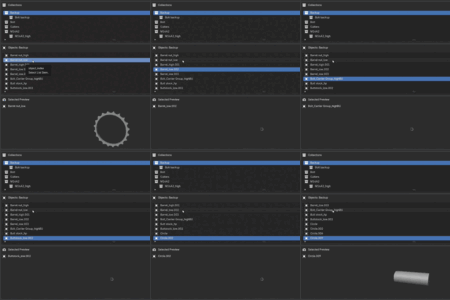
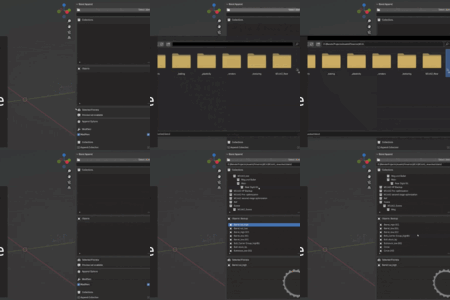
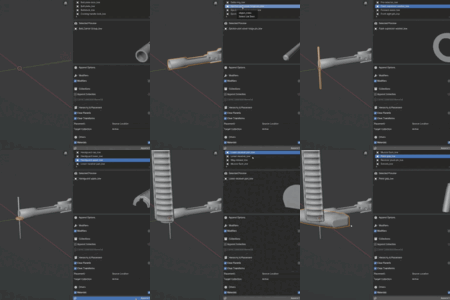
1. Overview
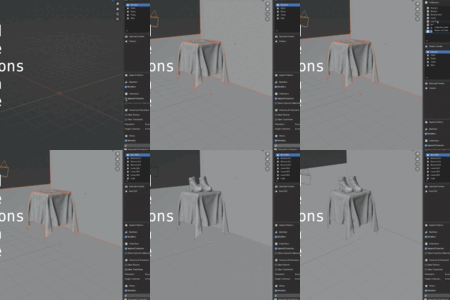
.blendAppend is a Blender add-on that lets you browse other .blend files, preview objects directly in the 3D View N-panel, and append exactly what you need with clean hierarchies and controlled materials/modifiers.
Instead of opening the file browser over and over, you stay in the 3D View and drive everything from a single panel.
2. Installation
-
In Blender, go to:
Edit → Preferences → Add-ons -
Click Install
-
Select the
.zipfile containing the add-on and click Install Add-on. -
Enable the add-on:
-
Search for “.blendAppend” in the add-on list.
-
Check the box to enable it.
-
-
Close Preferences.
3. Where to Find It
-
Open any 3D Viewport.
-
Press N to open the right-hand side bar (N-panel).
-
Look for the tab named “Blend Append”.
-
Inside that tab, you’ll see the Blend Append panel with:
-
Source
.blendselector -
Collections list
-
Objects list
-
Preview area
-
Append options
-
4. Basic Workflow
Step 1 – Choose a Source .blend
-
In the Source File section, click the file picker and choose a
.blendfile. -
The add-on:
-
Blocks the currently open file as a source (to avoid self-link issues).
-
Only loads content under the Scene Collection of the source file.
-
Puts objects that are directly under Scene Collection into an “Uncategorized” group.
-
You can reset the current source using Clear Source (X), which also clears browser and preview state.
Step 2 – Browse Collections and Objects
The UI is a simple 2-list browser:
-
Collections List
-
Shows the hierarchy from the source’s Scene Collection.
-
Click a collection to select it.
-
-
Objects List
-
Automatically filtered by the currently selected collection.
-
Shows objects that live in that collection.
-
Optionally includes child meshes depending on your settings.
-
This makes it clear where each object comes from before you append it.
Step 3 – Preview Objects
When you select an object in the Objects list:
-
A preview is generated directly in the panel.
-
The preview uses solid-only mode (no materials) for speed and consistency.
-
The add-on temporarily disables heavy modifiers during preview:
-
Remesh
-
Decimate
-
Corrective Smooth
-
-
Selection changes are debounced:
-
Rapidly moving through the list (e.g. with arrow keys) won’t spam previews or crash Blender.
-
-
Temporary preview data is cleaned up to avoid memory buildup when browsing multiple files.
Use this to confirm shape/structure before committing to an append.
Step 4 – Append with Control
Once you’ve chosen what you want, use the Append section.
4.1 Append Targets
You can append either:
-
A single object (from the Objects list)
-
An entire collection (and optionally its children)
Options:
-
Append Object
-
Appends the selected object.
-
Optional “child-mesh append” when working in Object Mode (to bring in child meshes too).
-
-
Append Collection
-
Appends all objects in the selected collection.
-
Optional recursive append of child collections.
-
Optional clone of collection names/structure at the target (to keep your scene organized).
-
4.2 Target Location
Controls where the appended data lands in 3D space:
-
Keep source transforms
-
Objects keep their original location/rotation/scale from the source file.
-
-
Move to 3D cursor
-
Objects are moved so their transforms are centered around the current 3D cursor in the target scene.
-
4.3 Target Collection
Controls which collection the new data is added to:
-
Active Collection
-
Appends into whichever collection is currently active in the Outliner.
-
-
Scene Root
-
Appends objects directly under the current scene’s root collection.
-
4.4 Parenting & Hierarchy
Controls how parent-child relationships are handled:
-
Clear Parents OFF
-
Existing parent-child hierarchies are preserved.
-
Transforms are handled in a hierarchy-aware way (roots only when preserving hierarchy).
-
-
Clear Parents ON
-
Parent links are removed cleanly.
-
Transforms are cleared appropriately so objects don’t end up in unexpected places.
-
4.5 Materials & Modifiers
You can control the “heaviness” of what you bring in:
-
Materials
-
On → keep materials from the source.
-
Off → strip materials on append.
-
-
Modifiers (two-stage control):
-
Modifiers off
-
Remove modifiers on append.
-
-
Modifiers on + Enable Modifiers off (default)
-
Keep the modifiers but disable them → lighter scenes, you can re-enable later.
-
-
Modifiers on + Enable Modifiers on
-
Keep and enable all modifiers → full-fidelity import, heavier performance.
-
-
4.6 Selection After Append
-
Optionally auto-select appended objects at the end of the operation.
-
This makes it easy to:
-
Move them
-
Transform them
-
Add them to other collections
-
The add-on uses safer view-layer selection behavior to avoid runtime/selection errors during this step.
5. Undo / Redo Behavior
-
.blendAppend integrates with Blender’s undo/redo stack.
-
Browser and preview state are kept as stable as possible when you:
-
Undo an append
-
Redo an append
-
Perform multiple operations in a row
-
If something looks out of sync after heavy undo/redo use, you can always hit Clear Source (X) and reload the .blend.
6. Performance Notes & Best Practices
-
Prefer using
.blendfiles that are organized under Scene Collection with meaningful collections. -
For very heavy scenes:
-
Disable materials on append if you only need geometry.
-
Use the Modifiers on + Enable off mode to keep structure but avoid heavy evaluation.
-
-
When previewing:
-
The add-on automatically disables some heavy modifiers and cleans up temp data, but it’s still best practice to avoid extremely dense, unoptimized meshes where possible.
-
7. Known Limitations
-
Only content under the source file’s Scene Collection is shown. Internal/utility collections (e.g. light linking helpers) are intentionally ignored.
-
Self-appending from the currently open file is blocked by design to avoid broken links and confusion.
-
Some very custom or unusual modifiers might not be fully optimized by the preview step, though the most common heavy ones are handled.
8. Support / Feedback
If you run into issues, have feature requests, or want to suggest improvements to the workflow:
-
Provide:
-
Blender version
-
A short description of what you did
-
Errors from the console (if any)
-
This helps narrow down edge cases and improve .blendAppend for heavier, real-world production use.

Discover more products like this
BlenderExtension Advanced Blender Add-ons quick add objects Asset Libraries browser append assets blender-extension add objects addon Blender append