 AvvyB
AvvyB


Real-time collaboration for Blender
Blend Buddies
Documentation
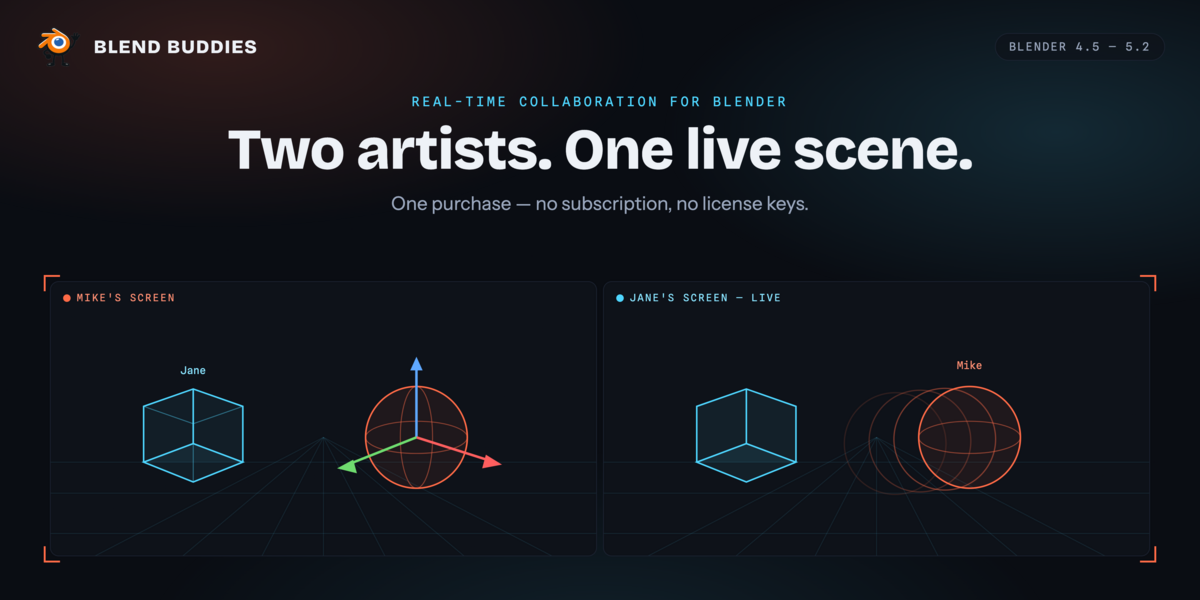
Blend Buddies puts you and your collaborators inside the same scene at the same time. Transforms stream as you drag them, edits propagate as you make them, and anyone who joins later receives the whole scene automatically.
01Install the add-on
- In Blender, open Edit → Preferences → Get Extensions.
- Click the drop-down arrow at the top right, then Install from Disk…
- Select the blend-buddies-1.4.5.zip from your order.
- Blend Buddies installs and enables itself. Press N in the 3D Viewport and open the Blend Buddies tab.
Everything the add-on needs is bundled inside the zip — no pip install, no dependency step, nothing to configure on your router.
Upgrading
Use Install from Disk again with the newer zip, or let the built-in updater handle it. Never copy files into Blender’s extensions folder by hand — that corrupts Blender’s extension registry.
02Set yourself up, once
The first time you open the panel you’ll be asked to review the Terms of Service and Privacy Policy. Both open in-app, and you accept once per machine.
A short welcome dialog then asks for your display name — the name other people see next to your selections and in chat. That is the only thing it needs. There is no account to create and no key to paste. Re-open it any time from Help & Info → Re-run Setup Wizard.
03Create a room
Fill in the Connect box in the sidebar, then press Create New Room.
| Field | What to put in it |
|---|---|
| Name | Your display name, plus a colour swatch and avatar that identify you to everyone else. |
| Room | 3–50 characters: letters, numbers, _ and -. Room names are global, so pick something specific — ravine-shot04, not test. |
| Password | At least 8 characters, with an uppercase letter, a lowercase letter and a digit. Everyone who joins needs it. |
| Admin | A second, different password, required to create a room. Anyone who supplies it on join gets moderation and room settings. Keep it to yourself. |
| Remember Room | Saves the credentials locally so the room appears under Saved Rooms for one-click rejoin. |
| Blank scene | Tick to start the room empty. Leave it off to upload your current scene as the room’s starting point. |
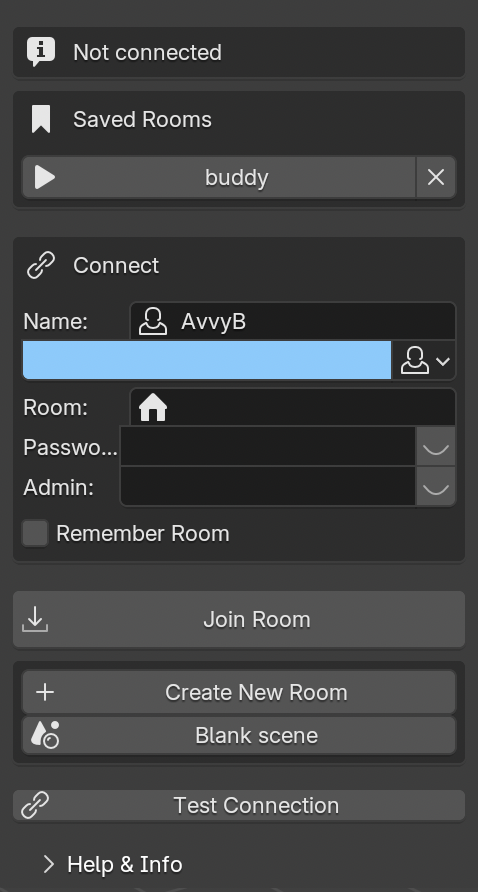
◆ Before you connect
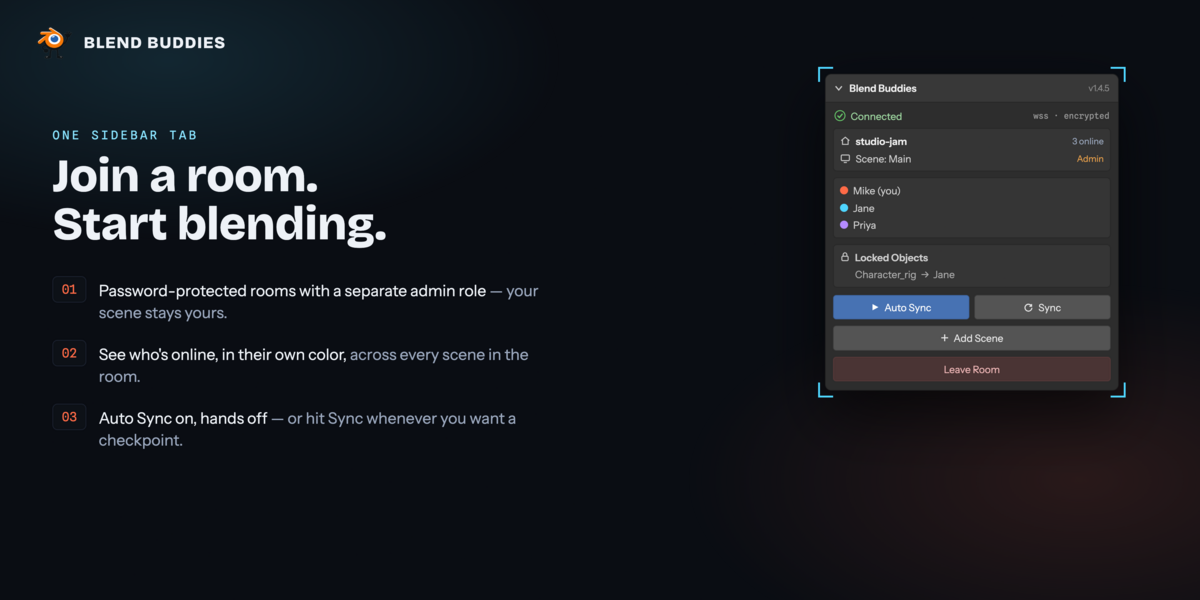
Share the room name and room password with your collaborators — privately, over a DM rather than a public channel. Share the admin password only with someone you want to be able to kick, ban and rename.
04Join a room
Enter your display name, the room name and the password, then press Join Room. Leave Admin empty to join as a regular member. The room’s scene arrives progressively, with a progress bar, so Blender stays responsive even on heavy scenes.
Before you join
Joining a room replaces what is in your current .blend with the room’s scene. Save your own work first, or join from a fresh file.
Rooms you’ve saved appear as one-click buttons above the Connect form. Leaving is a single Leave Room press — the room and everything in it stays on the server, waiting for you.
What it feels like
Once you’re connected, you just use Blender. Syncing runs by itself — there is nothing to switch on.
30 Hz
Live transforms
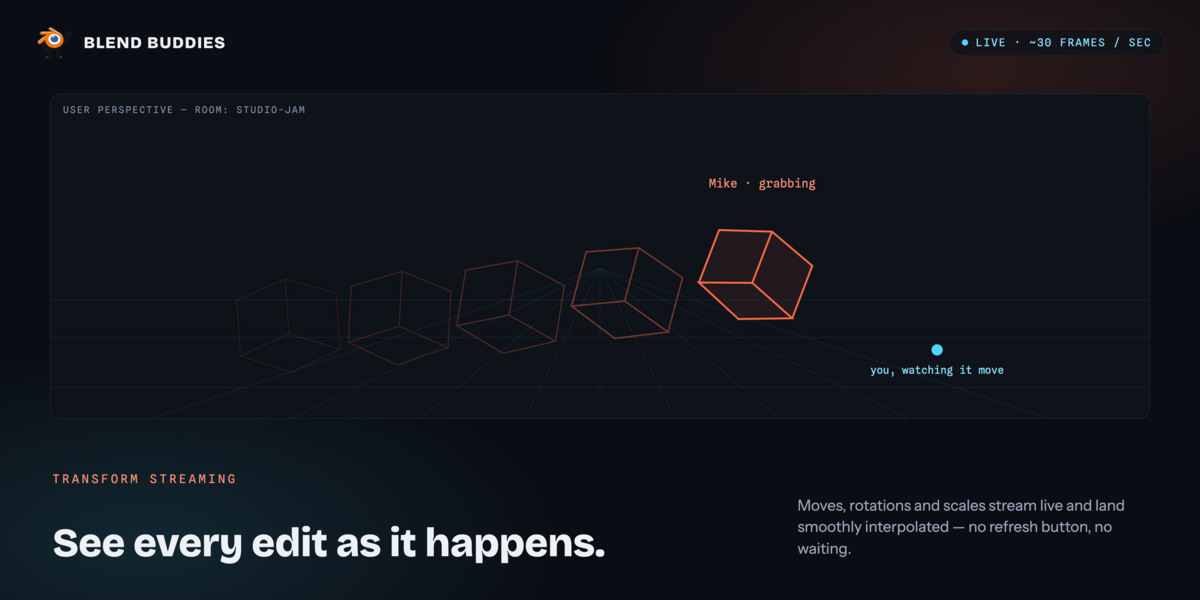
Grab, rotate and scale stream about thirty times a second and are interpolated on the far end, so movement reads as movement — not as teleporting.
Presence
See what they see
Every person gets a persistent colour. Their current selection is outlined in that colour in your viewport, and the panel lists who is in the room and in which scene.
Safety
Object locking
Claim an object and nobody else can touch it. Hand the lock to someone by name, or request it back. Held locks are listed in the panel with the holder’s name.
Chat
Talk without leaving
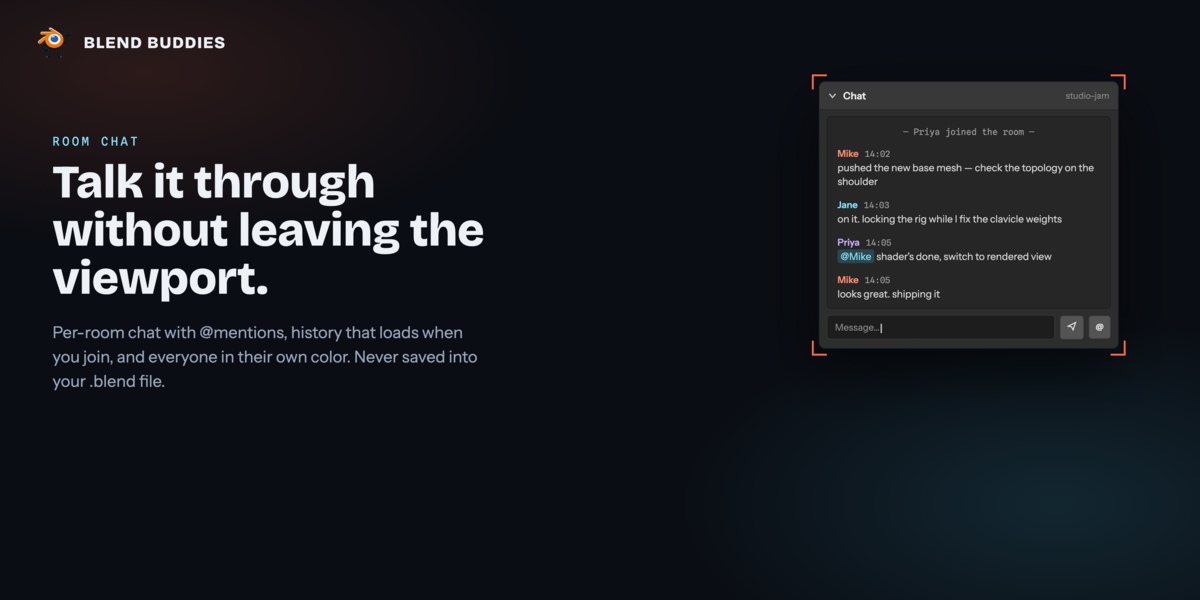
Per-room chat with timestamps, user colours and join/leave lines. Type @ to mention someone — there’s a member picker — and Enter to send. History loads when you join.
Locking lives in the 3D Viewport right-click menu, under Blend Buddies: Lock for Me, Give to User, Request Access and Unlock.
One rule of etiquette
Blend Buddies syncs aggressively and does not merge conflicting edits — the last change to arrive wins. For anything more involved than moving objects around, agree on who owns what, or use locks.
What syncs
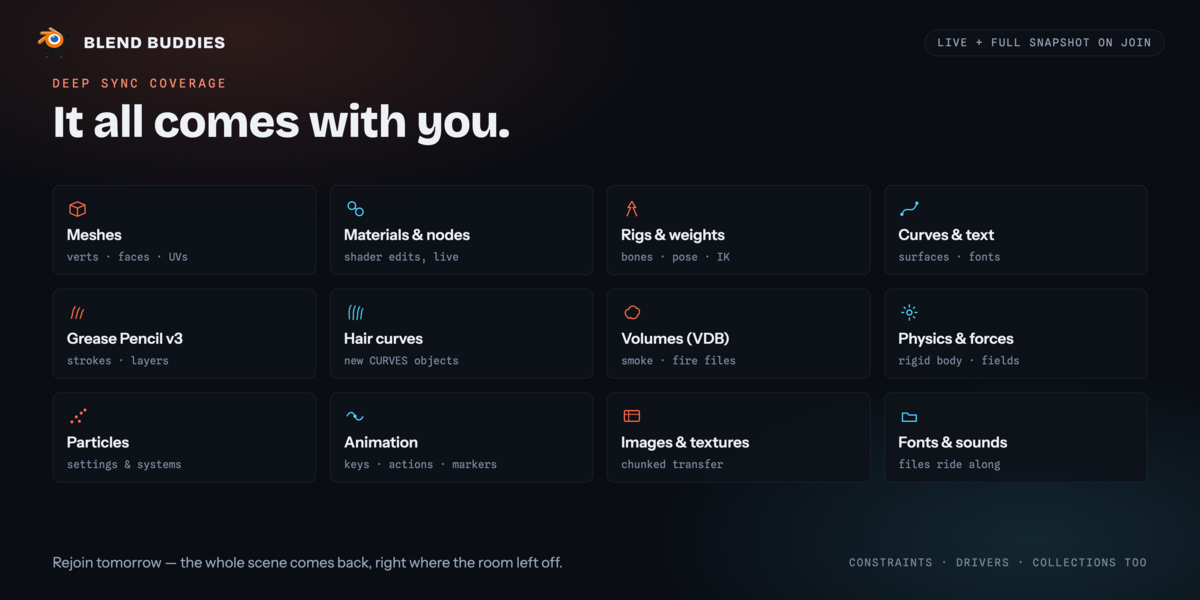
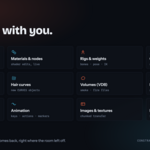
Geometry & object data
- ✦ Meshes — vertices, edges, faces, UVs, normals, vertex groups and per-vertex weights
- ✦ Curves, surfaces and text objects
- ✦ Armatures — the full rig (bone hierarchy, roll, IK, B-bones), pose, and live pose-bone dragging at streaming rate
- ✦ Metaballs, point clouds and hair curves
- ✦ Grease Pencil v3 — layers, frames, drawings, strokes and points
- ✦ Volumes — OpenVDB files are transferred and re-linked on the other side
- ✦ Image empties, including the reference image itself
- ✦ Cameras, lights and light probes with their data settings
- ✦ Speakers, including the sound file
- ✦ Empties, collections and parenting
Look & shading
- ✦ Materials and full shader node graphs
- ✦ Textures and image files, chunked for large transfers with a progress readout
- ✦ Per-face material slots and assignments
- ✦ Fonts used by text objects — the font file travels too
- ✦ Scene render settings
Motion & setup
- ✦ Keyframes, F-Curves, actions and timeline markers
- ✦ Timeline playback — frame changes and play/pause are shared
- ✦ Modifiers, constraints and object-level drivers
- ✦ Rigid bodies, rigid-body constraints and force fields
- ✦ Particle system settings
- ✦ Scene-level datablocks — texts, palettes, keying sets, line styles, brushes
- ✦ Annotation layers drawn with Blender’s Annotate tool
Timing — the one rule worth knowing
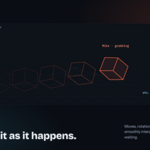
Object-level changes — moving, adding, deleting, renaming, materials, modifiers — sync immediately, as they happen.
Mesh editing in Edit Mode syncs when you leave Edit Mode. Blender only makes the edited mesh readable to add-ons at that point, so Tab out and your geometry goes to the room at once. Sculpting behaves the same way.
Joining late is fine — every new arrival receives a complete snapshot of the room.
What doesn’t sync
Stated plainly, so there are no surprises mid-project.
- × Simulation caches and bakes. Physics, fluid, cloth and smoke settings transfer; the baked result does not — each person bakes locally, and sims set to replay will re-simulate on their machine.
- × Styled hair. Particle settings transfer; the combed result does not.
- × Legacy Grease Pencil datablocks from files made before Blender 4.3 (v3 syncs fully).
- × Drivers on object data — drivers on the object itself do sync.
- × Constraint target sub-collections on armature constraints.
- × Linked libraries — Blend Buddies syncs the objects in your scene, not links to external .blend files.
- × Your Blender preferences, keymaps, workspaces and add-ons.
Staying in sync
The main panel carries a live indicator: In sync with the room’s object count, or Out of sync with the names of exactly what differs and a Resync button that repairs it.
The check is deliberately conservative — it only reports drift once two consecutive readings agree, so objects still in flight never raise a false alarm. There’s also a manual Sync Scene button that pushes your current scene state to the room, handy after a bulk import.
The panels
Everything lives in the 3D Viewport sidebar (N) under the Blend Buddies tab. Chat, Assets, Backups, Admin, Update and Help are sub-panels — click a header to expand it.
| Panel | What it’s for |
|---|---|
| Blend Buddies | Connect and disconnect, saved rooms, online users, locked objects, the sync-health indicator, the presence toggle, the scene switcher, and manual Sync Scene. |
| Chat | Room chat with mentions and history. |
| Assets | The room’s shared asset library — upload, preview, import, download. |
| Backups | Create, list, restore and delete room backups. |
| Admin | Admins only: kick, ban, unban, rename the room, change the room and admin passwords. |
| Update Available | Appears only when a newer version exists. Read the release notes, then install. |
| Help & Info | Re-run the setup wizard, report a bug, open the bundled docs, export diagnostics, view Terms and Privacy, delete all local data. |
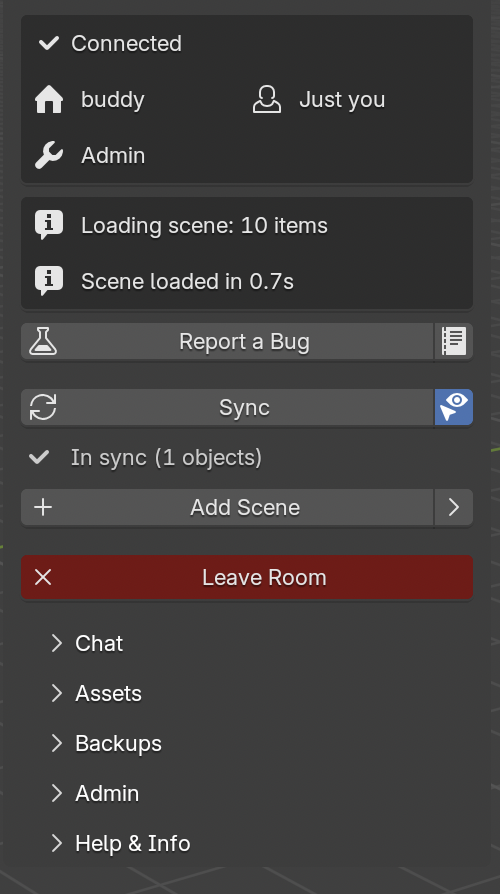
◆ Connected to a room
Scenes within a room
A room can hold several independent scenes — useful for you take the character, I’ll take the environment.
- Add Scene creates a named scene. Any member can do it, not just admins.
- Expand the switcher to move between scenes; the user list shows who is in which one.
- Data is fully isolated per scene — what you do in one is invisible in the others.
- Import Objects copies objects across from another scene in the same room, bringing the whole object with it: materials, modifiers and textures included.
- Admins can rename scenes inline from the switcher.
Room assets
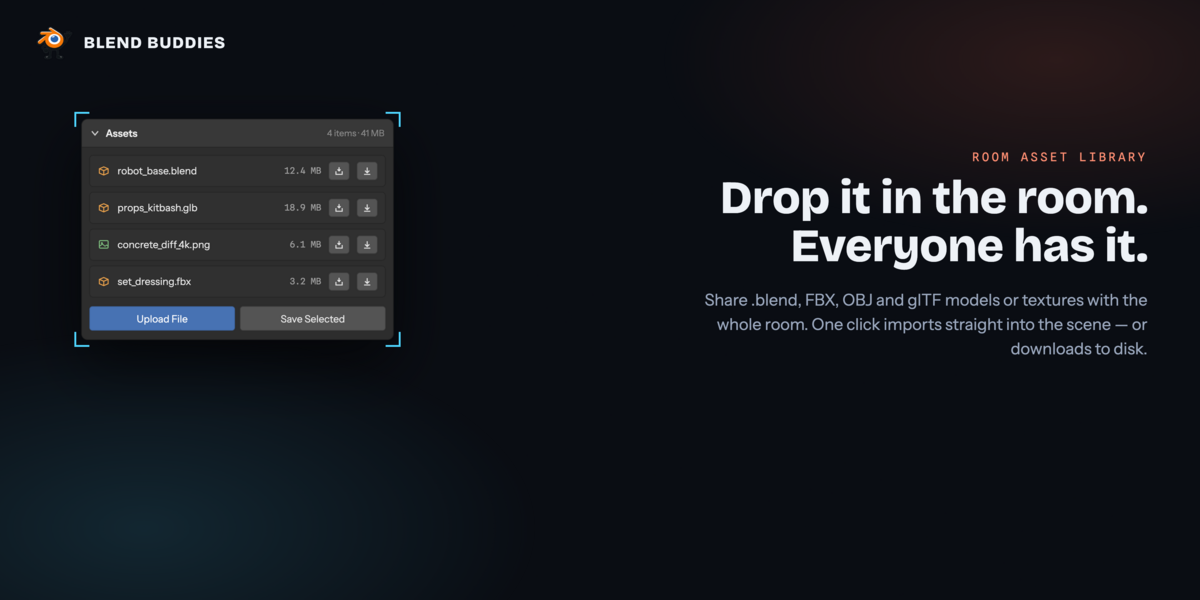
The Assets panel is a shared library that lives with the room rather than with your file. Any member can upload; everyone sees the same list.
- Models and textures, uploaded from disk or straight from your selection with Save Selected.
- Every upload gets an automatic thumbnail, shown in a two-column grid.
- Import brings an asset into the current scene; Download saves it to disk.
- Large files transfer in chunks, with progress shown.
Backups & recovery
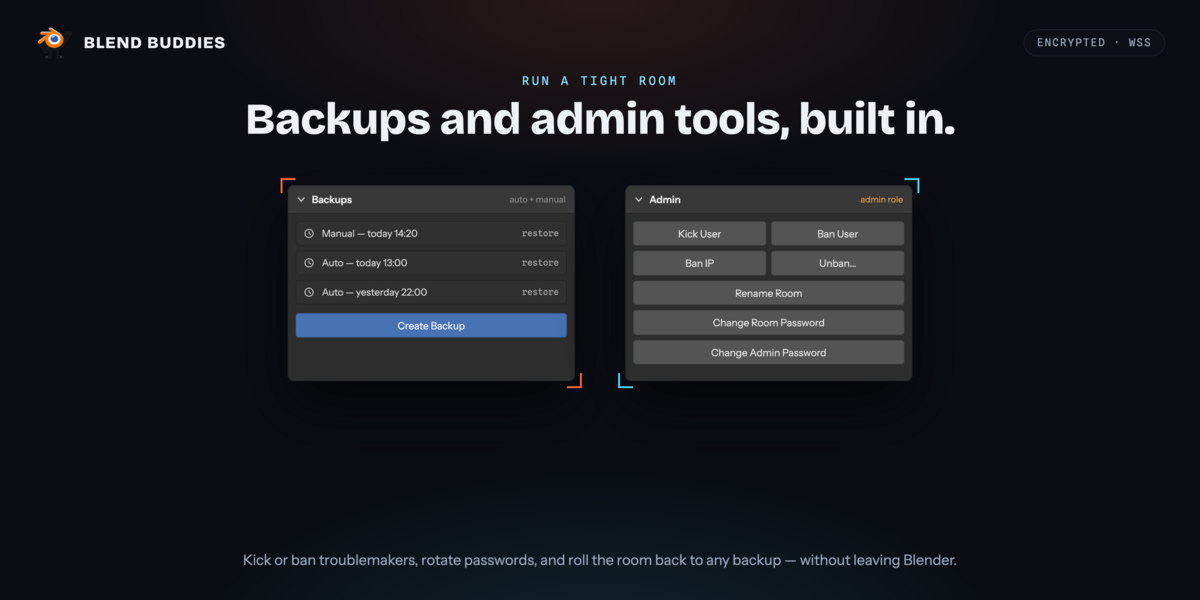
- The server takes an automatic backup whenever someone joins the room.
- Create Manual Backup makes a named checkpoint. Ten are kept per room.
- Restore rolls the room back to any listed backup, for everyone.
- If Blender closes uncleanly while you were in a room, Blend Buddies offers to take you straight back in when you restart.
- If the connection drops, the add-on reconnects on its own and resumes where it left off instead of re-downloading the scene.
Take a manual backup before anything drastic — a big restructure, a bulk import, or handing the file to someone new.
Moderation & room settings
Join with the admin password to unlock the Admin panel. Regular members never see these controls.
- Kick a user from the room.
- Ban a user or an IP address; list and lift bans.
- Rename the room.
- Change the room password or the admin password.
Requirements
| Blender | 4.5 LTS through 5.2 LTS |
|---|---|
| Operating system | Windows, macOS (Intel and Apple Silicon), Linux — mixed rooms are fine |
| Internet | An outbound connection. No inbound ports, no router configuration. |
| Account | None. No sign-up, no license key. |
| Everyone else | The add-on installed, on a compatible Blender version |
Networking & firewalls
Blend Buddies connects outbound over an encrypted WebSocket. There is nothing to forward, open or configure on your router.
If your network blocks the add-on’s usual port — common on studio, school, office and VPN networks — it automatically falls back to the standard HTTPS port and remembers which route worked. In practice that means it connects on networks where a naive client simply fails. Help & Info → Test Connection checks each route separately and tells you plainly which ones your network allows. As long as one works, you’re fine.
The server is hosted in Germany. Expect the smoothest experience in Europe; transatlantic use works well, with slightly higher latency on live dragging.
Privacy & security
In flight
Encrypted on the wire
All traffic runs over TLS. No plaintext scene data leaves your machine.
At rest
Encrypted on the server
Scene data is encrypted field-by-field with AES-GCM before it is written to disk.
Per session
Authenticated messages
Every session carries its own key. Tampered or replayed frames are rejected.
Local
Nothing hidden in your .blend
Passwords live in a restricted local file, never in the scene — sharing a .blend can’t leak your room password. Chat history is runtime-only and is never saved into the file either.
Rooms are isolated: scene data is shared only with people in your room, and getting in requires the room password. Help & Info → Delete All My Data removes every credential, salt and acceptance record stored locally, in one click. We don’t sell your data — the full detail is in the in-app Privacy Policy.
Two things worth being deliberate about: the room password is the only thing between your scene and anyone who guesses the room name, so use a real one; and anyone holding the admin password can kick, ban and rename.
Limits
Generous defaults, in place so that one room can’t degrade the service for everyone else. If you reach one, the add-on tells you which and why.
| Per room | Limit |
|---|---|
| Users | 24 |
| Images | 200 · 50 MB each · 500 MB total |
| Assets | 250 MB per file · 2 GB total |
| Scene data | 100 MB |
| Manual backups | 10 |
| Chat history | 10,000 messages |
Updating
Blend Buddies checks for updates a few seconds after Blender starts. When one is available, an Update Available panel appears with the release notes — read what changed, then Download & Install fetches it and installs it through Blender’s own extension system. Restart when prompted.
Updates are free. There is no subscription and nothing to renew.
Troubleshooting
It won’t connect
Run Help & Info → Test Connection. If one route is blocked but another works, you’re fine — that’s the fallback doing its job. If both are blocked, your network blocks outbound WebSocket traffic entirely: try another network, or ask IT to allow server.blendbuddies.dev.
“Wrong password”
The room password and the admin password are separate fields. Check you haven’t put one in the other’s box, and use the eye icon to reveal what you typed.
“Room is full”
Twenty-four people is the cap. Someone needs to leave before another can join.
Someone’s changes aren’t showing up
Check the sync indicator in the main panel and press Resync if it reports drift. Remember too that mesh edits go out when the sender leaves Edit Mode, so ask them to Tab back to Object Mode.
Objects look grey or unshaded after joining
Textures transfer after geometry on large scenes — watch the Syncing Textures progress. If it finishes and something is still missing, press Resync.
Blender feels sluggish while joining
The scene loads progressively and the progress bar shows how far along it is. Large scenes take longer. Nothing is frozen.
A simulation looks different on each machine
Expected — caches and bakes are local by design. Bake on each machine, or set the sim to replay on playback.
Blender crashed, or I got disconnected
Restart. Blend Buddies detects the unclean shutdown and offers to rejoin the room you were in. Your work was streaming to the server as you made it.
Something else
Help & Info → Report a Bug sends a description plus a diagnostic bundle to support without leaving Blender. Export Diagnostics writes the same information to a text file if you’d rather send it yourself.
Support
In Blender — Help & Info → Report a BugEmail — [email protected]Web — blendbuddies.devBundled — Help & Info → Open Documentation
Have questions about this product?
Login to message
| Blender Extension Compatible | Yes |
| Dev Fund Contributor | |
| Published | about 2 months ago |
| Blender Version | 4.5 - 5.2 |
| Extension Type | Add-on |
| Render Engine Used | Cycles, Eevee |
| License | GPL |
