BlendBuddy — Your Pixel Companion for Blender
 Voyde Procedural

BlendBuddy Documentation
Everything lives in the 3D Viewport sidebar: press N and open the BlendBuddy tab.
1. Quick Start
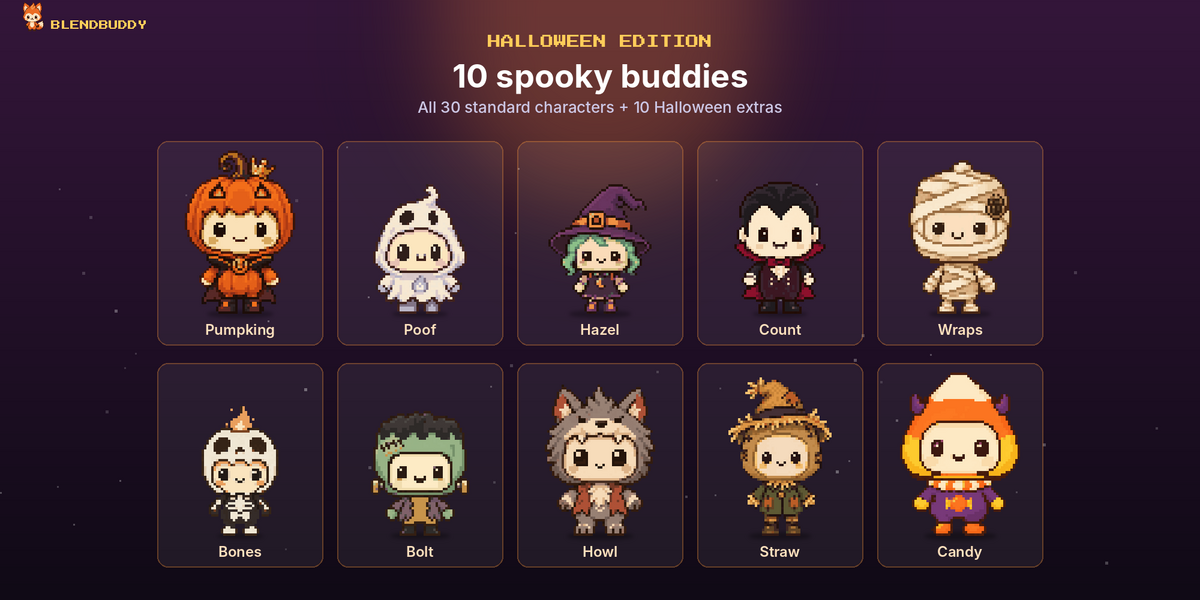
- In Blender 4.2 or newer: Edit → Preferences → Get Extensions → ▾ → Install from Disk… and pick the BlendBuddy zip (blendbuddy-1.6.1.zip, or blendbuddy-1.6.1-halloween.zip for the Halloween Edition).
- In the 3D Viewport press N and open the BlendBuddy tab. Your pet appears and starts exploring the viewport.
- Give it a name in the Name field, and pick a look in the Look panel.
Your settings are saved in Blender's preferences, so your pet is the same in every file.
2. Playing With Your Pet
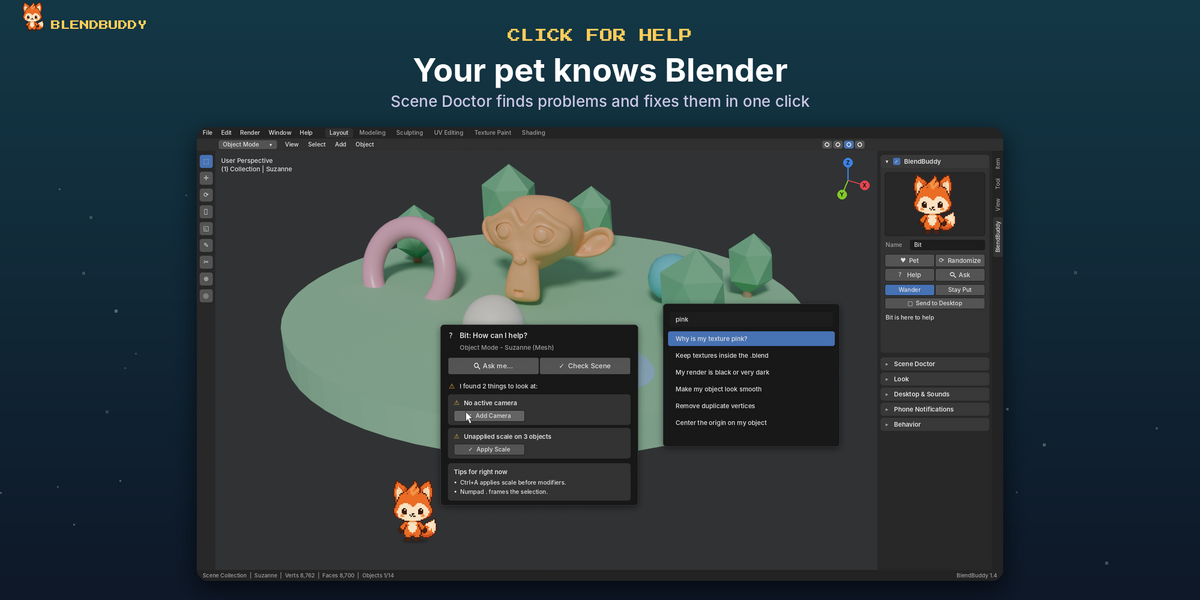
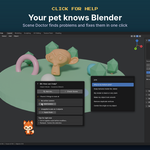
| Click the pet | Opens the help popup (Scene Doctor + Ask). |
| Hold and drag | Carries the pet anywhere in the viewport. Its legs run and it leaves a trail. |
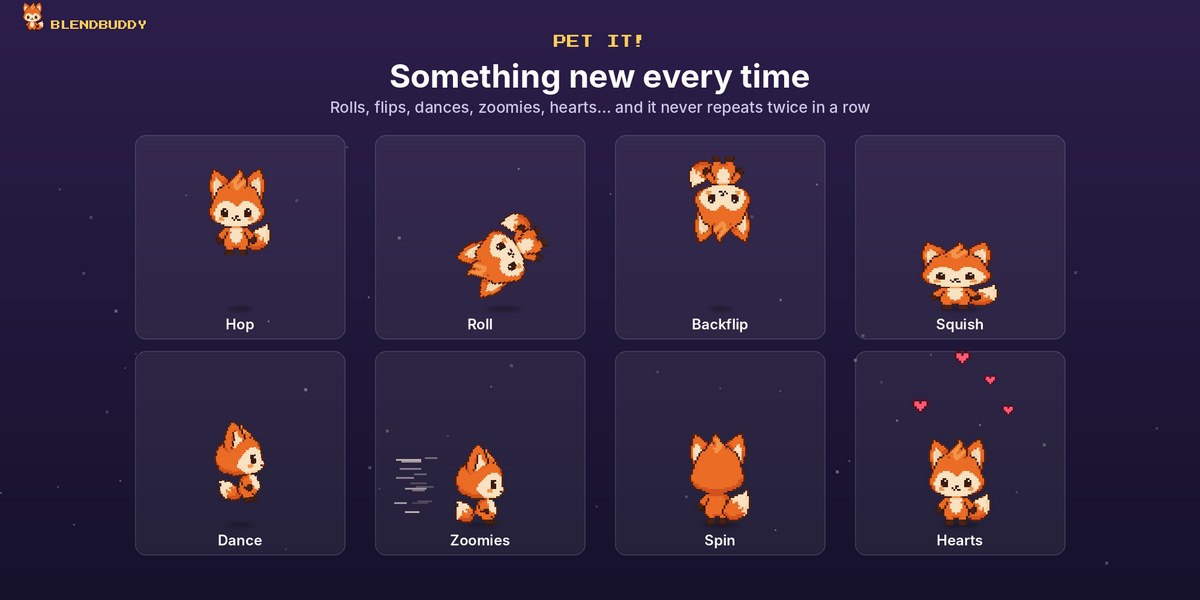
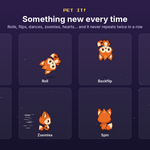
| ♥ Pet | Your pet does a random trick and throws hearts. |
| Randomize | Picks a random new look. |
| Help / Ask | Help opens the help popup. Ask lets you search answers to everyday Blender questions. |
| Wander / Stay Put | Wander: it walks and hops all over the viewport. Stay Put: it stays where you dropped it. |
| Send to Desktop | Windows only. Moves the pet out of Blender onto your desktop. Press Bring Back to Viewport to return it. |
The checkbox in the panel header shows or hides the pet. If clicking does nothing, turn on Gizmos in the viewport header.
3. Look
Choose a Style at the top of the panel:
Characters
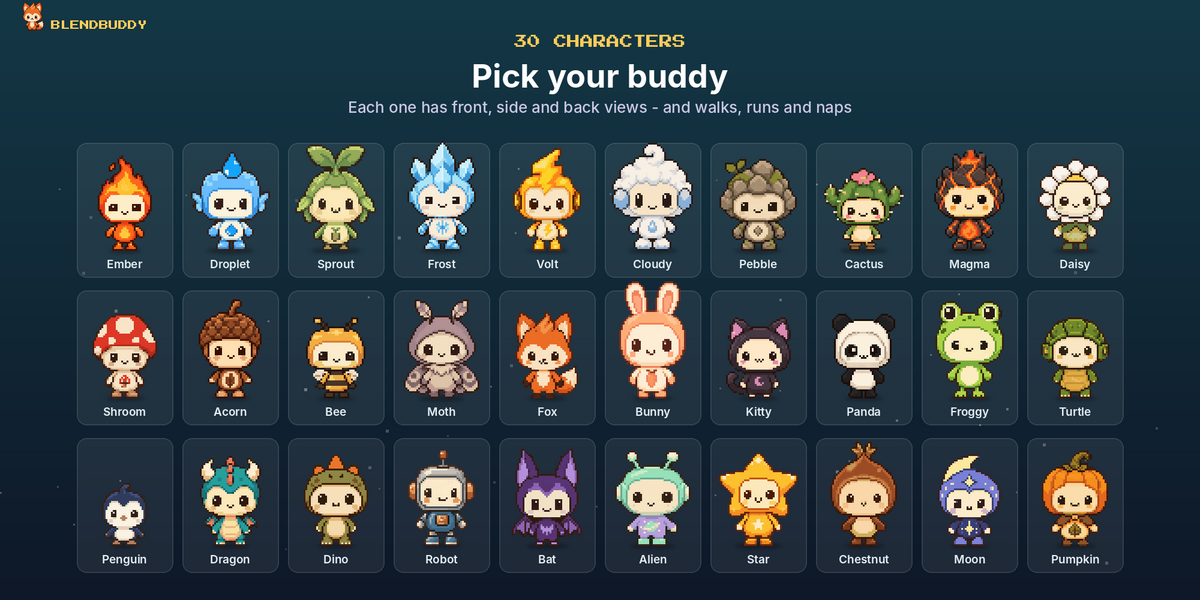
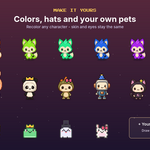
- Click the big preview to pick one of the 30 characters.
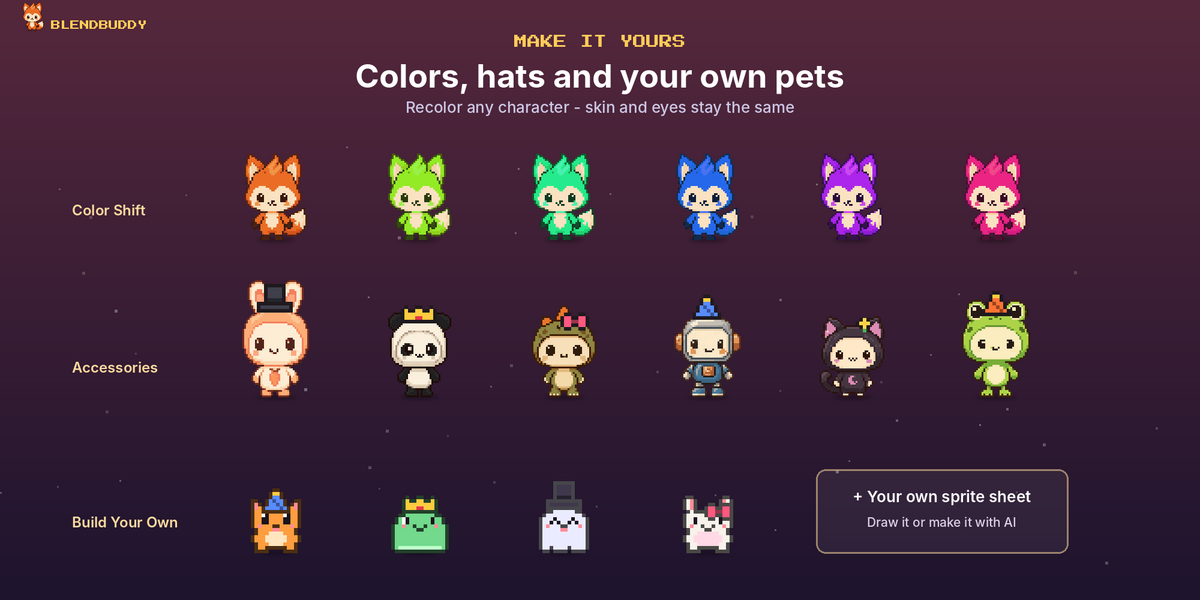
- Color Shift, Saturation and Brightness recolor it. Skin and eyes stay the same.
- Original Colors resets the colors.
- Accessory: party hat, top hat, crown, bow, headphones or flower, with its own color. Use Offset X / Y if it needs to sit higher or lower.
Build Your Own
Mix a Body (Cat, Bunny, Slime, Ghost), Eyes, Mouth, Blush and colors. Auto Outline makes the outline a darker shade of the body color.
Custom Sprite
- Use a transparent PNG with the frames side by side.
- Row 1 is idle, row 2 walk, row 3 sleep and row 4 happy. You can use only the first row.
- Set Frames per Row and Rows, then press Reload Sprite after editing the file.
- Flip When Walking Left mirrors the sprite when it walks the other way.
4. Friends NEW IN 1.6
Open the Friends panel and add up to 3 extra buddies. Pick a character for each one, or leave it on Random for a surprise.
- Play Together: friends play with each other and with your pet: they say hi, play tag, do the same trick together, play follow-the-leader, leapfrog over each other and sometimes throw a dance party. They nap together when you take a break.
- Click a friend to pet it (a trick and hearts), or hold and drag it anywhere.
- Shuffle (the refresh button) picks new characters for the Random friends.
Friends use the original character colors. They stay still while Behavior is set to Stay Put.
5. Scene Doctor
Press Check My Scene (or click your pet). BlendBuddy lists what it found, and most items have a one-click fix button. Some examples:
- No active camera → Add Camera
- Unapplied scale → Apply Scale
- Missing (pink) textures → Find Files
- No lights and a dark world → Add Sun
The pet also checks quietly in the background. Set how often in Behavior → Scene Check (min), or use 0 to turn it off.
6. Desktop & Sounds
- Sounds: turn the pet's sounds on or off, set the volume and press ▶ to hear a sample. Every trick, jump, landing, pick-up and drop has its own little sound.
- Footsteps: tiny step sounds while the pets walk (off by default).
- Music: a soft, looping 8-bit background song with its own volume (off by default).
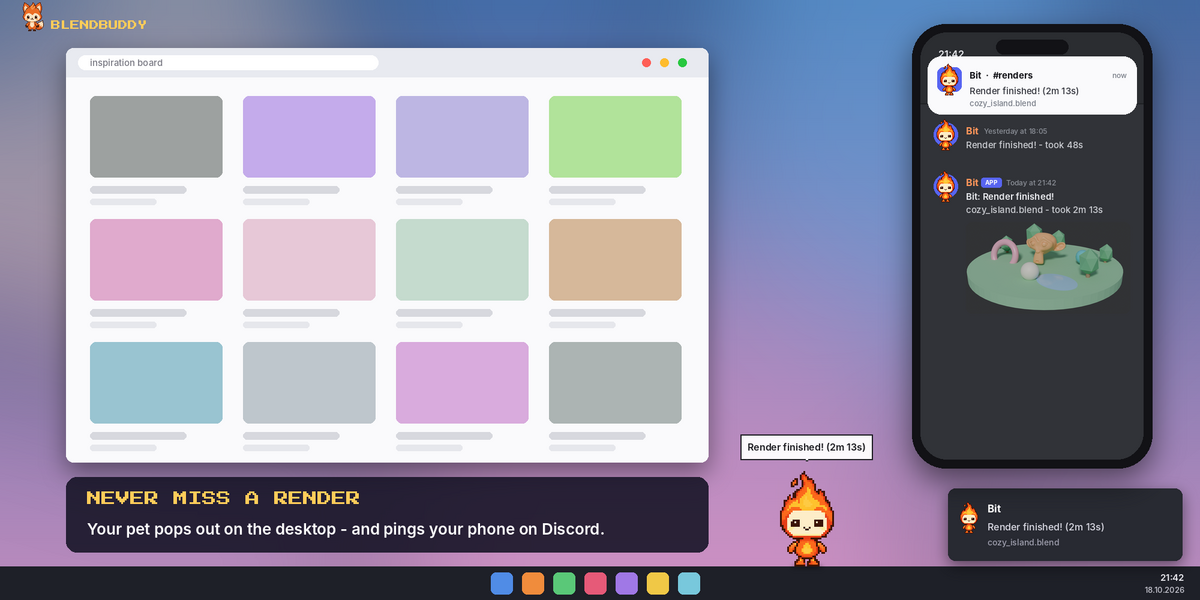
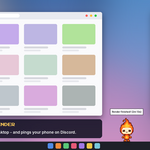
- When Blender Is Hidden: what happens when a render or bake finishes while you're in another app. The options are Pet Pops Out, Notification, Both or Nothing.
- Lives In (Windows): Viewport or Desktop.
- Test Alert: shows the "render finished" alert after 3 seconds. Switch to another app to see it.
On the desktop (Windows)
- Click: back to Blender and open help
- Drag: put it anywhere, and it stays there
- Double-click: fall down / fly back up
- Right-click: send it home
On macOS and Linux the desktop pet isn't available. You get a system notification instead, controlled by Notify After (sec).
7. Phone Notifications (Discord)
When a render finishes, your pet posts in your Discord channel and the Discord app pings your phone. The message includes the render picture, the file name and how long it took.
| 1 | Turn on Preferences → System → Network → Allow Online Access. |
| 2 | In Discord, create a private server for yourself: + → Create My Own. |
| 3 | Open a text channel's settings (gear) → Integrations → Webhooks → New Webhook → Copy Webhook URL. You can also rename the webhook and give it a picture. |
| 4 | In Blender, open Phone Notifications, tick the checkbox in its header and press the paste button next to the link field. |
| 5 | Press Send Test Message. The result appears right under the button. |
- Only If Longer Than (sec): skips quick test renders.
- Bakes Too: also notifies when a bake finishes.
- Attach Render Image: sends a JPEG of the finished render.
If your phone stays quiet while Discord is open on your PC: Discord only pings the phone when you're away from the PC app. Close it, or set Discord Settings → Notifications → Push Notification Inactive Timeout to the shortest time.
8. Behavior Settings
| Walk Speed | How fast it wanders |
| Click & Drag | Lets you click and drag the pet |
| Trail | Sparkles, Wind or None while you drag it |
| Roam Area | Whole Viewport (walks and hops everywhere) or Bottom Edge (walks along the bottom) |
| Size / Height | Small to Huge. Height (distance from the bottom) appears in Bottom Edge mode. |
| Animation FPS | Animation speed of the sprite |
| Scene Check (min) | How often it quietly checks your scene (0 = off) |
| Save Reminder (min) | Nudges you when changes stay unsaved this long (0 = off) |
| Break Reminder (min) | Reminds you to take a break (0 = off) |
| Nap After (sec) | Falls asleep when you're idle (0 = never) |
| Daily Tip | One Blender tip on the first start of the day |
| Speech Bubbles / Name Tag | Shows its messages and its name |
| Largest Viewport Only | With several 3D views open, the pet lives in the biggest one |
| React To | Reacts when you Save, Render or Undo |
9. Troubleshooting
I can't click or drag the pet
Turn on Gizmos in the viewport header, and check that Behavior → Click & Drag is on.
The pet stopped moving
The BlendBuddy panel shows a message and a Restart Pet button. Press it.
No message on my phone
Check that Allow Online Access is on and the Phone Notifications checkbox is ticked, then press Send Test Message and read the result under the button. Renders shorter than Only If Longer Than are skipped on purpose.
I don't hear anything
Open Desktop & Sounds, make sure Sounds is on and the volume is up, and press ▶ to test. Still silent? Check Edit → Preferences → System → Sound → Audio Device is not set to None.
Have questions about this product?
Login to message
| Blender Extension Compatible | Yes |
| Published | 2 days ago |
| Blender Version | 4.2 - 5.2 |
| Extension Type | Add-on |
| Render Engine Used | Cycles, Eevee |
| License | GPL |
Discover more products like this
productivity pixel pet blender helper companion scene diagnostics virtual pet pixel art render notifications save reminder desktop pet viewport customization