 WWS3D
WWS3D


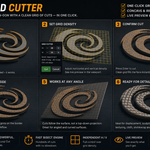
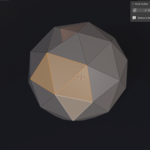
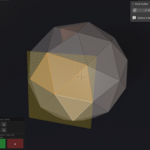
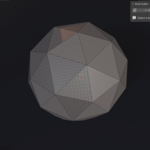
📦 Installation
- Download GridCutter1.0.zip (do not unzip it).
- In Blender go to Edit → Preferences → Add-ons → Install from Disk… and select the zip.
- Make sure Grid Cutter is enabled in the add-on list.
- Requires Blender 4.2 or newer (installs as an Extension).
🚀 Quick Start
- Enter Edit Mode (Tab) on your mesh.
- Select one face (an n-gon).
- Open the N-panel (press N) → Grid Cutter tab.
- Click Grid Cutter.
- Adjust the density, then press Enter to cut.
🎚️ Controls (while the tool is active)
- Scroll wheel — adjust horizontal & vertical density together.
- Shift + Scroll — horizontal (H) only.
- Alt + Scroll — vertical (V) only.
- Ctrl + Scroll — ×10 steps (faster).
- HUD buttons — use − / + to adjust, ✂ Cut to confirm, ✕ to cancel.
- Enter — cut · Esc — cancel.
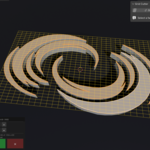
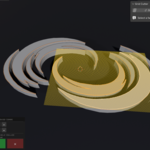
- The live preview shows the exact grid before you commit.
- While the tool is running the selection is locked, so you can't change it by accident.
💡 Tips
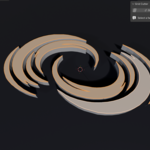
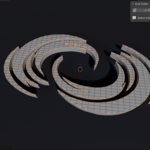
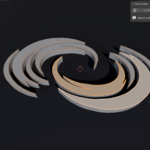
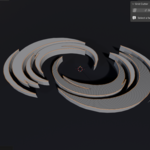
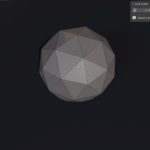
- Works on concave, convex, flat, angled and curved-surface faces — cuts follow the surface, not a top-down projection.
- Produces clean quads inside and tidy n-gons on the border.
- Great for adding topology for displacement, sculpting, cloth, lattice and shrinkwrap.
- For the cleanest result, run it on a single, clean n-gon face.
ℹ️ Notes
- The tool operates on one selected face at a time.
- For best results select a simple face without internal holes / cut-outs.
✅ Compatibility
- Blender 4.2+
- Windows · macOS · Linux
- License: GPL-3.0-or-later
$12
Have questions about this product?
Login to message
| Blender Extension Compatible | Yes |
| Published | 3 months ago |
| Blender Version | 4.2 - 5.1 |
| Extension Type | Add-on |
| Render Engine Used | Cycles, Eevee |
| License | GPL |

Discover more products like this
grid fill displacement Bisect ngon grid cutter mesh editing n-gon topology modeling cut grid subdivide