 codesignprojects
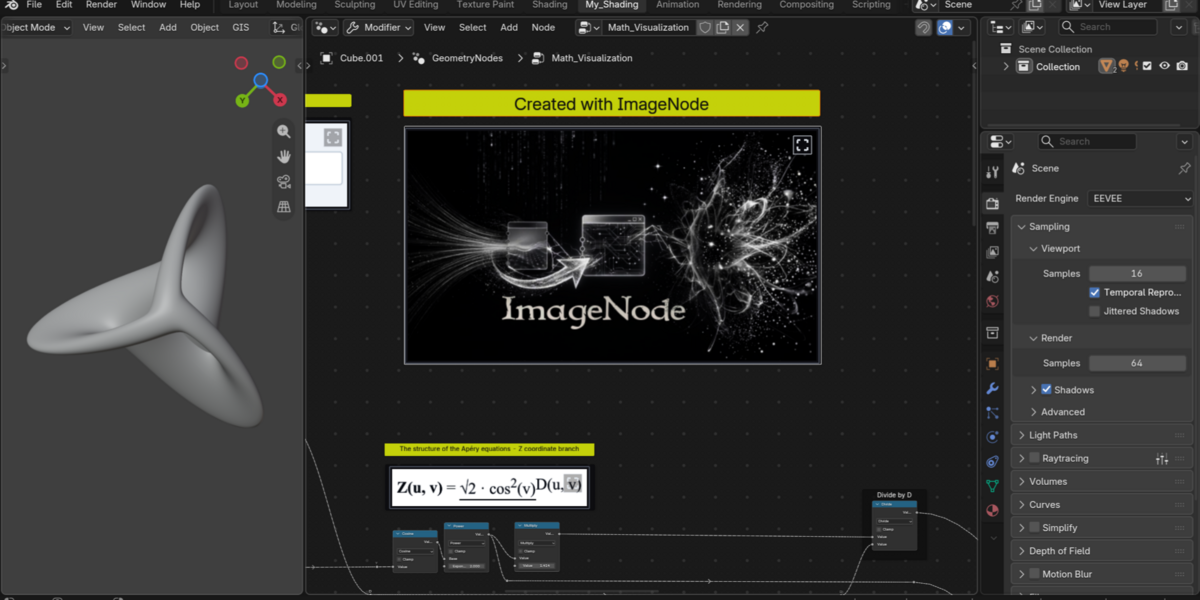
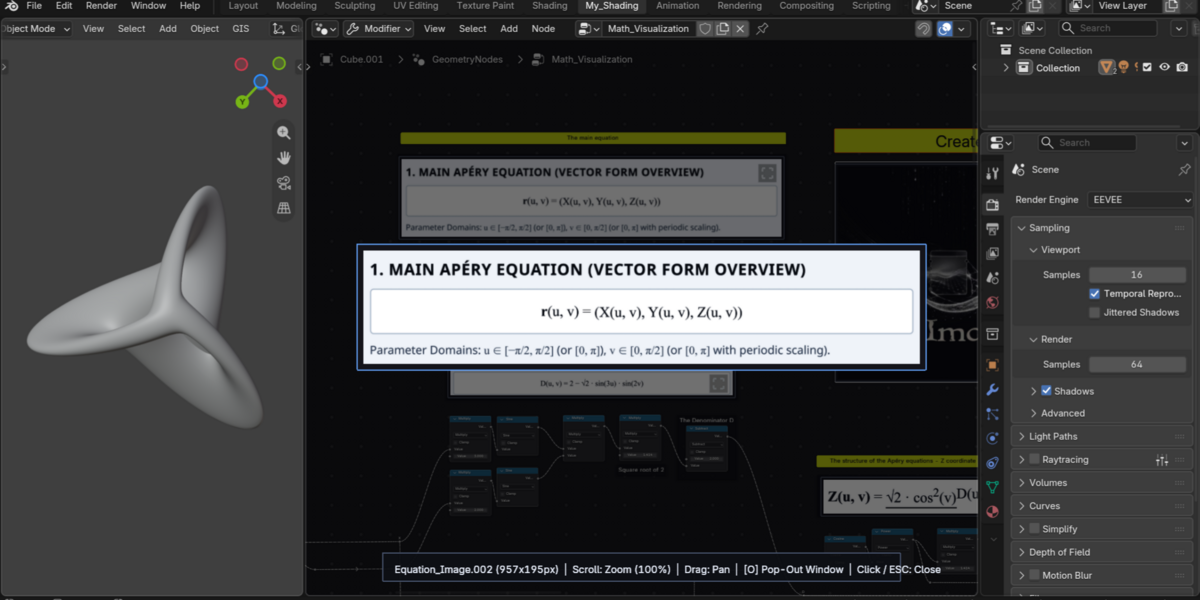
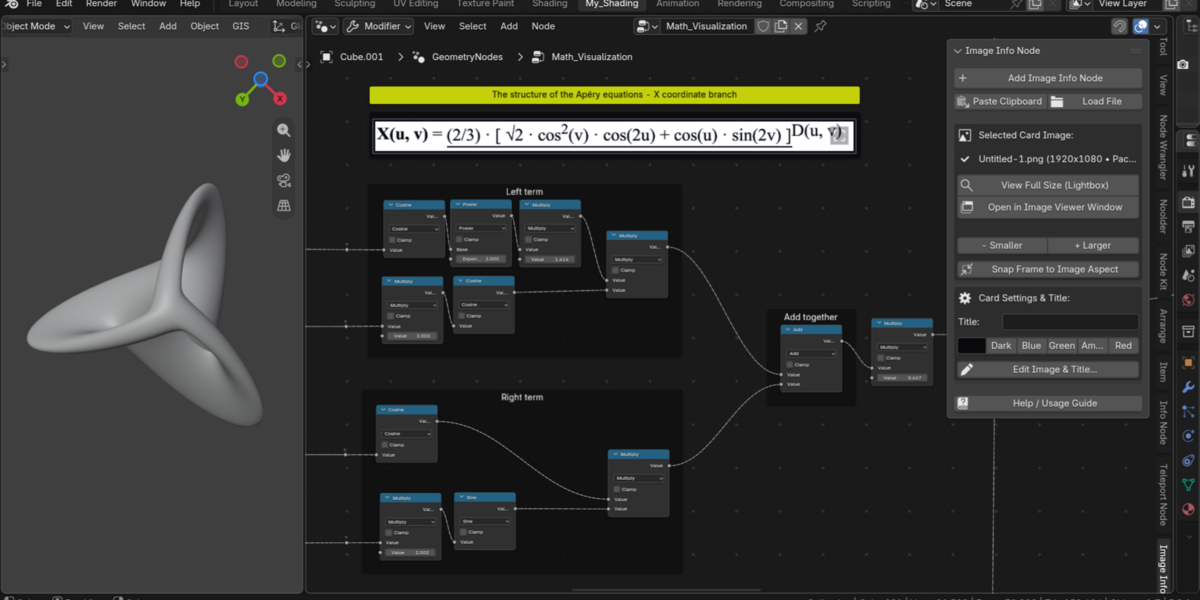
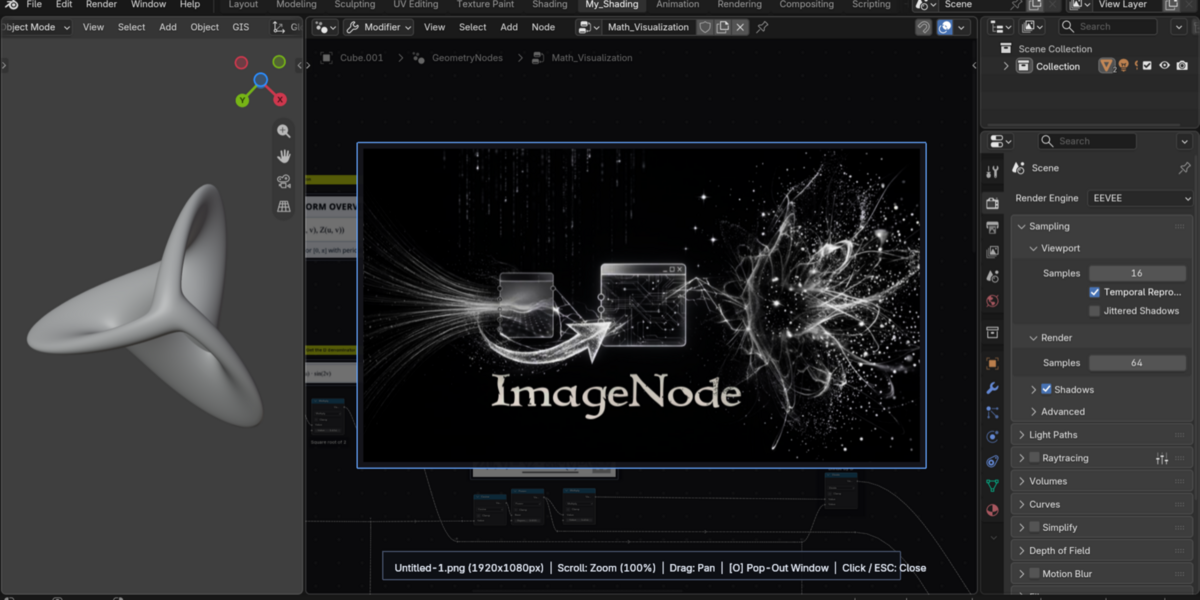

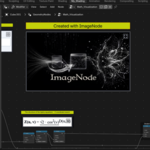
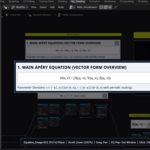
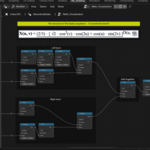
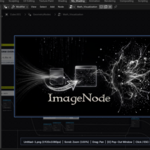
The ImageNode makes it possible to add clear, resizable images into the Node Editor - as nodes. You can paste a decorative image, a useful chart or a mathematical equation in an ImageNode next to your Node Group, visualizing what it does. The image nodes are fully adjustable, resizable and can be viewed full size too - directly in the node editors.

Complex Geometry Nodes, Shader, and Compositor setups are inherently visual - yet Blender's Node Editor gives you no clean way to place an actual image next to the nodes you wish to explain.
ImageNode solves this by bringing clear, GPU-rendered standalone Image Cards directly in your Node Editor canvas. Whether you want to paste a decorative or useful and impactful image, a mathematical equation next to a procedural setup, ImageNode makes it effortless.
The goal is to make visual documentation in the Node Editor as fast as taking a screenshot. See an image, a formula, graph, or reference you need? Copy it to your clipboard, add an ImageNode in Blender, and click OK—your image is automatically packed into the .blend file and rendered right next to your nodes! Or, alternatively, simply add the Imagenode and choose the image from your drive !
Video demo here!
Features
-
Instant Clipboard Snip-to-Canvas: No need to save temporary files to your desktop. Copy any image,equation, chart, or screenshot to your clipboard, press
Shift+A > ImageNode, and click OK. Your clipboard image is captured, packed into the.blendfile, and placed right at your cursor! - Universal Node Editor Support: Works seamlessly across Geometry Nodes, the Shader Editor, and the Compositor—bringing clear and scalable reference images to editors like Geometry Nodes that don't even have a native image preview node.
- Pure Image Cards or Titled Headers: Leave the Title empty for a sleek, minimalist Image Card with perfectly symmetrical 4-side margins, or add an optional Title header (with S / M / L / XL presets or a custom pixel slider) that automatically reserves clean breathing room above your image.
-
Interactive Full-Size Lightbox & Pop-Out Viewer: Keep your node cards compact on the canvas without sacrificing readability. Click the subtle Full Screen
[ ]corner button on any image (or simply double-click the image) to open a crisp, full-resolution Lightbox overlay right inside the Node Editor—complete with smooth Scroll-Wheel Zoom (25%–800%), Click-Drag Pan, and a 1-key ([O]) Pop-Out into a floating Blender Image Editor window. -
Live Freehand Resizing & 1-Click Aspect Snap: Drag any border or corner of an ImageNode with your mouse and watch the image scale smoothly in real time while preserving its exact aspect ratio. Click Snap Frame to Image Aspect in the N-Panel (or use the
- Smaller/+ Largerbuttons) for a pixel-tight fit. - High-Contrast Backing Plate & Custom Color Palettes: Transparent PNG equations with dark ink are automatically backed by a toggleable Dark Backing Plate for instant readability. Toggle the backing plate off in 1 click to blend transparent diagrams directly into your card's custom color, complete with presets and 5 global Custom Color Slots saved across all your projects.
- Clickable Web Reference Links: Attach an optional URL (documentation page, research paper, YouTube timestamp, or Wikipedia article) to any ImageNode for a 1-click Open Link button in the sidebar.
-
100% Auto-Packed & Portable: Every image you paste or load from disk is automatically packed into your
.blendfile. Share your project file anywhere with zero broken file paths or missing external textures. -
Smart Vanilla Blender Fallback & File Hygiene: Because ImageNode is built on top of native Blender Frames, your
.blendfiles remain 100% compatible with standard Blender installations. If a colleague opens your file without ImageNode installed, a clean native[Image: name]indicator is displayed inside the Frame (and remains completely hidden beneath the GPU image whenever the addon is active). Plus, a dedicated Purge Unused Images button in the N-Panel lets you clean up orphaned zero-user images in one click to keep file sizes minimal.
💡 Companion Addon Tip — Pair with InfoNode:
ImageNode is purpose-built for placing standalone visual cards—equations, graphs, diagrams, and illustrations—next to your nodes. If you also want to add textual info or wrap and organize groups of nodes inside multi-line rich-text comment frames (with bold/italic formatting, smart dividers, and 1-click wire-flow alignment), check out its companion addon, InfoNode! Used together, ImageNode and InfoNode turn Blender's Node Editor into a complete, self-documenting visual notebook. In addition, if you want to instantly share node groups or trees online, directly from the node editor, check out TeleportNode !
Enjoy!
---------------------------------------------------------------------------------------------
🎯 Who is ImageNode for? (Use Cases)
The Procedural Artist & Technical Director (Equations & Math Guides)
Building complex node groups often requires images and visual guides. In addition, decorative images can make you node tree impactful and unique ! Vector math, art, formulas in Geometry Nodes or Shaders? Copy the actual image, or add it from your hard drive and place it right above your nodes !
The Educator, Course Creator & Tutorial Maker
Make your teaching files self-explanatory. Place visual before/after diagrams, graphs, and illustrated cheat-sheets directly inside your lesson node trees so students can understand the "why" behind every step—and inspect high-res diagrams in full screen with a single click.
The Lookdev & Material Artist (Inline Visual References)
Keep material reference photos, surface anatomy diagrams, or color/roughness charts right alongside your procedural shader blocks without cluttering your workspace with extra Image Editor areas.
Studio Teams & Asset Creators (Visual Node Documentation)
When handing off complex node groups to teammates or selling procedural assets on marketplaces, place an illustrated usage guide card right next to the Group Input so anyone opening the tree immediately sees how every slider and socket affects the result.
---------------------------------------------------------------------------------------------
🚀 ImageNode Addon - Release Notes
- Custom Theme-Aware Icons: Integrated adaptive light/dark vector-rendered icons that automatically match your active Blender theme across the Shift+A menu, N-Panel, and dialogs.
- Live N-Panel Title & Backing Plate Sync: Editing or clearing a card's Title or toggling the Dark Backing Plate in the N-Panel now dynamically recalculates card bounds and redraws on the canvas in real time.
- 5 Global Custom Color Slots & Quick-Add Shortcut: Save 5 persistent custom color slots across Blender sessions and bind a dedicated Quick Add Shortcut directly in the N-Panel.
-
1-Click Purge Unused Images: Added an intelligent file-hygiene operator in the N-Panel that detects and removes unreferenced zero-user images to keep
.blendfiles lean.
-
Under-the-Image Native Fallback: Engineered a zero-clutter fallback layer that writes native
[Image: name]metadata beneath the GPU image plane—100% hidden when ImageNode is enabled, yet clearly visible inside the standard Frame if opened on vanilla Blender without the addon.
- Subtle Smoked-Glass Full-Screen Button: Replaced the text badge with a compact, non-intrusive 4-corner Full Screen icon in the top-right corner of the image so your illustrations remain visually undisturbed.
-
Crisp GPU Texture Rendering: Linearly filtered
POST_PIXELviewport rendering with automatic frustum culling and HiDPI UI-scale support. -
Interactive Lightbox & Clipboard Grabber: Full-screen zoom/pan inspection overlay plus 1-click Windows clipboard bitmap capture and automatic
.blendpacking. - Streamlined Hard Drive Flow & Symmetrical Card Geometry: Single-step File Browser handoff and symmetrical 4-side padding for pure untitled Image Cards.
---------------------------------------------------------------------------------------------
⚙️ How to Install
- Download the provided
ImageNode_v1.6.zipfile. (Note: You do not need to unzip it!) - Open Blender and go to Edit > Preferences.
- Select the Add-ons tab on the left side.
- Click the Install... button (or the top-right dropdown arrow > Install from Disk... in Blender 4.2+ / 5.x).
- Locate and select the downloaded
.zipfile, then click Install Add-on. - A new entry named Node: ImageNode will appear. Check the box next to it to enable the add-on.
- Open any Node Editor workspace (Geometry Nodes, Shader, or Compositor), press Shift+A, and you will find ImageNode ready to use!
🔄 How to Update to a Newer Version
- Because ImageNode stores its data on 100% native Blender Frames and packs images directly into your
.blendfile, updating will never break your existing projects or cards! - Download the newest version of the
.zipfile. - Open Blender and go to Edit > Preferences > Add-ons.
- Search for "ImageNode" and uncheck the box to disable the current version.
- Click Install... (or Install from Disk...) and select the newly downloaded
.zipfile. Blender will automatically overwrite the old file behind the scenes. - Check the box to enable the add-on again. You are now running the latest version!