MergeTools
 Unik Studio



Where can I get support?
Use the support/contact option on the Superhive product page. When reporting an issue, include:
Blender version.
MergeTools version.
Operating system.
A short description of the object setup.
Whether the issue happens before or after baking.
Screenshots or a simplified .blend file if possible.
Is this a legacy Blender add-on or a Blender Extension?
MergeTools is packaged as a Blender Extension zip. Install it through Blender's extension installation flow.
Can I edit source objects after creating a MergeTools result?
Yes. The result is live, so source changes can update the generated output before baking.
Does MergeTools delete overlapping source geometry?
The generated result removes overlapping geometry in the boolean output, but the original source objects are preserved as hidden source objects until you bake or restore.
Why is the mesh heavy or slow?
Live boolean results can become heavy when the scene has dense meshes, large intersections, high fillet values, extra subdivision, material blending, or weld beads.
For faster previews, lower Fillet Radius, Pre-Smooth, and Subdivision Surface, and keep Weld Bead off until you need it.
When should I use Bake to Mesh?
Use Bake to Mesh when the result is final and you want real editable geometry for export, sculpting, manual cleanup, rendering pipelines, or downstream tools.
Save a version of your file before baking if you may need to return to the live procedural setup.
How do I return to my original objects?
Use Restore Original Objects. This removes the generated result and restores the hidden source meshes.
Can I save my favorite settings?
Yes. Use the presets system in the MergeTools panel. MergeTools includes built-in presets such as Soft Organic, Hard Surface, and Weld Joint, and you can save your own presets.
What is mt_seam?
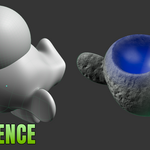
mt_seam is a stored seam mask attribute. It can be used in shaders to drive seam-local effects such as dirt, rust, wear, glow, or other custom shading details.
Why is material blending not available for my objects?
Material blending needs compatible node materials, and it works best with exactly two source objects. Unsupported material setups fall back to nearest-source material assignment.
Materials using Generated or Object texture coordinates may not remap cleanly to the combined result.
Does material blending preserve UVs?
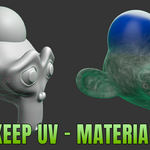
In the non-destructive engine, MergeTools is designed to use the real UV layers preserved by the boolean result. Material blending works best with two UV-based node materials.
The Remesh engine creates new geometry, so UV handling is more limited.
Can I use my own material on the weld bead?
Yes. Assign a material in Weld Material.
If no weld material is assigned, MergeTools uses the source blend material when available, then falls back to a generated dark-steel weld material.
Why do I not see the Weld controls?
The Weld section is optional and collapsed by default. Open the Weld section in the MergeTools panel.
Weld beads are not shown for the Remesh engine.
What is the Weld Bead feature?
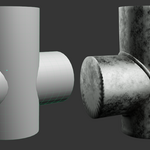
Weld Bead creates a procedural bumpy tube along actual intersection seam edges. It is useful for visible welded joints, hard-surface details, and stylized metal seams.
You can control Weld Size, Weld Detail, Weld Noise, and Weld Material.
What is Surface Smooth?
Surface Smooth applies an overall smooth relaxation to the result. It is separate from the seam fillet.
What is Fillet Bulge?
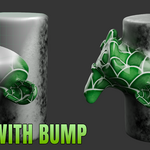
Fillet Bulge offsets the seam along a stabilized normal. Positive values can create a raised ridge. Negative values can create a carved groove.
What is Fuse Spread?
Fuse Spread changes how far the seam transition feathers away from the contact line. It can make the transition feel broader without simply increasing the fillet size.
What is Fillet Radius?
Fillet Radius controls the width of the rounded seam. A higher value makes the transition broader. A value of 0 turns the fillet operation off.
Where are the controls?
Select the generated MergeTools result object and open the N-panel. The main controls are in the MergeTools panel.
If the panel is not visible, confirm that the add-on is enabled and that you selected the generated result object, not only the original source mesh.
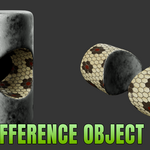
If the cut is going the wrong way, use Swap Objects (A<->B).
What does Swap Objects do?
Swap Objects (A<->B) reverses the Difference direction. It changes which object is treated as the base and which object is treated as the cutter.
How do I create a cut or subtraction?
Select the objects, make sure the intended base object is active, right-click, open MergeTools, and choose Difference with Non-destructive.
How do I create a merge?
Select two or more mesh objects, right-click in the viewport, open the MergeTools menu, and choose Merge with Non-destructive.
Then select the generated result object and adjust settings in the N-panel under MergeTools.
What object types are supported?
MergeTools works on mesh objects. Convert curves, text, volumes, and other object types to mesh before using MergeTools.
Does it work offline?
Yes. MergeTools runs locally inside Blender. It does not upload files, call external services, or require an internet connection after installation.
Which Blender version do I need?
MergeTools requires Blender 4.5 or newer.
Older Blender versions may not have the Geometry Nodes sockets and behavior required by the add-on.
Is MergeTools destructive?
Not while you are working in the live setup. MergeTools creates a generated result object and preserves the original source meshes as hidden source objects.
The workflow becomes destructive only when you choose Bake to Mesh, because baking converts the live result into final geometry.
What is MergeTools?
MergeTools is a Blender 5.1+ add-on for live mesh merging, difference cuts, seam fillets, material blending, procedural weld beads, presets, and final mesh baking.
It is designed for artists who want cleaner boolean-style forms without committing their source objects too early.
Discover more products like this
boolean fusion difference join fillet non-destructive Geometry merge object mergetool blend hard surface Merge