 Ryan Ernst Design


Put every tool a flick away
I've been a 3D artist for twelve years, and the thing that still slows me down every day is hunting through menus and hotkeys for tools. Ten seconds here, thirty seconds there, and by the end of the year it adds up to hours. So I built Mighty Mouse to fix it.
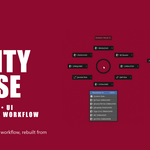
Mighty Mouse is a pie menu editor and workflow toolkit for Blender. It puts everything you do a flick of the wrist away, so you keep your hand on your mouse and your eyes on the work instead of digging through menus. It started as my own daily setup on a 12-button mouse, and I rebuilt it from the ground up as a native Blender extension so anyone can shape it to the way they work.
Picture this: you're deep in a packaging shot. You flick to thicken the walls with the Solidify modifier, flick again to a clean render preview through your camera, change the resolution to an Instagram size, and you're ready to render, all without your hand ever leaving the mouse.
First and foremost, it's a pie menu editor
You're not locked into my layout. A full visual editor lives right in Preferences, no Python required:
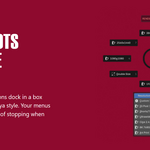
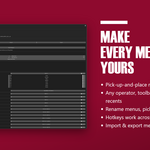
- Build and reshape any pie. Eight radial slices, plus up to eight more docked in a box below, Maya-style, so a single hotkey can hold sixteen tools.
- Pick up and place. Grab any tool and drop it in any slot. Slices swap, below-pie options reorder, and you can promote an option up into the wheel.
- Add anything. A searchable picker covers every Blender operator (with its arguments), a recently-used row, an icon browser, and script slots that run your own Python from any position. Even add pie menus inside other pies menus!
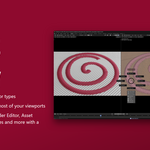
- Smart hotkeys. Press-to-detect binding per menu, conflict detection against Blender and other add-ons, and multi-editor contexts so one pie can fire in the 3D Viewport, UV Editor, and Shader Editor.
- Preview any menu in Preferences before you commit, and every pie draws a title banner so you always know which one you flicked.
Thirty-plus pies, ready on day one
Ready-made menus for almost everything, each on a memorable hotkey:
New in 1.28: a linear falloff tool. Draw a falloff right in the viewport, then move, rotate, or scale your selection with a smooth gradient, the way Modo does it. Pick a profile (Smooth, Linear, Sharp, or Bell), constrain to an axis, and snap rotation to 5 degrees. This release also adds a viewport hotkey overlay that keeps a cheat sheet of your pie hotkeys on screen, modifier pies that prompt for their settings the moment you add them, viewport shading modes on the display pie, and per-pie export, import, and reset.
New in 1.27: nested pies. A pie slot can now open another pie, so a single hotkey, or one button on your mouse or controller, can branch out to several menus. It ships with two ready-made HUB pies that put every menu in the kit within reach, plus one-press Clear All and Reset to Defaults hotkey controls.
- Modeling: Add Mesh, Add Modifier, Duplicate/Array, Modeling Tools, Retopo Tools
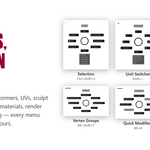
- Deform and select: Deformers (every deform modifier plus Smart Lattice), two full Selection menus, Vertex Groups
- Sculpt, paint and UV: Sculpt Tools, Paint Tools, Proportional Edit, three UV menus
- Render and materials: Render Presets with a live resolution slider and social, cinema, and print sizes, plus Bake, New Image, and Materials
- Scene control: Origins/Pivots, Transform Pivots, Viewport Display, Viewport Control, and a Unit Switcher with a live dimensions readout
- Layout: two Splitter pies and a Layout Switcher, plus a clean Viewport Render and a smart Close Area
Smart tools where vanilla Blender falls short
These are the little time-savers I built for my own days, and they work in your custom pies too:
- Linear falloff tool. A Modo-style falloff transform I always missed in Blender. Draw a falloff right in the viewport, then move, rotate, or scale with a smooth gradient across it. Pick a profile (Smooth, Linear, Sharp, or Bell), constrain to an axis, snap rotation to 5 degrees, and drag the handle to re-aim it. Works on vertices in Edit Mode and objects in Object Mode.
- Modifier pies that prompt for the basics. Add a Bevel, Solidify, Boolean, or Array and a small dialog pops up for the settings you actually reach for, updating live as you drag, so you set a bevel's width and segments or a boolean's target without ever opening the Modifier tab.
- Hotkey overlay. Turn on a cheat sheet of your pie hotkeys right in the viewport while you learn the kit. Pin it to any edge or center it along the bottom, dial in the opacity and scale, and show all your pies or just the ones you want. No more stopping to remember a binding.
- Duplicate + Apply bakes down a copy with the whole modifier stack applied and hides the original, so you lock in a final mesh without losing your live setup.
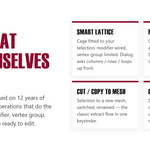
- Copy / Cut to New Mesh pulls a selection out to its own object in one keystroke, the classic Modo flow.
- Smart Delete reads what you've selected and deletes the right way every time.
- Smart Lattice fits a deform cage to your selection and wires it up, ready to edit.
- Radial Array spins copies around a live pivot with count, axis, and merge controls.
- Dimensions overlay draws an oriented bounding box with live measurements in scene units, per-edge lengths, face areas, and L/W/H labels.
- Wheel-tilt selection suite puts pattern-select, grow/shrink, linked, loops, and drag-to-grow coplanar right on a tilting scroll wheel.
Make it yours, then share it
Every pie is fully editable. Swap tools, rename slots, reorder them, or pull from your recently-used list. Add a tool straight from the toolbar and it keeps its gizmo, so move, rotate, and scale come in with their handles ready. Your customizations live outside the add-on folder, so updates never wipe them, and you can export the whole kit to hand to a teammate or move between your own machines.
Every pie is fully editable. Swap tools, rename slots, reorder them, or pull from your recently-used list. Add a tool straight from the toolbar and it keeps its gizmo, so move, rotate, and scale come in with their handles ready. Your customizations live outside the add-on folder, so updates never wipe them. Export the whole kit or just the pies you choose to hand to a teammate or move between machines, import individual menus into another setup, and reset any menu back to its shipped default (handy for pulling in new pies after an update without losing the rest).
Support that respects you
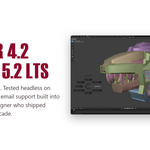
Hit a bug or want a feature? A support panel in Preferences opens a pre-filled email with your OS, Blender version, plugin version, and settings, so I can chase it down fast. Nothing sends automatically. It just opens the draft and you decide whether to hit send.
Details
Blender 4.2 LTS through 5.x. Ships as a native extension, validated with Blender's own tooling on every release.
A brand-designed PDF manual is included: install guide, hotkey reference, per-pie diagrams, editor walkthrough, and a smart-tools reference.
Free updates within the 1.x line.
About me
I'm a senior 3D artist specializing in product visualization, and I care a lot about building tools and presets that speed up the whole team. Mighty Mouse is the successor to my original Mighty Mouse kit for Modo, the same philosophy rebuilt from scratch for Blender. I use it every single day.
Take a look, give it a try, and if you find a bug or want a feature, email me. I'll jump on it. Happy blendering.
