Mighty Mouse
 Ryan Ernst Design


RED Mighty Mouse
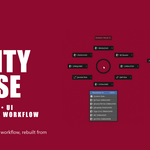
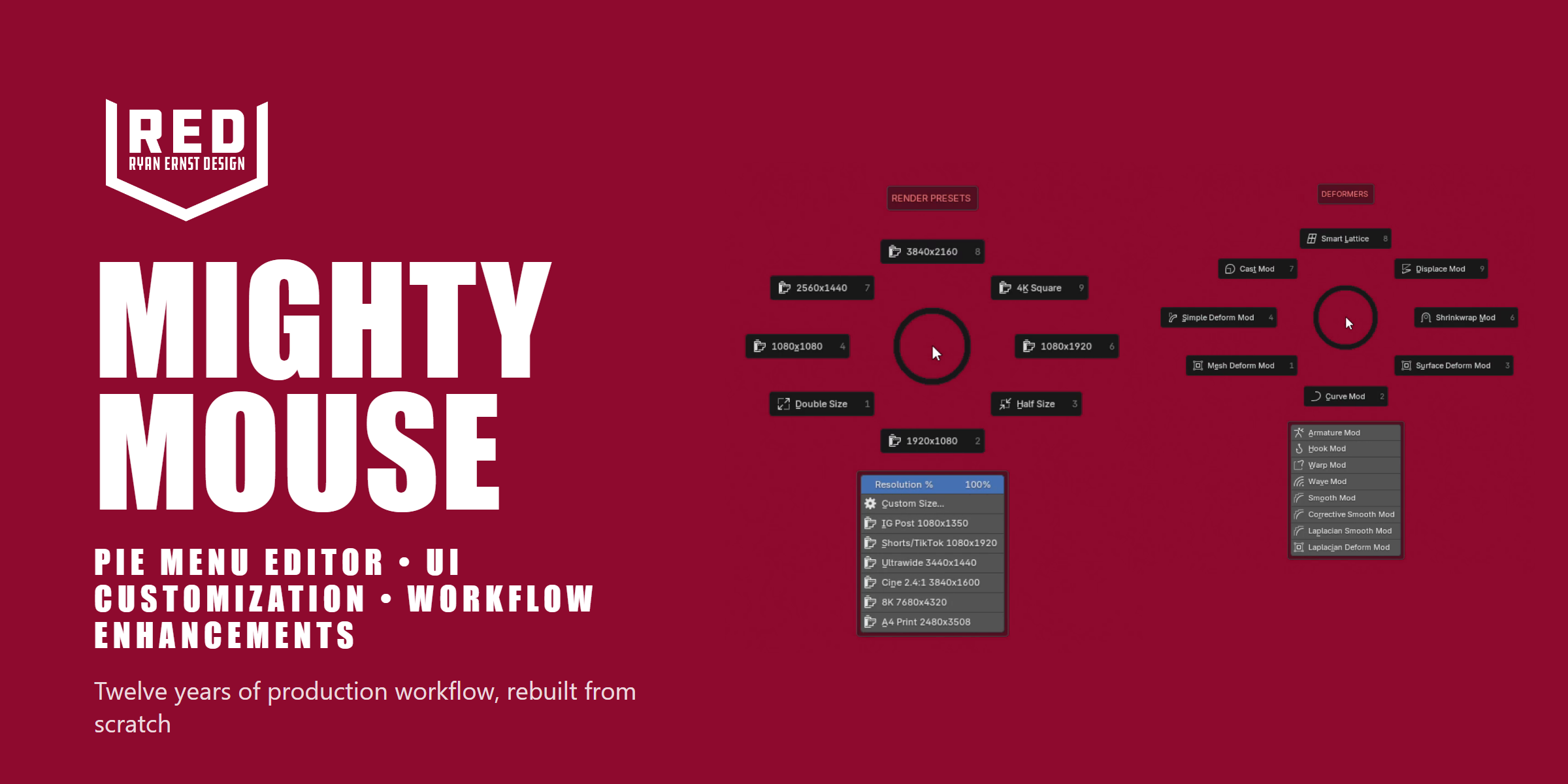
A pie menu editor and workflow toolkit for Blender. It puts the tools you use every day a flick of the wrist away, so you keep your hand on your mouse instead of digging through menus. Thirty-plus pie menus are ready the moment you install, and every one of them can be reshaped, re-keyed, and extended until the kit fits the way you work.
Requirements
- Blender 4.2 LTS through 5.x. Installs as a native Extension.
- No special hardware required. A mouse with extra buttons or a tilting scroll wheel is a nice bonus, but every pie works from the keyboard.
Installation
- Open Edit > Preferences > Get Extensions, click the drop-down arrow (top right) and choose Install from Disk, then pick the Mighty Mouse .zip. You can also just drag the .zip onto the Blender window.
- Enable the add-on if it is not already ticked (search "Mighty Mouse" under Add-ons).
- Save Preferences from the menu at the bottom left of the Preferences window, so the kit stays enabled between sessions.
Upgrading: install the new .zip the same way and it replaces the old version in place. Your menus and hotkeys are untouched.
Your customizations are stored in a pie_config.json in Blender's user configuration folder, so they survive plugin updates. Use Export in the preferences to back up or share your setup, and Import to restore it.
The editor
Everything is editable from a visual editor in Add-on Preferences, no Python required.
- Rename any menu by clicking its name. The title banner above the pie updates instantly.
- Rearrange with grab handles: pick up any tool and drop it in any slot. Slices swap, below-pie options reorder, and options can be promoted up into the wheel.
- Eight radial slots plus eight below-pie options per menu, so a single hotkey can hold up to sixteen tools.
- Add anything: a searchable picker covers every Blender operator (with its arguments), a recently-used row, an icon browser, and script slots that run your own Python from any position.
- Hotkeys: press-to-detect binding per menu, with conflict detection against Blender and other add-ons, and multi-editor contexts (one pie can fire in the 3D Viewport, UV Editor, and Shader Editor).
- Preview any menu right in Preferences before you commit.
- One Custom pie ships empty and pre-bound to a hotkey, ready for your own tools.
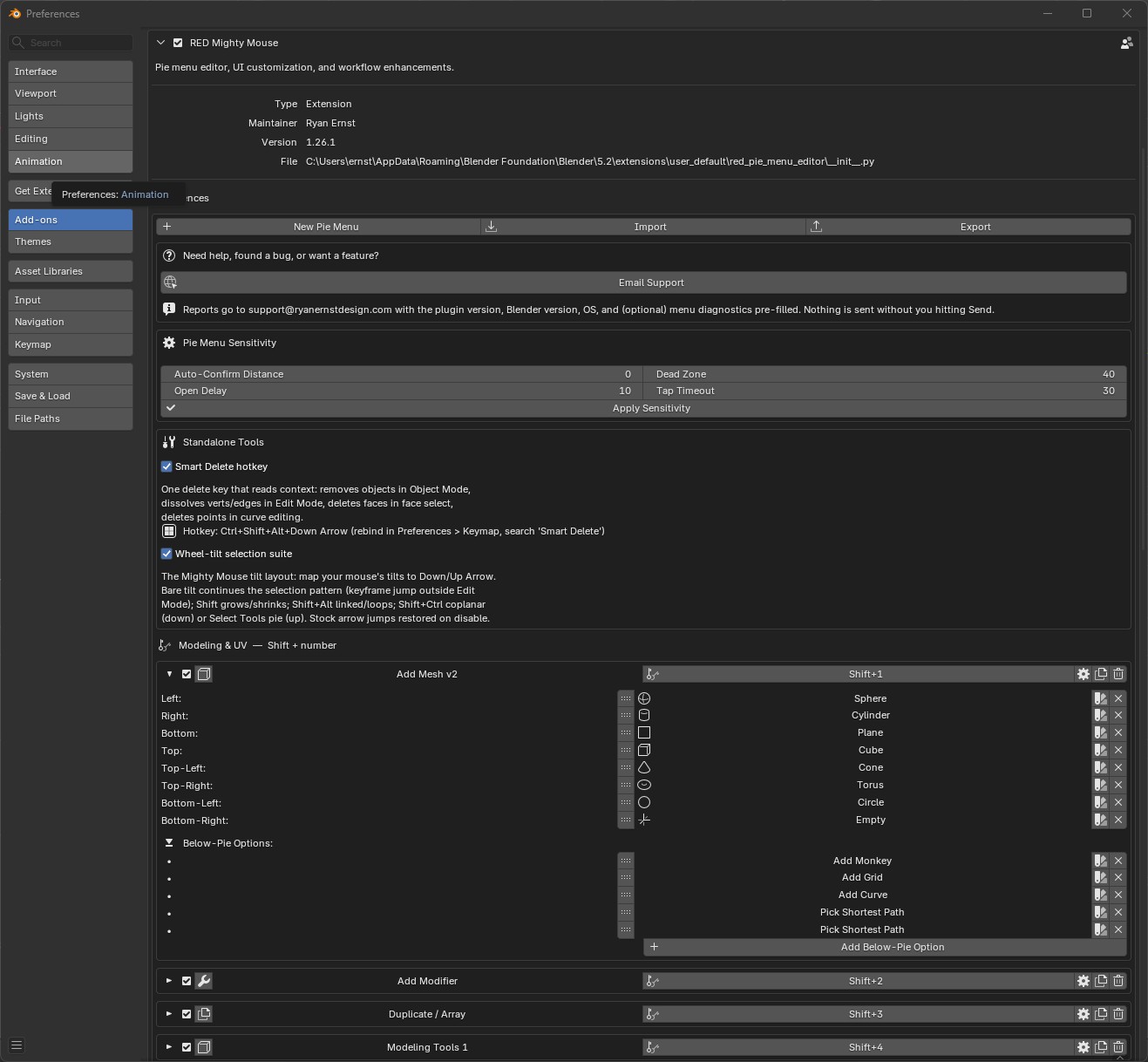
Hotkey reference
Every pie, grouped by modifier. All bindings are editable per menu in the preferences.
| Hotkey | Pie menu |
|---|---|
| Shift + 1 | Add Mesh |
| Shift + 2 | Add Modifier |
| Shift + 3 | Duplicate / Array |
| Shift + 4 | Modeling Tools 1 |
| Shift + 5 | Modeling Tools 2 |
| Shift + 6 | Deformers |
| Shift + 7 | UV Tools 1 |
| Shift + 8 | UV Tools 2 |
| Shift + 9 | UV Tools 3 |
| Shift + 0 | Materials |
| Shift + - | Unit Switcher |
| Alt + 4 | Quick Modifiers 1 |
| Alt + 5 | Quick Modifiers 2 |
| Alt + 6 | Quick Modifiers 3 |
| Alt + 7 | Render Presets |
| Alt + 8 | New Image |
| Alt + Shift + 1 | Layout Switcher |
| Alt + Shift + 2 | Split Left / Right |
| Alt + Shift + 3 | Split Top / Bottom |
| Alt + Shift + 5 | Proportional Edit |
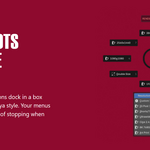
| Alt + Shift + 6 | Transform Pivots |
| Alt + Shift + 7 | Vertex Groups |
| Alt + Shift + 8 | Origins / Pivots |
| Ctrl + Shift + 1 | Viewport Control |
| Ctrl + Shift + 2 | Viewport Display |
| Ctrl + Shift + 3 | Selection |
| Ctrl + Shift + 4 | Custom 1 (Empty) |
| Ctrl + Shift + Up | Select Tools |
| Ctrl + Alt + Shift + 4 | Retopo Tools |
| Ctrl + Alt + Shift + 5 | Sculpt Tools |
| Ctrl + Alt + Shift + 6 | Paint Tools |
| Ctrl + Alt + Shift + 8 | Bake / Render |
Mouse wheel tilt (optional)
If your mouse has a tilting scroll wheel, map tilt right to the Up Arrow and tilt left to the Down Arrow in your mouse software (for example Razer Synapse). That single setup puts the whole wheel-tilt selection suite on your wheel. No tilt wheel? Every binding still works from the keyboard arrows.
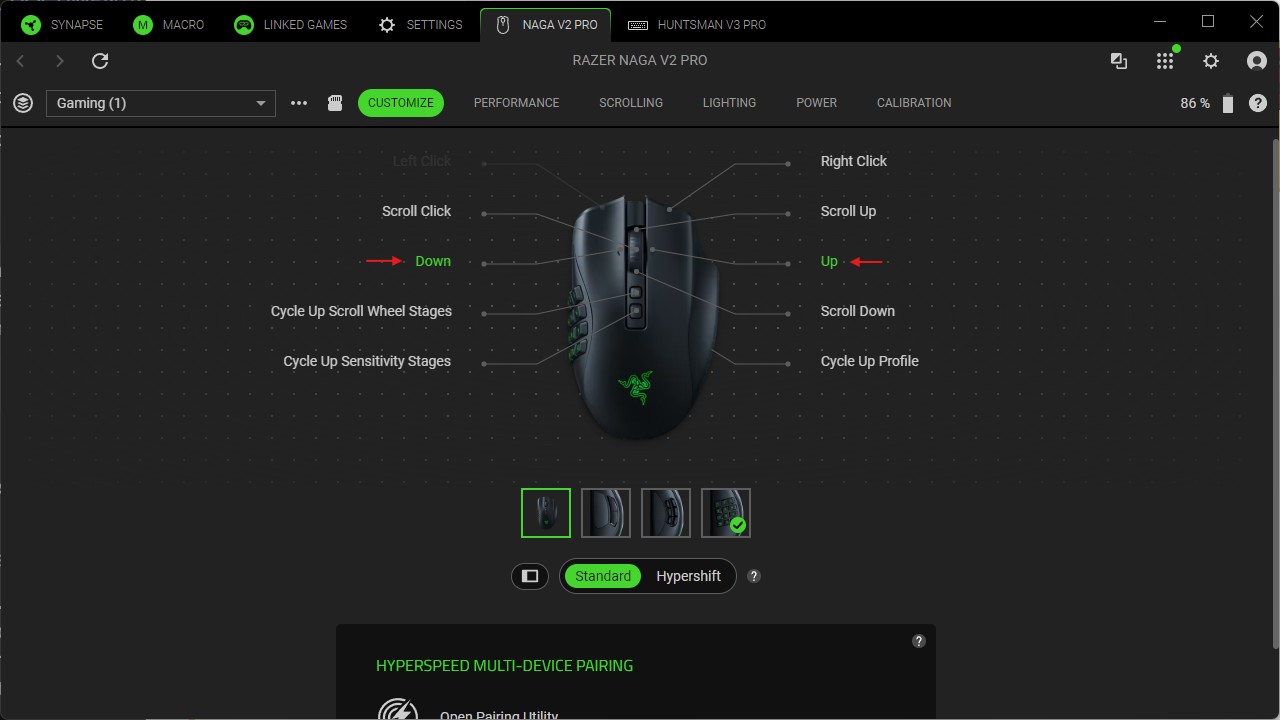
| Combo | Tilt Down (left) | Tilt Up (right) |
|---|---|---|
| Bare | Select Pattern Less | Select Pattern More |
| + Shift | Select Shrink | Select Grow |
| + Shift + Alt | Select Linked | Select Loop (face loops in face mode) |
| + Shift + Ctrl | Select Coplanar (drag right to grow the angle, click to commit) | Select Tools pie |
| + Shift + Ctrl + Alt | Smart Delete | Adjust Last Operation panel |
Bare tilts are content-aware: in Edit Mode they continue your selection pattern, and over the timeline or animation editors they jump keyframes like stock Blender. Blender's own arrow bindings are managed automatically and restored if you turn the suite off in preferences.
Included pie menus
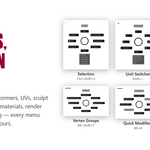
Thirty-one populated menus plus an empty Custom pie, covering:
- Modeling: Add Mesh, Add Modifier, Duplicate / Array, Modeling Tools 1 & 2, Retopo Tools
- Deform & select: Deformers (every deform modifier plus Smart Lattice), two full Selection menus, Vertex Groups
- Sculpt, paint & UV: Sculpt Tools, Paint Tools, Proportional Edit, UV Tools 1 to 3
- Render & materials: Render Presets (live resolution slider, custom-size dialog, social / cinema / print sizes), Bake / Render, New Image, Materials
- Scene control: Origins / Pivots, Transform Pivots, Viewport Display, Viewport Control, Unit Switcher (with a live dimensions readout)
- Quick modifiers: three one-tap modifier menus
- Layout: Layout Switcher and two Splitter pies, plus Viewport Render and a smart Close Area
Smart tools
Custom operators back the menus where vanilla Blender falls short, and they work in your own custom pies too.
- Duplicate + Apply: duplicates the object with the whole modifier stack applied and hides the original, so you lock in a final mesh while your live setup stays safe (Alt+H to bring it back).
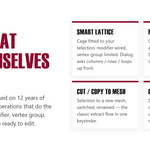
- Copy / Cut to New Mesh: sends a selection to its own object in one keystroke, with the rename dialog open.
- Smart Delete: reads your selection (verts, edges, faces, objects, curve points) and deletes the right way every time.
- Smart Lattice: fits a deform cage to your selection, wires the Lattice modifier, and lands you on the cage ready to edit.
- Radial Array: a Geometry Nodes array around a live pivot, with count, axis, and merge controls.
- Viewport Render: one click splits off a clean render pane through your camera, with gizmos, overlays, toolbar, and sidebar hidden.
- Smart Close: closing a panel hands its space to your biggest editor, so the timeline never balloons to fill the gap.
- Dimensions overlay: an oriented bounding box with live measurements in scene units, per-edge lengths, face areas, and L / W / H labels.
Make it yours, then share it
Swap tools, rename slots, reorder them, or pull from your recently-used list. Add a tool straight from the toolbar and it keeps its gizmo, so move, rotate, and scale come in with their handles ready. Use Export to save your whole kit as a file you can hand to a teammate or move between your own machines, and Import to load it back.
Support
A support panel at the top of the preferences opens a pre-filled email with your OS, Blender version, plugin version, and settings, so issues can be tracked down fast. Nothing sends automatically: it just opens the draft and you decide whether to send it. Bug reports, feature requests, and questions are all welcome at [email protected].
Tips
- Seeing a conflict warning on a hotkey? Open the keybinding dialog to see exactly what it collides with, and toggle off the conflicting Blender binding right there.
- Pie sensitivity (confirm distance, dead zone, open delay, tap timeout) is tunable at the top of the preferences if flick-selection feels too eager or too lazy.
- Fire a pie and release over the center to cancel. Number keys 1 to 9 pick slices without the mouse.
- The kit assumes vanilla Blender keymaps. On a custom keymap, the conflict checker in each menu's hotkey dialog is your friend.
 Included
Includes 12 months of
- Support from Ryan Ernst Design
- Product updates
Extend this product’s Support Period +12 months: 50% of product price
Have questions before purchasing?
Login to message
Discover more products like this
pie menu editor pie menu productivity addon Hotkeys Mighty Mouse radial-menu customization ui pie menus toolkit Workflow