Mighty Mouse
 Ryan Ernst Design


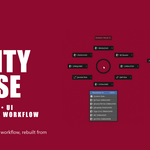
Thanks again for picking up Mighty Mouse. Version 1.28 is live, and it's a free update. This one's my favorite so far.
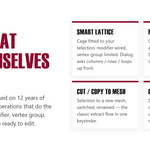
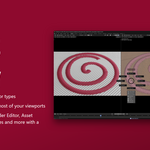
Linear falloff tool. The big one. Draw a falloff right in the viewport, then move, rotate, or scale your selection with a smooth gradient, just like Modo. Pick a profile (Smooth, Linear, Sharp, or Bell), constrain to an axis, hold Shift to snap rotation to 5 degrees, and drag the handle to re-aim it. You'll find it on the Modeling Tools 1 pie, and you can move it to any slot you like. I've wanted this in Blender for years, so it was a fun one to build.
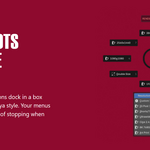
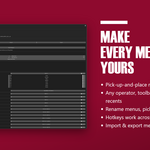
Hotkey overlay. A cheat sheet of all your pie hotkeys, right in the viewport, so you never have to stop and remember a binding. Pin it to an edge or center it along the bottom, set the opacity and size, and show all your pies or just the ones you want. This one came straight from a customer request, and it went from idea to shipped in the same week.
Modifier pies that prompt for the basics. Add a Bevel, Solidify, Boolean, and the rest, and you get a little dialog for the settings you actually reach for, updating live as you drag. No more opening the Modifier tab just to set a width.
Viewport shading modes on the Viewport Display pie (Wireframe, Solid, Material Preview, Rendered).
Per-pie export, import, and reset. Share or back up individual menus, and pull the latest shipped pies into your setup after an update without losing your customizations.
Plus a full Add menu on the Add Mesh pie, a button to open your prefs file, and a fix for Cut and Copy to New Mesh on hidden collections.
Your menus and customizations carry over untouched. Just re-download the latest version from your Gumroad library to update.
**One quick tip: because your saved pies are never overwritten on update, the refreshed built-in pies (the modifier prompts, the shading modes, and the new falloff tool on Modeling Tools 1) won't automatically replace the ones you already have. To pull them in, open Preferences and use the new "Reset Pies to Default" button, then tick just the pies you want refreshed (Add Modifier, Add Mesh, Modeling Tools 1, Viewport Display). It restores those to the latest versions and leaves the rest of your setup alone. Or, if you'd rather, the falloff tool and every new operator are available right away to drop onto any pie slot yourself.
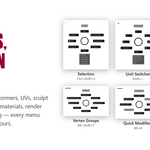
Nested pies (new). Any pie slot can now open another pie menu, so one hotkey, or a single button on a programmable mouse or controller, can branch out to several menus. Add one in the editor: on any slot choose Add, then the new Pie tab, and pick a menu. Works in the radial ring and the below-pie box, no scripting required.
Two ready-made hub pies (new). "Modeling HUB" and "Look & Layout HUB" ship with the kit and together reach every menu it includes. They come unbound, so you can give them your own hotkeys or map them to a mouse or controller button.
Clear All / Reset Default hotkeys (new). Two buttons at the top of the preferences: Clear All Hotkeys wipes every pie's hotkey in one press so you can bind just the ones you want, and Reset to Defaults restores the originals anytime. Neither ever changes your menu layouts or tools.
Docs. The included PDF manual has a new Hub Pies page covering all of the above.
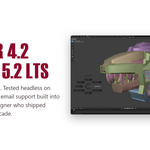
Works in Blender 4.2 LTS through 5.x. Your existing menus, tools, and customizations carry over untouched.
 Included
Includes 12 months of
- Support from Ryan Ernst Design
- Product updates
Extend this product’s Support Period +12 months: 50% of product price
Have questions before purchasing?
Login to message
Discover more products like this
pie menu pie menus Mighty Mouse toolkit Hotkeys addon ui pie menu editor Workflow productivity radial-menu customization