Mighty Mouse
 Ryan Ernst Design


How do I get help or request a feature?
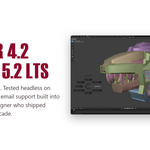
There is a support panel in the preferences that opens a pre-filled email with your OS, Blender version, plugin version, and settings, so problems can be tracked down quickly. Nothing sends automatically, it just opens the draft for you to send. You can reach me at [email protected].
Will it clash with my existing Blender hotkeys?
The editor has built-in conflict detection. When you assign a hotkey it warns you about any collision with Blender or another add-on, and you can toggle off the conflicting binding right there or pick a different combo. Every hotkey in the kit is editable.
If I customize my menus, will an update wipe them?
No. Your setup is saved in a config file outside the add-on folder, so it survives updates. You can also Export your whole kit to a file to back it up, move it between machines, or share it with teammates, and Import it back anytime.
Can I edit the included menus or build my own?
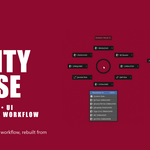
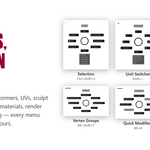
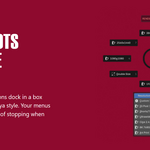
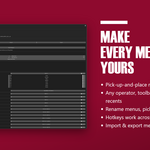
Yes, that is the whole point. A full visual editor lives in the add-on preferences, no Python required. Rename menus, swap and reorder tools, add any Blender operator (or your own scripts), set your own hotkeys, and preview any menu before you use it. Every pie holds eight radial slots plus eight more in a box below.
Do I need a special mouse?
Every pie menu works from the keyboard. If you do have a mouse with extra buttons or a tilting scroll wheel, you can map the pies and the wheel-tilt selection suite onto it for an even faster workflow, but nothing requires it.
Which Blender versions does it support?
Blender 4.2 LTS through 5.x. It installs as a native Extension, so it drops in through Get Extensions and stays put across updates.
 Included
Includes 12 months of
- Support from Ryan Ernst Design
- Product updates
Extend this product’s Support Period +12 months: 50% of product price
Have questions before purchasing?
Login to message
Discover more products like this
pie menus Hotkeys productivity pie menu editor radial-menu ui Workflow addon Mighty Mouse pie menu customization toolkit