ModelRef
 ArtBSculpt


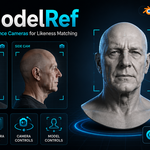
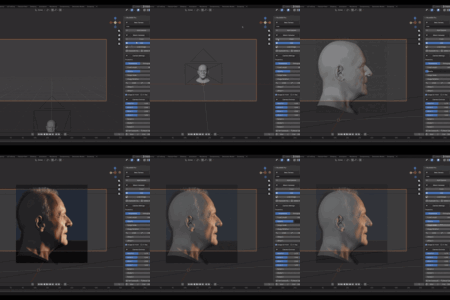
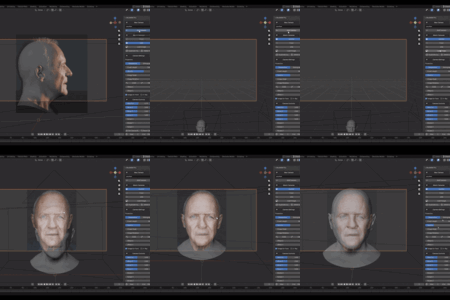
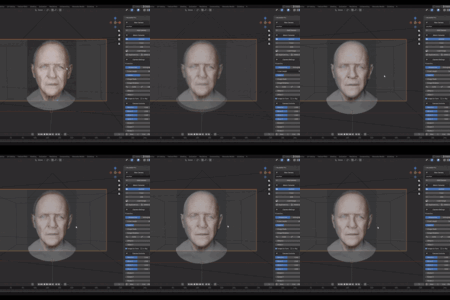
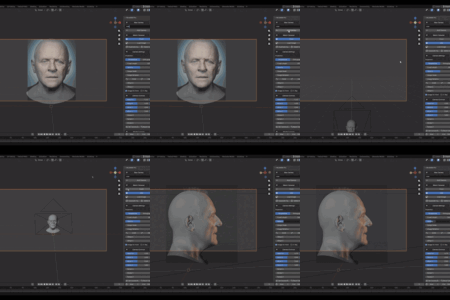
ModelRef Documentation
This documentation covers both ModelRef Lite and ModelRef Pro.
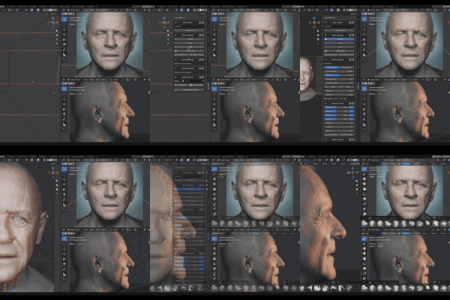
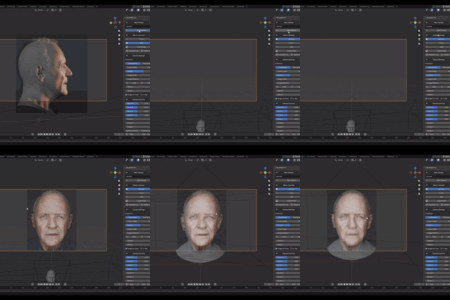
ModelRef is a Blender extension for organizing and matching 3D models against reference images through dedicated cameras.
It does not automatically create a likeness or align a model. It provides a structured workflow for manually comparing and adjusting a model from multiple reference views.
Requirements
- Blender 4.2 or newer
- Windows, Linux, or macOS
- A downloaded ModelRef Lite or ModelRef Pro ZIP file
Lite and Pro are alternative editions. Do not enable both editions at the same time.
Installation
- Download the ModelRef ZIP file.
- Do not extract the ZIP.
- Open Blender.
- Go to
Edit > Preferences. - Open
Get Extensionsor the Extensions section. - Open the extension menu and choose
Install from Disk. - Select the ModelRef ZIP file.
- Enable ModelRef if it is not enabled automatically.
- Close Preferences.
- Open a 3D View.
- Press
Nto open the sidebar. - Select the
ModelReftab.
Updating ModelRef
When installing a newer version:
- Save your Blender files.
- Open
Edit > Preferences > Get Extensions. - Find the installed ModelRef edition.
- Disable and uninstall the previous version.
- Restart Blender if the previous code remains loaded.
- Install the new ZIP using
Install from Disk. - Enable the extension again.
The uninstall option is normally found in the Extensions section, not inside the standard Add-ons information panel.
Choosing an Edition
ModelRef Lite
Lite provides:
- Up to 3 reference cameras
- Per-camera reference images
- Perspective and Orthographic projection
- Image adjustment controls
- Independent Camera View framing
- Automatic focal compensation
- Organized reference cameras
ModelRef Pro
Pro includes everything in Lite and adds:
- Unlimited reference cameras
- Multi-View Setup
- Included Base Head
- Camera keyboard shortcuts
- Composition Guides
- Advanced Camera Controls
- Advanced Model Controls
- Bidirectional transform synchronization
- Precision controls
- Camera and model baselines
- Reorderable panel sections
- Model-aware focal compensation
Basic Workflow
- Create a ModelRef camera.
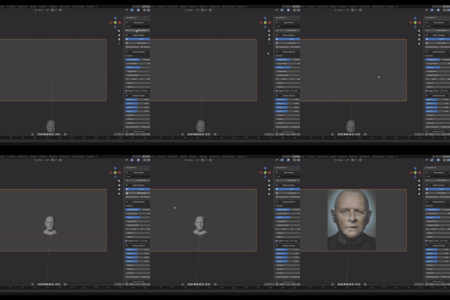
- Load a reference image.
- Choose Perspective or Orthographic projection.
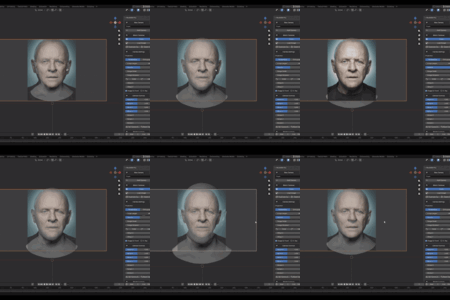
- Adjust the image opacity, scale, rotation, and offsets.
- Position your model against the image.
- Create additional cameras for other views.
- Switch between cameras while modeling or sculpting.
- Use Pro Camera Controls or Model Controls when additional precision is required.
Camera Management
Creating a Camera
- Enter a name in the
New Camerafield. - Press
Add Camera.
The new camera is created, activated, and placed inside the ModelRef Cameras collection.
New cameras use these initial settings:
- Perspective projection
- 85 mm focal length
- Image opacity of 0.5
- Image scale of 1.0
- Image rotation of 0°
- Offset X and Y of 0
- Image In Front enabled
ModelRef automatically creates unique names if another object already uses the requested name.
Activating a Camera
Press the camera’s name in the camera list.
ModelRef:
- Activates the selected reference camera
- Enters Camera View
- Restores its image settings
- Restores its Camera View zoom and pan
- Uses a local viewport camera when possible
Only ModelRef cameras appear in this list. Regular render cameras are intentionally excluded.
Duplicating a Camera
- Activate the camera you want to copy.
- Press
Duplicate Camera.
The duplicate receives:
- A copied camera datablock
- The same reference image
- The same image settings
- The same projection and lens settings
- The same Camera View framing
- Copied Pro Camera Controls
In Pro, the duplicated camera does not copy the keyboard shortcut. This prevents two cameras from using the same shortcut.
Deleting a Camera
- Activate the camera.
- Press
Delete Camera.
If other ModelRef cameras exist, the first available camera becomes active.
In Pro, the deleted camera’s shortcut is also removed.
ModelRef Cameras Collection
ModelRef automatically stores its cameras inside:
ModelRef Cameras
This collection contains only cameras managed by ModelRef.
Existing ModelRef cameras are moved into this collection when the extension is enabled or a Blender file is opened.
Normal scene and render cameras remain outside this collection and are not displayed in the ModelRef camera list.
Loading Reference Images
- Activate a ModelRef camera.
- Press
Load Image. - Select an image file.
- Confirm the selection.
Each camera stores its own image path and image settings.
Supported formats depend on Blender and normally include:
- PNG
- JPG and JPEG
- BMP
- TIFF
- EXR
- HDR
- WebP
ModelRef uses Blender camera background images. These images are intended for viewport reference and are not included in the final render.
If an external image file is moved or renamed, Blender may no longer be able to locate it. Keep the reference files available or use Blender’s file-packing tools when appropriate.
Camera Image Settings
Projection
Choose between:
PerspectiveOrthographic
Perspective cameras use Focal Length.
Orthographic cameras use Orthographic Scale.
Focal Length
Controls the perspective characteristics of the camera.
When Focal Length changes, ModelRef can move the camera automatically to preserve the target’s apparent framing.
Orthographic Scale
Controls the visible area of an Orthographic camera.
Automatic focal compensation is not applied in Orthographic mode.
Opacity
Controls the transparency of the reference image.
Lower values make it easier to see the model through the image.
Image Scale
Changes the size of the reference image inside Camera View without scaling the model.
Image Rotation
Rotates the reference image.
The CCW and CW buttons rotate the image in 1-degree increments.
Offset X and Offset Y
Move the reference image horizontally or vertically inside the camera frame.
These settings do not move the camera or model.
Image In Front
Controls whether the background reference is displayed in front of or behind the model.
X-Ray
Toggles X-Ray for the current 3D View.
X-Ray is a viewport setting and is not stored independently for each ModelRef camera.
Camera View Zoom and Pan
ModelRef stores Camera View zoom and pan independently for each reference camera.
This is different from changing Focal Length or moving the camera.
Adjusting the Camera Frame Without Moving the Camera
- Enter Camera View.
- Disable
Lock Camera to View. - Use Blender’s Camera View navigation to zoom or pan the complete camera frame.
- Switch to another ModelRef camera.
ModelRef saves that framing and restores it when the camera is activated again.
Each camera can therefore have a different Camera View zoom and pan.
Important Navigation Differences
Camera View Zoom
Changes how large the complete camera frame appears in the viewport.
It does not:
- Change Focal Length
- Move the camera
- Scale the model
- Change the final render
Focal Length
Changes the camera lens and perspective.
ModelRef compensates by moving the camera to preserve the target framing.
Near/Far
Moves the physical camera along its optical direction.
Lock Camera to View
When enabled, viewport navigation can move the camera itself. Disable it when you only want to navigate away from the camera or adjust the viewport frame.
Automatic Focal Length Compensation
Automatic focal compensation is available in Lite and Pro for Perspective cameras.
When Focal Length changes, ModelRef calculates the required camera distance and moves the camera along its optical axis.
The goal is to preserve the apparent size and central position of the framing target.
The model itself is not moved or scaled.
Where It Works
Compensation works when changing Focal Length from:
- The ModelRef panel
- Blender’s native Camera Properties
Lite Target
ModelRef Lite uses the World Origin (0, 0, 0) as the framing target.
For the best result, position the model around the World Origin.
Pro Target
ModelRef Pro uses the center of the assigned model.
If the model contains multiple meshes grouped under an Empty, descendant meshes are included when calculating the center.
If no model is assigned, Pro falls back to the World Origin.
Dynamic Clip Start
Very low focal lengths require the camera to move extremely close to the target.
If Camera Clip Start prevents that movement, ModelRef temporarily reduces Clip Start.
When the focal length returns to a normal value, ModelRef restores the Clip Start value previously selected by the user.
Focal Compensation Limitations
Focal compensation preserves the central target framing, but changing a lens still changes perspective.
Extremely low focal lengths can:
- Produce strong wide-angle distortion
- Place the camera very close to the model
- Place the camera inside large geometry
This is normal perspective behavior and cannot be removed without changing the visual result.
Camera View to Free Viewport Transition
When leaving Camera View, ModelRef attempts to give the free viewport a similar visual framing.
It preserves or approximates:
- Camera orientation
- Visual distance
- Apparent model size
- Framing around the model
ModelRef respects the focal length already configured for the viewport.
For example, if the viewport uses 60 mm or 75 mm, ModelRef does not force it back to 50 mm or replace it with the camera lens.
The transition includes stabilization to reduce:
- Sudden zoom jumps
- Flickering
- Middle-mouse navigation glitches
- Interference while
Lock Camera to Viewis active - Unwanted movement during Shift and mouse-wheel navigation
ModelRef Lite
ModelRef Lite supports a maximum of three reference cameras.
Lite Workflow
- Create the first camera.
- Load its reference image.
- Adjust projection and image settings.
- Create or duplicate additional cameras.
- Repeat the process for up to three views.
- Switch between cameras from the list.
- Match the model manually.
Lite does not include:
- Multi-View Setup
- Base Head
- Camera shortcuts
- Advanced Camera Controls
- Advanced Model Controls
- Composition Guides
- Panel reordering
ModelRef Pro
ModelRef Pro supports an unlimited number of reference cameras and includes advanced matching tools.
Multi-View Setup
The Multi-View Setup section is located at the top of the Pro panel and is closed by default.
Available slots:
- Front
- Back
- Left Profile
- Right Profile
- Left +45°
- Right -45°
Creating a Multi-View Camera
- Expand
Multi-View Setup. - Select one of the available view slots.
- Choose an image file.
- ModelRef creates and activates the corresponding camera.
The camera is:
- Assigned to that slot
- Given the selected image
- Oriented toward the World Origin
- Positioned 6 Blender units from the World Origin
- Configured with a correct Camera Control baseline
If the slot already has a camera, selecting another image updates the existing camera.
A slot without an image does not create a camera.
Removing a Multi-View Camera
Press the X button beside the image filename.
This removes the generated camera and clears the slot.
Left and Right Convention
Left and Right refer to the visible anatomical side of a front-facing model.
The camera’s physical scene position is therefore on the opposite side of the model being viewed.
Multi-View Requirements
Multi-View cameras always target the World Origin and use a distance of 6 units.
For the initial setup to frame correctly:
- Keep the model reasonably close to the World Origin
- Use a suitable model scale
- Adjust the generated cameras afterward when necessary
The amount or size of other scene objects does not change the generated camera distance.
Top View Indicator
The center of the Multi-View diagram displays the selected model from a conceptual top-view layout.
It is not a Top camera slot.
Multi-View currently uses a file selector and does not support dragging and dropping images directly onto the slots.
Included Base Head
ModelRef Pro includes an optional Base Head.
Adding the Base Head
- Open
Model Controls. - Press
Add Base Head.
ModelRef:
- Imports the bundled FBX
- Preserves imported mesh objects
- Removes unnecessary cameras, lights, and helper objects
- Assigns the imported head as the active model
- Captures its initial model baseline
Only one Base Head can be added to a scene through this button.
If ModelRef finds an existing Base Head by its marker or name, the button is disabled.
Pro Camera Controls
Camera Controls are stored separately for each Pro camera.
Available controls:
- Near/Far
- Move X
- Move Y
- Move Z
- Rotate X
- Rotate Y
- Rotate Z
- Precision
- Set Camera Base
- Reset Camera Controls
Near/Far
Moves the camera forward or backward along its optical direction.
Focal compensation is normally represented through this control.
Move X, Y, and Z
Move the camera along Blender’s X, Y, and Z axes relative to the saved camera baseline.
Rotate X, Y, and Z
Apply rotational offsets from the saved camera baseline.
Bidirectional Camera Synchronization
Camera Controls are synchronized with Blender’s native transform properties.
Changes made in ModelRef update the camera object.
Changes made directly to the camera’s Location or Rotation in Blender update ModelRef’s controls.
Camera Precision
The P button applies finer sensitivity to Near/Far and Move X, Y, and Z.
Activating or deactivating Precision does not move the camera. ModelRef rescales the control values so the current transform remains unchanged.
Set Camera Base
Set Camera Base makes the current camera pose the new zero point.
It:
- Stores the current Location and Rotation
- Resets relative control values
- Does not move or rotate the camera
Reset Camera Controls
Returns the camera to the saved Camera Base and clears its relative control values.
Pro Model Selection
A model can be assigned in three ways.
Object Field
Select an existing object from the Model field.
Use Selected as Model
- Select an object in the 3D View.
- Press
Use Selected as Model.
The selected object becomes the controlled model.
Group Selected as Model
Use this when a character or head consists of multiple objects.
- Select two or more non-camera objects.
- Press
Group Selected as Model.
ModelRef:
- Creates an Empty controller
- Preserves the world transforms of all selected objects
- Parents the selected objects to the Empty
- Assigns the Empty as the controlled model
The group can then be moved, rotated, and scaled as one model.
Pro Model Controls
Available Model Controls:
- Rotate X
- Rotate Y
- Rotate Z
- Near/Far
- Side Offset
- Vertical Offset
- Model Scale
- Independent Precision controls
- Set Model Base
- Reset Model Controls
Near/Far
Moves the model forward or backward relative to the view orientation captured in the Model Base.
Side Offset
Moves the model laterally relative to the saved view orientation.
Vertical Offset
Moves the model vertically relative to the saved view orientation.
Model Scale
Applies a uniform scale relative to the saved model scale.
Rotate X, Y, and Z
Apply rotational offsets relative to the Model Base.
Bidirectional Model Synchronization
Model Controls are synchronized with Blender:
- Changes made in ModelRef update Location, Rotation, and Scale
- Transforming the assigned model directly in Blender updates the controls
For grouped models, transform the Empty controller to update the corresponding controls.
Model Precision
Precision is available independently for:
- Near/Far
- Side Offset
- Vertical Offset
- Model Scale
Activating or deactivating Precision preserves the current model transformation.
Set Model Base
Stores the current model transformation and reference axes as the new starting point.
Reset Model Controls
Returns the model to the saved Model Base.
Pro Camera Shortcuts
Each Pro camera can have a configurable keyboard shortcut.
Assigning a Shortcut
- Find the camera in
Match Cameras. - Press the mini shortcut button at the end of its row.
- Select a number from 1 to 9.
- Select Ctrl, Alt, Shift, or a combination.
- Confirm the assignment.
Recommended combinations are:
- Alt+Shift+1
- Alt+Shift+2
- Alt+Shift+3
- Up to Alt+Shift+9
Recommendations are not assigned automatically.
Shortcut Button States
- A label ending in
?is only a recommendation - An active or highlighted button means a shortcut is assigned
- Selecting
Noneremoves the shortcut
Shortcut Rules
- At least one modifier is required
- Two Pro cameras cannot use the same combination
- Ctrl+number without Alt or Shift is blocked because Blender reserves those combinations
- Shortcuts work while the cursor is inside a 3D View
- Shortcuts are rebuilt when a Blender file is opened
- Duplicated cameras receive no shortcut to avoid conflicts
Pro Composition Guides
The Guides checkbox controls these native Blender camera guides:
- Thirds
- Center
- Center Diagonal
When the Blender version provides it, the guide color is displayed beside the checkbox.
The control is connected to the camera datablock. Changes made through Blender’s Camera Properties are reflected in ModelRef.
Pro Panel Organization
These sections can be collapsed and reordered:
- New Camera
- Match Cameras
- Camera Settings
- Camera Controls
- Model Controls
Use the up and down arrows beside each section name to change its position.
The order is stored in the scene.
Press Reset Section Order to restore the default layout.
Multi-View Setup remains fixed at the top.
Saving Blender Files
ModelRef settings are stored in Blender data where appropriate:
- Camera image settings are stored per Camera datablock
- Pro Camera Controls are stored per Camera datablock
- Pro Model Controls and panel order are stored in the Scene
- Camera shortcut assignments are stored on Pro camera data
- Camera View zoom and pan are stored per camera
External reference image files still need to remain accessible to Blender.
Troubleshooting
ModelRef Does Not Appear
- Confirm the extension is enabled
- Open a 3D View
- Press
N - Select the
ModelReftab - Make sure only one ModelRef edition is enabled
The Image Does Not Appear
- Activate the correct ModelRef camera
- Confirm that you are in Camera View
- Load the image again
- Check that the image file still exists
- Confirm that camera background images and overlays are visible
- Check Image In Front, opacity, scale, and offsets
Reference images are viewport backgrounds and do not appear in the final render.
A Render Camera Does Not Appear in ModelRef
This is expected.
ModelRef only lists cameras created or marked as ModelRef reference cameras.
A Shortcut Does Not Work
- Confirm that a shortcut is assigned and not only recommended
- Place the mouse cursor inside a 3D View
- Check for conflicts with Blender or another add-on
- Assign another combination if necessary
- Reopen the Blender file to rebuild the keymap if required
Multi-View Cameras Do Not Frame the Model
Multi-View starts from the World Origin at a fixed distance of 6 units.
Move or scale the model closer to the World Origin, or adjust the generated cameras afterward.
Changing Focal Length Moves the Camera
This is expected.
ModelRef performs a dolly movement to preserve the target’s apparent framing.
Use Orthographic projection if you need a view without perspective focal behavior.
A Very Low Focal Length Looks Distorted
Very low focal lengths naturally create strong perspective distortion and may place the camera inside the model.
ModelRef preserves the target framing but does not remove the optical effect of the selected lens.
X-Ray Is Different in Another Viewport
X-Ray belongs to the current Blender viewport. It is not stored independently for each camera.
Lite Camera Limit Reached
ModelRef Lite supports up to three reference cameras.
Delete an existing Lite camera before creating or duplicating another, or use ModelRef Pro for unlimited cameras.
Important Limitations
ModelRef does not:
- Automatically create likenesses
- Automatically align models
- Detect facial landmarks
- Analyze reference images
- Modify mesh geometry automatically
- Render camera background images
- Remove natural perspective distortion
Multi-View currently does not include a Top camera slot or image drag-and-drop.
Support
When requesting support, include:
- ModelRef edition and version
- Blender version
- Operating system
- Description of the problem
- Steps required to reproduce it
- Screenshot or short video when possible
- Relevant Blender console error messages
Compatibility and License
- Blender 4.2 or newer
- Windows
- Linux
- macOS
- Blender Extension format
- GPL-3.0-or-later
Have questions about this product?
Login to message
| Blender Extension Compatible | Yes |
| Sales | 10+ |
| Published | 4 months ago |
| Blender Version | 4.2 - 5.1 |
| Extension Type | Add-on |
| Render Engine Used | Cycles, Eevee |
| License | GPL |

Discover more products like this
bust sculpting blender addon camera-tools portrait sculpting Reference images 3d modeling sculpting Workflow reference cameras model matching #Character Modeling likeness