 Arthzuul



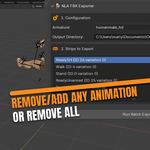
NLA Batch FBX Exporter - Documentation
Thank you for choosing the NLA Batch FBX Exporter! This guide will walk you through installation and usage to get you up and running in minutes.
1. Overview
The NLA Batch FBX Exporter is a workflow utility designed to save you time by automating the export of animations from Blender's Non-Linear Animation (NLA) editor.
The core principle is simple: One NLA Strip = One FBX Animation File.
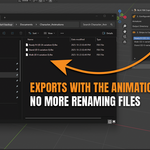
The addon exports each unique NLA strip on your selected armature as its own individual FBX file, using the strip's name for the filename and baking the action to your specified frame rate.
2. Installation
Installing the addon follows the standard Blender process:
Download the
.zipfile for the addon. Do not unzip it.Open Blender and go to
Edit > Preferences.Navigate to the
Add-onstab on the left.Click the
Install...button at the top right of the window.Find and select the
.zipfile you downloaded, then clickInstall Add-on.The addon will now appear in your list. Enable it by clicking the checkbox next to its name, "NLA Batch FBX Exporter".
The addon is now installed and ready to use.
3. How to Use: Step-by-Step Workflow
Follow these steps to batch export your animations.
Step 1: Prepare Your Animations
-
Arrange your animations in the NLA Editor.
-
Each animation you want to export must be represented by a single NLA strip.
- Give each strip a clear and descriptive name (e.g., RunCycle, Idle), as these names will be the basis for your FBX filenames.
Step 2: Locate the Exporter Panel
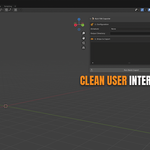
The NLA Batch FBX Exporter panel is located in the 3D View's sidebar.
Press the
Nkey in the 3D Viewport to open the sidebar.-
Click on the "NLA Exporter" tab.
Step 3: Choose Animations to Export
Use the 1. Configuration section to set your export parameters:
- Armature: Make sure you choose the correct Armature in the scene.
-
Output Directory: Click the folder icon to choose your save location.
Tip: Use the standard Blender path
//Animationsto save your exports to a folder named 'Animations' right next to your saved.blendfile. (The Blender file must be saved first.)
Target FPS: Set the desired frame rate (e.g., 30.0 or 60.0). The addon will temporarily adjust the scene's FPS during export.
Prefix / Suffix: Use these fields to enforce your naming convention (e.g., prefix A_ results in A_Walk.fbx).
Step 4: Export!
In the 2. Strips to Export section, populate your list:
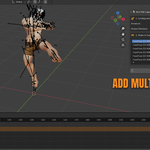
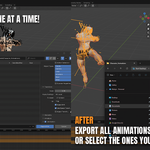
Add All Strips: Click "Add All Strips" to instantly add every unique strip found on the armature. Then, uncheck any you wish to exclude.
Add Selected: Select specific NLA strips in the NLA Editor, then click "Add Selected Strips".
Use the Remove Strip / Delete All Strips buttons to manage the list.
Click the large "RUN BATCH EXPORT" button.
Monitor the progress in the Export Statistics and Log History panels.
-
A summary window will pop up when the process is complete.
In the Export Summary window, click the "Open Export Folder" button to instantly open the directory containing your newly exported FBX files.
4. Best Practices
Naming is Key: Name your NLA strips logically before exporting.
One Strip Per Export: Ensure that each unique animation is represented by a single NLA strip in your list.
Default FBX Settings: The addon uses Blender's built-in FBX export operator. If you need to change global settings (like scale, smoothing, or axis orientation), do so by manually using File > Export > FBX (.fbx) and adjusting the preset settings before running the batch exporter.
5. Support & Contact
If you encounter any issues, have questions, or would like to suggest a feature, please do not hesitate to reach out.
Contact Email: support@arthzuul.com
When requesting support, please include the following information to help me resolve your issue as quickly as possible:
- The version of Blender you are using.
- The version of the addon you are using.
- A clear description of the problem.
- Any error messages from the System Console.
Thank you again for your support!
Have questions about this product?
Login to message
Discover more products like this
NLA addon Unreal Engine fbx animation Workflow batch Export unity game development automation