 CreateVisions



Latest version tested and fully compatible with Octane Render 2026.4 (build 31.10.0) and Blender 5.2.
Octane HDRI Studio 2.5.4
Light your scenes faster in Blender with OctaneRender.
Load, browse, tweak, and switch HDRIs without ever leaving the viewport.
What's New in Version 2.5.4
Your library now stays with you across updates. The global HDRI library and your layout preferences are now stored in Blender's own per-user config folder instead of the add-on folder. From this version on, every future update and every reinstall keeps your global HDRIs, favorites, snapshots, and viewport layout exactly as they are. The sidebar header also shows the full version number now.
Updating from 2.5.3 or earlier: for this one update, please copy two files first. Blender replaces the add-on folder during installation, and in older versions your library lived inside it.
- Open
%APPDATA%\Blender Foundation\Blender\5.1\extensions\user_default\octane_hdri_studio\in the Explorer. - Copy
global_hdris.jsonandpreferences.jsonto a safe place, for example your desktop. - Install version 2.5.4.
- Copy the two files back into the same add-on folder.
- Start Blender. Version 2.5.4 picks them up on the first start and moves them to the new location.
After that, you never need to do this again.
- Version 2.5.1: small fixes on top of 2.5. The world's nodes are now tidied up automatically every time you pick an HDRI, an OCIO color space node is attached for clean, accurate colors, and the new Global Strength, Divide by tool gives the correct values.
- Version 2.5: works fully with the stable OctaneRender 2026.2.1 release, with correct HDRI brightness, correct color space, and a working power link. The viewport sliders are much smoother and more precise, you get keyboard shortcuts for brightness and rotation, the HDRI list scrolls, and the new Global Strength tool re-balances a whole library in one click. Big thanks to Eric Kubiak (erikkworkshop), his detailed feedback shaped this release.
- Version 2.2: the GPU Preview Sphere now shows up right at startup, no need to pick an HDRI first.
- Version 2.1: the HDRI Filmstrip and GPU Preview Sphere only show in the main Blender window now, not duplicated in every secondary window.
- Version 2 (Blender 5.0 and OctaneRender 2026.2.1): full feature set with GPU Preview Sphere, Viewport Sliders, HDRI Filmstrip, Categories, Global Library, and drag-and-drop.
- Version 1 (Blender 4.5 and OctaneRender 2025.1): basic HDRI management in the sidebar. The viewport tools are not in this version.
Everything in Your Viewport
Available from Version 2.0.
HDRI Filmstrip
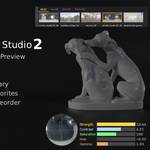
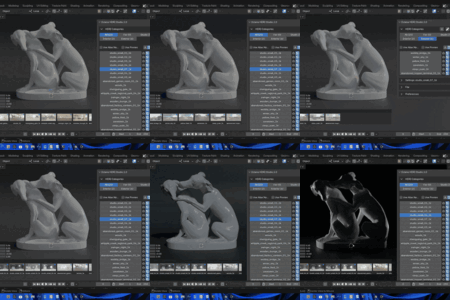
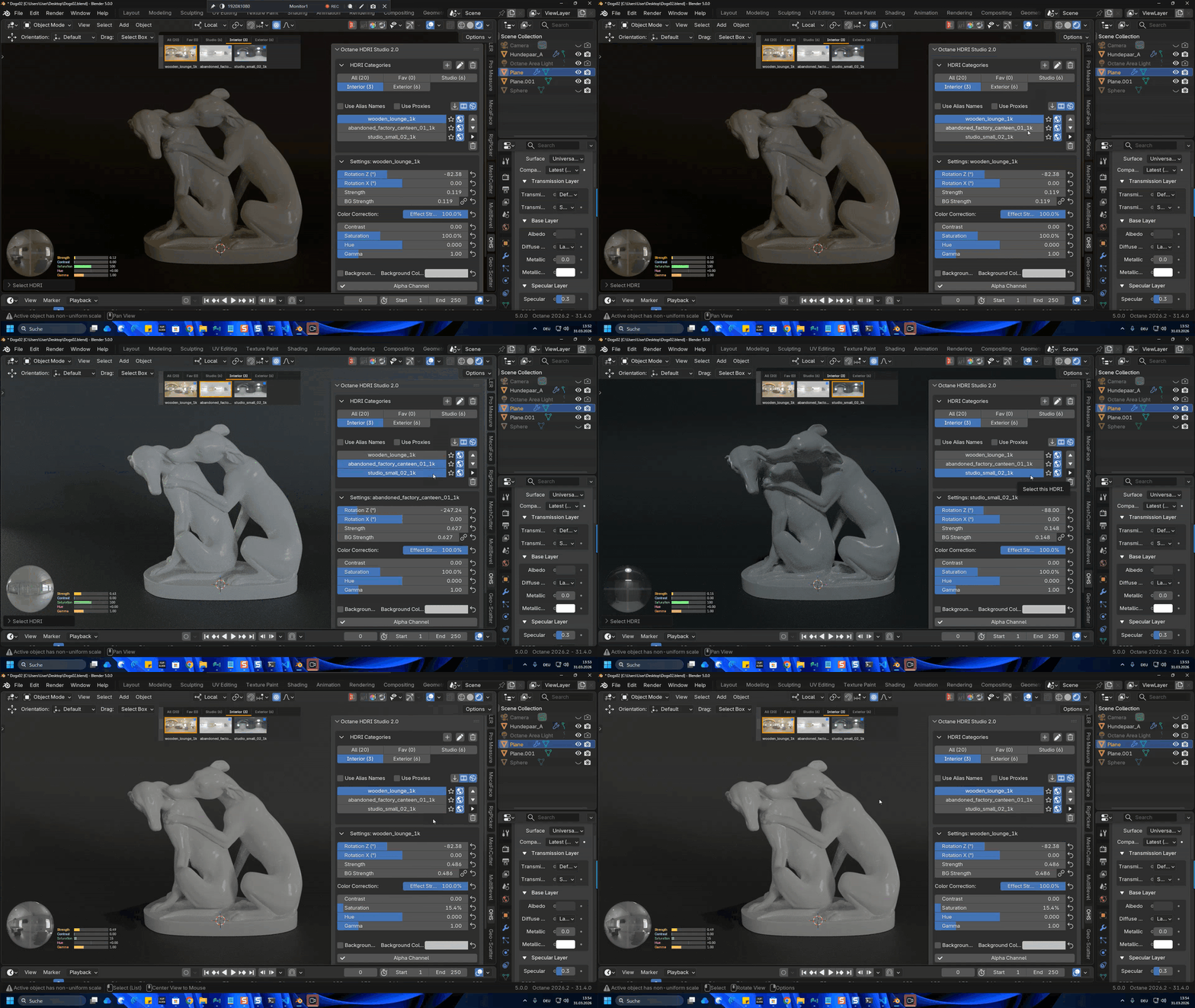
A scrollable bar of thumbnails, right in your viewport. Browse your whole HDRI library, swap with one click, and drag thumbnails to reorder. Use the category tabs to filter by collection, jump to your favorites, or see everything at once.
GPU Preview Sphere
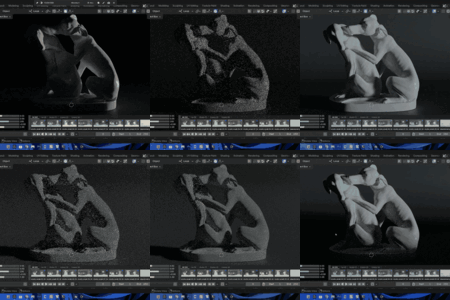
See your HDRI lighting live in the viewport. Grab the rotation rings to set the sun exactly where you want it, on both axes. No rendering, no guessing.

Viewport Sliders
Five sliders next to the preview sphere: Strength, Contrast, Saturation, Hue, and Gamma. Drag to adjust, hold Shift for finer control. The sphere, the filmstrip, and the Octane shader all update at the same time.
Since 2.5: the viewport sliders are much smoother and more precise, and they use the same value ranges as the sidebar sliders. You can also use the keyboard, Alt with Up and Down to brighten or darken the active HDRI, Alt with Left and Right to rotate it.

Organize Your Library
Available from Version 2.0.
Categories, Favorites and Global HDRIs
Sort your HDRIs into your own categories. Mark favorites for quick access. With Favorites Always on Top, your favorites stay pinned to the top of every category.
Make any HDRI global so it is available in every Blender session, with all your settings kept. Since 2.5.4 the global library lives in Blender's per-user config folder and survives every add-on update.
Your Settings, Always Remembered
Automatic Settings Memory
Every change you make, rotation, strength, color correction, is saved per HDRI, automatically. Switch HDRIs, close Blender, open another project. Come back and everything is exactly as you left it.
Snapshots
Save several lighting variations for one HDRI. Morning light, dramatic sunset, neutral studio, switch between them with one click. Turn on auto-update and your active snapshot stays in sync as you tweak.
Professional Workflow
Global Strength
Re-balance the brightness of your whole HDRI library in one click. Set every HDRI to the same strength, or divide every value by a number you pick. Great for evening out a whole collection, or for fixing an older library after an upgrade. Introduced in Version 2.5.
Proxy System
Create low-res copies of your HDRIs for a faster viewport. Switch between proxy and full resolution at any time.
Octane Light Studio Integration
Switch between HDRI Studio and Octane Light Studio with one click. Turn HDRI lighting and OLS layers on or off from either panel. Both add-ons stay in sync.
Export and Import
Export your full setup, HDRIs, categories, settings, snapshots, and proxies, with one click. Share it with your team or move between machines. With Show in Explorer, jump straight to the source file of any HDRI on disk.
Fully Customizable
Available from Version 2.0.
Resize and move the filmstrip, preview sphere, and sliders however you like. Double-click to collapse the filmstrip. The HDRI list scrolls, and you choose how many rows are visible, so even big libraries stay compact. All settings are kept across sessions, and you can reset to defaults at any time.