Osc Controller for Blender - Real-Time Animation Over Osc
 Guillaume Hervy


OSC Controller for Blender — Documentation
OSC Controller for Blender lets you control shape keys, bones and generic Blender properties in real time with Open Sound Control (OSC). It is made for facial animation, live performance and any setup where Blender reacts to an external data stream (TouchDesigner, Pure Data, Max...).
1. Requirements
- Blender 4.2 or newer (tested on 4.5 and 5.2)
- Windows, macOS or Linux
- Ability to receive UDP OSC messages on the configured IP and port
- Any OSC-capable application to send data (TouchDesigner, Pure Data, Max, a custom tool...)
2. Installation
- Download the ZIP from Superhive.
- In Blender: Edit → Preferences → Add-ons (or Extensions) → Install from Disk, and select the ZIP. You can also drag and drop it into Blender.
- Enable "OSC Controller for Blender". The panel appears in the 3D View N-panel, OSC tab.
3. Quick start
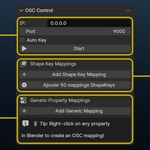
- In the 3D View, press N and open the OSC tab (OSC Control panel).
- Set IP (0.0.0.0 to listen on all interfaces, 127.0.0.1 for local only) and Port (default 9000).
- Optionally enable Auto Key.
- Click Start. The panel shows "Listening on ip:port".
- In your OSC tool, send a float to an address such as /test on that IP and port.
To check what Blender receives, tick Print messages to console (also in the add-on preferences). Blender must be started from a terminal to display it:
-
Windows: Window → Toggle System Console, or start
blender.exefrom cmd or PowerShell. -
macOS: run
/Applications/Blender.app/Contents/MacOS/Blenderfrom Terminal. -
Linux: run
blenderfrom a terminal.
Each message appears asOSC MESSAGE: /test (0.5,). Turn it off afterwards: printing every message slows Blender down at high rates.
4. The panel
OSC Control (main panel)
- IP, Port: where the server listens.
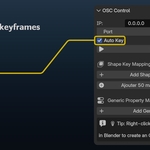
- Auto Key: OSC-driven changes insert keyframes.
- Enable Remap: global switch. Off forces every mapping to pass the raw OSC value through, whatever each mapping's own Remap setting.
- Start / Stop, listening status, Print messages to console.
- Clear All Mappings (asks for confirmation).
Bone Rotation Mappings: each row has Address, Armature, Bone, Axis (X/Y/Z), Mode (Euler or Quaternion), Min In / Max In, Min Out / Max Out, Clamp, Invert, Remap. Euler output is in radians. The mapping's mode sets the bone's rotation mode so the value is actually visible.
Generic Property Mappings: each row has Address, Data Path (e.g. bpy.data.cameras['Camera'].lens), the same ranges, Clamp, Invert, Remap. Buttons: Add Generic Mapping, Add ARKit 52 Shape Keys.
Presets: save all or selected mappings, load them (add to existing mappings, or replace them), export to a .json file, import a .json file, delete. Loading warns when a preset points at objects that don't exist in the current file.
Shape Key Mappings (legacy): shown only if the file contains shape key mappings created by version 1.x. They keep working. Click Convert to Generic to turn them into generic mappings.
Each mapping list has buttons to fold, unfold, select and deselect all rows. The checkbox of a row is used by Save Selected.
5. Creating mappings
Right-click (recommended). Right-click any property → Create OSC Mapping. The add-on builds the data path, suggests an address from the object and property name, and sets a 0–1 output range. Vectors and colors create one mapping per axis; the second menu entry creates one mapping driving every component.
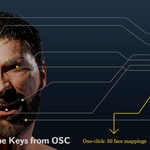
Shape keys. Right-click the shape key value → Create OSC Mapping, or use Add ARKit 52 Shape Keys: pick the mesh and one generic mapping is created for each ARKit name it has (eyeLookUpLeft, mouthSmileLeft, browInnerUp...), with an address equal to the shape key name. The message tells you how many names were found.
Bones. In Bone Rotation Mappings, click Add Bone Mapping, then pick the armature and bone, the axis and the mode.
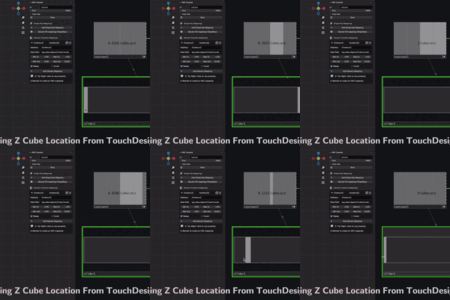
From the panel. Add Generic Mapping creates an empty row: set the address and a data path such as bpy.data.objects['Cube'].location[2].
6. Auto Key
With Auto Key enabled, incoming values insert keyframes at the current frame on shape keys (value), bones (rotation_euler or rotation_quaternion), node inputs and sockets (default_value) and other animatable properties reached through generic mappings.
Workflow: set up and test the mappings without Auto Key, enable it, position the playhead, send data while playing the timeline, then refine the curves in the Graph Editor or Dope Sheet.
7. Performance tips
- Unchanged values are not re-written, and each target is written once per tick.
- The main cost is Blender evaluating your rig when values change. Heavy modifiers (subdivision, corrective smooth, shrinkwrap, surface deform) and hair particle systems dominate: disable them in the viewport during live use.
- Keep Print messages to console off.
8. Troubleshooting
- Nothing arrives: IP and port must match on both sides, the server must be started, and no firewall may block UDP on that port. Tick Print messages to console to see incoming messages.
- Messages arrive but nothing moves: the address must match the mapping's Address exactly (leading /). Check Min In / Max In cover the values sent. In a Bone Rotation or legacy row, an Object, Armature, Shape Key or Bone field in red means that name doesn't exist in the file.
- A preset loaded but does nothing: the loader warns when targets are missing. Re-pick the object, shape key or bone with the dropdowns, or recreate the mapping with a right-click.
- A bone doesn't rotate: Euler values are radians (90° = 1.5708). Set Min/Max Out accordingly.
- Server fails to start (socket error): another application uses the port. Use another one, e.g. 9001, and update your sender.
-
"python-osc could not be imported": reinstall the add-on from the ZIP; the
vendors/pythonoscfolder must be present. - Too many keyframes: disable Auto Key when you only want live control, or lower the sender's message rate.
- Blender feels slow during a performance: see Performance tips.
9. License & third-party libraries
The add-on is released under GPL-3.0-or-later; the full text is in the LICENSE file. The python-osc library (Unlicense, GPL-compatible) is bundled in vendors/pythonosc with its license file. You may study, modify and redistribute the add-on under the GPL, including commercially, as long as its conditions are respected.
10. Support & updates
For bug reports or feature requests, contact the author through Superhive messaging or the product's Q&A. Include your Blender version, your OS, the console output and, if possible, a minimal .blend that reproduces the issue. This documentation is updated with new versions of the add-on.
Have questions about this product?
Login to message
| Blender Extension Compatible | Yes |
| Sales | 20+ |
| Published | 10 months ago |
| Blender Version | 4.2 - 5.2 |
| Extension Type | Add-on |
| Render Engine Used | Arnold, Blender-Internal, Blender-Game-Engine, Cycles, Eevee, Freestyle, Luxrender, Mental-Ray, Octane, Vray, Yafaray |
| License | GPL |
Discover more products like this
osc realtime touchdesigner 52 blendshapes live control motioncapture shapekey Facial Animation live animation