PaletteGrid
 SavedPixel


Documentation
Everything you need to get started with Palette Grid. From installation to advanced UV placement modes.
What is Palette Grid?
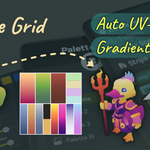
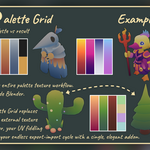
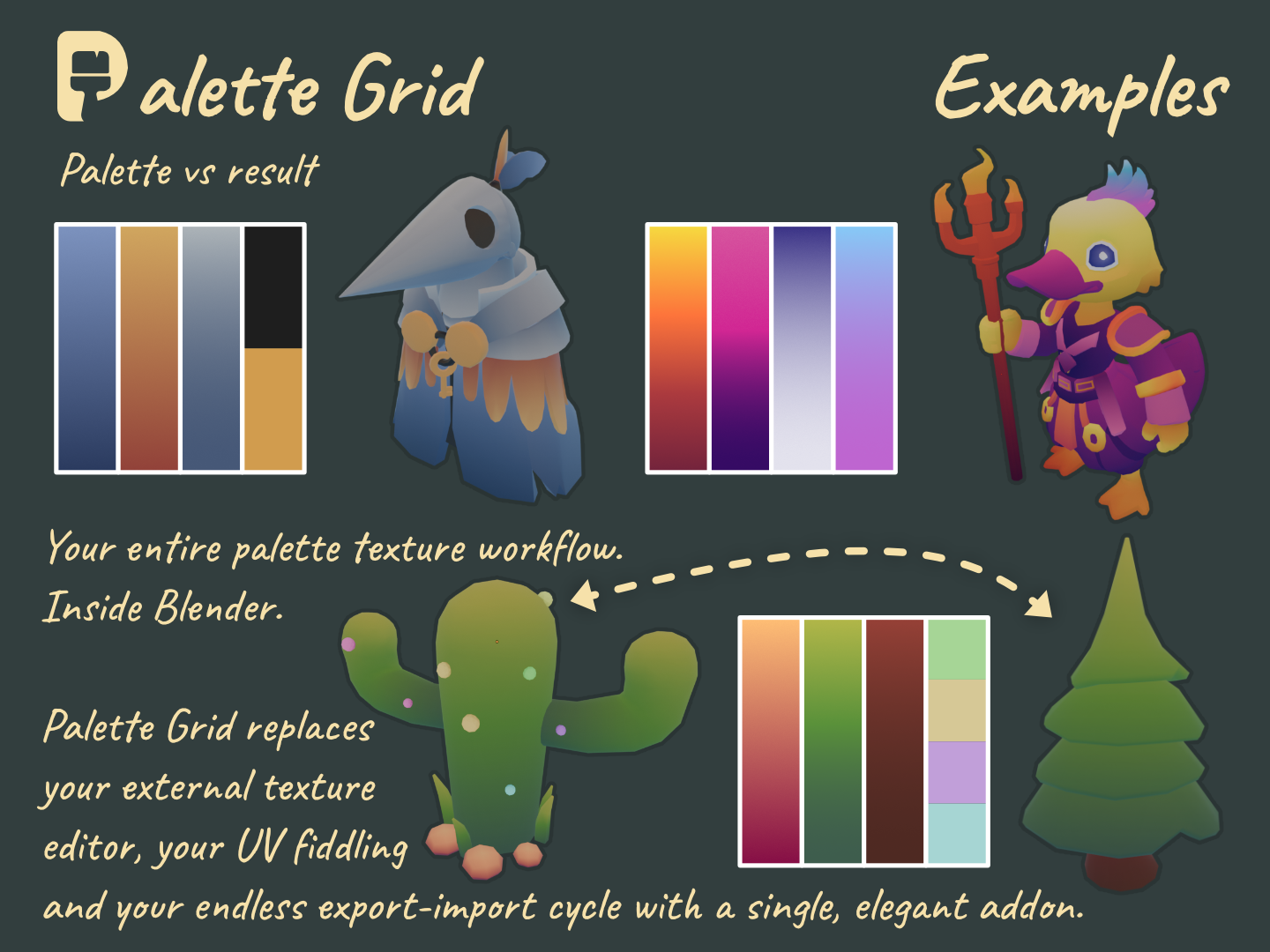
Palette Grid is a Blender addon that turns gradient texturing into a complete, practical workflow. Create palette textures, edit gradients live, and apply UVs to strips, all without leaving Blender.
Below is a full walkthrough: starting setup, editing strip colors, applying projections, and drawing gradient paths.
Starting setup: creating your first palette and getting oriented.
Installation
- Download the .zip file from your purchase.
- In Blender, go to Edit > Preferences > Add-ons.
- Click Install from Disk and select the downloaded .zip file.
- Enable the addon. The Palette Grid panel appears in the UV Editor sidebar.
Requires Blender 4.2 or newer.
Creating a Palette
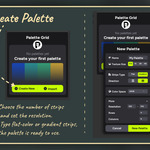
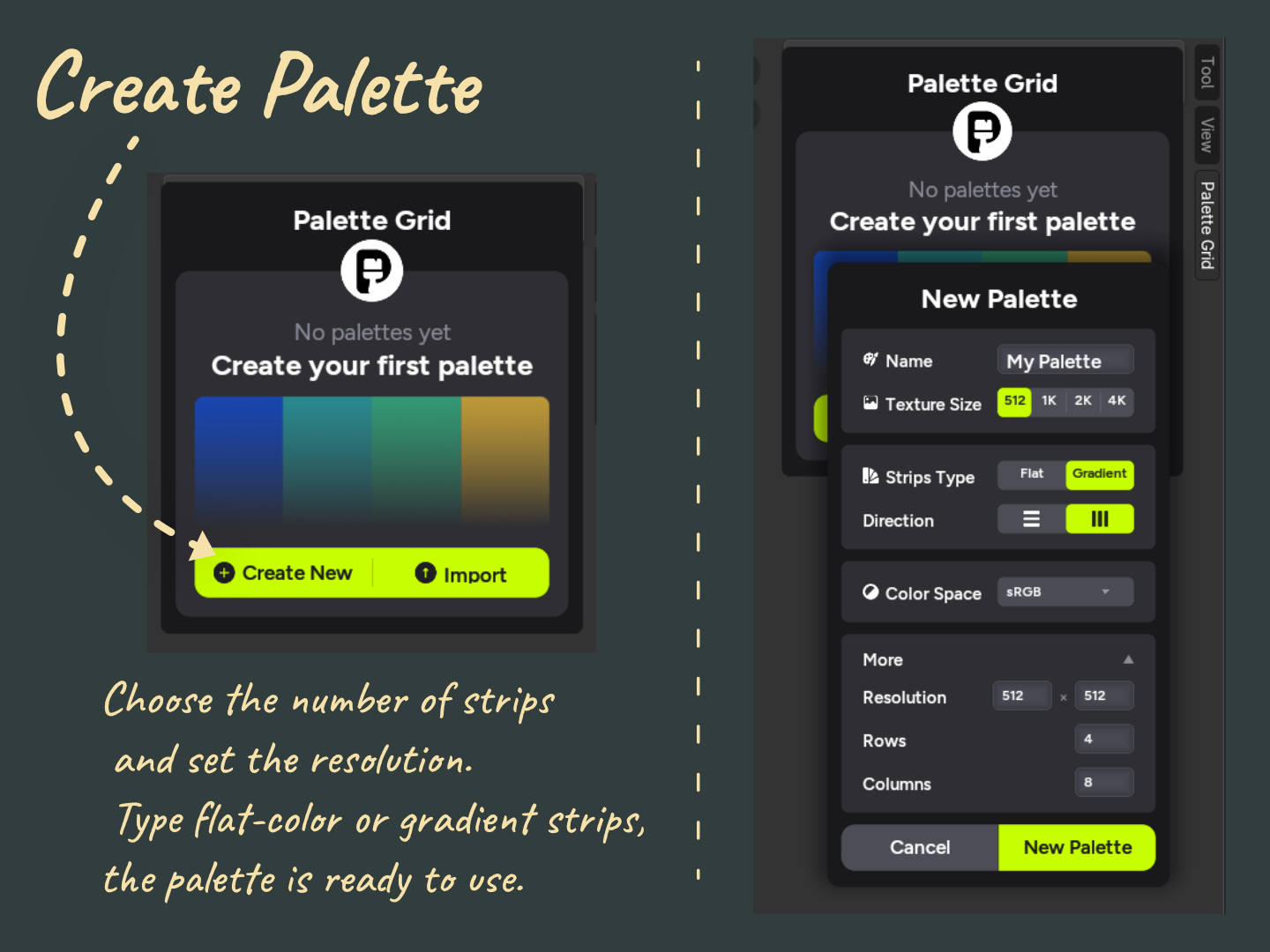
Open the Palette Grid panel in the UV Editor sidebar. If no palettes exist yet, click Create New.
In the New Palette dialog:
- Name: Give your palette a name.
- Texture Size: Choose a preset (512, 1K, 2K, 4K) or expand "More" to enter any custom resolution.
- Strips Type: Choose between Flat (solid color) or Gradient strips.
- Direction: Horizontal or vertical strip layout.
- Color Space: sRGB by default.
- Rows / Columns: Set the number of strips you want.
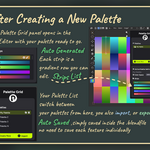
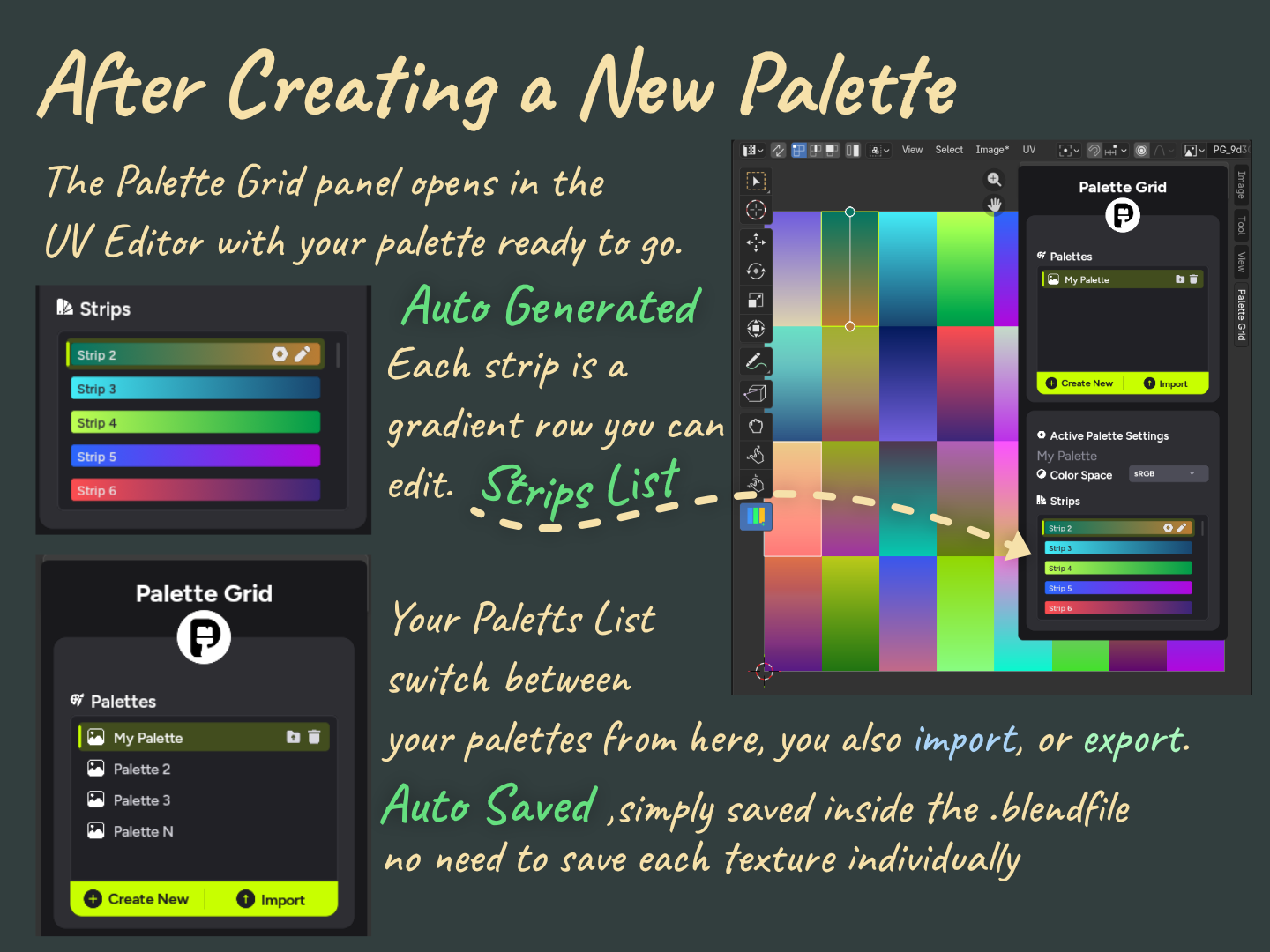
Click New Palette and the palette texture is generated instantly. The UV Editor displays it with each strip ready to edit.
You can also click Import to load an existing palette from a JSON file.
Editing Strips
Selecting a Strip
You can select a strip in two ways:
- - From the list: Click a strip name in the Strips panel on the sidebar.
- - Strip Tool: Activate the strip picker tool in the UV Editor toolbar. Hover over the palette texture and click to select strips visually.
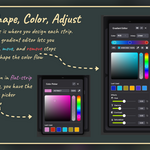
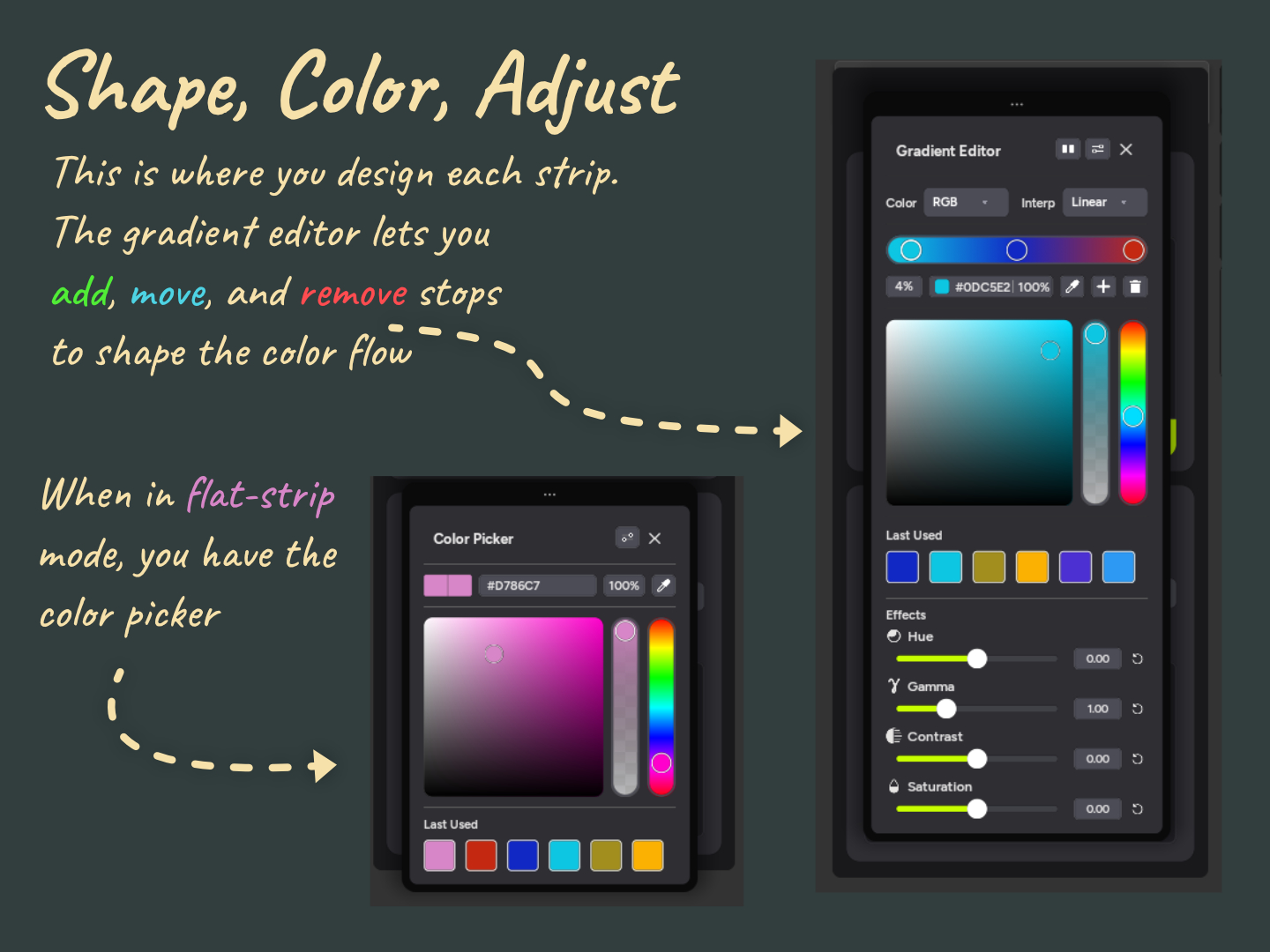
Gradient Editor
When a gradient strip is selected, the Gradient Editor opens:
- - Add, move, and remove gradient color stops to shape the color flow.
- - Set stop position precisely with the percentage field.
- - Pick colors using the color picker with hex input and hue/saturation wheel.
- - Choose interpolation mode (Linear, etc.) for how colors blend between stops.
- - Last Used row shows recent colors for quick reuse.
Flat-Color Strips
When a flat-color strip is selected, the standard Color Picker opens. Pick any solid color with hex input and the hue/saturation wheel.
Non-Destructive Effects
Each strip has non-destructive adjustment sliders that do not modify the original colors:
- - Hue: Shift the overall hue.
- - Gamma: Adjust brightness curve.
- - Contrast: Increase or decrease contrast.
- - Saturation: Boost or reduce color saturation.
These effects are applied at render time. Reset any slider to undo the effect completely.
Copy and Paste Strips
Copy a strip and paste it into another slot or across different palettes. Supports keyboard shortcuts, hover-based copy/paste, and right-click context menus.
Editing strip colors and gradient stops in real time.
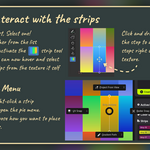
Interacting with Strips
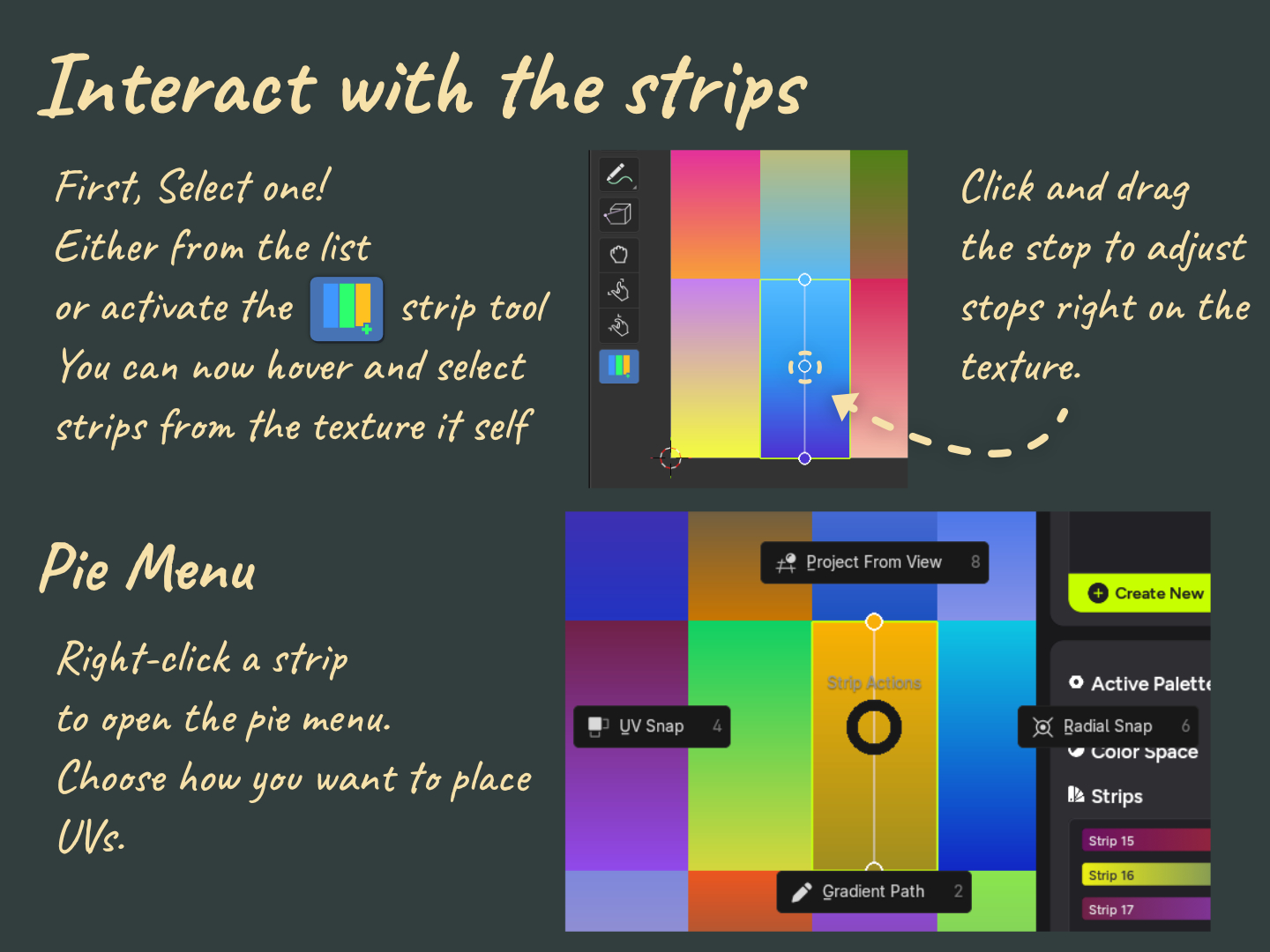
Select a strip either from the sidebar list or by activating the Strip Tool in the UV Editor toolbar. With the Strip Tool active, hover over the palette texture and click directly on a strip to select it.
You can click and drag gradient stops right on the texture to adjust them visually.
Pie Menu
Right-click a strip to open the pie menu. This is where you choose how to place UVs:
- - UV Snap: One-click snap to the selected strip.
- - Project From View: Project UVs from the current viewport angle.
- - Gradient Path: Draw a path for the gradient to follow.
- - Radial Snap: Distance-based gradient from the 3D cursor.
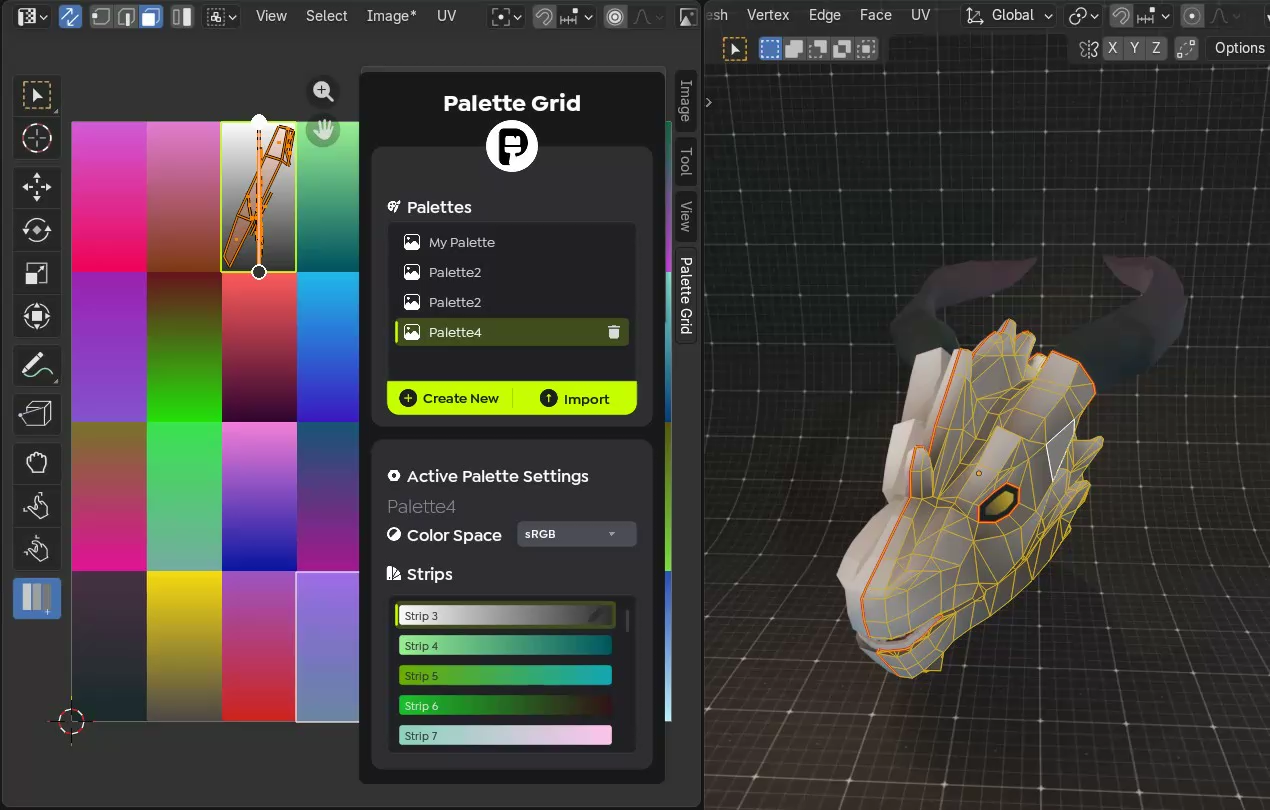
UV Snap
The core feature. Select faces on your model in Edit Mode, pick a strip, and choose UV Snap from the pie menu. The addon automatically creates and positions UVs onto the chosen gradient strip.
- Works across hundreds of faces at once.
- Auto-creates UVs if the mesh has none.
- Replaces the entire manual process of unwrap, move, scale, and align.
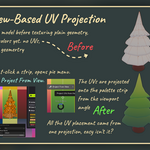
Project From View
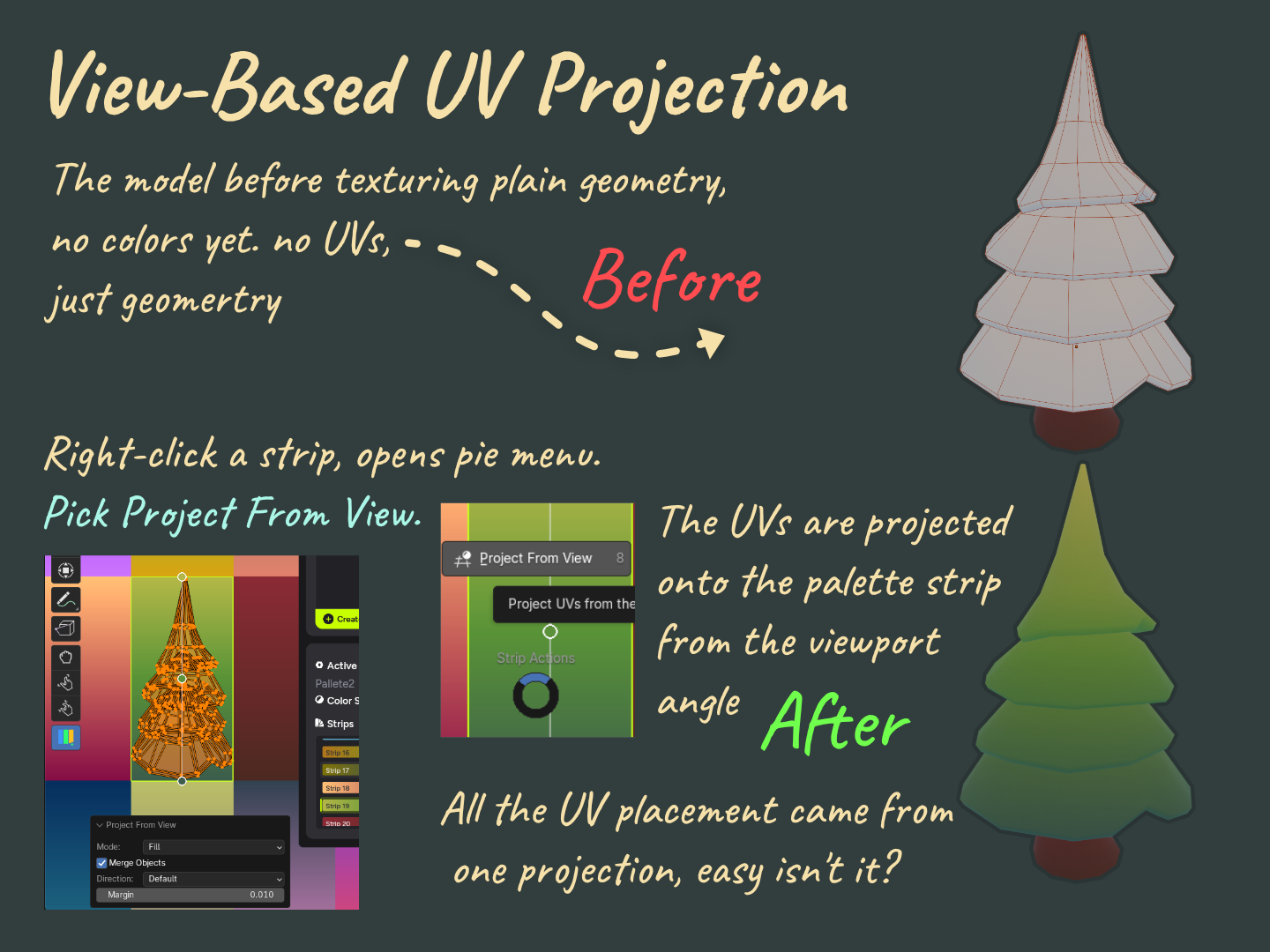
Frame your model from the camera angle you want the gradient to follow. Right-click a strip and pick Project From View. The UVs are projected onto the strip from your current viewport angle.
Options:
- - Mode: Fill or other projection modes.
- - Merge Objects: Project across multiple objects at once.
- - Direction: Default or reversed.
- - Margin: UV margin control.
Ideal for directional lighting effects, rim highlights, and top-down ambient shading. One projection can color an entire model.
Projecting UVs from the viewport angle onto a gradient strip.
Gradient Path
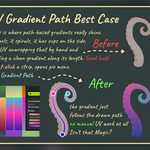
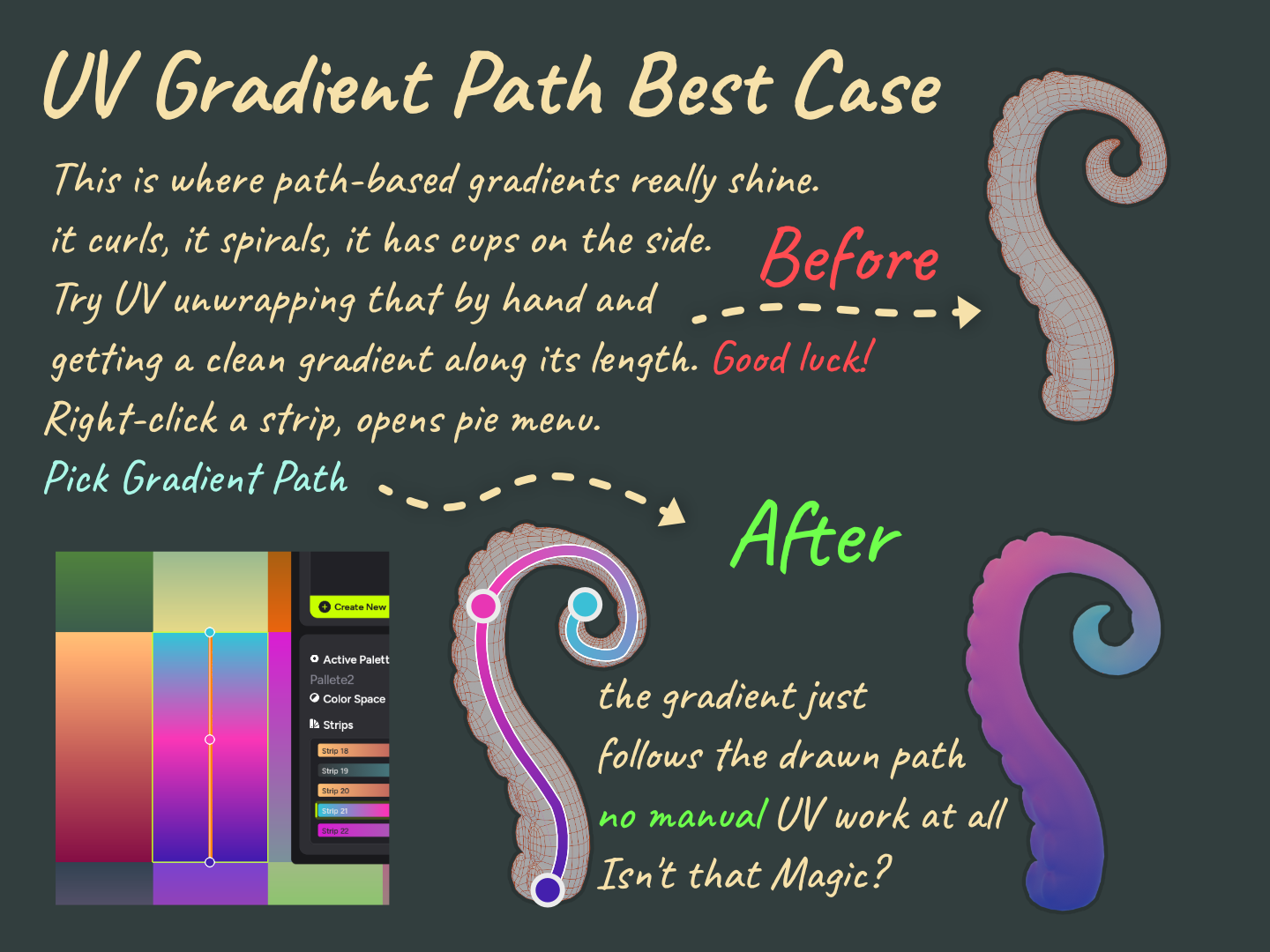
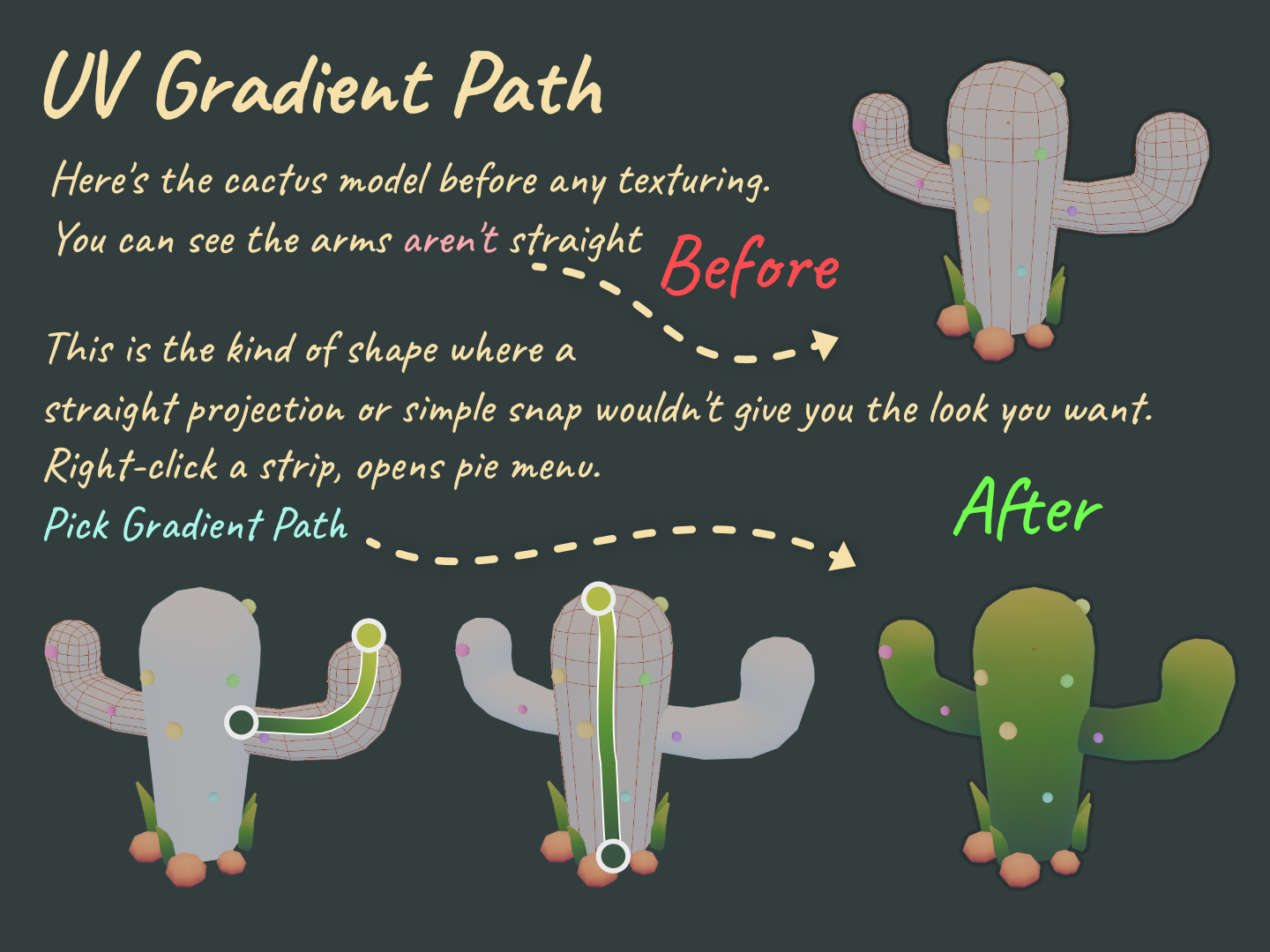
For organic, curved, or twisted geometry like tentacles, vines, tree trunks, and spirals, draw a path and the gradient maps along it automatically.
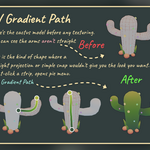
Right-click a strip, pick Gradient Path, then draw control points on your model. The gradient follows the drawn path direction and length. No manual UV work needed.
Palette Grid includes smart shape detection: when you draw a rough line or circle, it detects your intent and snaps to a clean geometric shape you can scale, rotate, and position before applying.
Two approaches:
- - Complex shapes: Draw a detailed path that follows the model's curvature. Best for spirals, curling shapes, and organic forms.
- - Simple: Draw a straight path for simpler gradient flows along a mesh.
Drawing gradient paths on a model.
Applying paths in different directions on a second object.
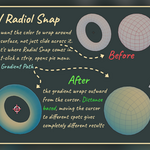
Radial Snap
For distance-based gradients that wrap outward from a point: shields, orbs, glowing effects, energy rings.
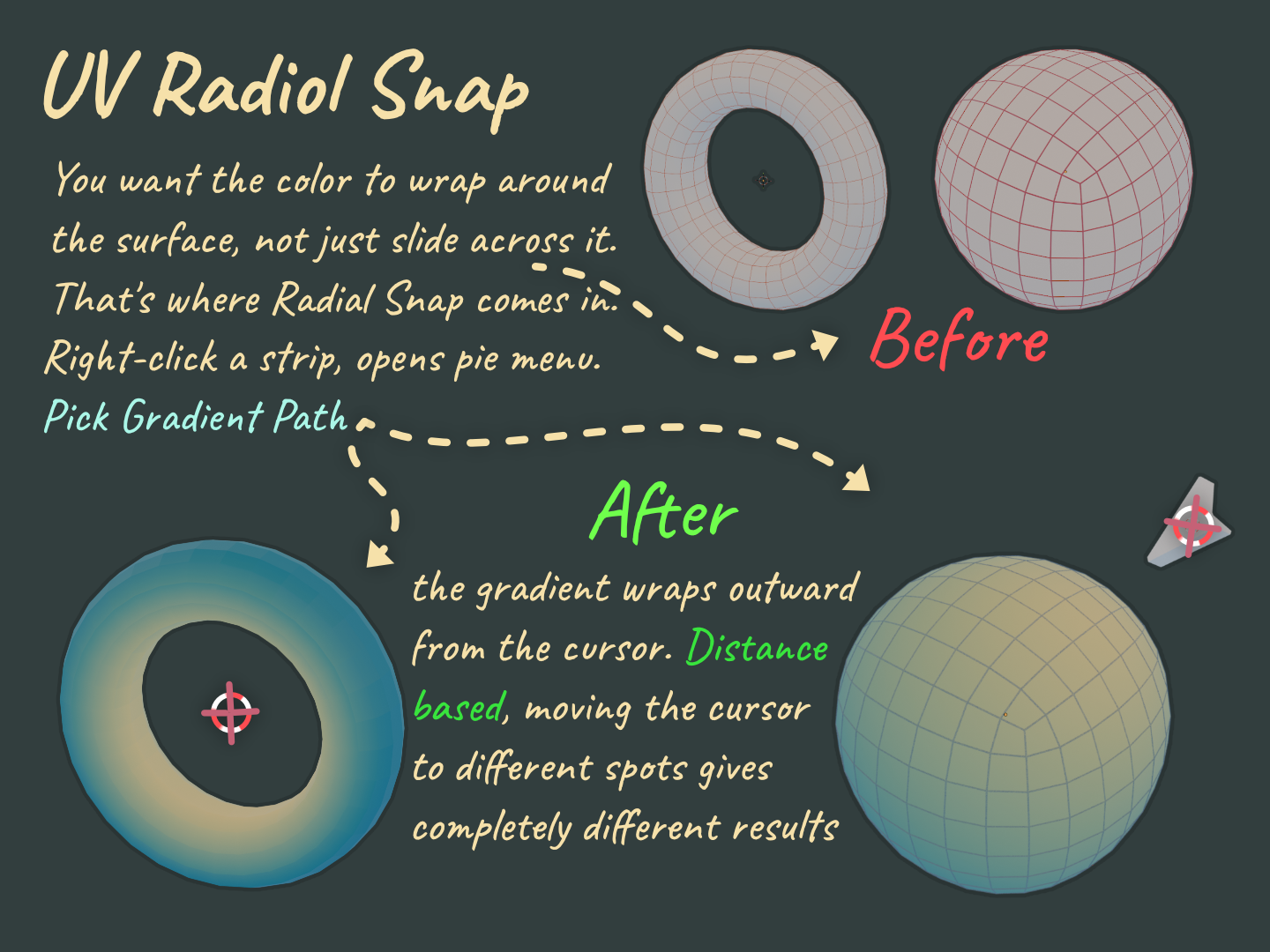
Position the 3D cursor where you want the gradient center. Right-click a strip and pick Radial Snap. The gradient wraps outward from the cursor position based on surface distance.
Moving the cursor to different positions gives completely different results. Works on spheres, tori, domes, and any curved surface.
Combining path gradients and radial snap on the same model.
Palette Management
Multiple Palettes
You can have multiple palettes in one .blend file. Switch between them from the Palettes list in the sidebar. Different objects can reference different palette textures.
Auto-Save
Palettes are saved inside the .blend file automatically. No need to save each texture individually.
Import and Export
- - Import: Load a palette from a JSON file. Converting your existing palettes is straightforward.
- - Export: Save your palette data for use in other .blend files or to share with teammates.
Engine Compatibility
The palette texture is a standard PNG image. Export your model and the palette PNG to Unity, Unreal, Godot, or any other engine. The colors render exactly the same.
Tips
- Start with a small texture size (128-512px) for stylized game art. Gradient texturing works because the textures are tiny.
- Use the strip tool to select strips visually instead of scrolling through the list.
- Use non-destructive effects to explore color variations without committing.
- Copy strips across palettes to maintain a consistent visual style across your project.
- Combine UV Snap for flat surfaces, Project From View for directional looks, Gradient Path for organic curves, and Radial Snap for spherical effects, all on the same model.
Discover more products like this
uv color-scheme color-palette gradient Texture Painting uv mapping color picker gradient editor Palette automatic uv unwrap color texture