PaletteGrid
 SavedPixel


Version 1.4.0 Release Notes
The palette workflow moves into the 3D Viewport, with shortcuts you set yourself
new featurebug fixWhat's new
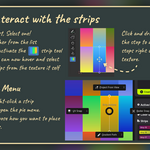
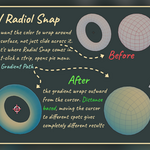
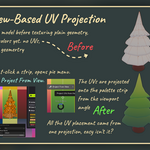
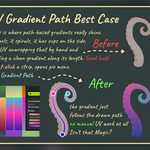
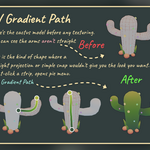
Work from the 3D Viewport. Press Ctrl+W and the Palette Grid pie menu opens right there: UV Snap, Radial Snap, Gradient Path and Project From View. A UV pass no longer means switching back to the Image Editor mid-model. Works in Object Mode and in Edit Mode.
With no active strip, or nothing in Edit Mode, the pie still opens with the UV actions grayed out and Select Strip available.
Pick a strip without leaving the viewport. A new Select Strip entry lays your palette texture over the viewport. Hover to highlight a strip, click to make it active, Esc or right-click to back out. The strip list in the sidebar follows along and scrolls to whatever you picked.
See which strip is active. While the pie menu is open, the active strip is drawn as a preview bar across the top of the viewport.
Set your own shortcuts. Preferences now has a 3D Viewport Shortcuts section with a row per action: a checkbox to switch it off, Ctrl / Shift / Alt toggles, and a key list.
Palette Pie Menu is Ctrl+W and is now re-keyable. Select Strip is Ctrl+Shift+W, new in this release, as the picker previously had no shortcut of its own.
Changes apply immediately, with no restart and no re-enabling the add-on. If you choose a combination Blender already uses, Palette Grid names the shortcut that owns it instead of letting the key quietly do nothing.
Bug fixes
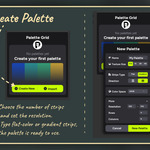
The New Palette "More" section no longer collapses. Opening More could leave Resolution, Rows and Columns stacked on top of each other and unusable. It happened at random, showed no error, and the only thing that cleared it was reinstalling the add-on.
An internal animation timer could be switched off without the add-on knowing, which froze every animation in the session at its starting point. The timer now verifies that it is genuinely running, and it survives opening files.
The missing arrow and multiply symbols are back. In the New Palette window the More row's expand arrow showed as a question mark, and the separator between the two resolution fields showed as an empty box.
Update instructions
Download the latest .zip from your library and install it through Blender's extension preferences. The update replaces the previous version in place, no need to uninstall first.
Version 1.3.0 Release Notes
Choose your starting color, plus fixes for the Blender 5.2 save dialog and large palette slowdowns
new featurebug fix
What's new
Choose the color a new palette starts with. The New Palette window now has a Fill setting, directly under Color Space.
Leave it on Auto and every strip gets its own random color, exactly as before. Switch it to Manual and a color swatch appears, click it, pick a color in the usual color editor, and every strip in the new palette starts as that color.
Useful when you want a calm, uniform starting point and would rather build the palette up deliberately instead of clearing out colors you never asked for. Gradient strips start with that same color at both ends, so nothing is chosen for you.
Bug fixes
No more "Save modified images" dialog every time you save. Palette Grid was marking its palette texture as modified when nothing had actually changed, so Blender kept asking what to do with it on every save. The texture is now only marked as modified when you genuinely edit it, and the dialog stops appearing.
Undo no longer touches your palette. Pressing Ctrl+Z while working on meshes, objects, or anything unrelated no longer flags the palette texture as edited.
No more freezing with large palettes. Working in a file with a 2K or 4K palette no longer causes multi-second stalls. Undo was the worst case, rebuilding every palette texture from scratch on every single press whether or not the undo had anything to do with a palette. It is now effectively instant, even at 4K with a full grid of strips.
Palette Grid no longer gets slower the longer you work. Opening several .blend files in one Blender session made the add-on progressively heavier, so a session that felt fine at the start would feel sluggish an hour later. Performance now stays constant however many files you open.
Palettes with empty grid cells stop rebuilding in the background. If a palette had fewer strips than its grid had cells, it quietly rebuilt its whole texture every few seconds, forever. On a large texture that was a real amount of work happening for no reason.
If you are on Blender 5.2
Blender 5.2 added a preference called Save Modified Images (Preferences → Save & Load), set to Ask Every Time by default. Earlier Blender versions had no such option and simply never asked. That is why the save dialog appeared out of nowhere when you updated Blender, even though nothing about your files had changed.
With 1.3.0 you can leave that preference at its default. Palette Grid no longer marks its texture as modified without reason, so there is nothing for Blender to ask about.
Update instructions
Download the latest .zip from your library and install it through Blender's extension preferences. The update replaces the previous version in place, no need to uninstall first.
Version 1.4.0 Release Notes
The palette workflow moves into the 3D Viewport, with shortcuts you set yourself
new featurebug fix
What's new
Work from the 3D Viewport. Press Ctrl+W and the Palette Grid pie menu opens right there: UV Snap, Radial Snap, Gradient Path and Project From View. A UV pass no longer means switching back to the Image Editor mid-model. Works in Object Mode and in Edit Mode.
With no active strip, or nothing in Edit Mode, the pie still opens with the UV actions grayed out and Select Strip available.
Pick a strip without leaving the viewport. A new Select Strip entry lays your palette texture over the viewport. Hover to highlight a strip, click to make it active, Esc or right-click to back out. The strip list in the sidebar follows along and scrolls to whatever you picked.
See which strip is active. While the pie menu is open, the active strip is drawn as a preview bar across the top of the viewport.
Set your own shortcuts. Preferences now has a 3D Viewport Shortcuts section with a row per action: a checkbox to switch it off, Ctrl / Shift / Alt toggles, and a key list.
Palette Pie Menu is Ctrl+W and is now re-keyable. Select Strip is Ctrl+Shift+W, new in this release, as the picker previously had no shortcut of its own.
Changes apply immediately, with no restart and no re-enabling the add-on. If you choose a combination Blender already uses, Palette Grid names the shortcut that owns it instead of letting the key quietly do nothing.
Bug fixes
The New Palette "More" section no longer collapses. Opening More could leave Resolution, Rows and Columns stacked on top of each other and unusable. It happened at random, showed no error, and the only thing that cleared it was reinstalling the add-on.
An internal animation timer could be switched off without the add-on knowing, which froze every animation in the session at its starting point. The timer now verifies that it is genuinely running, and it survives opening files.
The missing arrow and multiply symbols are back. In the New Palette window the More row's expand arrow showed as a question mark, and the separator between the two resolution fields showed as an empty box.
Update instructions
Download the latest .zip from your library and install it through Blender's extension preferences. The update replaces the previous version in place, no need to uninstall first.
Version 1.3.0 Release Notes
Choose your starting color, plus fixes for the Blender 5.2 save dialog and large palette slowdowns
new featurebug fix
What's new
Choose the color a new palette starts with. The New Palette window now has a Fill setting, directly under Color Space.
Leave it on Auto and every strip gets its own random color, exactly as before. Switch it to Manual and a color swatch appears, click it, pick a color in the usual color editor, and every strip in the new palette starts as that color.
Useful when you want a calm, uniform starting point and would rather build the palette up deliberately instead of clearing out colors you never asked for. Gradient strips start with that same color at both ends, so nothing is chosen for you.
Bug fixes
No more "Save modified images" dialog every time you save. Palette Grid was marking its palette texture as modified when nothing had actually changed, so Blender kept asking what to do with it on every save. The texture is now only marked as modified when you genuinely edit it, and the dialog stops appearing.
Undo no longer touches your palette. Pressing Ctrl+Z while working on meshes, objects, or anything unrelated no longer flags the palette texture as edited.
No more freezing with large palettes. Working in a file with a 2K or 4K palette no longer causes multi-second stalls. Undo was the worst case, rebuilding every palette texture from scratch on every single press whether or not the undo had anything to do with a palette. It is now effectively instant, even at 4K with a full grid of strips.
Palette Grid no longer gets slower the longer you work. Opening several .blend files in one Blender session made the add-on progressively heavier, so a session that felt fine at the start would feel sluggish an hour later. Performance now stays constant however many files you open.
Palettes with empty grid cells stop rebuilding in the background. If a palette had fewer strips than its grid had cells, it quietly rebuilt its whole texture every few seconds, forever. On a large texture that was a real amount of work happening for no reason.
If you are on Blender 5.2
Blender 5.2 added a preference called Save Modified Images (Preferences → Save & Load), set to Ask Every Time by default. Earlier Blender versions had no such option and simply never asked. That is why the save dialog appeared out of nowhere when you updated Blender, even though nothing about your files had changed.
With 1.3.0 you can leave that preference at its default. Palette Grid no longer marks its texture as modified without reason, so there is nothing for Blender to ask about.
Update instructions
Download the latest .zip from your library and install it through Blender's extension preferences. The update replaces the previous version in place, no need to uninstall first.
Version 1.4.0 Release Notes
The palette workflow moves into the 3D Viewport, with shortcuts you set yourself
new featurebug fix
What's new
Work from the 3D Viewport. Press Ctrl+W and the Palette Grid pie menu opens right there: UV Snap, Radial Snap, Gradient Path and Project From View. A UV pass no longer means switching back to the Image Editor mid-model. Works in Object Mode and in Edit Mode.
With no active strip, or nothing in Edit Mode, the pie still opens with the UV actions grayed out and Select Strip available.
Pick a strip without leaving the viewport. A new Select Strip entry lays your palette texture over the viewport. Hover to highlight a strip, click to make it active, Esc or right-click to back out. The strip list in the sidebar follows along and scrolls to whatever you picked.
See which strip is active. While the pie menu is open, the active strip is drawn as a preview bar across the top of the viewport.
Set your own shortcuts. Preferences now has a 3D Viewport Shortcuts section with a row per action: a checkbox to switch it off, Ctrl / Shift / Alt toggles, and a key list.
Palette Pie Menu is Ctrl+W and is now re-keyable. Select Strip is Ctrl+Shift+W, new in this release, as the picker previously had no shortcut of its own.
Changes apply immediately, with no restart and no re-enabling the add-on. If you choose a combination Blender already uses, Palette Grid names the shortcut that owns it instead of letting the key quietly do nothing.
Bug fixes
The New Palette "More" section no longer collapses. Opening More could leave Resolution, Rows and Columns stacked on top of each other and unusable. It happened at random, showed no error, and the only thing that cleared it was reinstalling the add-on.
An internal animation timer could be switched off without the add-on knowing, which froze every animation in the session at its starting point. The timer now verifies that it is genuinely running, and it survives opening files.
The missing arrow and multiply symbols are back. In the New Palette window the More row's expand arrow showed as a question mark, and the separator between the two resolution fields showed as an empty box.
Update instructions
Download the latest .zip from your library and install it through Blender's extension preferences. The update replaces the previous version in place, no need to uninstall first.
Version 1.3.0 Release Notes
Choose your starting color, plus fixes for the Blender 5.2 save dialog and large palette slowdowns
new featurebug fix
What's new
Choose the color a new palette starts with. The New Palette window now has a Fill setting, directly under Color Space.
Leave it on Auto and every strip gets its own random color, exactly as before. Switch it to Manual and a color swatch appears, click it, pick a color in the usual color editor, and every strip in the new palette starts as that color.
Useful when you want a calm, uniform starting point and would rather build the palette up deliberately instead of clearing out colors you never asked for. Gradient strips start with that same color at both ends, so nothing is chosen for you.
Bug fixes
No more "Save modified images" dialog every time you save. Palette Grid was marking its palette texture as modified when nothing had actually changed, so Blender kept asking what to do with it on every save. The texture is now only marked as modified when you genuinely edit it, and the dialog stops appearing.
Undo no longer touches your palette. Pressing Ctrl+Z while working on meshes, objects, or anything unrelated no longer flags the palette texture as edited.
No more freezing with large palettes. Working in a file with a 2K or 4K palette no longer causes multi-second stalls. Undo was the worst case, rebuilding every palette texture from scratch on every single press whether or not the undo had anything to do with a palette. It is now effectively instant, even at 4K with a full grid of strips.
Palette Grid no longer gets slower the longer you work. Opening several .blend files in one Blender session made the add-on progressively heavier, so a session that felt fine at the start would feel sluggish an hour later. Performance now stays constant however many files you open.
Palettes with empty grid cells stop rebuilding in the background. If a palette had fewer strips than its grid had cells, it quietly rebuilt its whole texture every few seconds, forever. On a large texture that was a real amount of work happening for no reason.
If you are on Blender 5.2
Blender 5.2 added a preference called Save Modified Images (Preferences → Save & Load), set to Ask Every Time by default. Earlier Blender versions had no such option and simply never asked. That is why the save dialog appeared out of nowhere when you updated Blender, even though nothing about your files had changed.
With 1.3.0 you can leave that preference at its default. Palette Grid no longer marks its texture as modified without reason, so there is nothing for Blender to ask about.
Update instructions
Download the latest .zip from your library and install it through Blender's extension preferences. The update replaces the previous version in place, no need to uninstall first.
Version 1.4.0 Release Notes
The palette workflow moves into the 3D Viewport, with shortcuts you set yourself
new featurebug fix
What's new
Work from the 3D Viewport. Press Ctrl+W and the Palette Grid pie menu opens right there: UV Snap, Radial Snap, Gradient Path and Project From View. A UV pass no longer means switching back to the Image Editor mid-model. Works in Object Mode and in Edit Mode.
With no active strip, or nothing in Edit Mode, the pie still opens with the UV actions grayed out and Select Strip available.
Pick a strip without leaving the viewport. A new Select Strip entry lays your palette texture over the viewport. Hover to highlight a strip, click to make it active, Esc or right-click to back out. The strip list in the sidebar follows along and scrolls to whatever you picked.
See which strip is active. While the pie menu is open, the active strip is drawn as a preview bar across the top of the viewport.
Set your own shortcuts. Preferences now has a 3D Viewport Shortcuts section with a row per action: a checkbox to switch it off, Ctrl / Shift / Alt toggles, and a key list.
Palette Pie Menu is Ctrl+W and is now re-keyable. Select Strip is Ctrl+Shift+W, new in this release, as the picker previously had no shortcut of its own.
Changes apply immediately, with no restart and no re-enabling the add-on. If you choose a combination Blender already uses, Palette Grid names the shortcut that owns it instead of letting the key quietly do nothing.
Bug fixes
The New Palette "More" section no longer collapses. Opening More could leave Resolution, Rows and Columns stacked on top of each other and unusable. It happened at random, showed no error, and the only thing that cleared it was reinstalling the add-on.
An internal animation timer could be switched off without the add-on knowing, which froze every animation in the session at its starting point. The timer now verifies that it is genuinely running, and it survives opening files.
The missing arrow and multiply symbols are back. In the New Palette window the More row's expand arrow showed as a question mark, and the separator between the two resolution fields showed as an empty box.
Update instructions
Download the latest .zip from your library and install it through Blender's extension preferences. The update replaces the previous version in place, no need to uninstall first.
Version 1.3.0 Release Notes
Choose your starting color, plus fixes for the Blender 5.2 save dialog and large palette slowdowns
new featurebug fix
What's new
Choose the color a new palette starts with. The New Palette window now has a Fill setting, directly under Color Space.
Leave it on Auto and every strip gets its own random color, exactly as before. Switch it to Manual and a color swatch appears, click it, pick a color in the usual color editor, and every strip in the new palette starts as that color.
Useful when you want a calm, uniform starting point and would rather build the palette up deliberately instead of clearing out colors you never asked for. Gradient strips start with that same color at both ends, so nothing is chosen for you.
Bug fixes
No more "Save modified images" dialog every time you save. Palette Grid was marking its palette texture as modified when nothing had actually changed, so Blender kept asking what to do with it on every save. The texture is now only marked as modified when you genuinely edit it, and the dialog stops appearing.
Undo no longer touches your palette. Pressing Ctrl+Z while working on meshes, objects, or anything unrelated no longer flags the palette texture as edited.
No more freezing with large palettes. Working in a file with a 2K or 4K palette no longer causes multi-second stalls. Undo was the worst case, rebuilding every palette texture from scratch on every single press whether or not the undo had anything to do with a palette. It is now effectively instant, even at 4K with a full grid of strips.
Palette Grid no longer gets slower the longer you work. Opening several .blend files in one Blender session made the add-on progressively heavier, so a session that felt fine at the start would feel sluggish an hour later. Performance now stays constant however many files you open.
Palettes with empty grid cells stop rebuilding in the background. If a palette had fewer strips than its grid had cells, it quietly rebuilt its whole texture every few seconds, forever. On a large texture that was a real amount of work happening for no reason.
If you are on Blender 5.2
Blender 5.2 added a preference called Save Modified Images (Preferences → Save & Load), set to Ask Every Time by default. Earlier Blender versions had no such option and simply never asked. That is why the save dialog appeared out of nowhere when you updated Blender, even though nothing about your files had changed.
With 1.3.0 you can leave that preference at its default. Palette Grid no longer marks its texture as modified without reason, so there is nothing for Blender to ask about.
Update instructions
Download the latest .zip from your library and install it through Blender's extension preferences. The update replaces the previous version in place, no need to uninstall first.
Discover more products like this
Palette color-palette Texture Painting gradient editor gradient uv color uv mapping color-scheme color picker automatic uv unwrap texture