 MROD
MROD
Quick Textures Resolution: How it works
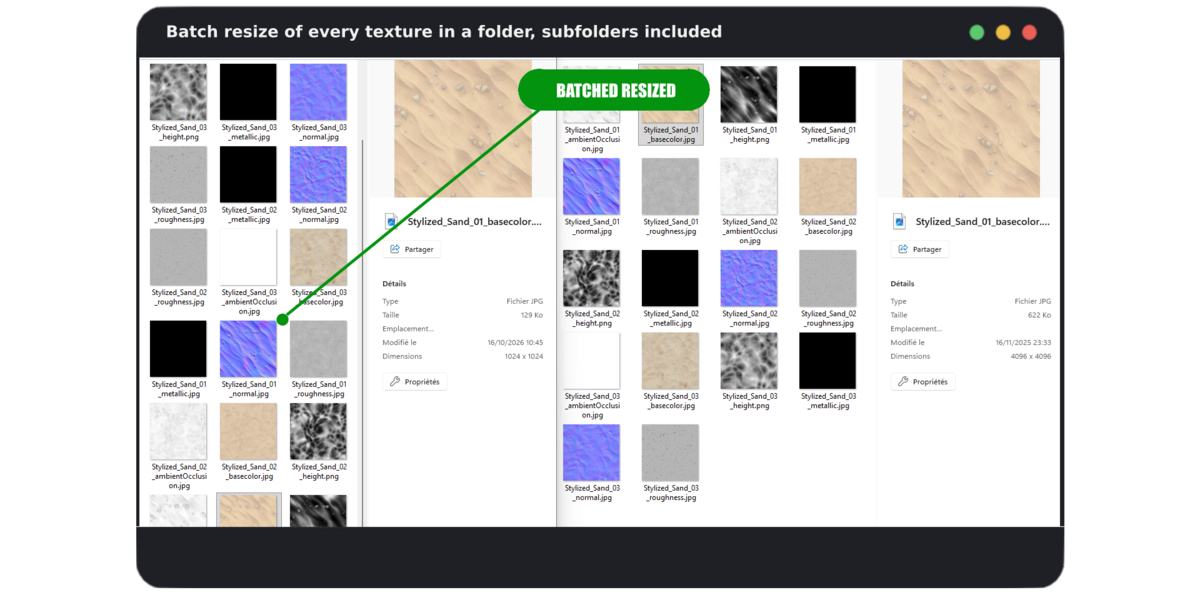
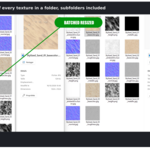
Quick Textures Resolution resizes all the textures of a folder in one go, directly from Blender, and exports them wherever you want.
Overview- You choose an input folder (the textures to resize).
- You choose an output folder (where the resized copies are saved).
- You choose a target resolution.
- The add-on scans the input folder, resizes every supported image and saves it in the output folder.
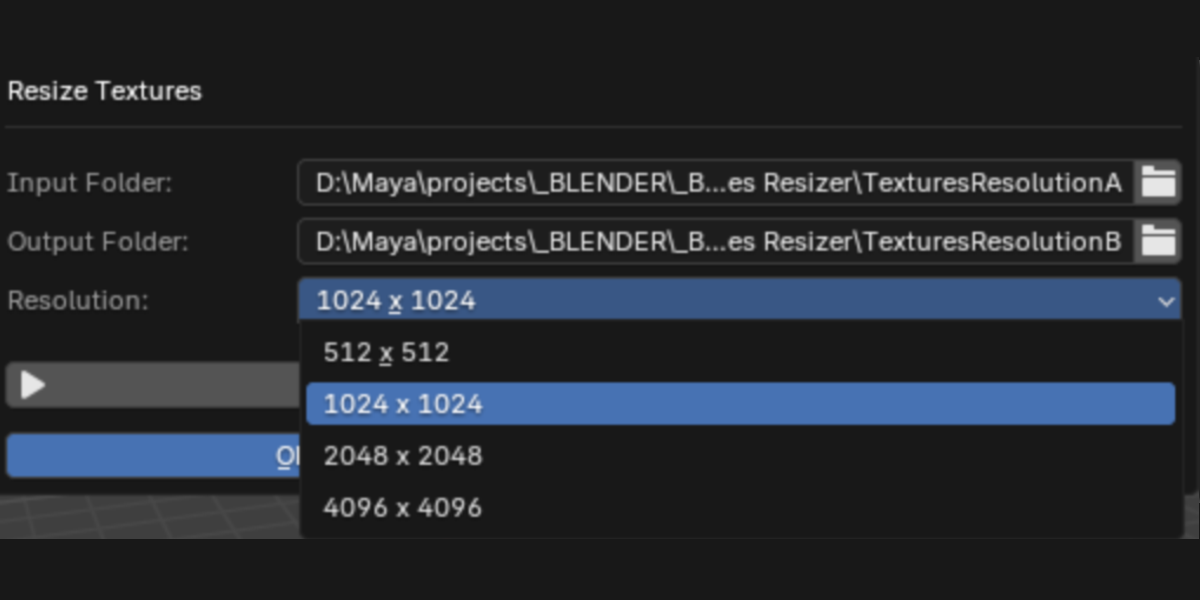
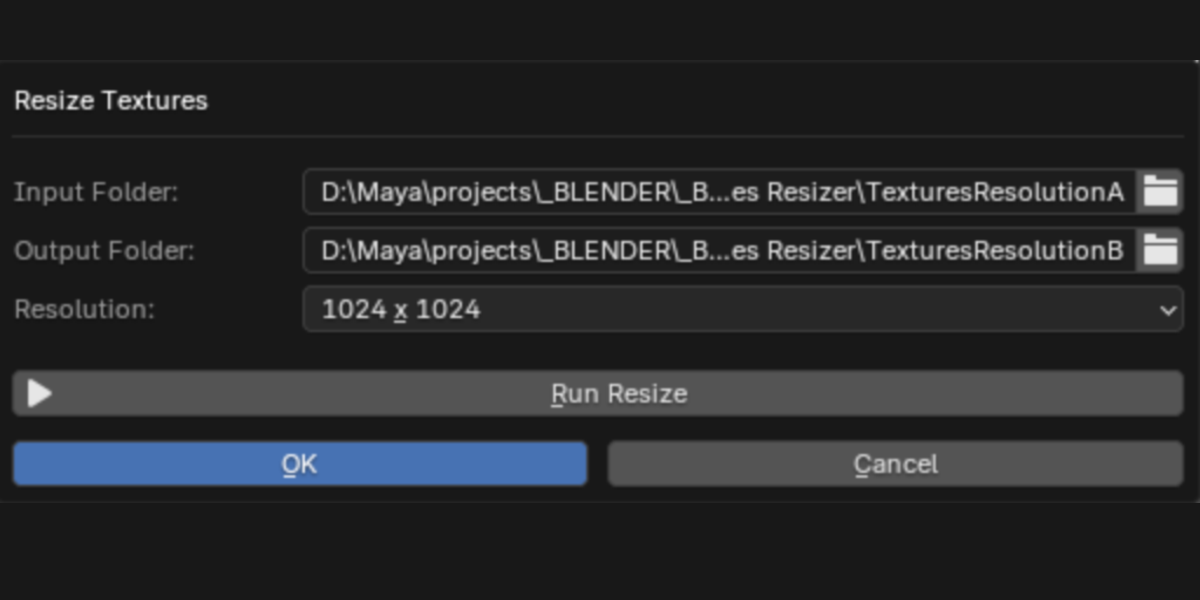
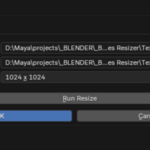
Click Resize Textures in the 3D Viewport header to open the popup:- Input Folder: the folder containing your textures
- Output Folder: the destination folder (created automatically if it does not exist)
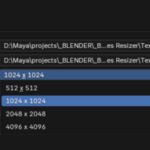
- Resolution: 512 x 512, 1024 x 1024, 2048 x 2048 or 4096 x 4096
- Run Resize: starts the process
Quick Textures Resolution resizes all the textures of a folder in one go, directly from Blender, and exports them wherever you want.
Overview
- You choose an input folder (the textures to resize).
- You choose an output folder (where the resized copies are saved).
- You choose a target resolution.
- The add-on scans the input folder, resizes every supported image and saves it in the output folder.
- Input Folder: the folder containing your textures
- Output Folder: the destination folder (created automatically if it does not exist)
- Resolution: 512 x 512, 1024 x 1024, 2048 x 2048 or 4096 x 4096
- Run Resize: starts the process
| Extension | Format |
|---|---|
.png |
PNG |
.jpg / .jpeg
|
JPEG |
.tga |
Targa |
.bmp |
BMP |
.tiff |
TIFF |
.exr |
OpenEXR |
- Subfolders are scanned automatically.
- The original folder structure is recreated in the output folder.
- File names are kept unchanged. If a file with the same name already exists in the output folder, it is overwritten.
Example
Input folder                      Output folder (1024)
textures/                         export/
├── wood/                         ├── wood/
│   ├── wood_color.png            │   ├── wood_color.png
│   └── wood_normal.png           │   └── wood_normal.png
└── metal/                        └── metal/
    └── metal_rough.jpg               └── metal_rough.jpg
Good to know
- Images are resized to a square resolution (for example 1024 x 1024). Non-square textures will be stretched, so this tool is best suited to square textures.
- If an image cannot be processed, it is skipped and the process continues with the next one. Details are printed in Blender’s system console (Window > Toggle System Console on Windows).
- When the process is finished, a message tells you how many images were processed.
Have questions about this product?
Login to message
| Published | about 7 hours ago |
| Blender Version | 3.3 - 5.2 |
| Extension Type | N/A |
| License | GPL |
