Robot Designer - Procedural Robot Character Creator
 Alexis.egi


Getting Robot Designer up and running.
The whole process takes under a minute. Follow these steps in order and you'll be ready to build your first robot right away.
After purchasing on Superhive, go to your account downloads and save the Robot Designer .zip file to your computer. Don't unzip it — Blender needs the file compressed.
Open Blender and drag the zip file directly into the Blender viewport. A dialog will appear — click OK. Wait a few seconds. A green notification at the top of the screen will confirm the addon installed successfully.
This is the standard Blender method for installing addons — a zip file that contains all the addon's code and assets.
Press N in the viewport to open the N Panel — the narrow sidebar that appears on the right side of your viewport. Robot Designer should now appear as a tab there.
Go to Edit > Preferences > Addons and search for Robot Designer. Make sure the checkbox next to it is ticked. If it's already ticked but the panel isn't showing, uncheck it, wait a moment, and check it again. That usually resolves it.
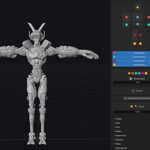
In the N Panel, select the Robot Designer tab and click Import Robot Designer. Two things will happen: a robot will appear in the center of your scene, and a collection called Robot Designer will appear in the Outliner on the right.
Do not move, modify, or delete anything inside the Robot Designer collection. This collection is the procedural engine that drives the entire addon. The robot you see here is not the final robot — that comes later when you press Finish. If you accidentally delete a part, don't worry — the Repair Missing Parts button will restore it.
Five collapsible menus are now visible in the panel: Change Preset, Editor, Materials, Rig Selection, and Finish. These are your five workflow steps, in order. Keep reading to learn what each one does.
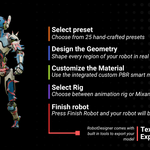
Five steps from empty scene to finished robot.
Work through the steps in order. Each step builds on the previous one. You can go back and adjust anything at any point — the entire process is non-destructive until you press Finish.
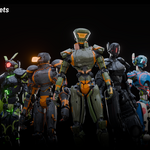
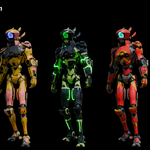
A preset is a saved starting configuration — a robot that's already been partially designed so you don't start from scratch. Robot Designer comes with 25 hand-crafted presets, each with a completely different look: Soldier, Boxer, Japan Pop, Fast Assassin, Medical, Crab, and more.
All presets are built on the same base — meaning any preset can be turned into any other just by adjusting sliders. Use the gallery to pick whichever one is closest to the look you're going for. You'll refine it in the next step.
If you accidentally delete a part of the robot at any point, come back to this menu and press Repair Missing Parts. It will restore the deleted part automatically.
This is where you design the geometry — the shape and details of your robot. Everything here is driven by geometry nodes, which means the robot is generated procedurally in real time as you move sliders. There's no manual modeling involved.
Navigating the panel. At the top of the Editor you'll see a simplified humanoid diagram. Click any part — head, chest, arm, hand, leg, or foot — to select it and edit its parameters. The selected part will be highlighted in a unique color in the viewport so you always know what you're changing.
Symmetry. By default the robot is fully symmetrical. You can toggle symmetry per limb independently — for example, you can keep the arms symmetrical while letting the legs and feet differ from each other.
Global Seed. This single slider randomizes all the random parameters across your entire robot at once. Drag it to quickly explore very different looks without changing anything manually. Great for finding unexpected combinations.
Simplified Customization. This toggle hides the more advanced parameters, leaving only the ones with the biggest visual impact. If you're new to the addon or want to work quickly, keep this on. Turn it off when you want full control over every detail.
Parameter categories. Each body part has six categories of parameters: General (overall shape and proportions), Shape (surface deformation), Plates (the metal panels layered on top), Joints (the mechanical connectors between parts), Island (secondary surface detail), and Decoration (scattered details like cables, cylinders, horns, and extra plates).
Every change is non-destructive — you can adjust anything at any time without losing previous work.
Robot Designer includes a custom PBR Smart Material — a physically-based material built specifically for hard-surface robots. PBR means the material simulates how light behaves on real surfaces. It works in both Cycles and EEVEE. Switch to Rendered view in your viewport to see the material in real time.
Material zones. The robot's surface is divided into independent zones, each with its own color and texture controls: Base Mesh, Plates, Joints, Eyes, Details, Cables, and Screws. Expand any zone in the panel to customize it.
Plates controls. The Plates zone has the most options. You can set a primary color and an optional secondary color, control how much of each color appears, add per-plate color variation, highlight the edges of plates with a separate color, add a wear and damage effect, apply fake panel cut lines, add bolt hole details, and overlay decorative painted lines.
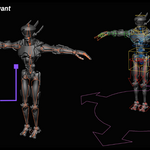
A rig is the skeleton that allows a 3D character to be posed and animated. Robot Designer automatically rigs and skins your robot — you just choose which type of rig you want.
Rigify is a full animation rig for Blender. It includes IK (Inverse Kinematics) and FK (Forward Kinematics) controls, as well as the ability to switch between them — everything you need to animate the robot directly inside Blender with full artistic control.
Mixamo is a rig compatible with Adobe Mixamo's free animation library. If you want to apply pre-made animations to your robot without animating it yourself, choose this option. Download any animation from mixamo.com, apply it to your robot's rig, and it will work immediately.
After choosing a rig, press Apply Changes. The rig won't update until you do — you'll know it worked when the name of the active rig appears in the panel.
Skinning is the process of connecting a mesh to a rig so that moving bones deforms the surface correctly. Robot Designer uses a custom skinning system built specifically for hard-surface characters. Each part of the robot moves as a rigid piece of metal — the way a real mechanical robot works. Automatic skinning tools produce organic, flesh-like deformations that look wrong on robots. You won't have that problem here.
When you're happy with your robot, press Finish Robot. The addon applies all the geometry node modifiers and produces a clean, editable mesh with proper UV maps — ready to animate or export. This version is lighter than the procedural one and much faster to work with.
If you want to keep editing after finishing, press Go Back to Editing. Your procedural robot reappears exactly as you left it. Any changes you make won't affect the finalized version — you can create as many variations as you want and compare them.
Texture Baking
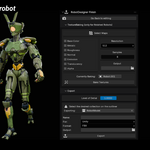
Baking converts the procedural material into standard image files that any software can read. Open the Texture Baking section and choose which maps to bake. For most use cases, Base Color, Metallic, Roughness, and Normal are enough. Add Emission if your robot has glowing eyes. Alpha and Translucency are available for specific eye types.
Set your resolution and sample count, choose an output folder, make sure the correct robot is selected in the scene, and press Bake Textures. Map names are generated automatically using the map type as a suffix. Higher resolutions (4K, 8K) take significantly longer — start with 2K while testing.
Export
Use the Export section to get your robot out of Blender. Choose your target platform and format:
You can also generate LODs (Levels of Detail) — lighter versions of the mesh for use at distance in game engines. Set the output folder, name your export, and click Export.
Discover more products like this
character-generator character scifi 3d_hard_surface procedural 3d-game-ready geometrynodes Robot rigging animation addon mech