 Tachyon Studio

 Join Discord
TACHYON STUDIO
Unity Bridge
Send Blender assets into your Unity project, bring exported assets back, and arrange Unity scenes from Blender’s sidebar.
Keep asset transfer, materials and project folders together in the Universal Bridge tab. Unity is required, licensed separately and not included.
Blender 3.3–5.2 · Windows only. Extension format on Blender 4.2+; classic add-on format on Blender 3.3–4.1. macOS and Linux are not supported.
Useful for game assets, prop libraries and scene assembly: keep the Blender source, Unity project folder and receiving material settings within reach while you work. Send only the selection you need, then inspect the result in the Unity editor.

Keep the round trip moving
Send your selection to Unity, continue working there, then use Get from Unity to bring an exported FBX back into Blender. Live Sync follows edits after a short delay, including material updates.
Reuse a running Unity editor or launch the editor selected for the project. For a return trip, choose Update to refresh matching imported objects or Replace all to rebuild the import collection.


Make materials easier to hand over
Choose a material kind, inspect where each texture is mapped and spot shader properties that have no destination. The workflow includes Lit, Simple Lit, Unlit and Autodesk Interactive choices, with PBR texture conversion for Unity.
Read the resolved shader before sending and review each texture destination. A visible warning helps you catch maps that the selected shader cannot use, while the optional companion C# script applies import settings from the transfer manifest.



Send assets to the right place
Browse the project’s Assets tree, mark a folder as the destination and inspect the model files it contains. Move files between folders with their associated metadata, or choose Send Batch and Send as One to control how a selection is exported.





Build the layout in Blender
Bring the open Unity scene into Blender as lightweight proxies, arrange the scene and push layout changes back. Place assets on surfaces, scatter with spacing, paint along a stroke or snap to a grid. Live Layout follows your movement while you work.
Use Pull Level to bring in the layout and Push Level to return changes. Filter by name, tag or layer to work on a manageable part of the scene; swap prefabs when an assembly needs a different asset.


Review the asset before sending
Use Preflight to check mesh issues, choose which modifiers are applied and review send history. Character animation controls offer NLA Strips, the Active action or All actions, with the rig travelling alongside the mesh.
The per-object modifier checklist lets you decide what gets baked. Backup Before Send adds a backup collection, while send history gives you previous versions to inspect. Keep your own project backups when making broader scene or file changes.




Your first transfer
- Configure the Unity editor and target project, then open Blender’s sidebar with N and select the Universal Bridge tab.
- Select the assets, choose a destination folder and review material mapping and Preflight.
- Use Send Batch for separate asset files or Send as One for a merged export, then inspect the imported result in Unity.

The workflow is for Windows. Unity is a separate application; no Unity licence is included.
Choose the seats you need
- Individual: For 1 person (1 seat). Commercial use included.
- Team: For a team of up to 6 people (6 seats). Commercial use included.
- Studio: For a studio of up to 20 people (20 seats). Commercial use included. Need more than 20 seats? Contact us directly.
All three purchase options include the same complete feature set and current product downloads.
Documentation and support
Open Documentation for setup, transfer, material, folder and layout workflows. Contact Tachyon Studio through Superhive messaging or the Tachyon Discord.
MORE BY TACHYON STUDIO
Build out your workflow.
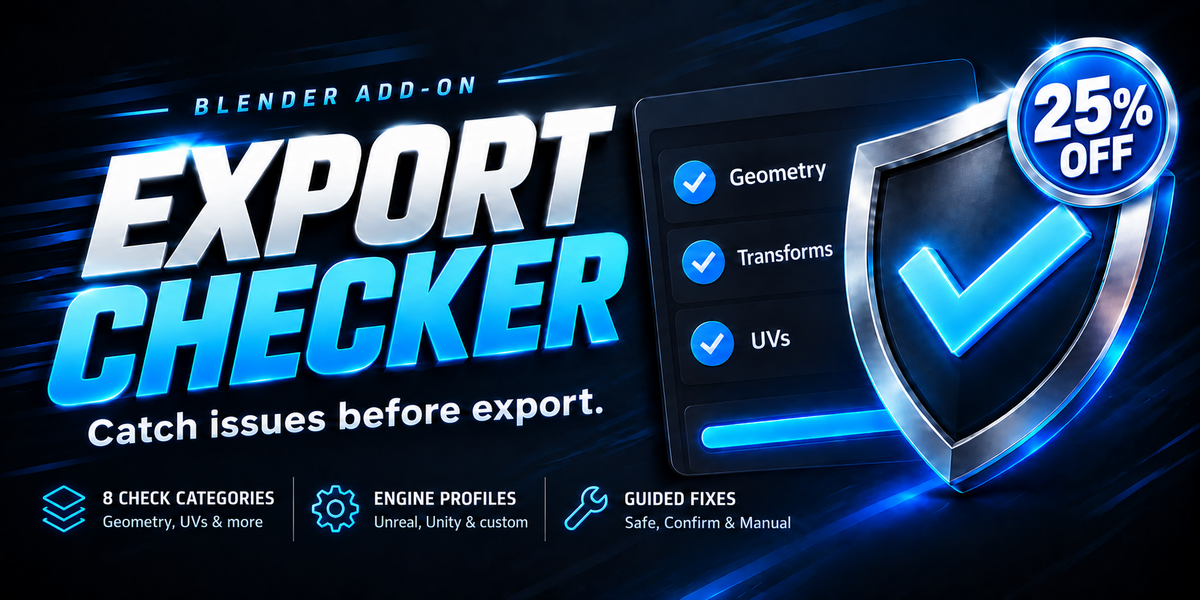
Export Checker
Check geometry, UVs and asset readiness before export.
RizomUV Bridge
Unwrap in RizomUV and return UVs to Blender.
Marmoset Toolbag Bridge
Bake in Toolbag and bring finished maps into Blender.
Object Groups
Organise assemblies with nested groups and selection sets.
Optional products, sold separately. External applications are not included.
