UV Shell Colorizer
 soumik.pixels


Where is the baked PNG saved?
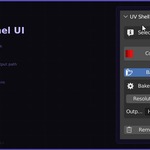
By default it saves to a /bakes/ folder next to your .blend file (the path //bakes/ is relative to the blend). You can change the Output Path in the panel to any absolute or relative directory before baking. The file is named BakeDiffuse_.png.
My settings reset every time I open Blender. How do I fix this?
Settings are saved to uv_shell_colorizer_settings.json next to your .blend file — not globally. If your .blend file has not been saved yet, or if the JSON file has been deleted, the addon will fall back to defaults. Save your .blend file first, then configure the addon settings and they will persist on next open.
Can I use this on multiple objects at once?
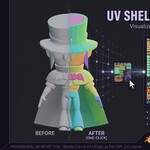
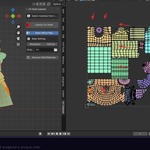
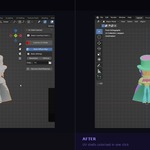
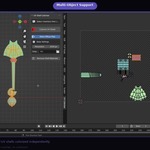
Yes, that is one of the core features. Select as many mesh objects as you want in the 3D Viewport and click Colorize UV Shells once — all selected meshes are processed in a single pass. Each object's islands are colorized independently so there is no color overlap between objects.
Will the generated materials affect my final render?
Only if you forget to clean up. The addon creates temporary viewport materials for visualization. Click Remove Shell Materials before your final render to restore the original state. The cleanup is non-destructive — it only removes materials prefixed with UVShell_ and never touches anything else on the object.
Do I need to unwrap my mesh before using this?
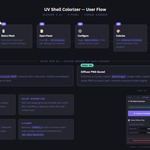
Yes, your mesh needs an existing UV map. If you haven't unwrapped yet, enter Edit Mode, select all faces (A), press U, and choose your preferred unwrap method. Once a UV map exists the addon works instantly — it reads the existing islands, it does not create or modify UVs.
 Included
Includes 12 months of
- Support from soumik.pixels
- Product updates
Extend this product’s Support Period +12 months: 50% of product price
Have questions before purchasing?
Login to message
| Blender Extension Compatible | Yes |
| Published | 3 months ago |
| Blender Version | 3.6 - 5.1 |
| Extension Type | Add-on |
| Render Engine Used | Cycles, Eevee |
| License | GPL |
Discover more products like this
uv colorize uv-tools diffuse-map bake uv island uv uv debug udims texture uv mapping uv shell productivity