Angel Step - CAD Step / Iges / Brep Importer & Exporter for Blender
 kleinARt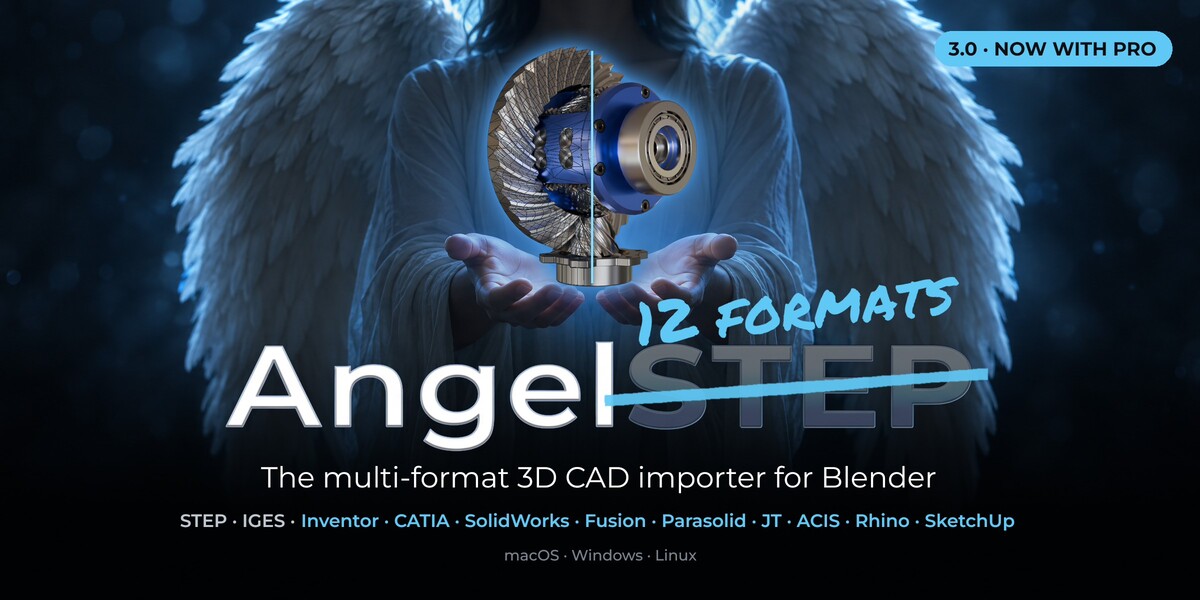





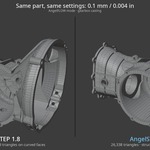


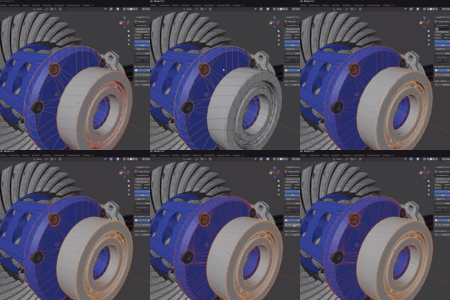
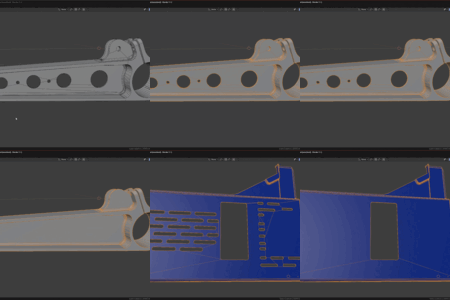
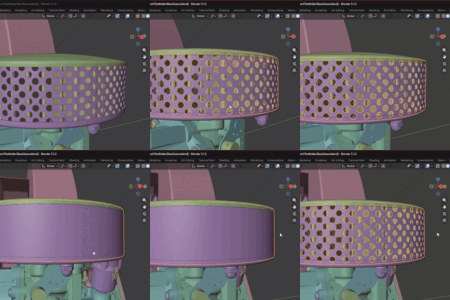
|
DOCUMENTATION · VERSION 3.0 AngelSTEP User GuideImport CAD files into Blender, tune every part after the import, and export your scene back to STEP. This guide covers both editions, AngelSTEP and AngelSTEP Pro, and follows the order you work in: install, import, tune, export. Features marked PRO are in AngelSTEP Pro only. Features marked NEW IN 3.0 are new in this version. Everything else is the same in both editions.
|
1 · Install and update
- In Blender open Edit › Preferences › Add-ons.
- Click Install from Disk and pick the zip for your system (Windows, Linux or macOS): angelstep for AngelSTEP, angelstep_pro for AngelSTEP Pro.
- Make sure AngelSTEP (or AngelSTEP Pro) is ticked.
Nothing else is needed: no Python packages, no runtimes, no CAD program. Blender 4.2 or newer.
Updating: remove the old version in the add-on preferences, restart Blender, then install the new zip. The native core is locked while Blender has it loaded, so the restart matters.
Upgrading to Pro: disable or remove AngelSTEP first, then install and enable AngelSTEP Pro. Only one edition can be enabled at a time. Your .blend files keep working: both editions use the same part data, so scenes made with AngelSTEP open and rebuild in Pro unchanged.
Formats per edition
|
AngelSTEP and AngelSTEP Pro STEP (.step .stp) IGES (.iges .igs) OCCT BREP (.brep .brp) |
AngelSTEP Pro only PRO Inventor parts and assemblies (.ipt .iam) CATIA V5 parts and products (.CATPart .CATProduct) SolidWorks parts and assemblies (.sldprt .sldasm) Parasolid (.x_t .x_b) Fusion 360 (.f3d) JT (.jt) ACIS (.sat .sab .smt) Rhino (.3dm) SketchUp (.skp) |
Both editions export STEP. In Pro, every format you import can go out as STEP, so it doubles as a CAD converter.
2 · Import a file
File › Import › CAD: STEP, IGES, BREP (AngelSTEP). In Pro the menu entry reads CAD: STEP, IGES, Inventor, CATIA, SolidWorks, Rhino, SketchUp, ... (AngelSTEP Pro). Or simply drag and drop a supported file onto the 3D viewport. Select several files at once to import them together.
At the top of the dialog's sidebar, the file type list (All supported by default) narrows the file browser to one format.
|
RECOMMENDED FIRST IMPORT
|
|
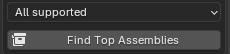
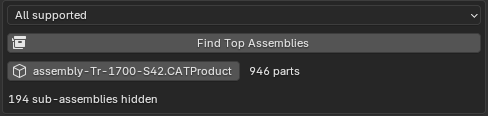
FIND TOP ASSEMBLIES PRO NEW IN 3.0
|
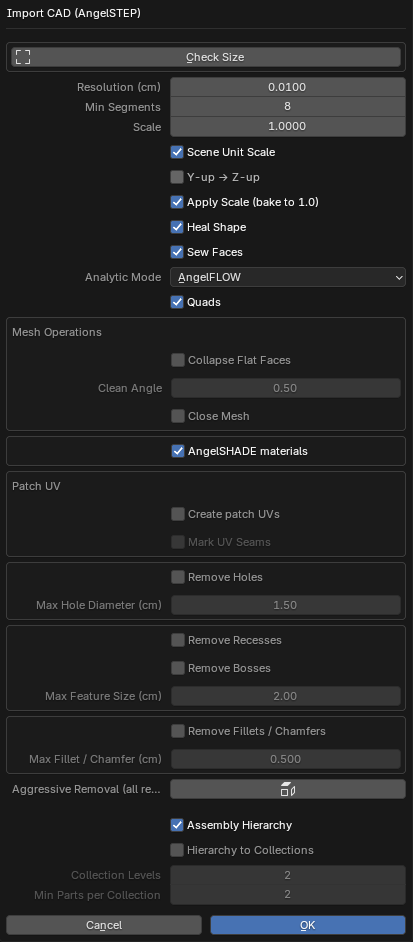
Import options
 |
|
STEP files from Rhino store every object of the model inside one single part. AngelSTEP recognises such files and splits them into separate objects right away, each with its CAD link and its name.
3 · AngelSHADE: real materials NEW IN 3.0
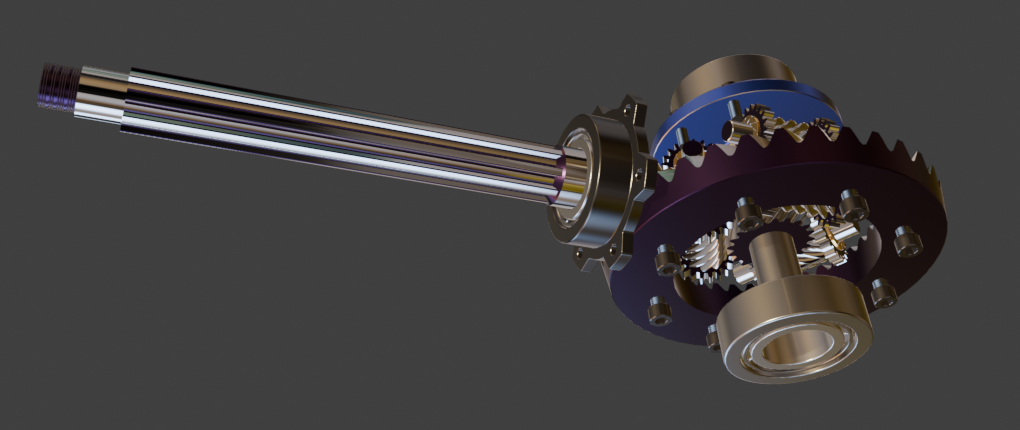
- With AngelSHADE materials on, AngelSTEP takes over every material property the file stores: colour, metalness, gloss, transparency, glass and textures, per part and down to single faces.
- Many files store less, often just a material name. Then AngelSHADE reads the name and fills in what is missing: Steel - Satin becomes brushed metal, Brass - Polished shiny brass, ABS (White) white plastic. The materials keep these names in Blender.
- Glass comes in as a real transmissive material, not just a transparent colour.
- Off: colours (and textures) only, on Blender's default surface.
- Your own materials stay. Swap in any material from your library: it survives every rebuild of the part, and it goes into STEP export.
4 · Mesh modes
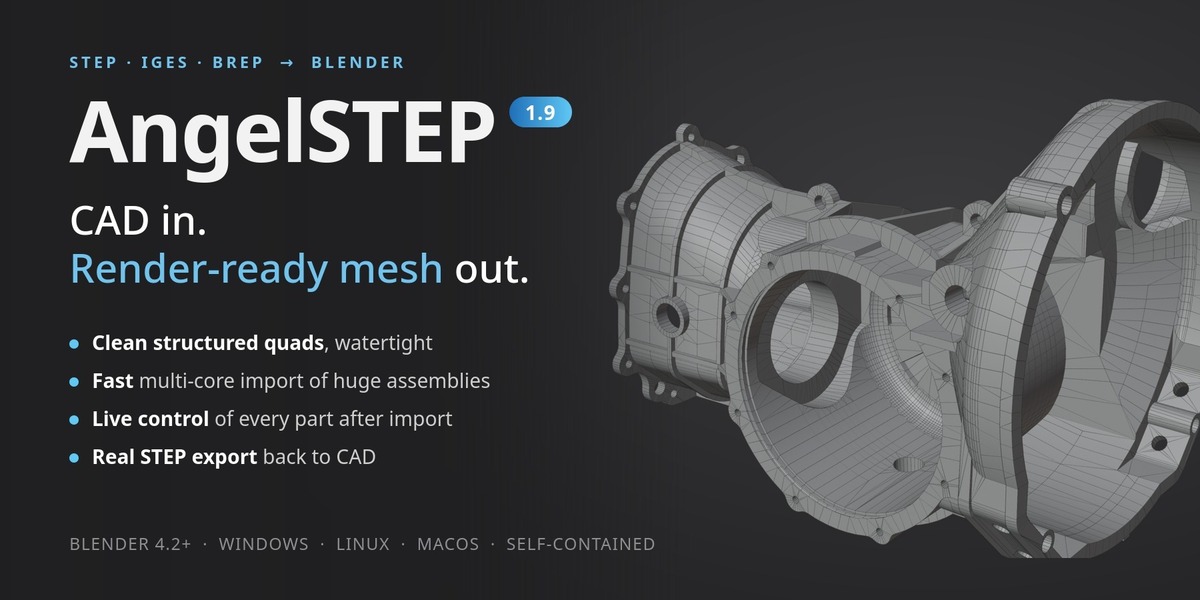
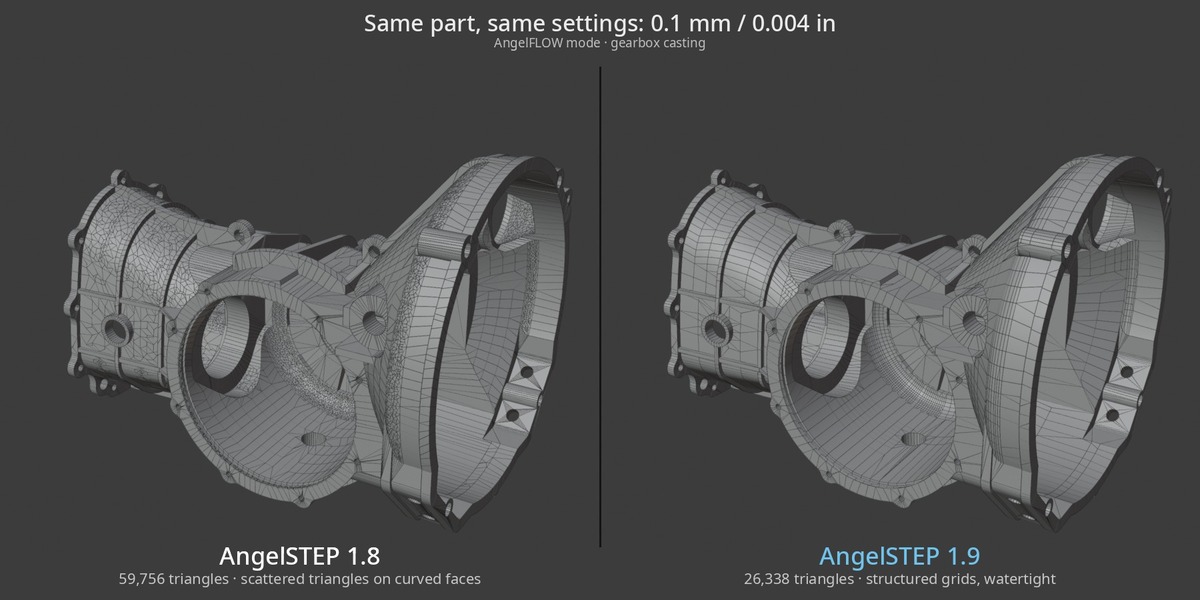
| AngelFLOW (default, recommended): structured, curvature-following quad grids with the fewest clean polygons. Watertight. The right choice for rendering and visualisation. | AngelGRID: an even quad grid over every face, at a Max grid size you choose. More polygons, but uniform density for deforming, displacement and subdivision. | Raw: the plain OCCT triangulation without remeshing. A baseline for comparison, and the fallback for damaged geometry. |
You can switch the mode of any part at any time in the panel and rebuild it.
Some parts carry no CAD surfaces at all, only a mesh: SketchUp models, mesh-only JT parts, meshes stored in STEP, or bodies the CAD tool already converted to facets. The panel marks them as Mesh part (no CAD surfaces in the file) or Faceted part (mesh-based CAD body). They come in exactly as stored; resolution and mode have no effect on them.
5 · The Live Link panel
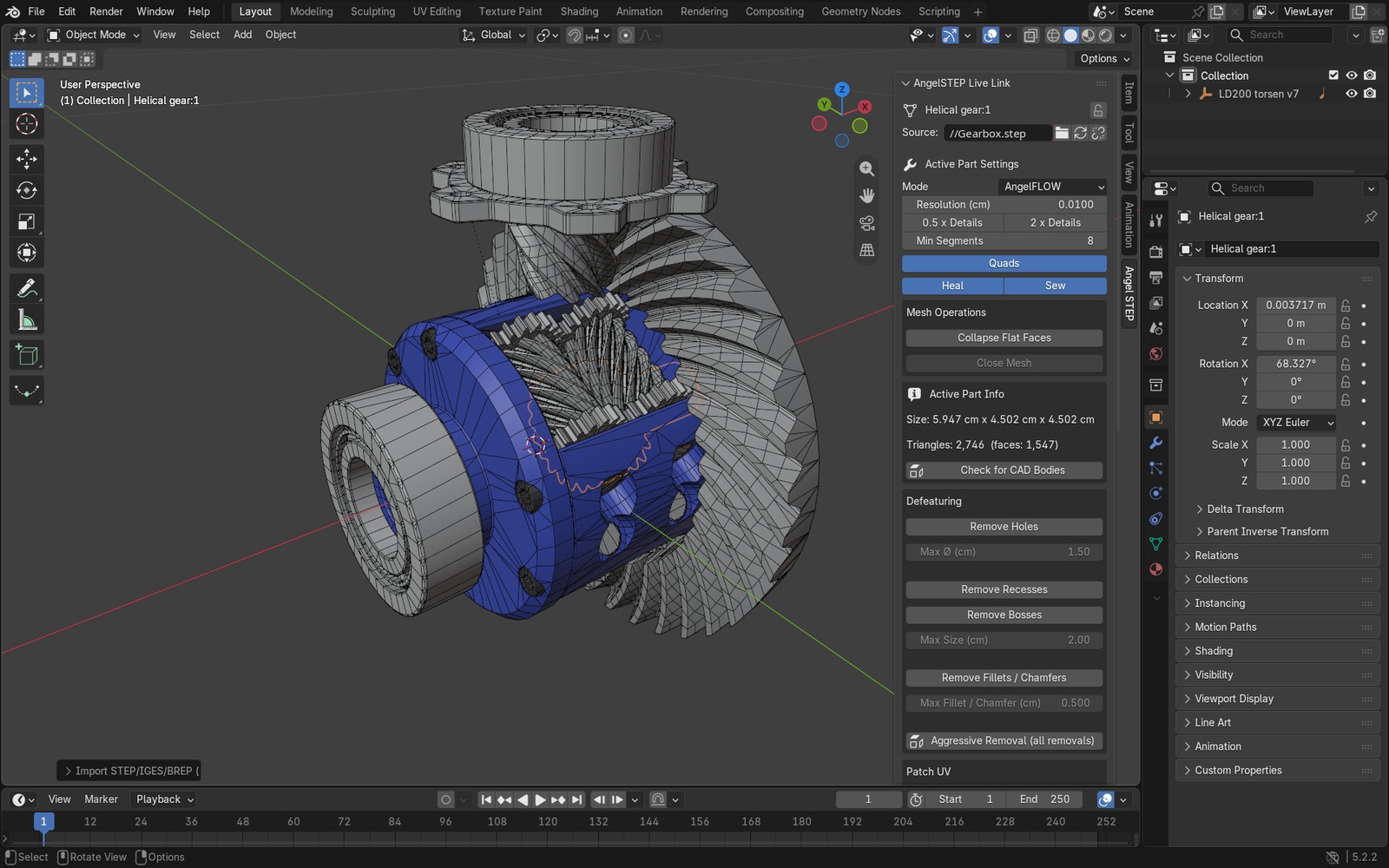
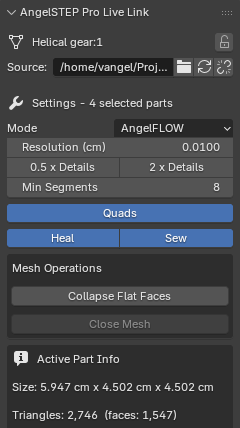
Every imported part stays linked to its CAD file. Select a part, press N in the 3D viewport and open the Angel STEP tab. The panel is called AngelSTEP Live Link (or AngelSTEP Pro Live Link). If you prefer the Properties editor, move the panel there under Preferences › Add-ons › AngelSTEP (or AngelSTEP Pro) › Panel Location.
|
SOURCE AND PART SETTINGS
|
|
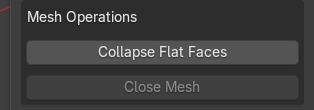
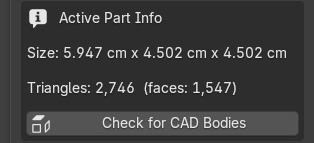
MESH OPERATIONS AND PART INFO
|
|
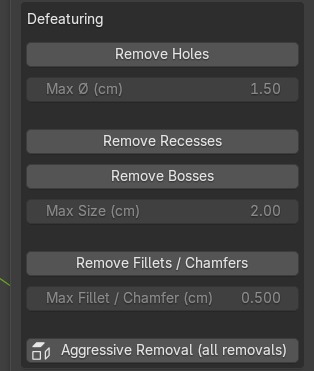
DEFEATURING
|
|
PATCH UV · REBUILD · EXPORT
|
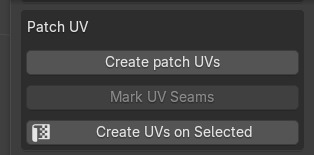
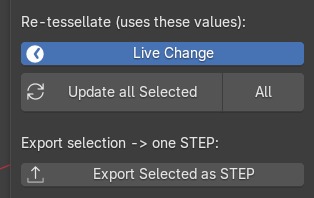
|
ASSEMBLY TOOLS
|
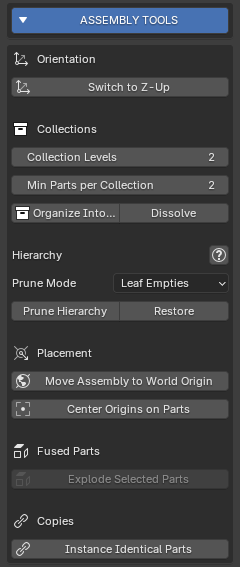
6 · Export back to STEP
- Select the objects to export. They can come from different CAD files, and in Pro from different formats.
- File › Export › Selected as STEP (AngelSTEP), or Export Selected as STEP in the panel.

- AngelSTEP writes each part's original CAD geometry (exact BREP, not the mesh) at the position you moved it to, as one STEP assembly with part and instance names, placements and shared instances.
- Materials NEW IN 3.0: every part and face material goes out with its name, colour and transparency, including those AngelSHADE filled in and the ones you set in Blender. Glass is written see-through. STEP has no field for metal or gloss; the material name carries them, and AngelSTEP turns it back into the same look when it reads the file again.
- Export Geometry Edits: bakes hole, recess, boss, fillet and chamfer removal into the exported solids. Off writes the untouched original.
- Include Plain Meshes: normal Blender meshes in the selection go into the same file as AP242 mesh bodies.
- Exploded bodies export as separate products, so a fused supplier file leaves Blender as a real assembly.
- PRO Parts from Inventor, CATIA, SolidWorks and every other Pro format export the same way. SketchUp models and mesh-only JT parts go out as faceted geometry, because that is what they contain.
Mesh edits you made in Blender are not part of the CAD export. Plain meshes export as mesh bodies, not as fitted surfaces; most current CAD packages read them.
7 · Tips and troubleshooting
| No import menu after installing? Restart Blender and tick AngelSTEP again in the add-on preferences. | "Another AngelSTEP edition is already enabled"? AngelSTEP and AngelSTEP Pro cannot run together. Disable one in Preferences › Add-ons, then enable the other. |
| Panel missing? Select an imported part, press N in the 3D viewport and open the Angel STEP tab. | Parts missing from an assembly? PRO The part files must sit in the project folder. Find Top Assemblies shows how many are missing before you import. |
| Too many polygons? Raise the Resolution, click 0.5 x Details, remove holes and fillets with Defeaturing, or share repeated parts with Instance Identical Parts. | Rounds look faceted? Lower the Resolution or click 2 x Details. AngelFLOW keeps the extra polygons on the curves. |
| First import slow? Reading a CAD file is a one-time cost. AngelSTEP caches it next to the file, so later imports and rebuilds start much faster. | Open edges reported? That is a gap in the source CAD, not a meshing error. Close Mesh caps it. |
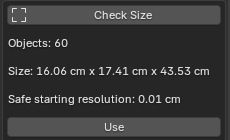
| Parts too small or too large? Check Blender's Unit Scale. With Scene Unit Scale on, AngelSTEP follows it; leave Scale at 1.0. | Huge file? Use Check Size first and start at the suggested resolution. Refine only the parts you look at closely. |
| Want plain colours instead of materials? Turn off AngelSHADE materials in the import dialog. | Resolution does nothing on a part? It is a mesh or faceted part: the file stores triangles there, not CAD surfaces. |
Questions, tricky files or feature requests? Message me through Superhive. I reply personally.
 Included
Includes 12 months of
- Support from kleinARt
- Product updates
Extend this product’s Support Period +12 months: 75% of product price
Have questions before purchasing?
Login to message
| Blender Extension Compatible | Yes |
| Sales | 100+ |
| Rating | 4 ratings |
| Dev Fund Contributor | |
| Published | 5 months ago |
| Blender Version | 4.2 - 5.2 |
| Extension Type | Add-on |
| Render Engine Used | Arnold, Blender-Internal, Blender-Game-Engine, Cycles, Eevee, Freestyle, Luxrender, Mental-Ray, Octane, Vray, Yafaray |
| License | GPL |
Discover more products like this
3d-importer step inventor catia CAD import step Exporter cad solidworks rhino 3d-cad-importer CAD export fusion importer