 孙堪伟
孙堪伟


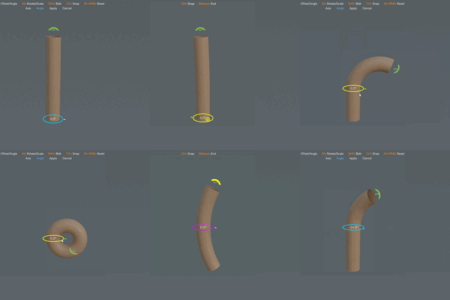
Interactive mesh deformation
Shape the curve.
Keep your hands in the viewport.
Bend Flow X turns mesh deformation into a direct visual workflow. Choose a mode, drag the on-screen controls, and shape your model where you can see the result.
Open
Press J
Shape
Drag visual controls
Finish
Apply or cancel
One toolkit, three workflows
Use the right kind of deformation for the shape
Start with a clean single curve, build a compound silhouette segment by segment, or twist a selected region between two controls.
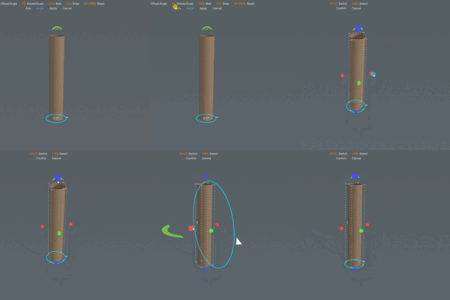
01 / Single Bend
A focused curve, fast
Set the pivot and direction from the lower control, then drag the upper control for the bend. Adjust the radius or switch to a two-sided curve without leaving the tool.
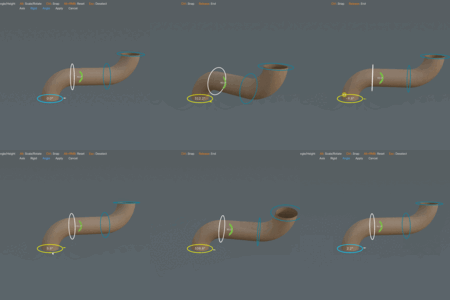
02 / Multi-Segment
Compound curves, one segment at a time
Create 2 to 8 connected segments. Select a segment, shape its angle and radius, or move its boundary to redistribute the form.
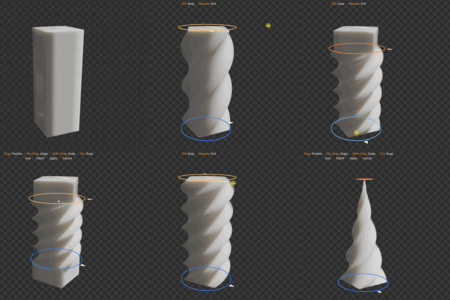
03 / Twist
Rotation with defined endpoints
Move, rotate, and scale the upper and lower rings independently. Define the active region, taper the result, and switch falloff directly from the HUD.
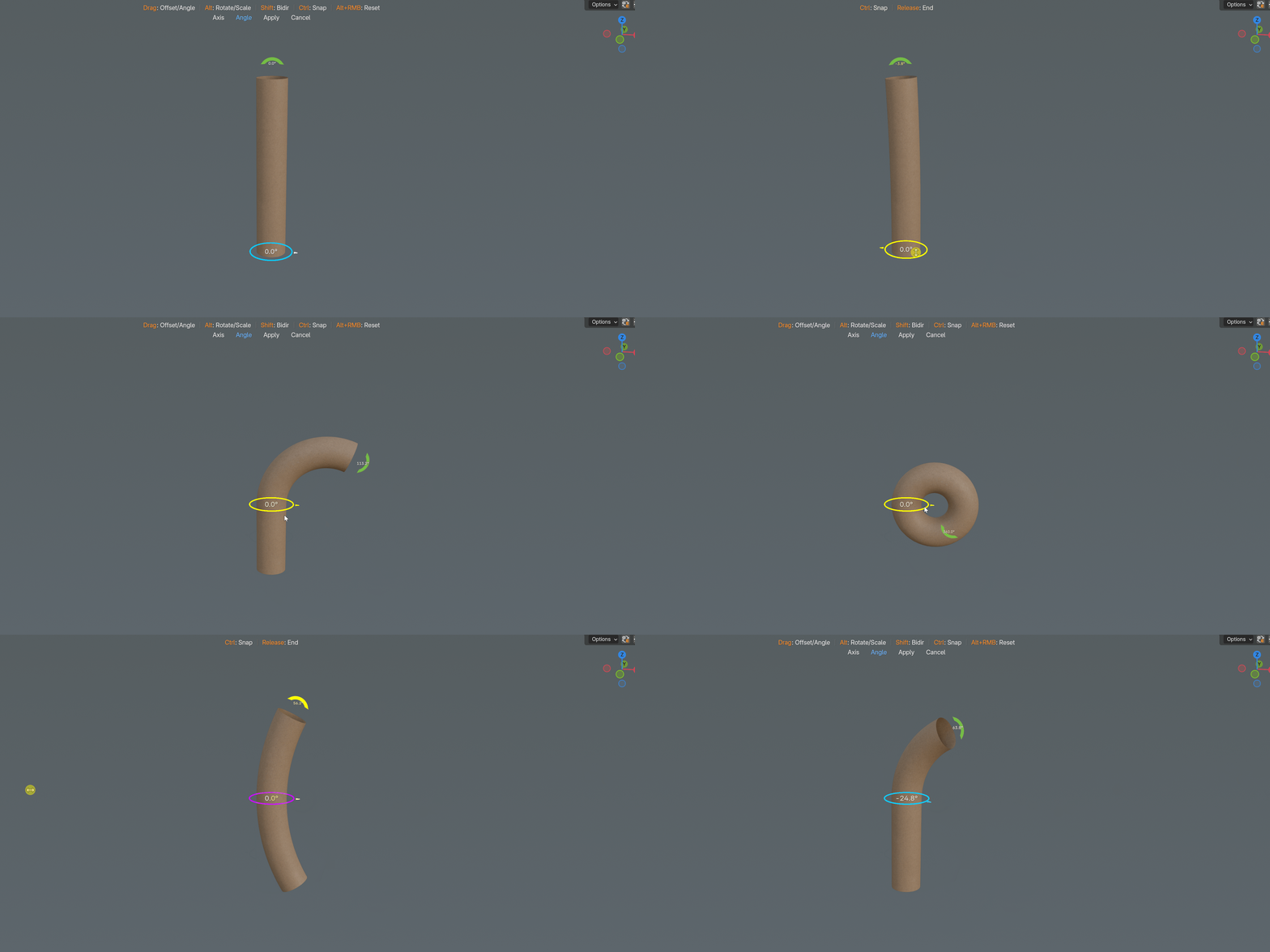
Direct manipulation
The controls stay on the model
No helper Empty and no permanent side panel are required. The active mode draws its handles in the 3D viewport and shows only the controls that matter for the current action.
Context-aware HUD
Shortcut hints update when the mode changes and when modifier preferences change.
Clickable essentials
Axis, angle or rigid mode, falloff, Apply, and Cancel appear where they are needed.
Safe exploration
Undo and redo work inside the active tool. Cancel restores the mesh state from before the operation.
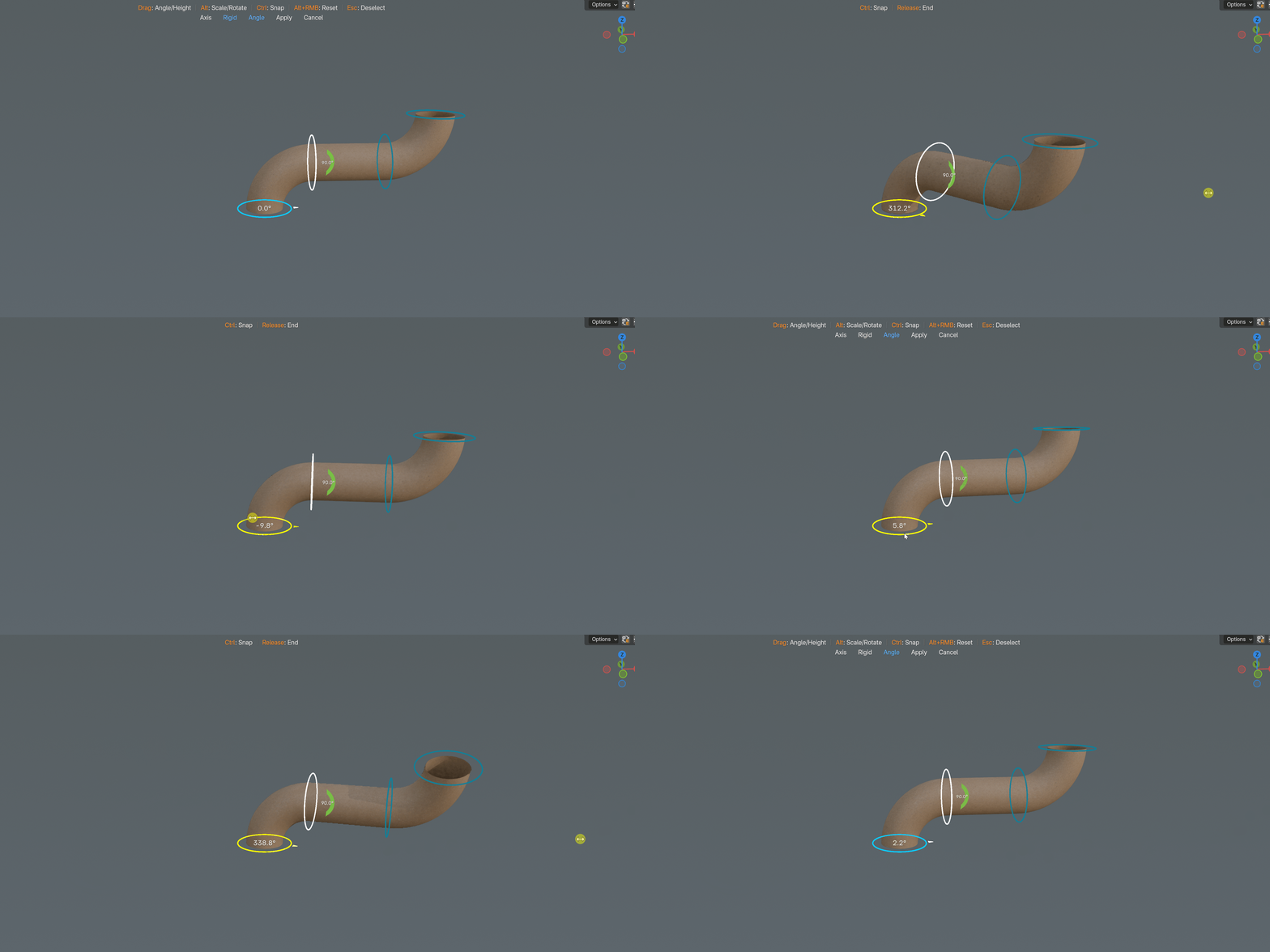
Multi-Segment Bend
Build a silhouette that changes direction
Use connected bend regions for S-curves, flowing profiles, hooked forms, and other shapes that cannot be described by one arc.
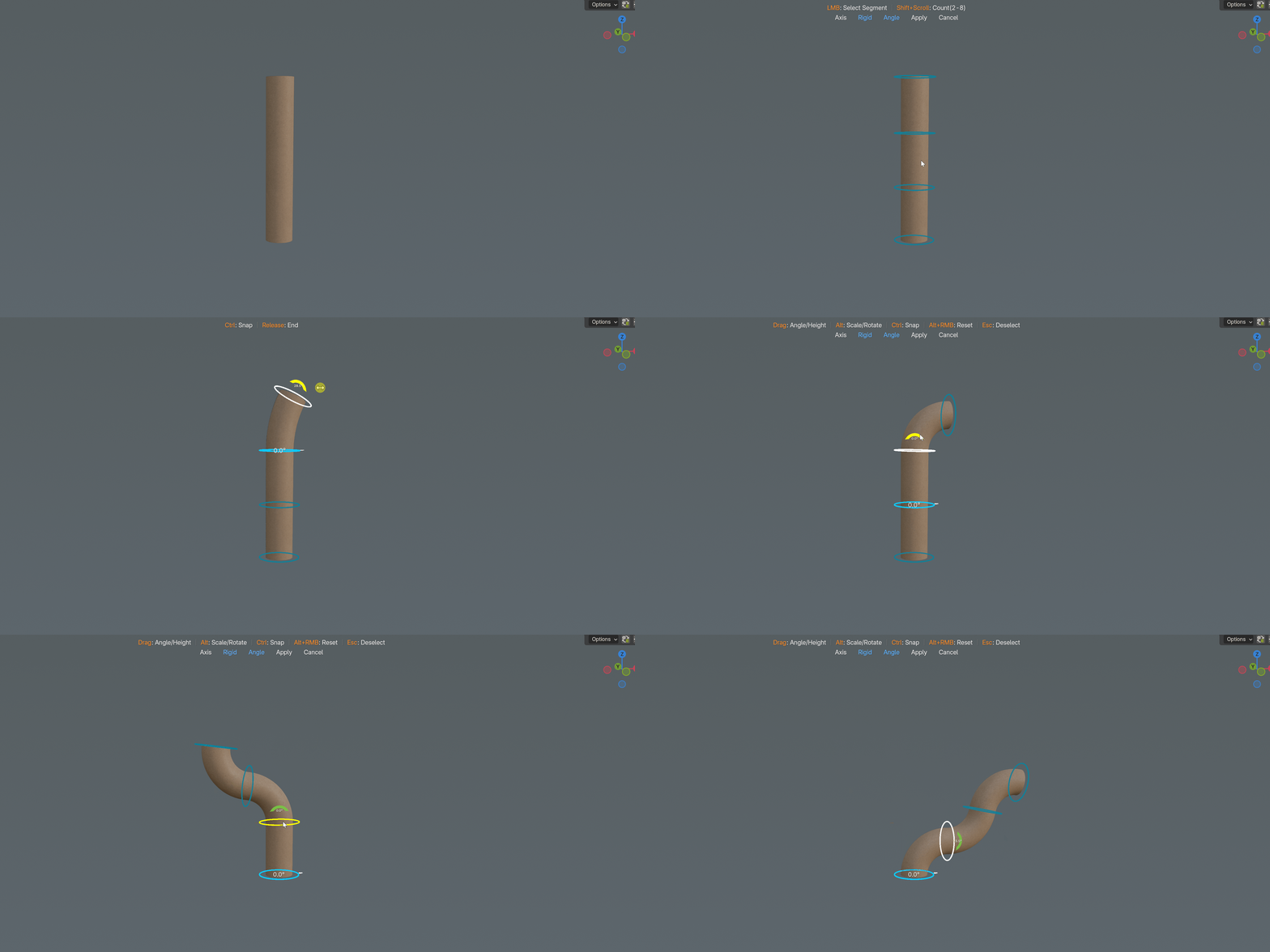
Add structure. Adjust the segment count from 2 to 8 while the tool remains active.
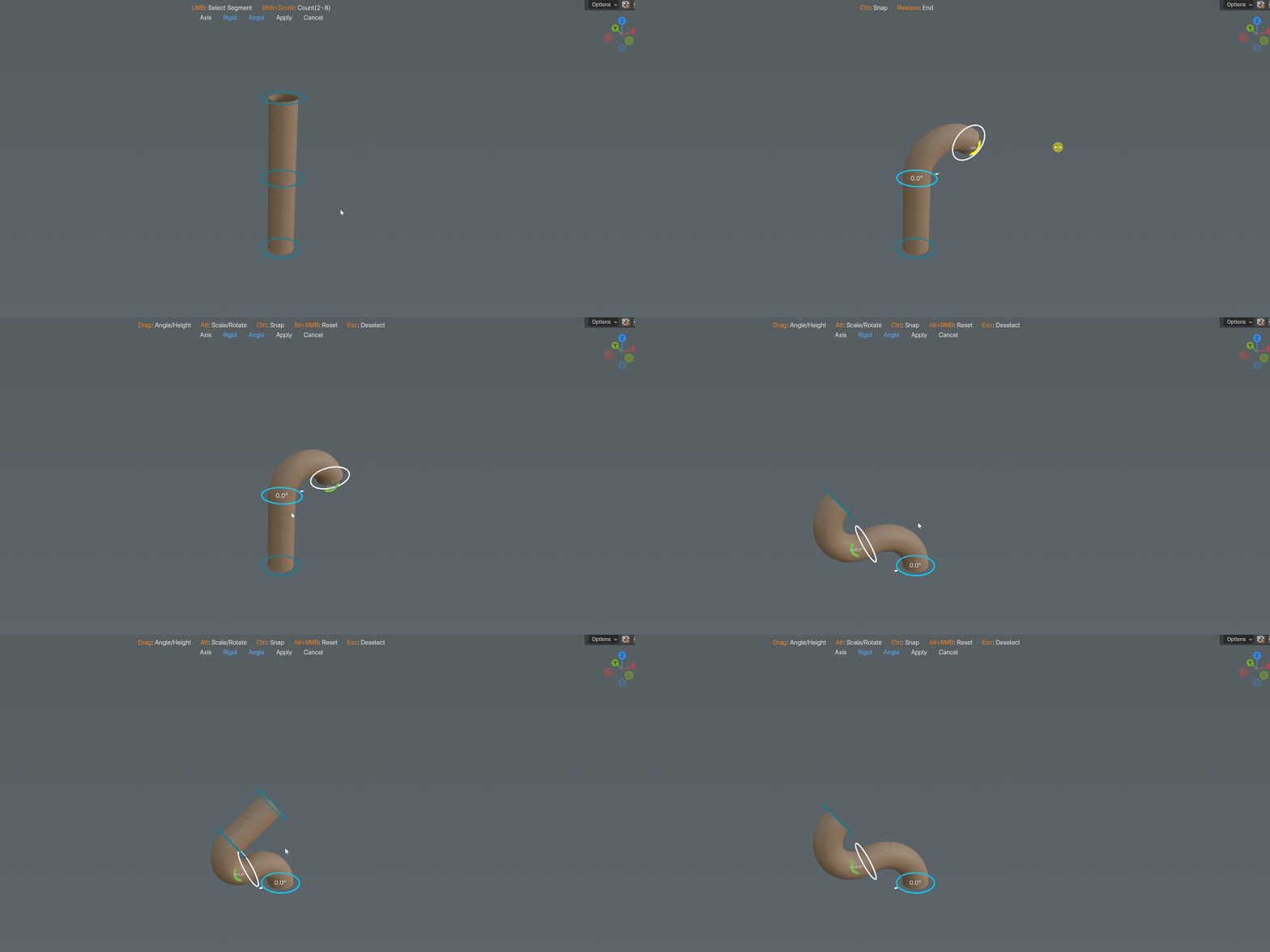
Edit locally. Select the segment you want, then control its angle, radius, rotation, and height.
Twist mode
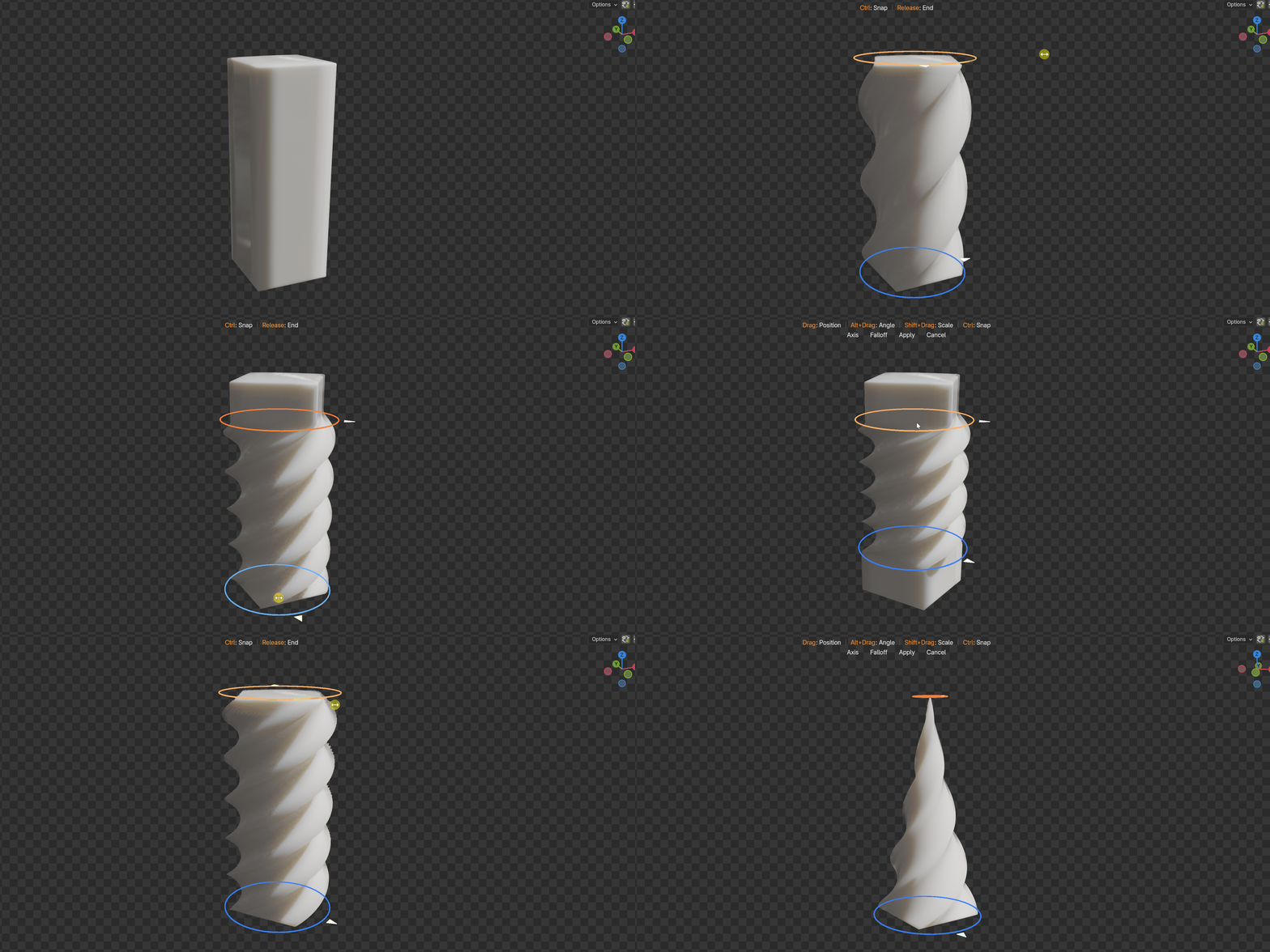
Control both ends of the rotation
Two ring controls define the twist region. Change their position, angle, and scale independently to make anything from a localized rotation to a tapered spiral.
Any local axis
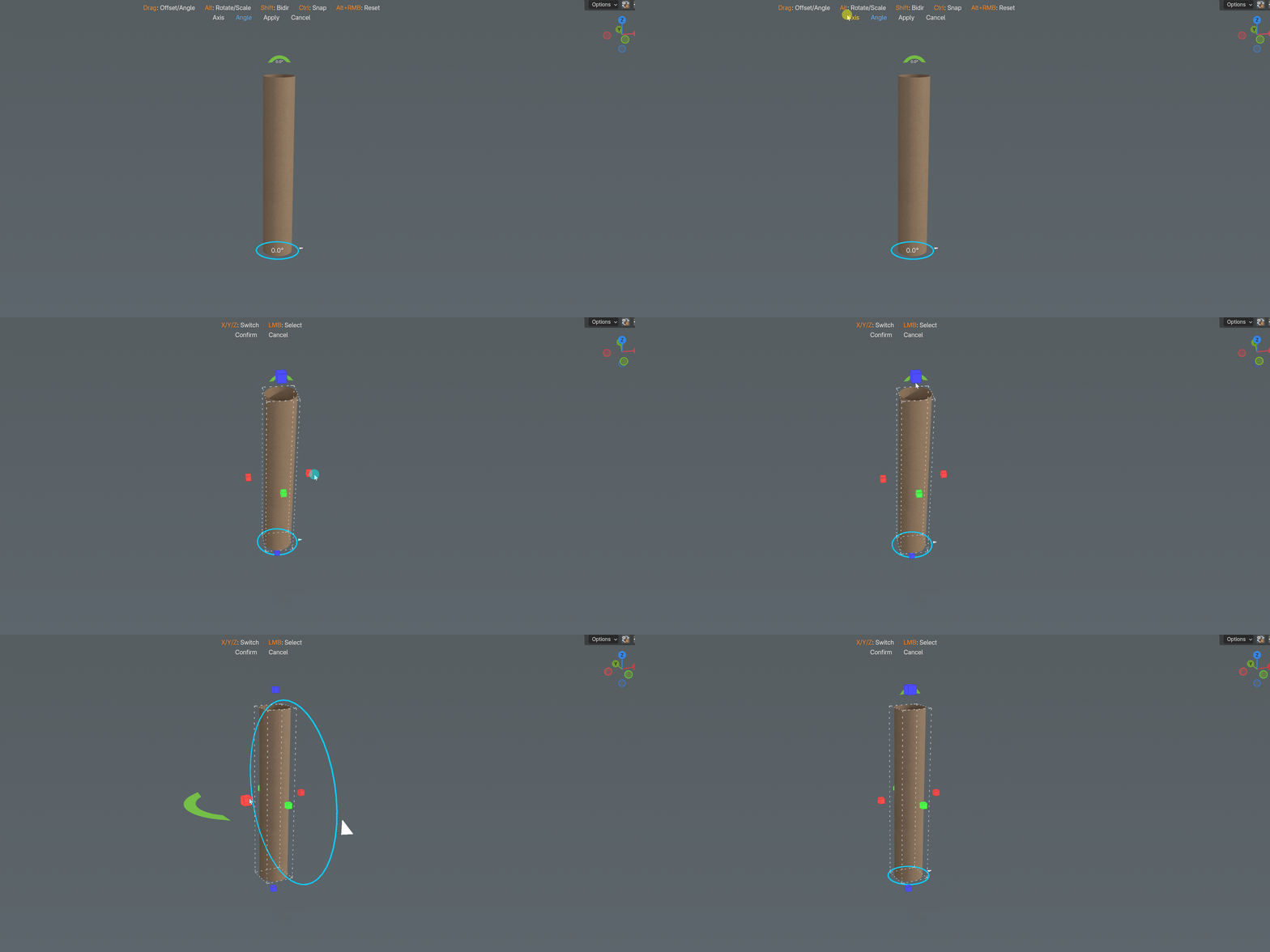
Switch direction without reorienting the object
Use the Axis control and choose X, Y, or Z. Press the same axis again to reverse its direction, giving every mode access to positive and negative local axes.
A short path from selection to shape
A workflow you can remember
01
Prepare
Select a mesh with enough geometry to deform smoothly.
02
Choose
Press J and select Single Bend, Multi-Segment Bend, or Twist.
03
Shape
Drag the viewport handles. Follow the live HUD for alternate actions.
04
Commit
Apply the deformation, or cancel to restore the starting mesh.
Control without guesswork
Precision is available when the shape needs it
Snapping
Hold Ctrl during supported drags to make controlled adjustments instead of relying only on free movement.
In-tool undo and redo
Step through deformation changes while the modal tool is active.
Custom modifier roles
Change the Alternate Action and Toggle/Scale modifiers in add-on preferences. The HUD follows your choices.
Before you bend
Two details make the result more predictable
Apply object scale
Use Ctrl+A and apply Scale before deformation, especially when an object has non-uniform scaling.
Give the mesh enough divisions
A bend changes vertex positions; sparse geometry produces faceted curves. Add suitable topology before shaping.
Common questions
Which mode should I start with?
Use Single Bend for one continuous curve. Choose Multi-Segment when the silhouette must change direction more than once. Use Twist for rotation around an axis.
Does it create helper objects or a permanent panel?
No. The controls are drawn in the viewport while a Bend Flow X mode is active. Version 2 uses the J menu instead of the earlier N-panel workflow.
Can I change the shortcut?
Yes. The J activation shortcut and the two modal modifier roles can be changed from Blender preferences.
What happens if I cancel?
Cancel restores the mesh to the state captured when the current operation began.
Current release
Version 2.0.2
- Added customizable modifier roles in add-on preferences.
- HUD shortcut hints now match the selected modifiers.
- Conflicting modifier choices swap automatically.
- Undo, redo, snapping, reset, and alternate actions now use the selected settings consistently.
Version 2.0.1
- Added platform-aware controls and matching HUD hints for Windows and macOS.
- Fixed consistency of alternate actions, reset, and undo shortcuts on macOS.
Version 2.0.0
- Added Multi-Segment Bend with adjustable segment count and boundaries.
- Added Twist with two controls, independent scale, and falloff.
- Added positive and negative X, Y, and Z axis support across all modes.
- Replaced the previous N-panel workflow with one J menu and a clickable HUD.
More from the same creator
Discover more workflow tools
Focused add-ons for modeling, nodes, animation, textures, and lighting.
 NodeFlow 3 Pro
Clean routing, alignment, minimap, and node workflow tools.
NodeFlow 3 Pro
Clean routing, alignment, minimap, and node workflow tools.
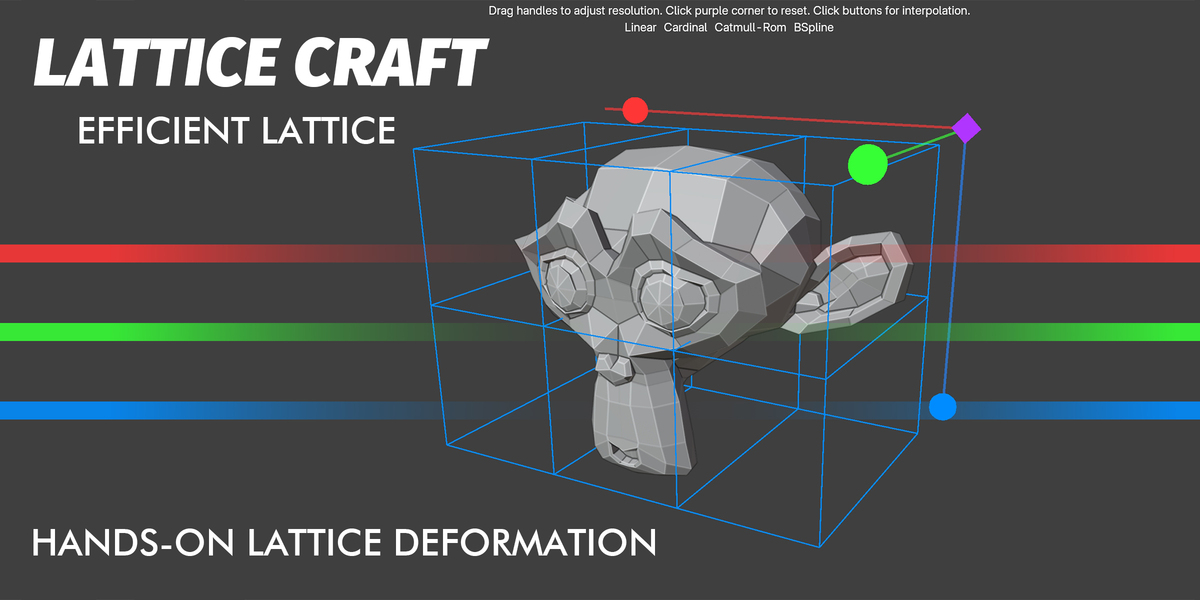 Lattice Craft
Fast, intuitive lattice deformation directly in the viewport.
Lattice Craft
Fast, intuitive lattice deformation directly in the viewport.
 N-Panel Orchestrator
Organize, search, and control Blender sidebar panels.
N-Panel Orchestrator
Organize, search, and control Blender sidebar panels.
 Knifepro
Projection, Boolean, and template-based cutting tools.
Knifepro
Projection, Boolean, and template-based cutting tools.
 Animax Rotator
Create hard-surface rotation animation without rigging.
Animax Rotator
Create hard-surface rotation animation without rigging.
 NormalCanvas Pro
Edit textures and generate depth or normal maps inside Blender.
NormalCanvas Pro
Edit textures and generate depth or normal maps inside Blender.
 RayPilot
Interactive lighting, light linking, gobos, and viewport controls.
RayPilot
Interactive lighting, light linking, gobos, and viewport controls.
Bend Flow X
From straight mesh to intentional form
Three direct deformation modes, visual controls, and a focused HUD - ready from one shortcut.