 孙堪伟
孙堪伟


Viewport cutting system
Draw the cut.
Skip the setup.
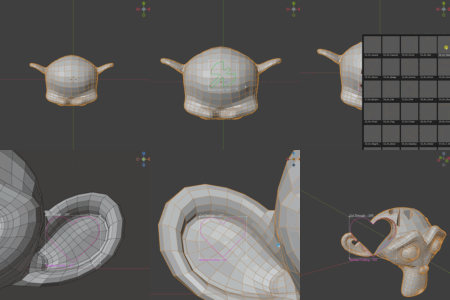
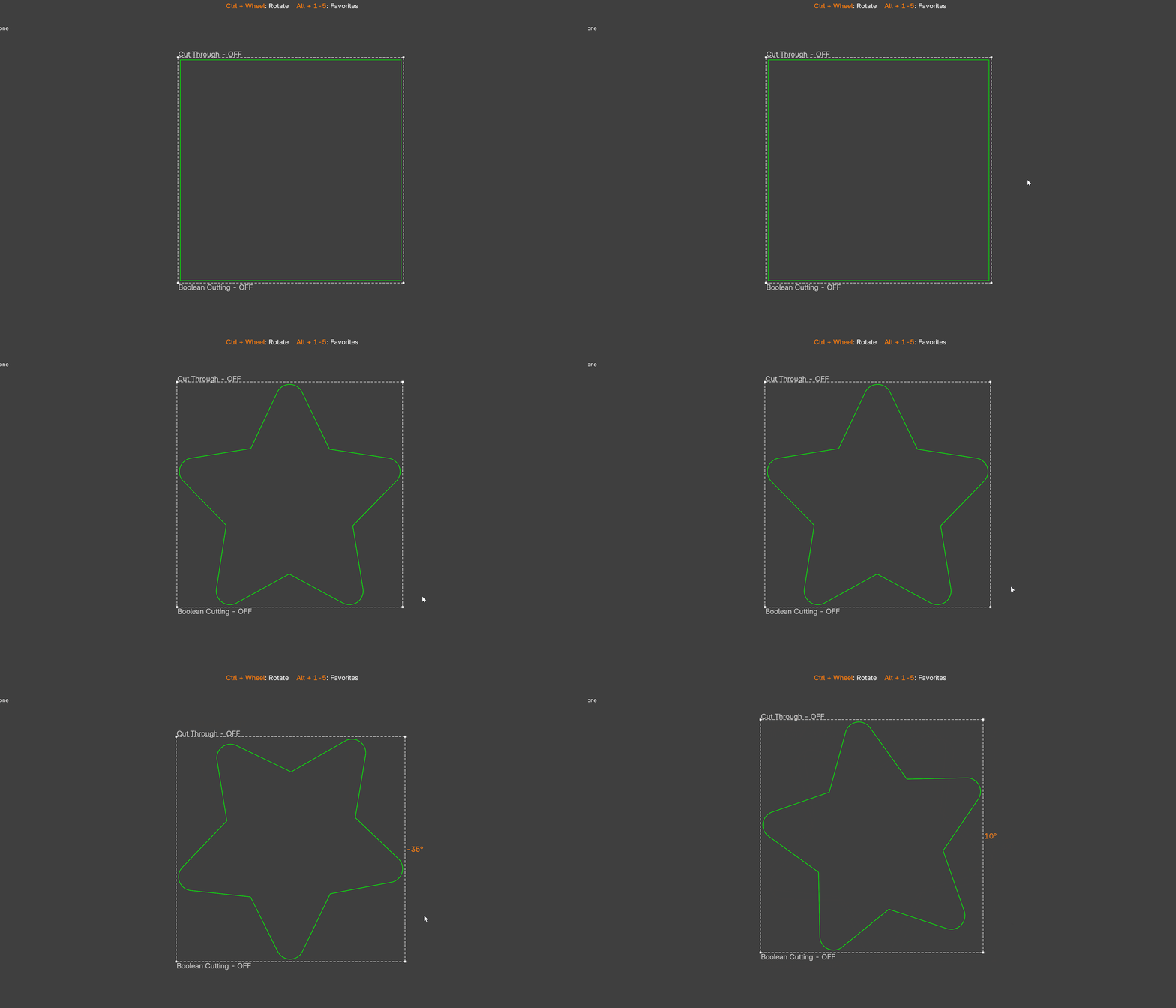
Knifepro turns a cutter outline into an interactive viewport operation. Position the contour where it belongs, choose projection or Boolean cutting, and finish without assembling the usual temporary setup by hand.
MOVE
Drag the contour into place
SCALE
Pull a corner to resize
ROTATE
Use Ctrl + Wheel
The modeling problem
A simple shape should not need a long cutting ritual
Projection cutting often means preparing a cutter, aligning the view, adjusting scale and position, switching selections, and only then running the operation. Knifepro keeps those decisions in one visible contour over the model.
Without Knifepro
Setup interrupts the shape decision
The modeling idea gets buried under object placement, view alignment, and operator steps.
With Knifepro
The contour becomes the workflow
Place, resize, rotate, choose the cut mode, select the target, and execute.
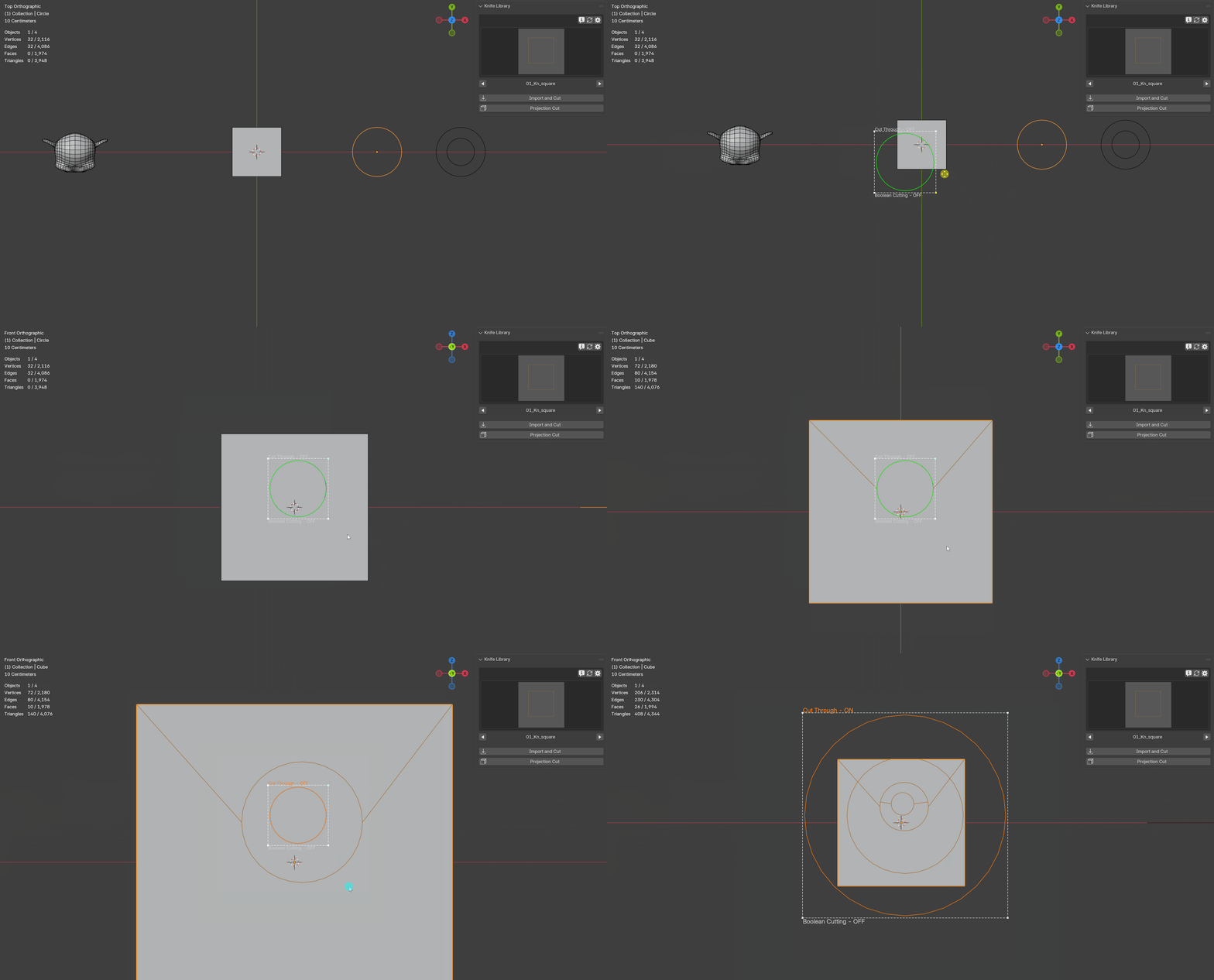
Three cutting choices
Choose the result while the contour is still visible
01
Projection Cut
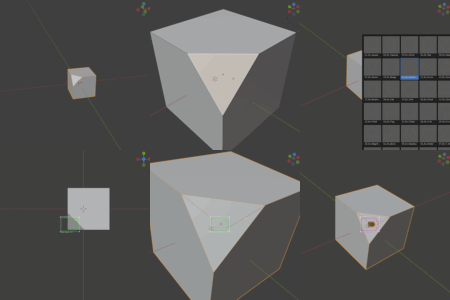
Project the visible contour onto the selected target mesh from the current view.
02
Cut Through
Toggle through-cutting from the on-screen mode label when the cut must pass through the mesh.
03
Boolean Cut
Turn one closed edge loop into a Boolean difference without building the temporary cutter manually.
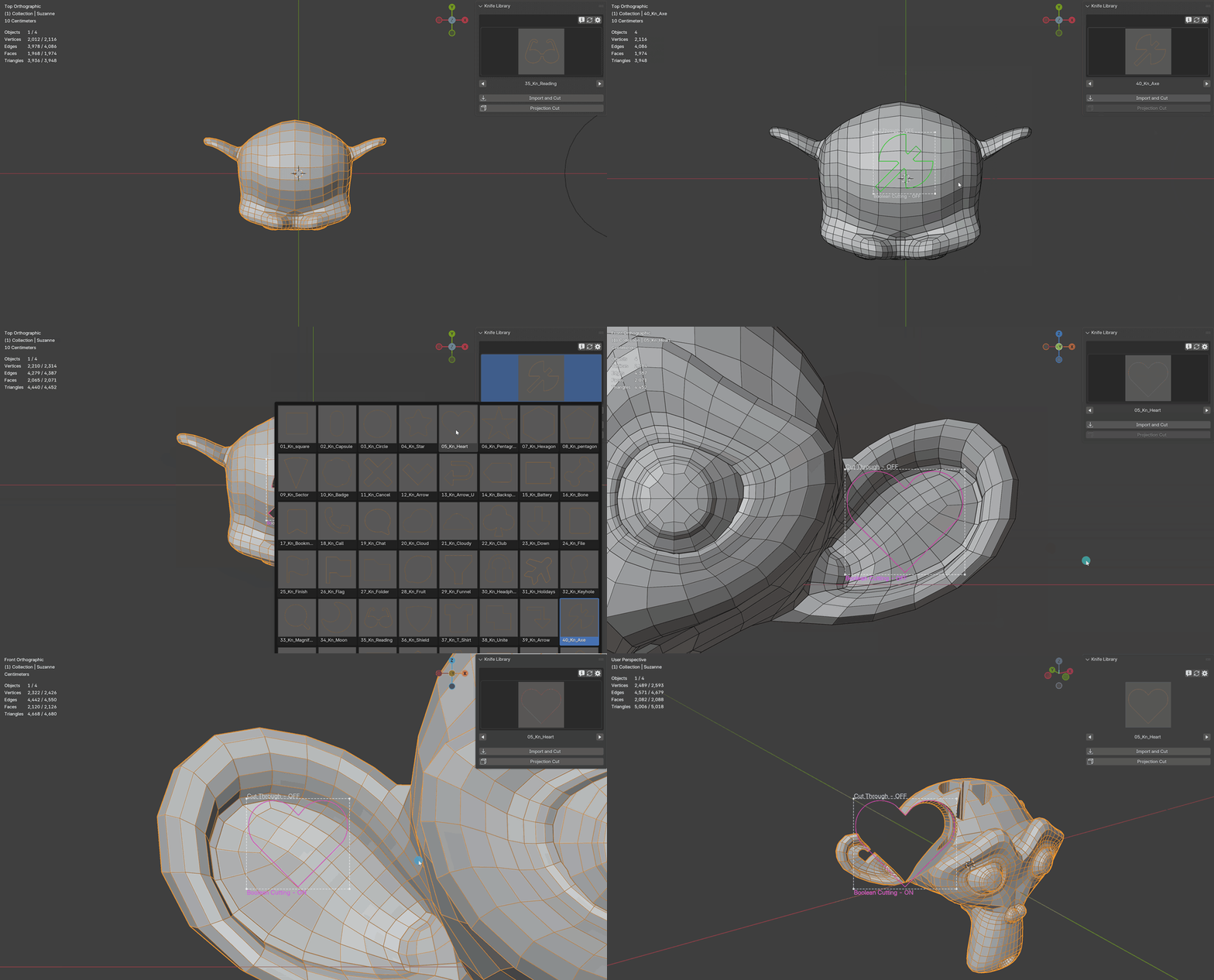
Built-in knife library
Start with a shape instead of an empty object
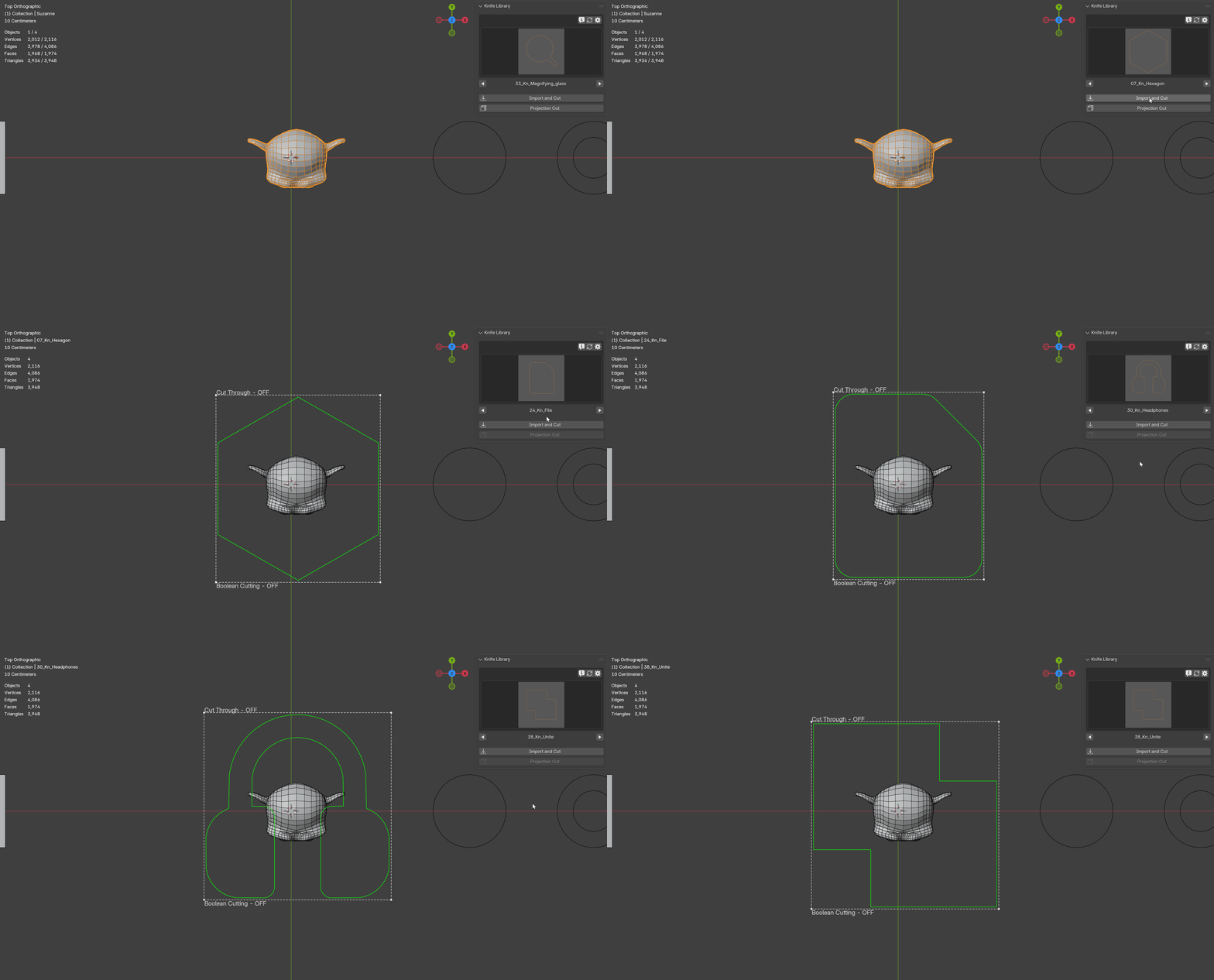
Browse 50 ready-to-use cutter presets with visual thumbnails. Pick one, choose Import and Cut, and enter the projection workflow immediately.
50 preset shapes
Geometric forms, symbols, and practical profile shapes.
Five favorite slots
Bind frequently used shapes and switch with Alt + 1–5 during the operation.
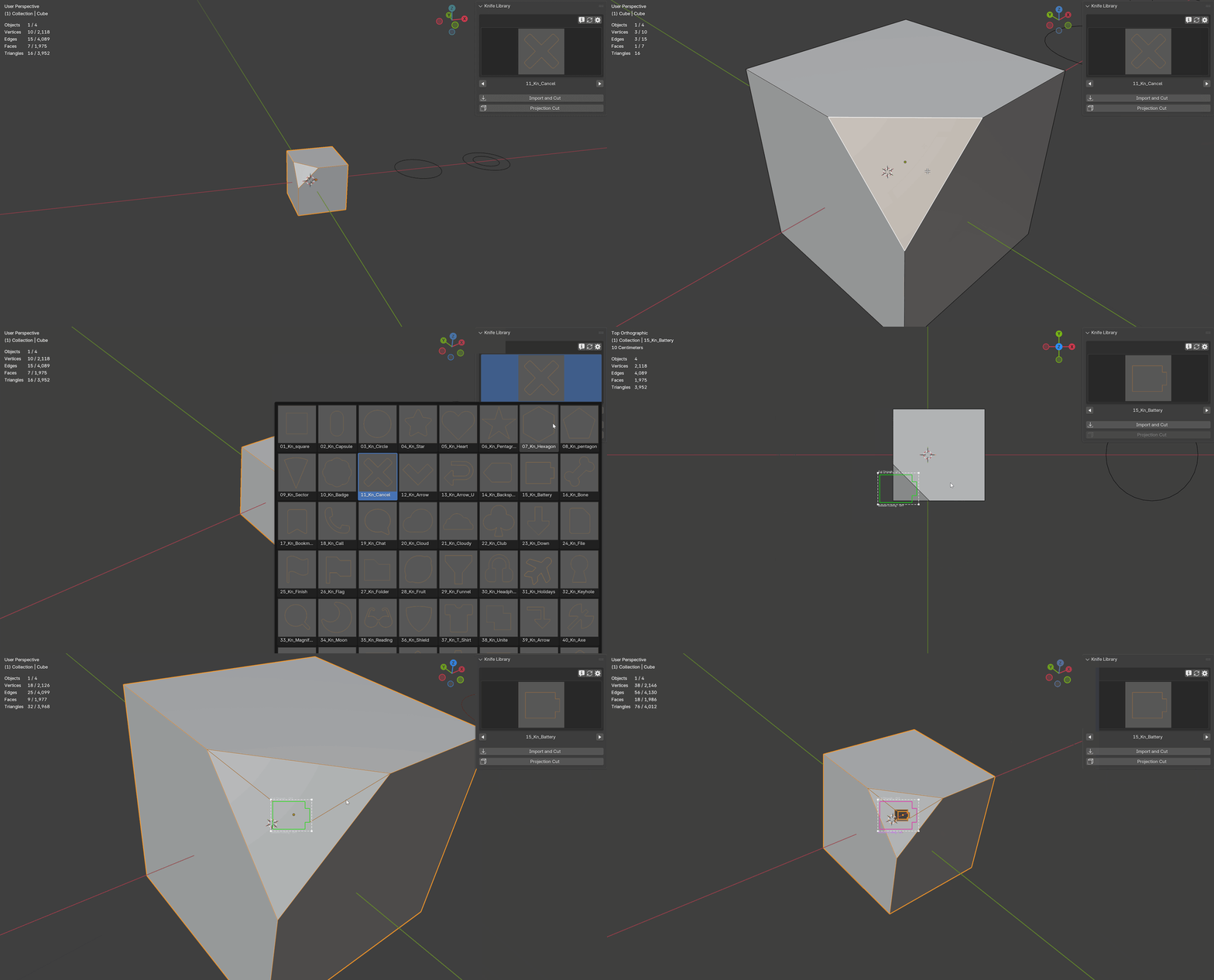
Sight align
Face the surface before you project
In Edit Mode, select one or more faces and use Sight align from the context menu. The view rotates toward the selected surface and frames it, giving the projection a clear starting direction.
Bring your own shape
Clipboard input for references and custom cutters
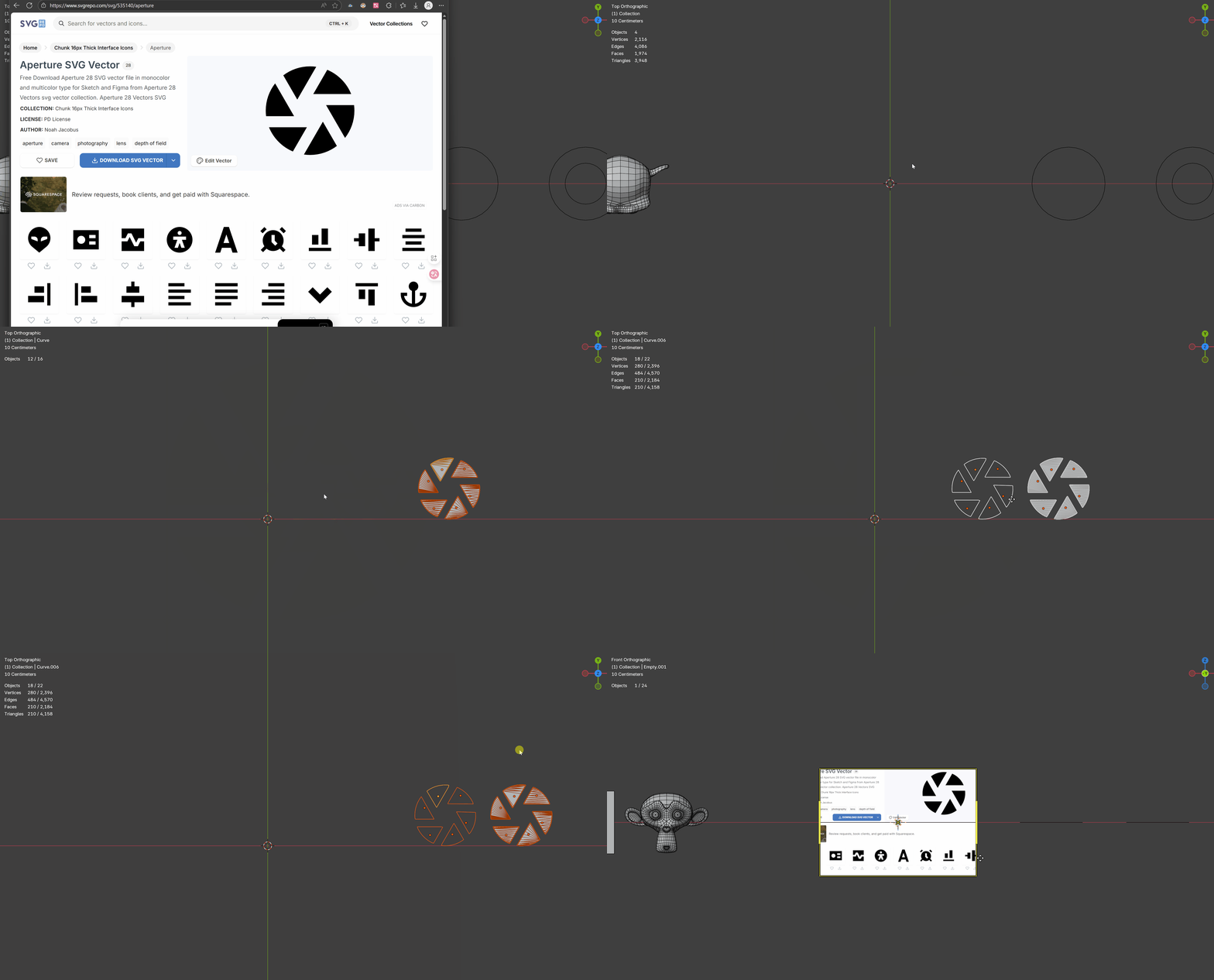
Press Ctrl + Shift + V and Knifepro detects compatible clipboard content. Paste an image as a view-aligned reference, or paste SVG data and optionally process it into mesh edges for projection cutting.
Image clipboard
Adds the clipboard image as an Empty aligned to the view. This path uses the optional Pillow dependency.
SVG clipboard
Imports valid SVG data and can convert the result to clean edge geometry for use as a knife profile.
Direct controls
Keep your attention on the model
Drag contour
Move the cutter outline.
Drag corners
Scale the outline.
Ctrl + Wheel
Rotate by the preferred step.
Alt + 1–5
Switch favorite cutters.
Alt + C
Execute the cut.
Backspace or Esc
Cancel the operation.
The add-on preferences expose the registered shortcuts, contour colors, line width, and rotation step.
Useful output
Projection cuts stay organized for the next step
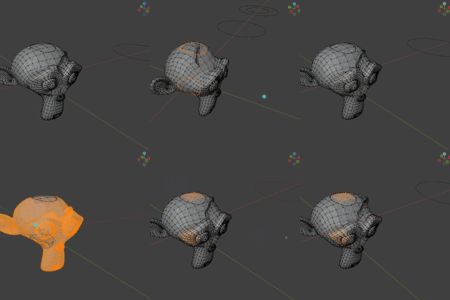
After a successful projection cut, Knifepro creates three vertex groups on the target mesh: the new cut edge, the area inside the contour, and the area outside it. That gives later modeling operations useful selections without rebuilding them manually.
CutEdge
New cut boundary
CutIn
Vertices inside
CutOut
Vertices outside
Quick start
From a cutter to a finished operation
01
Choose a knife profile
Use a preset from the Knife Library or select your own edge-only mesh.
02
Start Projection Cut
Launch it from the library or the 3D Viewport context menu.
03
Place the contour
Move, scale, rotate, and choose Projection, Cut Through, or Boolean mode.
04
Select the target and execute
Select the mesh to cut, then press Alt + C.
Before you begin
A few clear requirements
- A custom projection cutter must be a mesh made from edges without faces.
- Boolean mode requires exactly one closed edge loop.
- Clipboard image import requires Pillow; install or check it from the add-on preferences.
- Install Knifepro from its ZIP file through Blender Preferences.
Common questions
Can I use my own cutter shape?
Yes. Select an edge-only mesh and start Projection Cut from the 3D Viewport context menu. SVG clipboard data can also be processed into edge geometry.
Why is Boolean mode unavailable for my cutter?
Boolean cutting accepts one closed edge loop. Open contours, multiple loops, or cutters with unsuitable geometry do not meet that requirement.
Does image import create cutting geometry?
No. A clipboard image is added as a view-aligned reference. Use a mesh outline or process imported SVG data when you need a cutter.
Can I change the overlay appearance and controls?
Yes. Preferences include contour colors, line width, rotation step, shortcut entries, and five favorite cutter bindings.
Current release
Version 1.1.4
- Improved Pillow installation for clipboard images, with immediate refresh, self-check, and accessible logs.
- Improved cleanup after completed or failed cuts to prevent leftover overlays and operation state.
- Improved contour updates after view changes and favorite-cutter switching.
- Added clearer handling when the built-in cutter library file is unavailable.
Version 1.1.3
Fixed routine issues and improved stability.
Version 1.1.2
Fixed SVG and image clipboard imports and improved general stability.
Version 1.1.0
- Improved Boolean cutting speed and on-screen guidance.
- Added contour rotation and five favorite cutter slots.
- Improved cutter retrieval from different viewing angles.
More from the same creator
Discover more workflow tools
Focused add-ons for modeling, nodes, deformation, animation, textures, lighting, and workspace control.
 NodeFlow 3 Pro Clean routing, alignment, minimap, and node workflow tools.
  Bend Flow X Interactive bend and twist tools with direct viewport controls.
  Lattice Craft Fast, intuitive lattice deformation directly in the viewport.
  N-Panel Orchestrator Organize, search, and control Blender sidebar panels.
  Animax Rotator Create hard-surface rotation animation without rigging.
  NormalCanvas Pro Edit textures and generate depth or normal maps inside Blender.
  RayPilot Interactive lighting, light linking, gobos, and viewport controls.
 Knifepro
Keep the shape in sight.
Turn a visible contour into a clean projection or Boolean cut without leaving the viewport workflow.