 孙堪伟
孙堪伟


Direct lattice workflow
Build the cage.
Shape what matters.
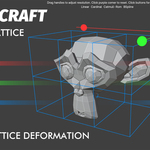
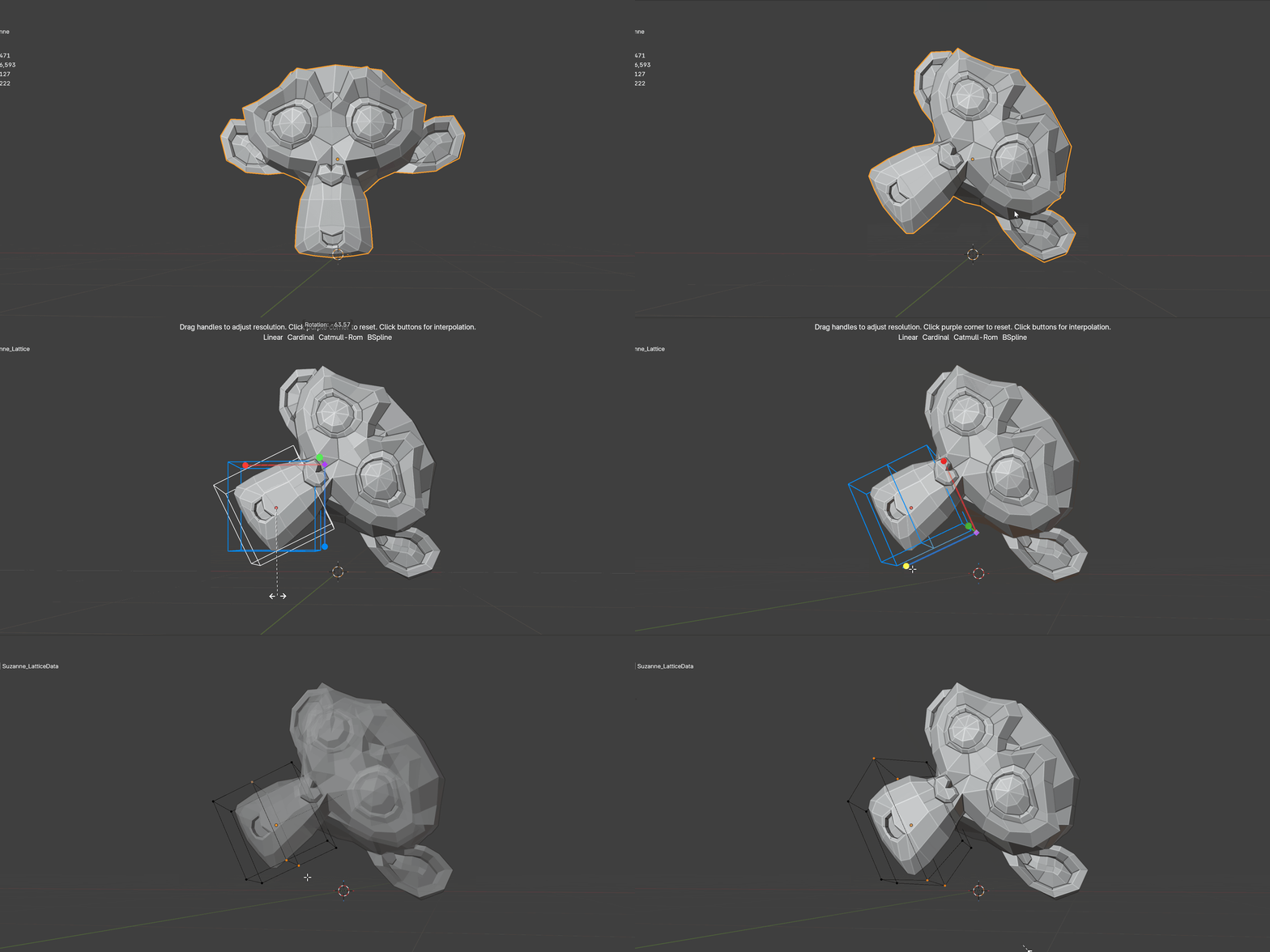
Lattice Craft creates a fitted lattice for an object, a group of objects, or only the vertices you selected - then puts resolution and interpolation controls directly in the 3D viewport.
Launch
Press Alt+C
Refine
Drag in the viewport
Continue
Edit the cage normally
Start from your selection
One command, three useful starting points
Lattice Craft reads the current context and creates or reopens the setup that fits it.
Object Mode
Fit a new cage
Select a mesh, curve, surface, or text object. The add-on creates a lattice around its bounds and connects a lattice modifier.
Mesh Edit Mode
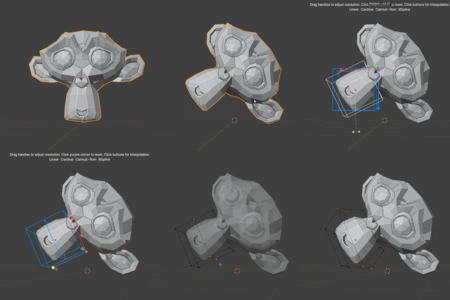
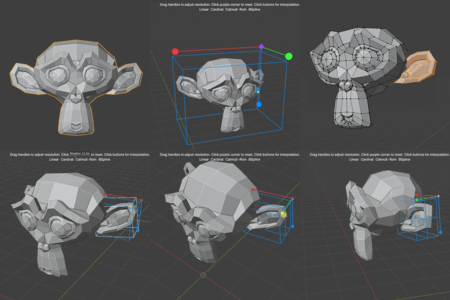
Deform only the selected area
Select vertices first. Lattice Craft fits the cage to that region and creates a dedicated vertex group for localized deformation.
Existing Lattice
Return to visual controls
Select an existing lattice or an object already using one. Reopen the viewport controls instead of rebuilding the setup.
Resolution in 3D space
Drag the axis you want to refine
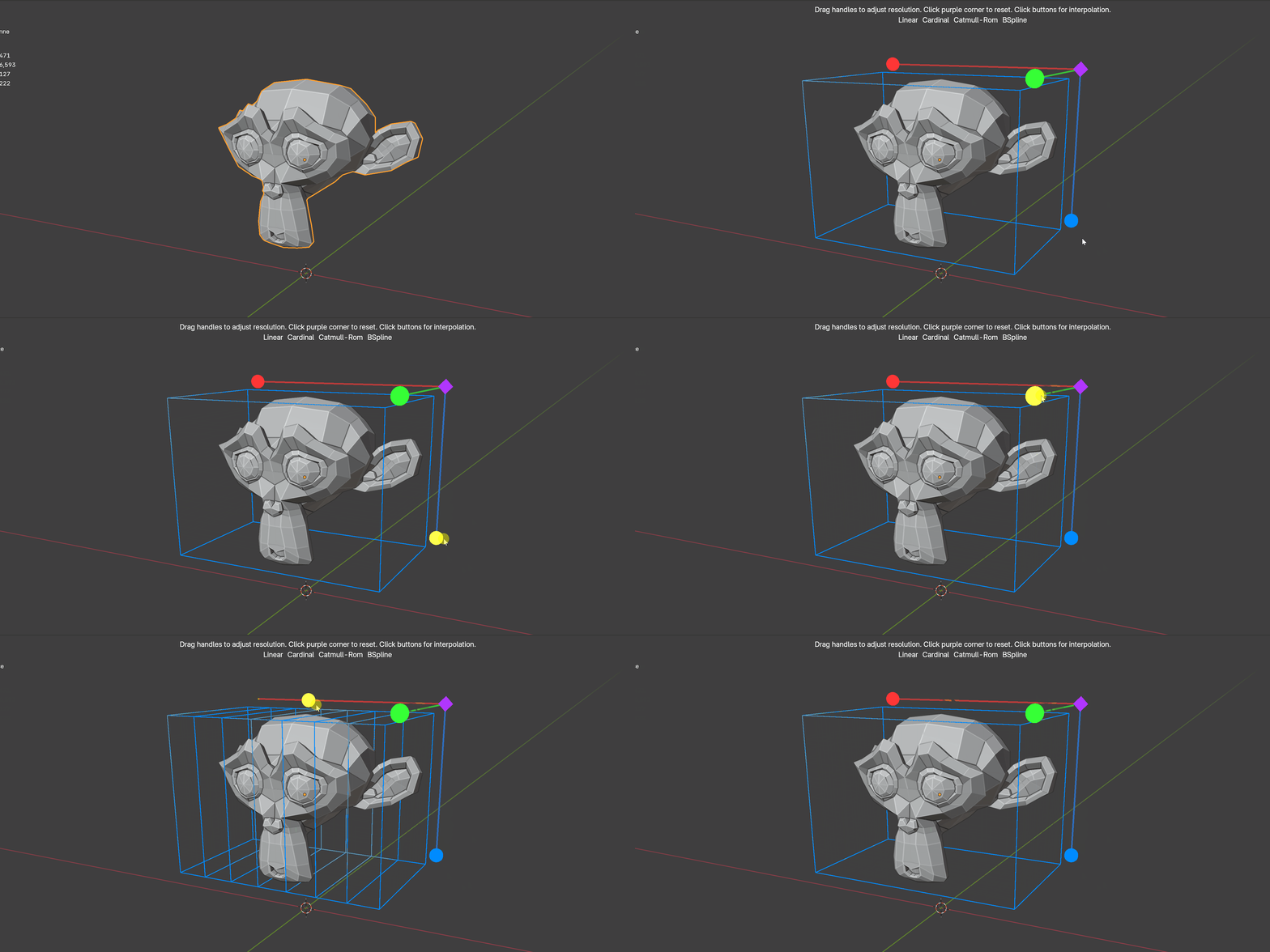
Red, green, and blue handles control the lattice divisions on their matching axes. Drag from 2 to 20 points and watch the cage update immediately.
X
U points
Y
V points
Z
W points
Purple corner control
Click once to restore the resolution values captured when the tool opened.
Fast choices, visible result
Set density and interpolation without opening Properties
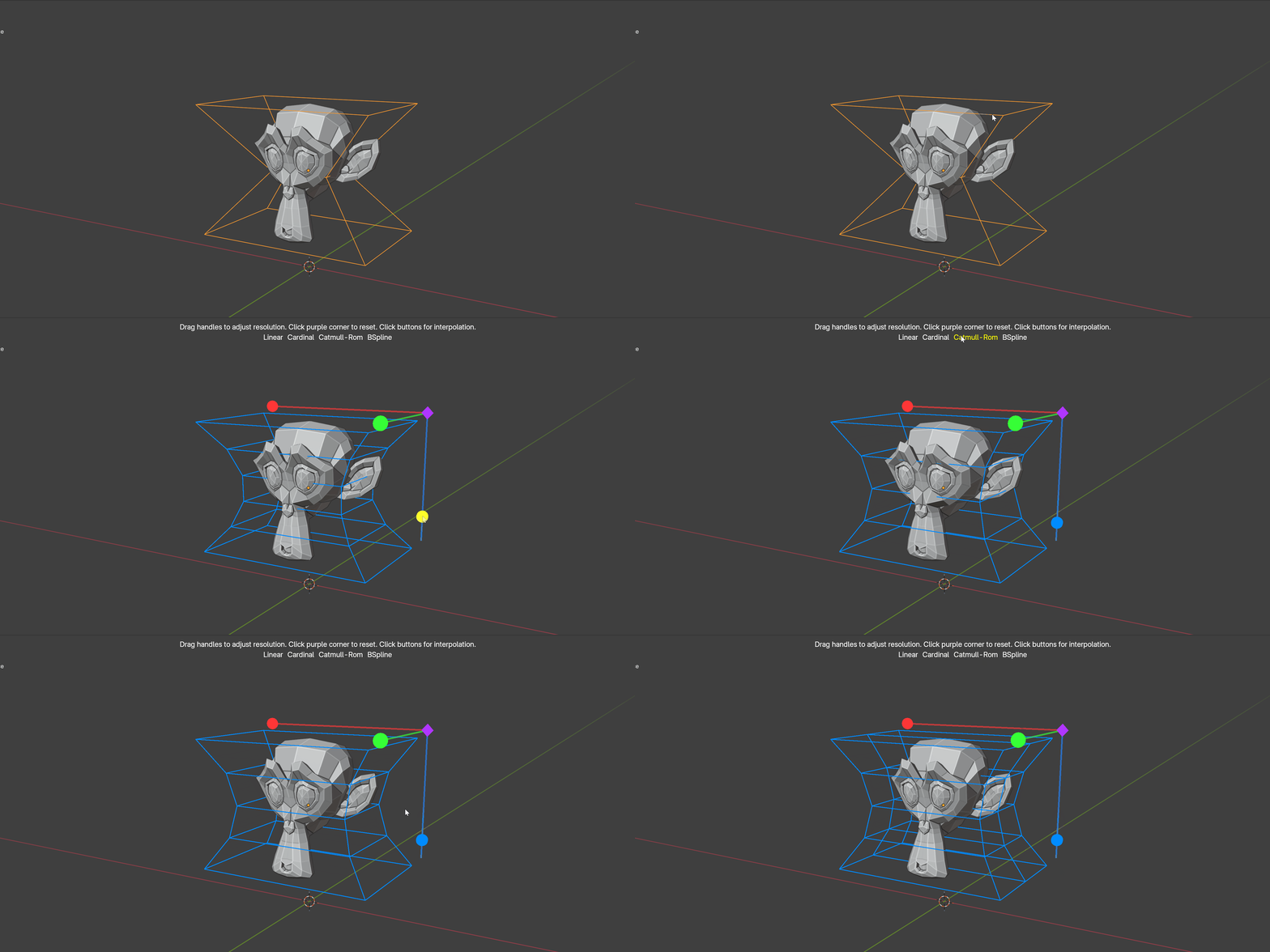
Use a balanced preset, fine-tune individual axes, then choose how the cage blends between its control points.
One-click resolution presets
Each preset sets all three axes together, giving you a useful baseline before axis-by-axis refinement.
Four interpolation modes
Apply one interpolation choice to U, V, and W together from the top-center viewport controls.
One cage, multiple objects
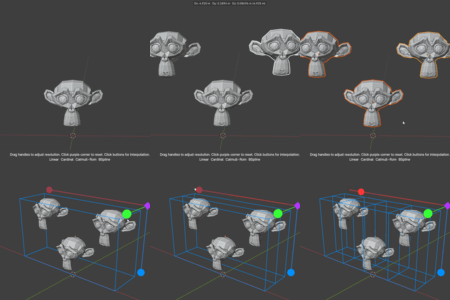
Deform a group as one form
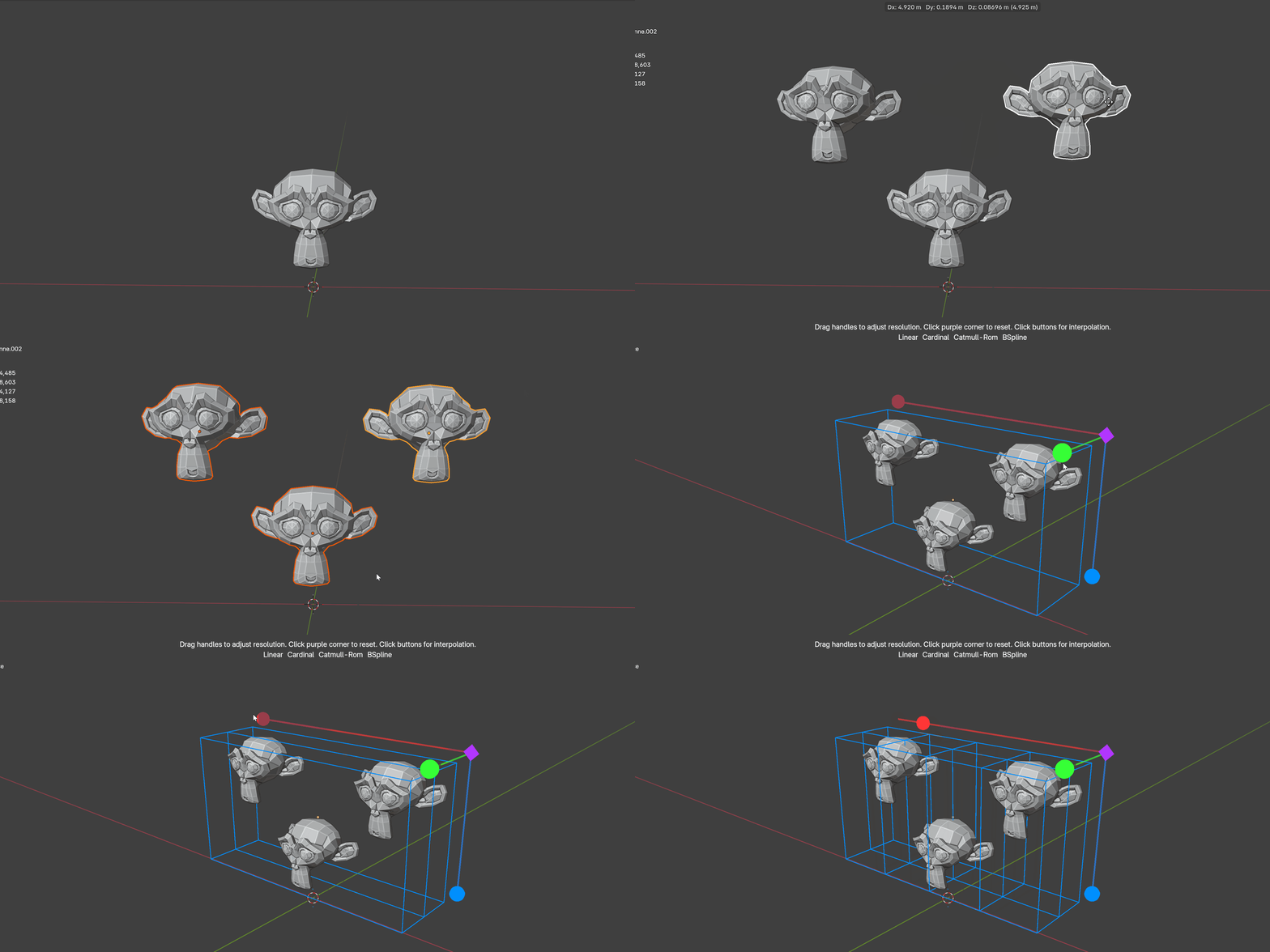
Select several supported objects in Object Mode. Lattice Craft calculates their combined bounds and connects them to a shared lattice, so the group can be shaped coherently.
A compact workflow
From selection to editable deformation
01
Select
Choose one object, several objects, or vertices in Mesh Edit Mode.
02
Create
Press Alt+C. The fitted lattice and required modifier are prepared.
03
Configure
Drag axis handles or choose resolution and interpolation presets.
04
Shape
Confirm, then edit lattice points with Blender's normal tools.
Keep it live or commit it
Choose when the deformation becomes geometry
Confirm the setup
Press Enter or Space. The lattice and modifier remain in the scene, ready for normal point editing and later adjustments.
Apply when finished
Use Apply Lattice from the right-click Lattice Craft menu to apply the modifier. Shared lattices are retained while another object still uses them.
Practical controls
Everything needed during setup
Navigate normally
Viewport orbit, pan, zoom, move, rotate, and scale navigation events remain available while the tool is active.
Cancel cleanly
Esc or right-click cancels by default. A newly created lattice, modifier, and local vertex group are removed.
Customize exit keys
The activation shortcut and modal exit choices can be adjusted from the add-on preferences.
Use suitable topology
A lattice moves existing geometry. Add enough mesh divisions for the curve quality your result requires.
Common questions
Does Lattice Craft change my mesh immediately?
The setup uses Blender's lattice modifier. Confirming keeps the lattice editable; use Apply Lattice only when you want to commit the deformation.
Can it affect only part of a mesh?
Yes. Select vertices in Mesh Edit Mode before launching. The add-on creates a vertex group and limits the modifier to that selection.
Can several objects share the same deformation?
Yes. Select multiple supported objects in Object Mode and launch once. A shared lattice is fitted to their combined bounds.
What objects can start a new setup?
Mesh, curve, surface, and text objects are supported in Object Mode. Local selection mode is available for mesh vertices.
Current release
Version 1.3.1
- Fixed oversized viewport handles in small metric-scale scenes.
- Fixed hover alignment for resolution and interpolation choices.
- Improved consistency across different projects and Blender setups.
Version 1.3.0
- Added Low, Medium, and High resolution presets.
- Improved the viewport help display and multi-object update path.
- Improved object lifecycle and drawing stability.
Version 1.2.0
- Added Apply Lattice to the object right-click menu.
- Added Space as a configurable confirmation key.
- Improved generated vertex-group naming and general robustness.
More from the same creator
Discover more workflow tools
Focused add-ons for modeling, nodes, animation, textures, and lighting.
 NodeFlow 3 Pro Clean routing, alignment, minimap, and node workflow tools.
  Bend Flow X Interactive bend and twist tools with direct viewport controls.
  N-Panel Orchestrator Organize, search, and control Blender sidebar panels.
  Knifepro Projection, Boolean, and template-based cutting tools.
  Animax Rotator Create hard-surface rotation animation without rigging.
  NormalCanvas Pro Edit textures and generate depth or normal maps inside Blender.
  RayPilot Interactive lighting, light linking, gobos, and viewport controls.
 Lattice Craft
A fitted cage, ready when the idea changes
Create locally, shape visually, keep the modifier editable, and apply only when you are ready.