 3D Tudor


Blender Essentials: Snapping and Alignment Basics
Make snapping work for you instead of against you — the complete Blender snap system across 19 hands-on lessons, from Snap Base and the 3D Cursor to Pose Mode and UV snapping, with a free practice pack.
The snapping course Blender modellers and environment artists actually need
You turn snapping on. You drag an object toward a corner. It ends up somewhere completely wrong. So you turn snapping off and eyeball it instead.
The problem isn't snapping — it's that the logic behind it was never properly explained. Snap Base, Snap Target, and Effect are three distinct settings that interact with each other, with your Pivot Point, and with the active selection. Until those relationships are clear, snapping feels random. Once they're clear, it's the fastest precision placement tool in Blender.
19 lessons. The whole system, from the foundations up — including Pose Mode snapping, UV snapping across UDIM tiles, and a full troubleshooting section.
What this course teaches
- Use Grid and Increment snapping to build clean, precise modular scenes.
- Control the full Snap Base / Snap Target / Effect system and snap to every target type.
- Align rotation to normals and drive precision placement with the 3D Cursor and Shift+S menu.
- Snap accurately in Pose Mode and the UV editor, and fix every common snapping problem.
Why it exists
Most beginners give up on snapping because it behaves unpredictably — not because it's broken, but because the three-part system behind it is never explained. This course explains how Snap Base, Snap Target, Effect, and your Pivot Point interact, so snapping becomes the precise, reliable tool it was always meant to be.
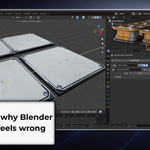
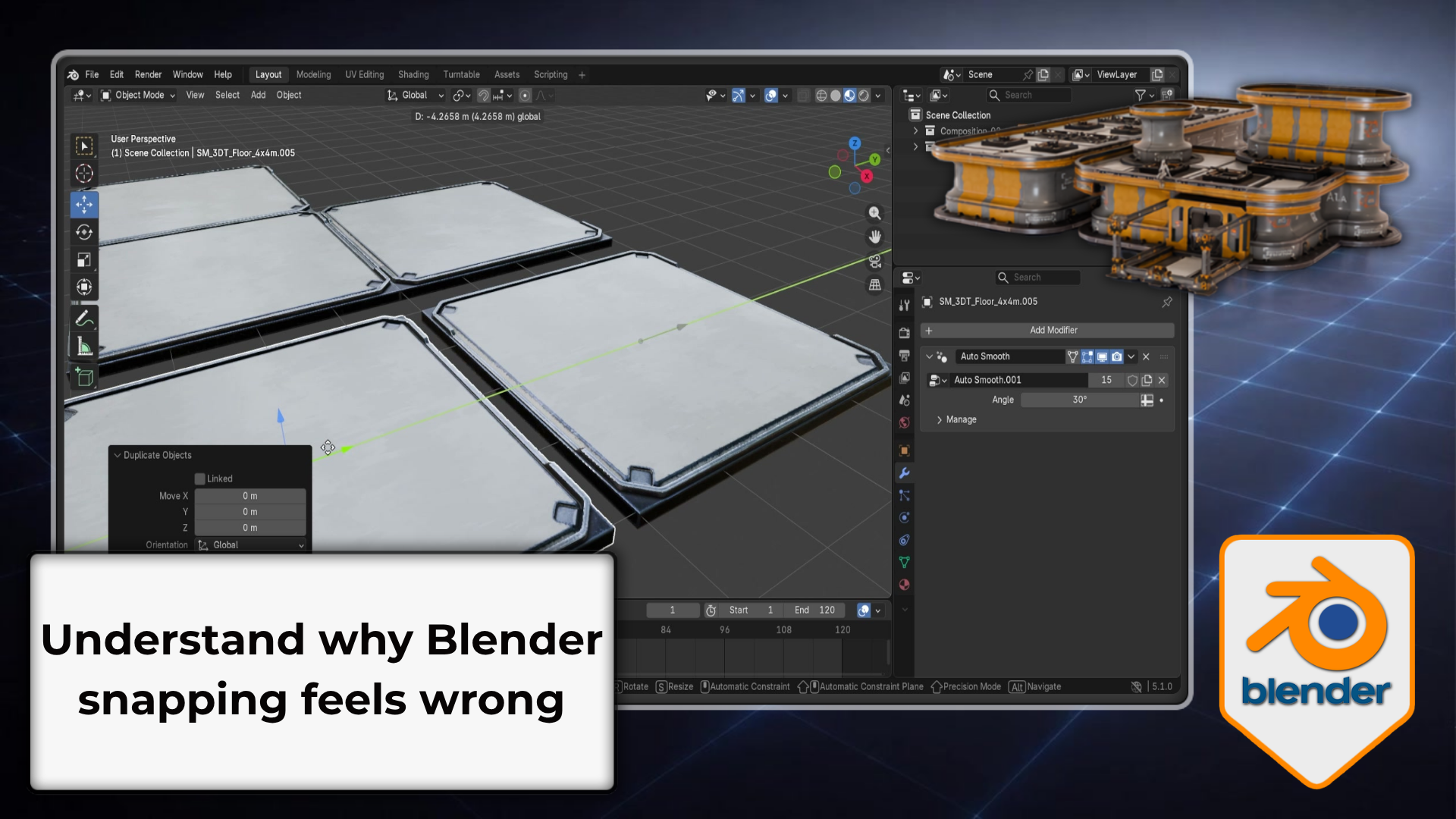 Why snapping feels wrong: Understand what's really happening behind Snap Base, Snap Target, grid snapping, and the 3D Cursor — the moment it clicks, snapping stops feeling random.
Every snap, explained in context
Snapping isn't one button — it's a system of decisions. Snap Base decides what part of your object initiates the snap, Snap Target decides what it snaps to, and Effect decides which operations are affected. They interact with each other and with your Pivot Point, which is exactly why snapping feels unpredictable until all three are clear.
Every lesson explains the what, the why, and the when. Once you understand the relationships, you stop fighting snapping and start using it as the most precise placement tool Blender has.
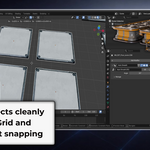
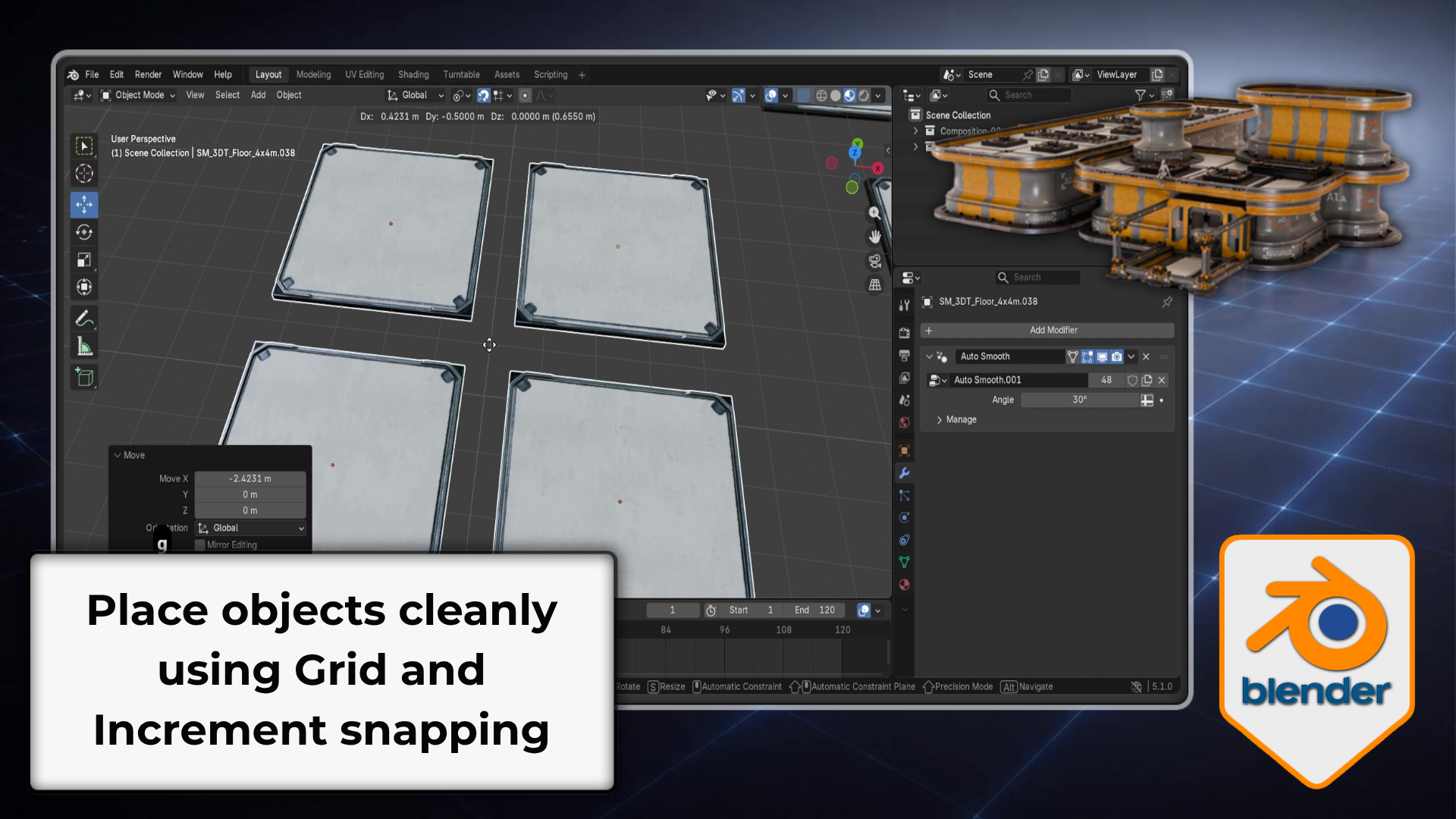 Clean modular placement: Place objects cleanly with Grid and Increment snapping — build accurate walls, panels, and modular layouts that line up perfectly every time.
What's covered across the 19 lessons
- Grid vs Increment snapping — absolute grid coordinates vs offset-from-current movement, with modular build examples.
- The three-part snap system — Snap Base (Center / Closest / Median / Active), Snap Target, and Effect, and how they interact with the Pivot Point.
- Vertex, Edge, Face, Volume, Edge / Face Center snapping — every target type with clear use cases.
- Align Rotation to Target — snap orientation to face normals, plus Face Project and Face Nearest.
- Pivot Point interaction — how Center vs Median changes what snaps and where.
- Exclude Non-Selectable Targets — lock objects out of snap detection without removing them.
- Edit Mode snapping — Active vs Median in Edit Mode, X-Ray snapping through surfaces, flush alignment.
- 3D Cursor and Shift+S snap menu — the full cursor / selection snap menu, cursor rotation, and the hidden-rotation trap.
- Cursor as a placement intermediary — exact relative positioning between two objects that can't snap directly.
- Pose Mode snapping — clean leg angles, seating a character on a surface, and fixing self-snapping from rigs.
- UV snapping and UDIM tiles — pixel-grid UV alignment and organising islands across UDIM tiles.
- Troubleshooting — jitter, origin errors, self-snapping, wrong rotation, and locked-object interference.
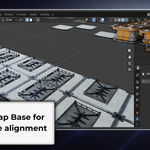
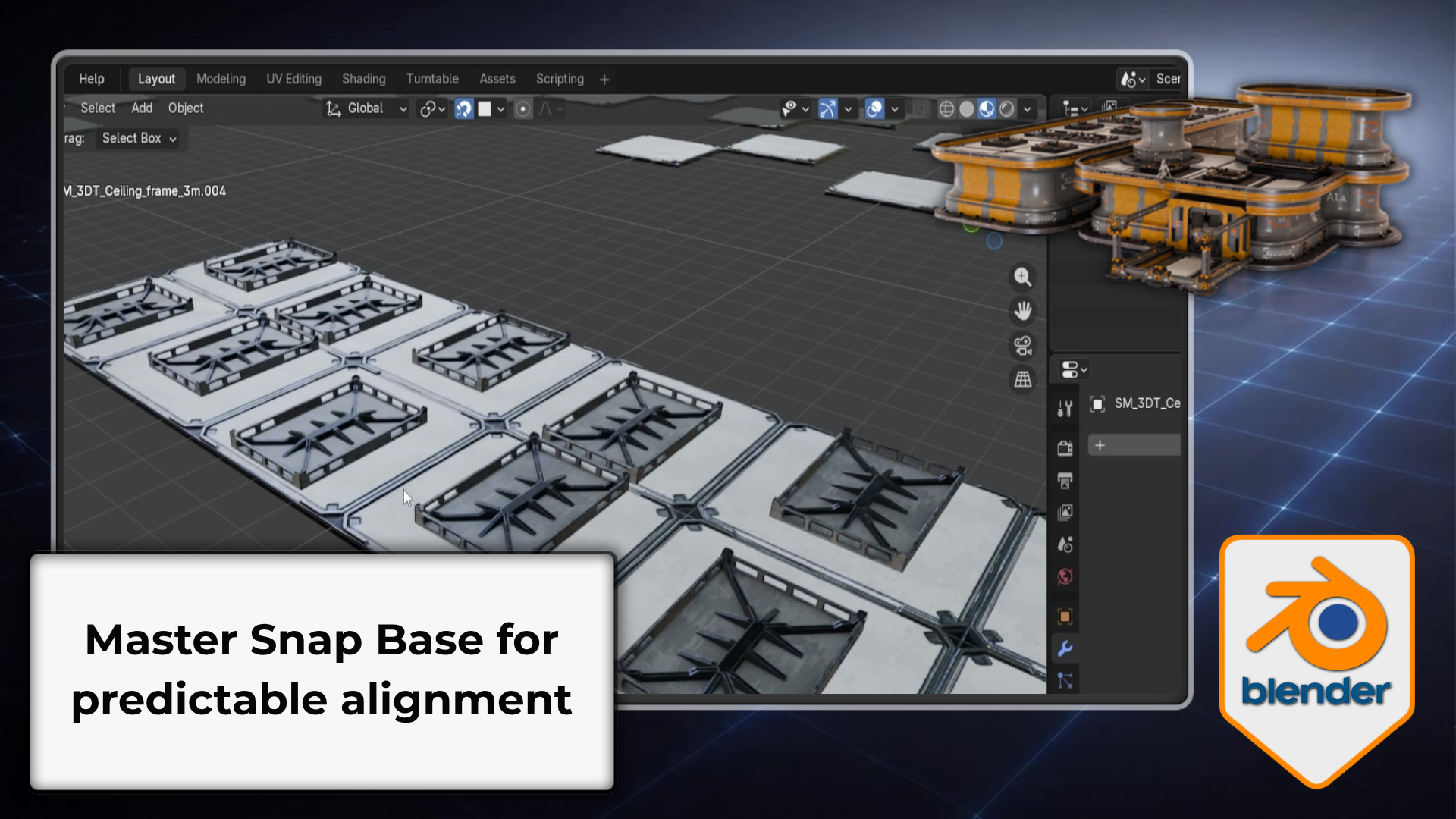 The point that actually snaps: Master Snap Base — Center, Closest, Median, and Active — so Blender snaps from the point you actually mean, not the one it guesses.
The course at a glance
1. Foundations and the snap system
Grid vs Increment snapping and the three-part Snap Base / Snap Target / Effect system that controls everything.
2. Targets, rotation and the 3D Cursor
Snap to every target type, align rotation to surface normals, and drive precision placement with the 3D Cursor and Shift+S menu.
3. Pose Mode, UVs and troubleshooting
Snap characters in Pose Mode, align UVs across UDIM tiles, and diagnose and fix every common snapping problem.
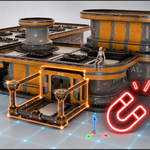
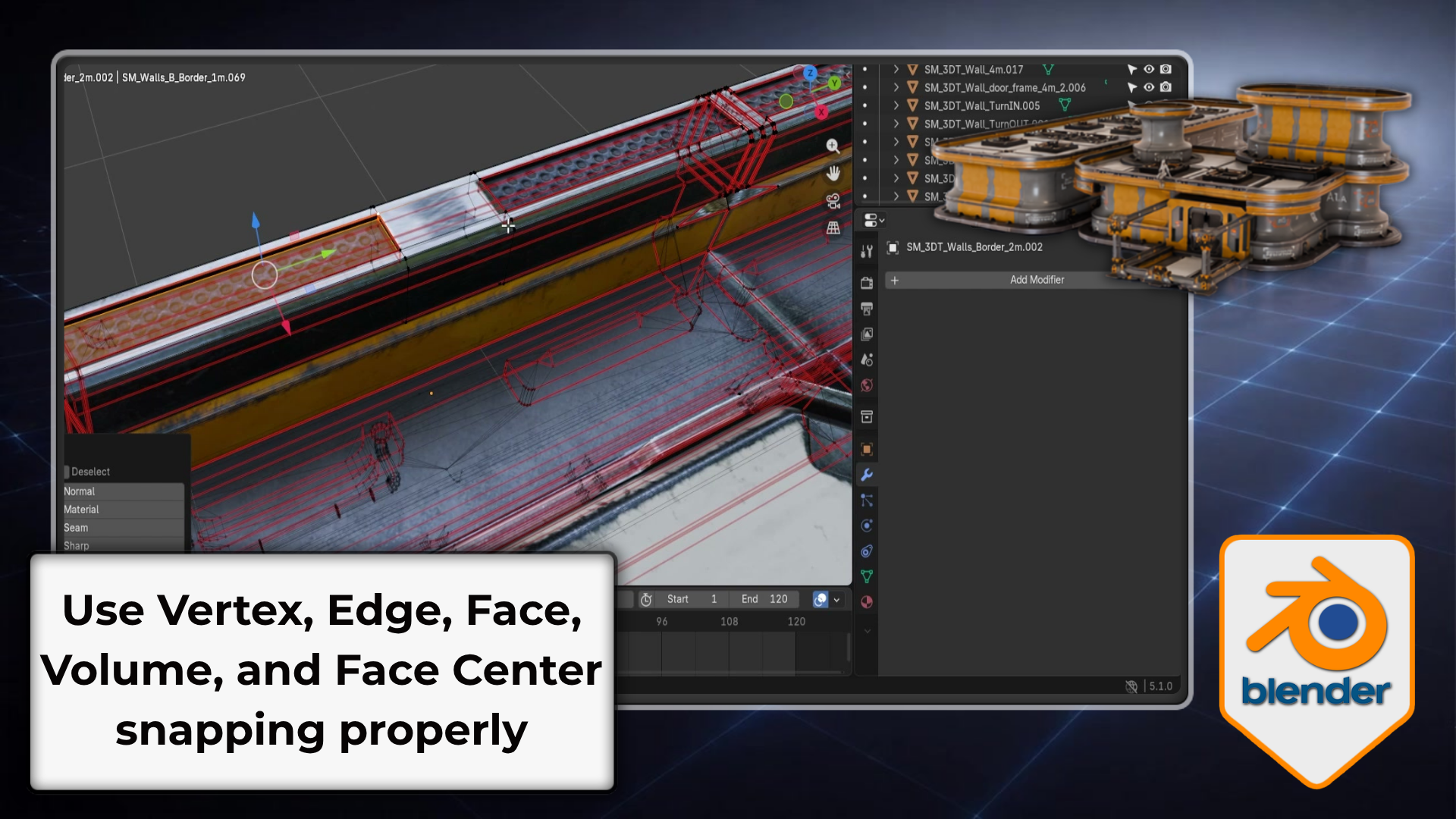 Snap to anything: Snap to vertices, edges, faces, volumes, and centers for clean contact and fewer awkward gaps — the right target type for every placement.
Who this is for
Beginners who find snapping unpredictable
You've turned snapping on, watched it misbehave, and gone back to placing things by hand.
Self-taught artists
You want clean, gap-free modular scenes without overlaps, floating pieces, or misalignment.
Aspiring game and environment artists
You're assembling modular kits that need to align perfectly, piece to piece.
Anyone who wants 3D Cursor control
You want total, precise command over placement using the 3D Cursor and the Shift+S snap menu.
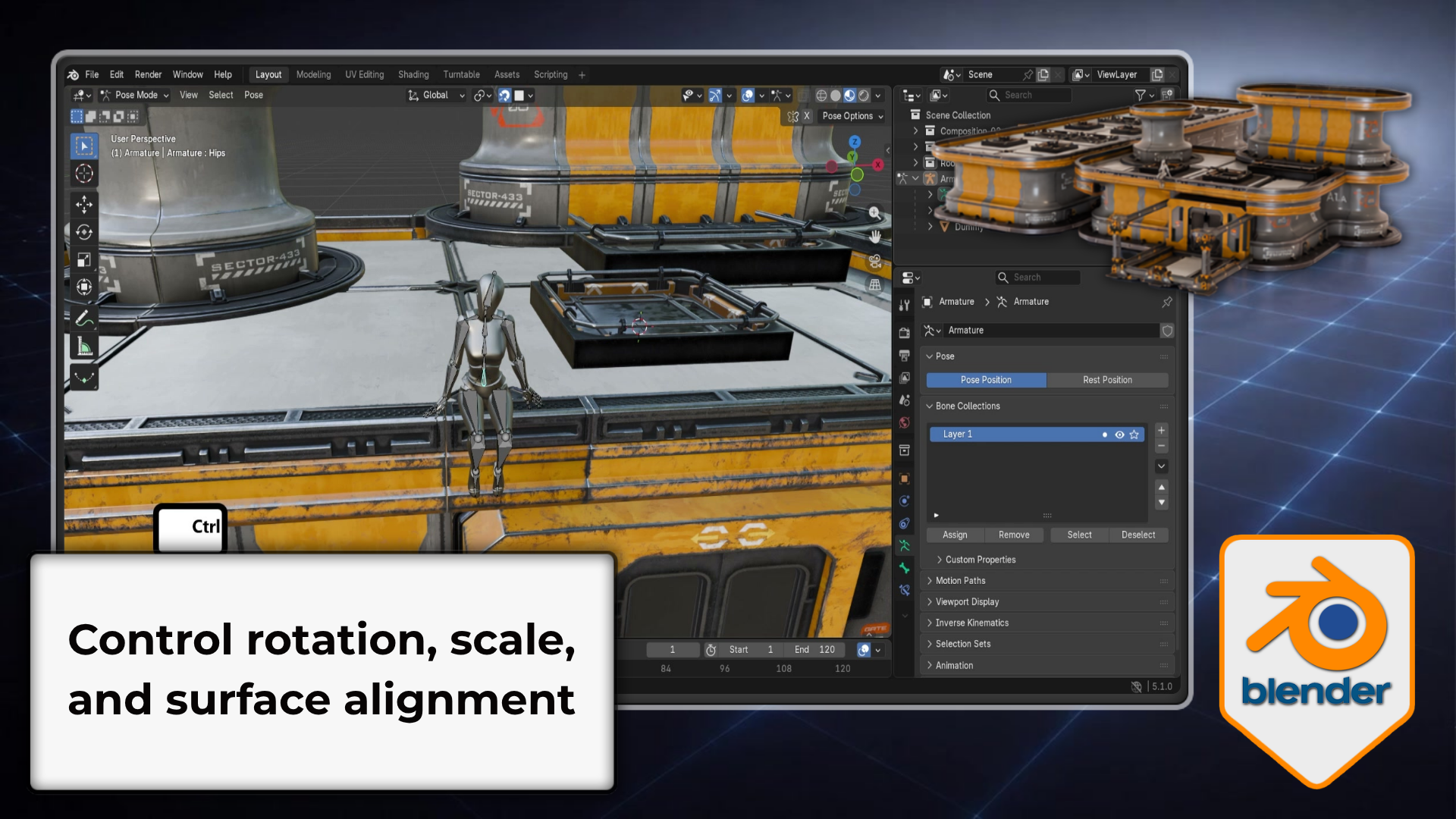 Rotation and surface alignment: Control how snapping affects rotation and scale — align objects to surfaces and normals with confidence, even on curved or angled geometry.
Free modular placement practice pack included
A modular placement kit — platforms, walls, rooftops, pillars, and stairs — designed specifically for snapping practice rather than free-form building. You're working on real modular geometry that actually needs to align, not default cubes.
Work through the lessons in order, keep Blender open beside the video, and try every snap yourself as it's introduced. Snapping becomes intuitive the moment you stop thinking "turn it on and hope" and start thinking in three decisions: Snap Base, Snap Target, and Effect.
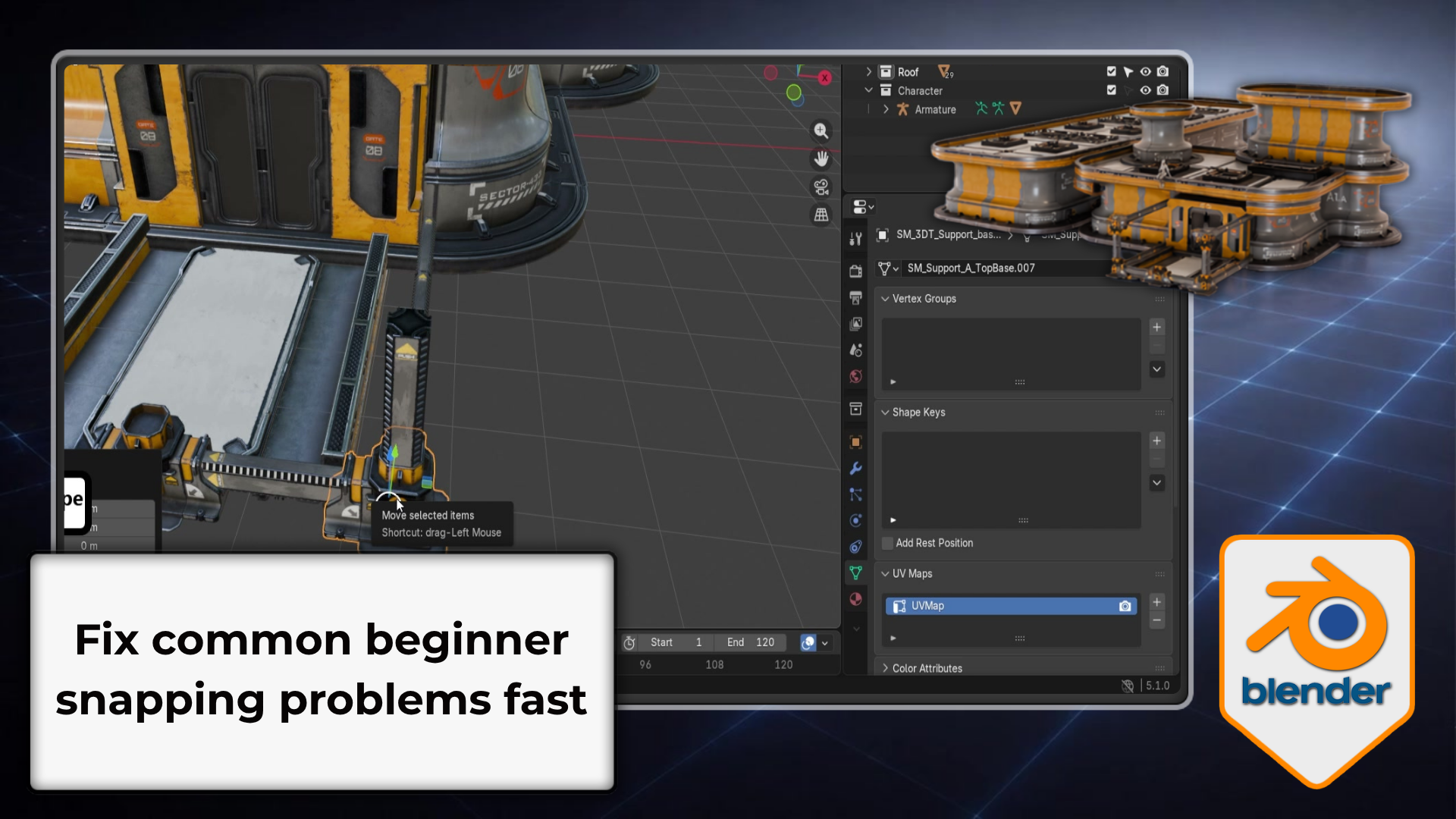 Fix it fast: Fix snapping jitter, offset origins, locked objects, and non-selectable targets so objects land exactly right — the troubleshooting that saves real build time.
Compatibility
- Recorded in Blender 5 / Blender 5.1; the snapping tools are standard across recent Blender versions.
- No paid add-ons required.
- Includes a free modular placement practice pack.
- Basic Blender navigation and the Move / Rotate / Scale transform tools are recommended — Courses 1 and 2 of this series cover both.
- A three-button mouse is recommended; Blender is free from blender.org.
Before you buy
- This is a Blender-focused video training course on the snapping system, with a supporting practice asset pack.
- 19 short, practical lessons, designed to be followed with Blender open beside the video.
- Recorded in Blender 5 / Blender 5.1; basic navigation and transforms recommended before starting.
- The free practice pack is included to support the workflow shown in the course.
- Please check the final published file list before checkout.
Common questions
Do I need prior Blender experience?
Basic navigation and the Move / Rotate / Scale transform tools are recommended so you can follow along comfortably. If you haven't covered those, start with Courses 1 and 2 of this series first.
Which version of Blender is this for?
It's recorded in and fully compatible with Blender 5 / 5.1. The snapping tools covered are standard and consistent across recent Blender versions.
Why does snapping keep placing my object in the wrong spot?
Almost always a Snap Base or Pivot Point mismatch — the course explains this in the first few lessons, and it's clear by the time you finish the snap-system section.
What comes after this course?
This is Course 3 of the Blender Essentials for Beginners series. After completing it you'll have the full navigation, transform, and snapping foundation needed before moving into modelling, sculpting, or environment art.
Part of the Blender Essentials for Beginners series
This is Course 2. It builds on the navigation foundation from Course 1, and leads into snapping and modular alignment in Course 3 — same beginner-friendly, no-fluff approach throughout.
Stop Getting Lost in the Viewport
The navigation foundation — orbit, pan, zoom, Fly Mode, Walk Mode, Numpad views, and full input setup, across 11 focused lessons.
View Course 1Snapping and Alignment Basics
Make snapping work for you — Snap Base, vertex/edge/face/volume snapping, the 3D Cursor, and clean modular placement. Free practice pack included.
View Course 3Take real control of your objects in Blender
Master the entire transform system — tools, shortcuts, origins, pivots, orientations, and troubleshooting — and stop fighting the gizmo on every project.
A post-apocalyptic modular kit so you practise on real geometry — clean origins, correct scale, and modifiers that behave, ready for whatever you build next.
Happy modelling everyone!
Neil - 3D Tudor