 3D Tudor


Blender Essentials: Transform and Gizmo Basics
Move, rotate, and scale with total precision in Blender — the complete transform system across 17 hands-on lessons, with object origins, pivot points, orientations, and a free practice asset pack.
Take real control of your objects in Blender
You can hit G to grab, R to rotate, S to scale. But can you reliably place an object exactly where it needs to go? Rotate it around the right point every time? Scale it predictably without breaking the Mirror Modifier? Use the right transform orientation so the gizmo axes actually align with where you want to go?
Transforms are the most-used operations in all of Blender — and the gap between "I can drag things around" and "I have precise, predictable control" is larger than most beginners realise. Most self-taught artists develop quiet gaps in how the system works, because the underlying logic is never explained — just demonstrated.
This course closes those gaps properly. 17 lessons covering the entire transform system: the tools, the shortcuts, origins, pivot points, transform orientations, the Item panel, applying transforms, and a full troubleshooting section for when things go wrong.
What this course teaches
- Move, rotate, and scale with exact axis constraints, plane locks, and numeric precision.
- Set object origins correctly so every rotation and scale behaves predictably.
- Use all seven transform orientations and the right pivot point for any operation.
- Apply transforms with Ctrl+A, and fix broken origins, negative scale, and Mirror Modifier issues.
Why it exists
Most self-taught artists can drag things around, but the gap to precise, predictable control is bigger than it looks — because Blender's transform logic is usually demonstrated, never explained. This course explains it: origins, pivots, orientations, applying transforms, and the troubleshooting that fixes the problems those gaps cause.
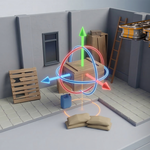
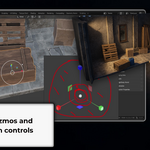
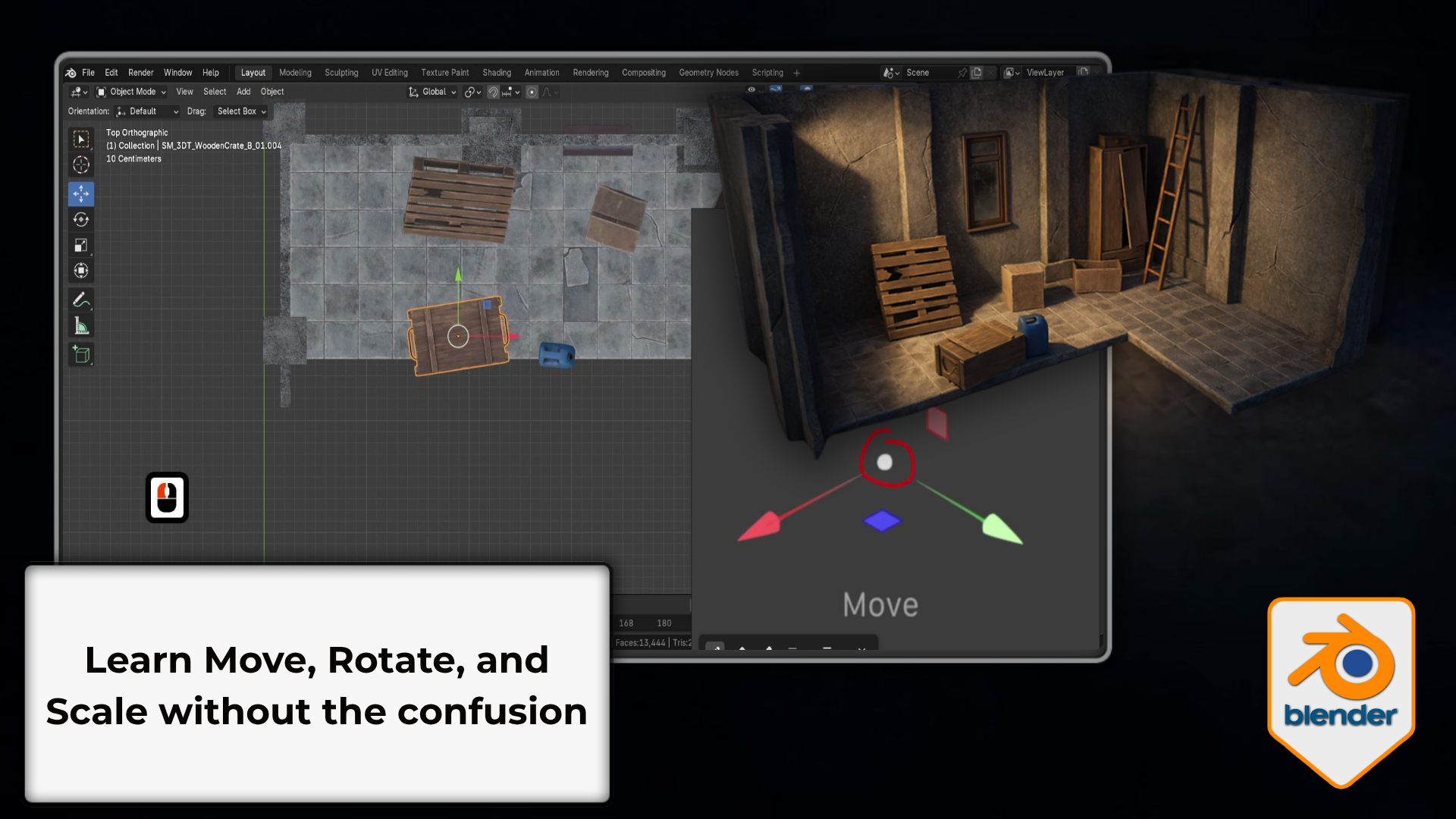
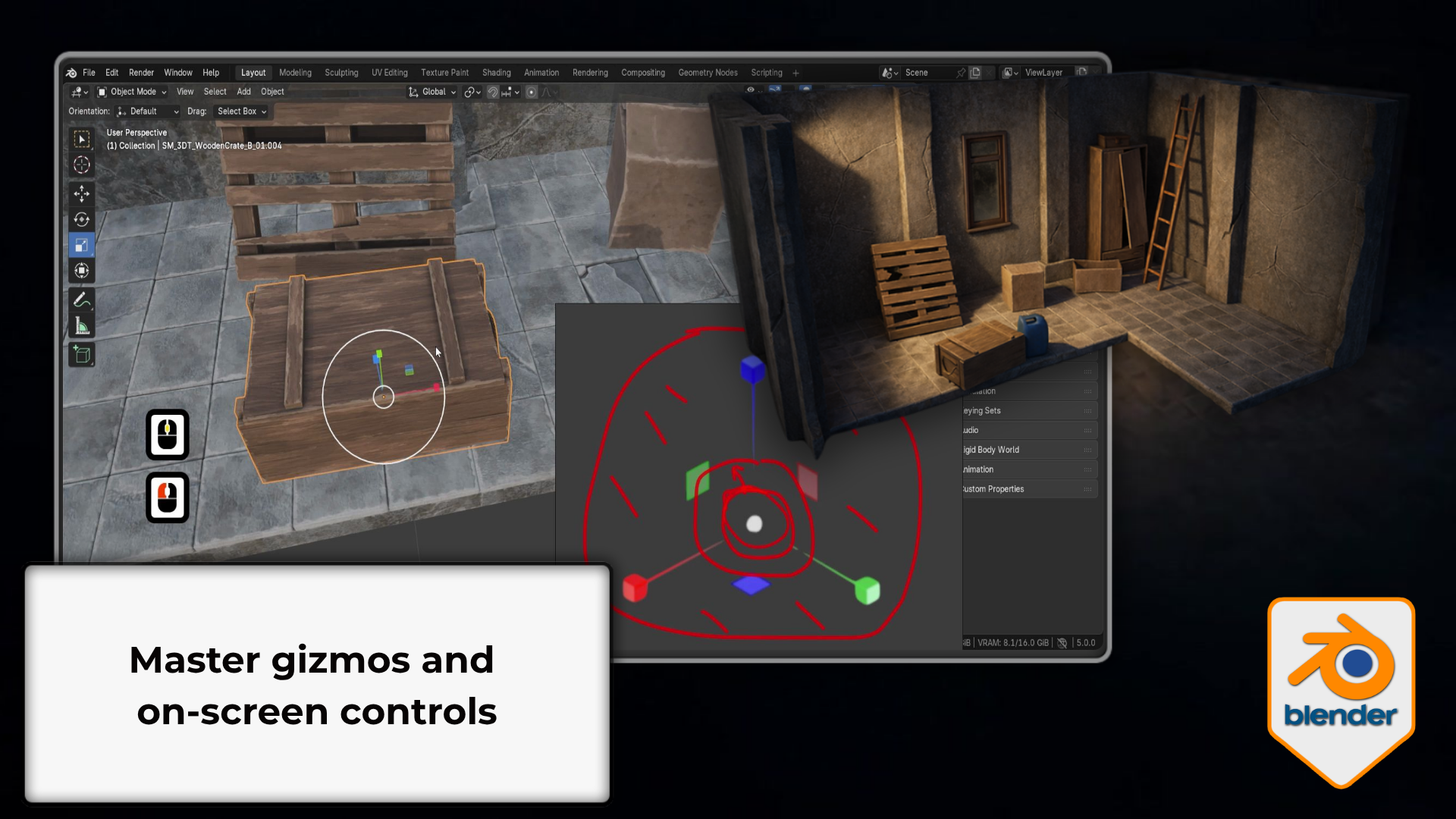 On-screen gizmo control: Use the combined transform gizmo confidently — ideal if you prefer on-screen controls, a tablet, or a touchpad to keyboard shortcuts.
Every transform, explained in context
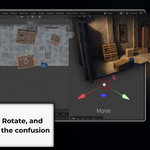
Knowing that G grabs and S scales is the easy part. Knowing why an object rotates around the wrong point, or what actually breaks when you don't apply scale, is what separates artists who feel in control from those constantly fighting their scene.
Every lesson explains the what, the why, and the when. By the end, origins, pivot points, and orientations aren't mysterious settings you avoid — they're deliberate tools you reach for on purpose.
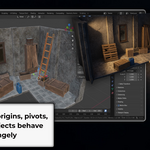
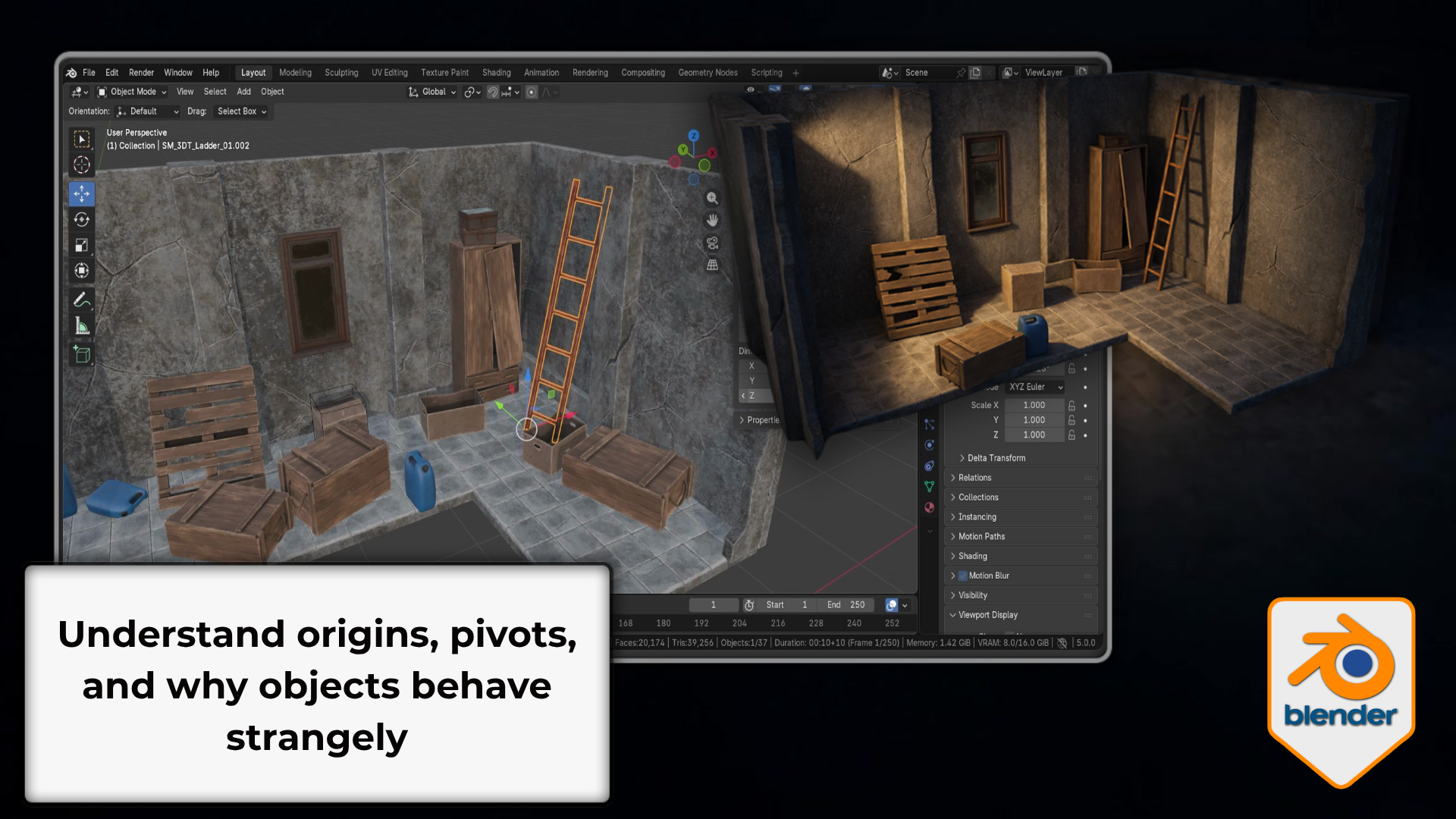 Origins and pivots: Understand object origins and pivot points — the reason objects rotate, scale, and place the way they do, and how to set them intentionally every time.
What's covered across the 17 lessons
- Move, Rotate, Scale tools + combined gizmo — axis constraints, plane locks, on-screen handles, view-locked transforms.
- G/R/S shortcut workflow — axis locking, numeric input (G X 2 Enter), plane locks, trackball, Alt+G/R/S to clear.
- Object origins (the orange dot) — Origin to Geometry / Cursor / Center of Mass, and Affect Only Origins.
- Scale vs Dimensions + Ctrl+A Apply Transforms — when to apply, and what breaks when you don't.
- Transform Orientations (all seven) — Global, Local, Normal, Cursor, View, Gimbal, Parent, plus Custom.
- Transform Pivot Points — Median, Bounding Box, Individual Origins, 3D Cursor, Active Element.
- Item panel (N panel) — exact Location, Rotation, Scale values in world and local space.
- Troubleshooting — offset origins, negative scale, Mirror Modifier, and parenting fixes.
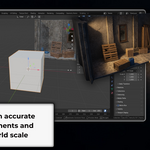
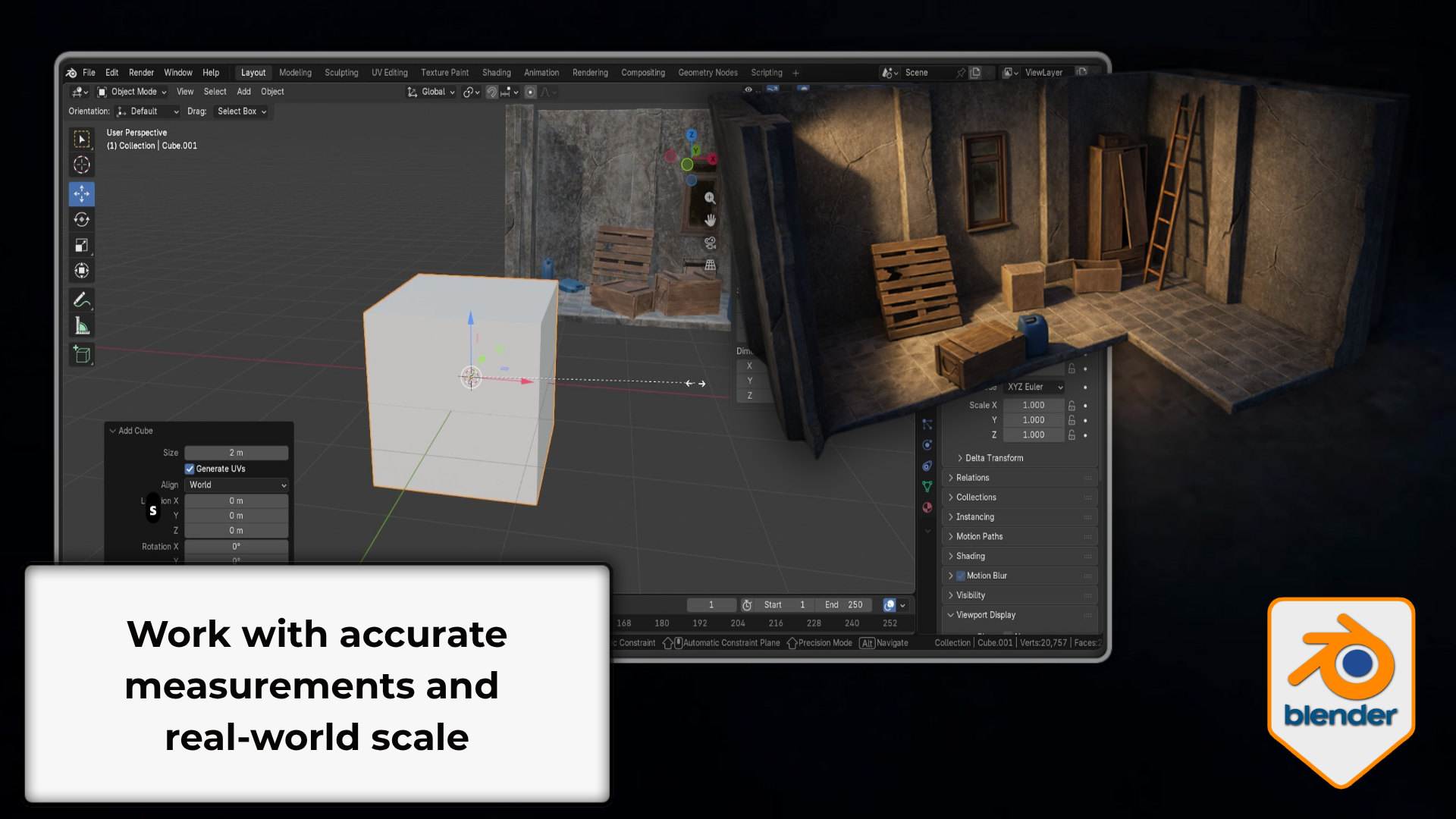 Real-world scale: Size objects to real-world scale with the Item panel and Dimensions — no more guesswork, and a clear understanding of what Apply Transforms does to those numbers.
The course at a glance
1. Tools, gizmos and shortcuts
Move, Rotate, and Scale with the toolbar tools, the combined gizmo, and the full G/R/S keyboard workflow with axis and numeric control.
2. Origins, pivots and exact values
Set origins intentionally, choose the right pivot point, and type exact Location, Rotation, and Scale values in the Item panel.
3. Orientations and troubleshooting
Work with all seven orientations, apply transforms deliberately, and fix the broken origins, scale, and Mirror Modifier issues bad transforms cause.
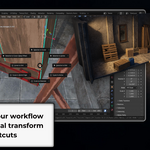
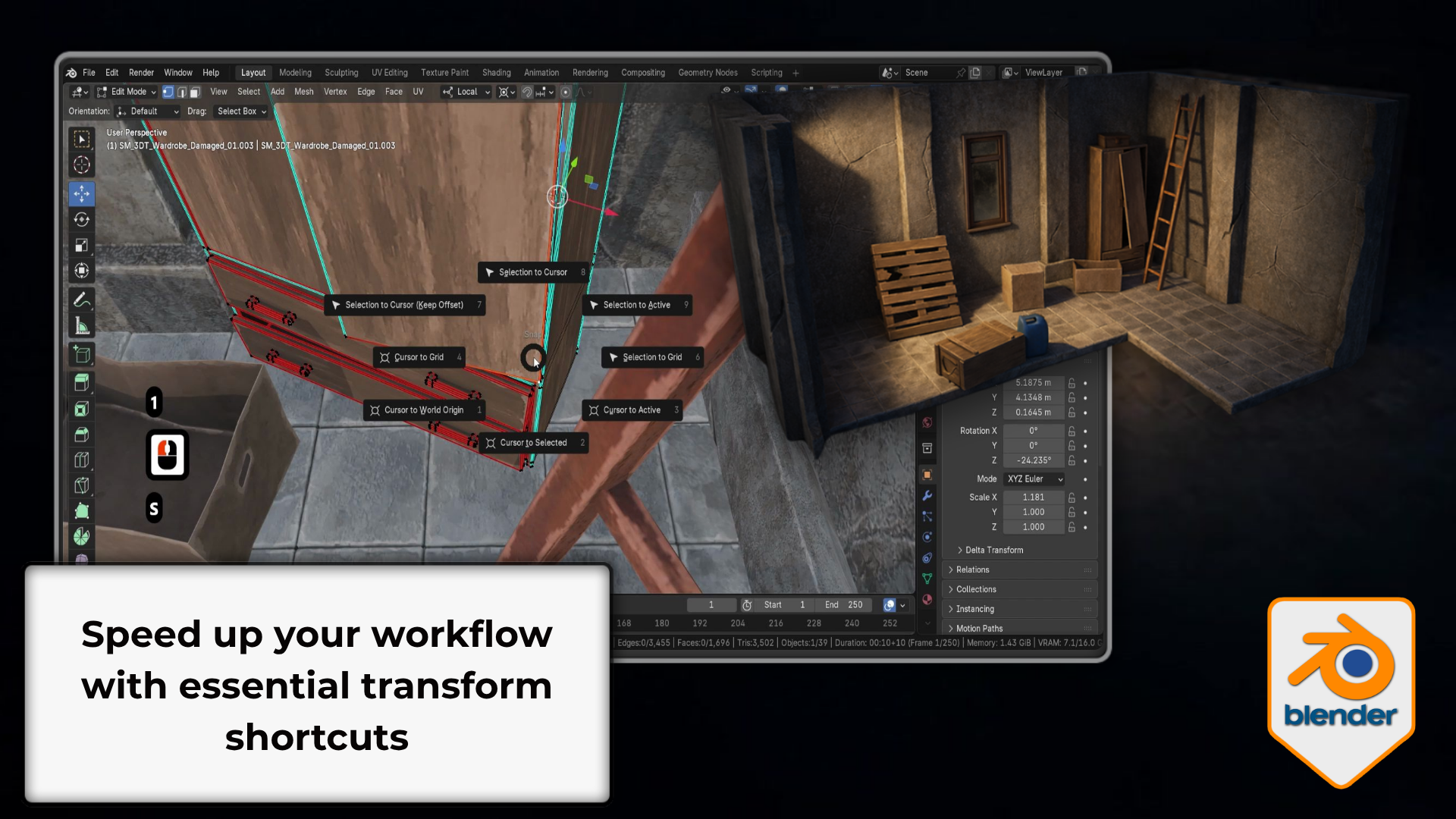 Shortcut speed: Work faster with G, R, S, axis locks, and numeric input — the shortcuts every modeller relies on to move, rotate, and scale without slowing down.
Who this is for
Beginners who want precise control
You can navigate Blender, but you struggle to place, rotate, and scale objects with real, predictable control.
Self-taught artists
You've been guessing at origins and orientations and want the underlying logic finally explained properly.
Aspiring game and environment artists
You need transform-correct, export-ready assets — clean scale, correct origins, and modifiers that behave.
Anyone fighting the gizmo
You've had Blender rotate around the wrong point and wondered why — and you want it to stop happening.
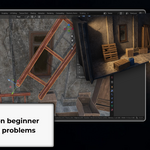
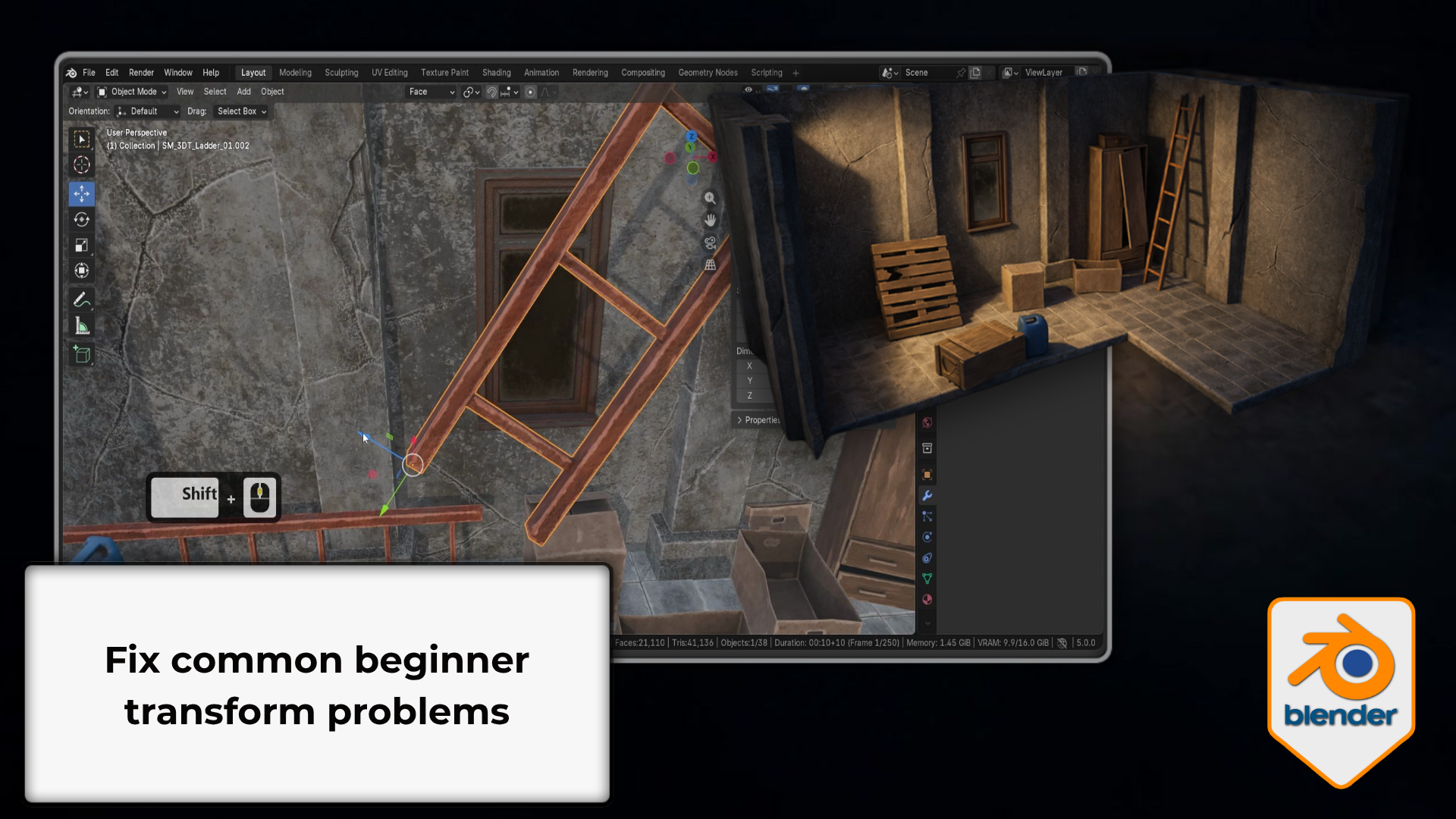 Fix it with confidence: Diagnose and fix broken origins, negative scale, parenting, and Mirror Modifier issues before they bite — the troubleshooting section that saves real project time.
Free practice asset pack included
A post-apocalyptic modular kit — walls, floors, crates, pillars, and more — is included so you're practising transforms on real geometry with real context, not default cubes. Transforms only behave meaningfully when the assets actually mean something.
Work through the lessons in order, keep Blender open alongside the video, and try every operation yourself as it's introduced. Setting origins intentionally, applying transforms deliberately, and reading the Item panel numbers are the habits that keep you in control of your scene instead of fighting it.
Compatibility
- Recorded in Blender 5 / Blender 5.1; the transform tools are standard across recent Blender versions.
- No paid add-ons required.
- Includes a free practice asset pack (post-apocalyptic modular kit).
- Basic Blender navigation is recommended — Course 1 of this series covers it.
- A three-button mouse is recommended; Blender is free from blender.org.
Before you buy
- This is a Blender-focused video training course on the transform system, with a supporting practice asset pack.
- 17 short, practical lessons, designed to be followed with Blender open beside the video.
- Recorded in Blender 5 / Blender 5.1; basic navigation recommended before starting.
- The free practice asset pack is included to support the workflow shown in the course.
- Please check the final published file list before checkout.
Common questions
Do I need prior Blender experience?
Basic viewport navigation is helpful so you can follow along comfortably. If you haven't covered that, start with Course 1 of this series, Stop Getting Lost in the Viewport, first.
Which version of Blender is this for?
It's recorded in and fully compatible with Blender 5 / 5.1. The transform tools covered are standard and consistent across recent Blender versions.
What is the free practice asset pack?
A post-apocalyptic modular kit — walls, floors, ceilings, crates, pillars, and more, set up as a small scene. You download it once and use it throughout the lessons to practise transforms on real assets.
Why do objects rotate around the wrong point?
That's almost always an object origin or pivot point issue — and it's exactly what this course fixes. You'll understand why it happens and how to set origins and pivots correctly every time.
License note
This product is the Blender Essentials: Transform and Gizmo Basics video course, with an included practice asset pack. Course access is for a single user. Unless the final Superhive license states otherwise, the course and supplied files are for your personal learning only.
The lessons and included files may not be resold, redistributed, repackaged, shared publicly, or included as raw downloadable resources inside another marketplace product, asset pack, template, or course.
Part of the Blender Essentials for Beginners series
This is Course 2. It builds on the navigation foundation from Course 1, and leads into snapping and modular alignment in Course 3 — same beginner-friendly, no-fluff approach throughout.
Stop Getting Lost in the Viewport
The navigation foundation — orbit, pan, zoom, Fly Mode, Walk Mode, Numpad views, and full input setup, across 11 focused lessons.
View Course 1Snapping and Alignment Basics
Make snapping work for you — Snap Base, vertex/edge/face/volume snapping, the 3D Cursor, and clean modular placement. Free practice pack included.
View Course 3Take real control of your objects in Blender
Master the entire transform system — tools, shortcuts, origins, pivots, orientations, and troubleshooting — and stop fighting the gizmo on every project.
A post-apocalyptic modular kit so you practise on real geometry — clean origins, correct scale, and modifiers that behave, ready for whatever you build next.
Happy modelling everyone!
Neil - 3D Tudor