 3D Tudor


Blender Essentials: Stop Getting Lost in the Viewport
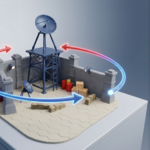
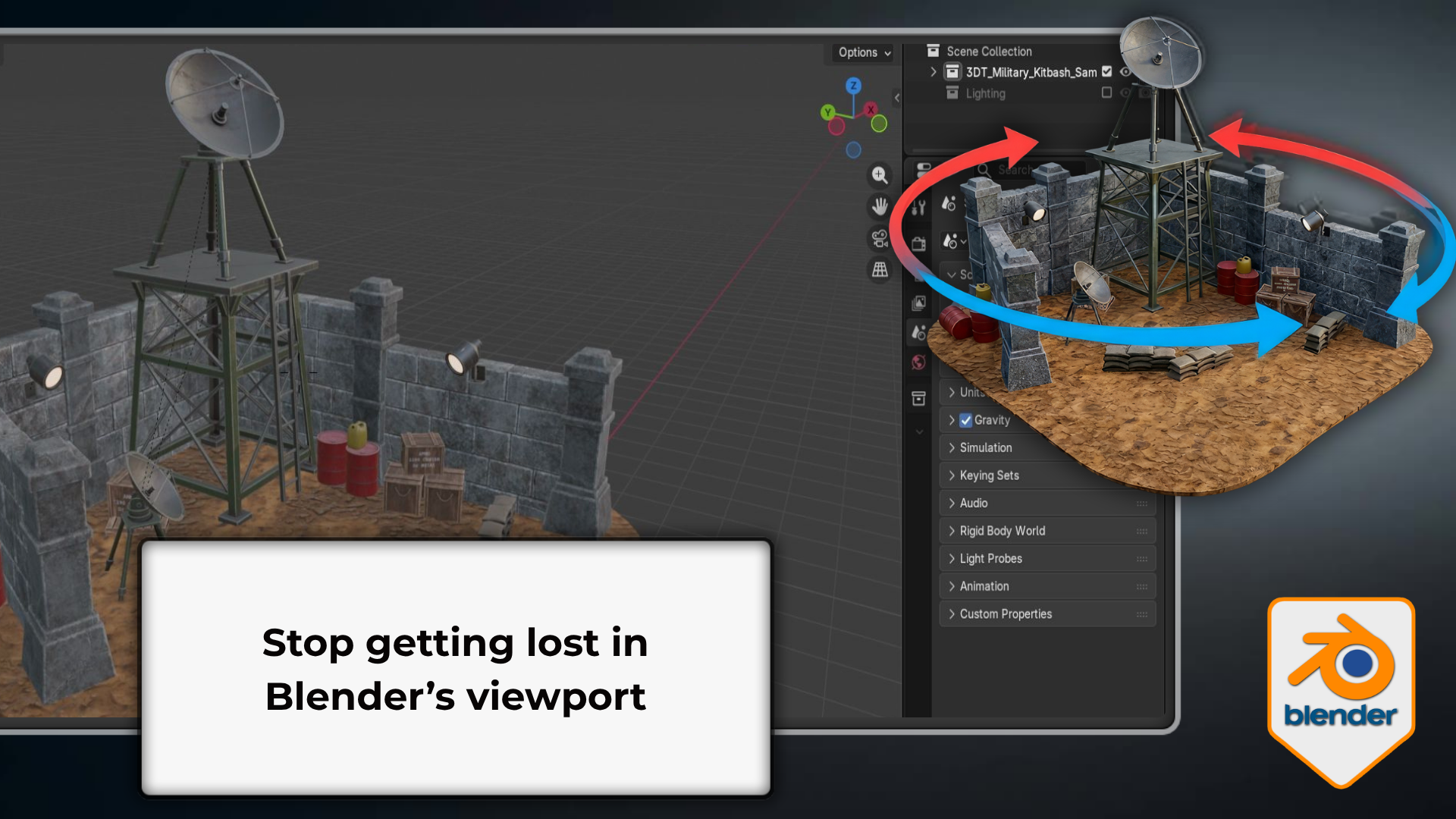
A focused Blender navigation course for beginners who want to move around the 3D viewport with total confidence — orbit, pan, zoom, fly, walk, and snap to any view, across 11 hands-on lessons.
Stop fighting the viewport — start building in it
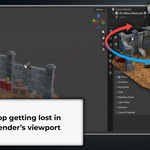
You know the moment: you open Blender, try to move around, and within seconds you're somewhere completely wrong. MMB orbit got away from you, you zoomed through the mesh, or you've ended up staring at a dark void with no idea where your scene went.
Navigation isn't the exciting part of learning 3D. But it's what you do every single time you open Blender — and if it's not solid, it quietly taxes every other skill on top of it. You spend cognitive load recovering your view instead of building, you miss tutorial steps because you were trying to get back to a useful angle, and you avoid parts of the viewport because you're not confident you can get back from them. This course closes that gap completely: 11 lessons, every navigation system Blender has, explained with context — not just "press this key," but what it does, why it works that way, and when you'd actually reach for it.
What this course teaches
- Orbit, pan, and zoom with total control, and snap to any standard view with a single key.
- Move through scenes in first person with Fly Mode and Walk Mode with gravity.
- Master Numpad views, isometric angles, Quad View, and the Perspective / Orthographic toggle.
- Frame, isolate, and reset your view, and configure Blender's navigation for your hardware.
Why it exists
Most Blender tutorials assume you already know how to move around the viewport. They open a scene, start building, and expect you to keep up. This course is the foundation that should have come first — built around the controls you actually use every session, so navigation stops being the thing that slows you down and starts being something you never have to think about.
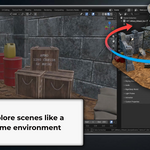
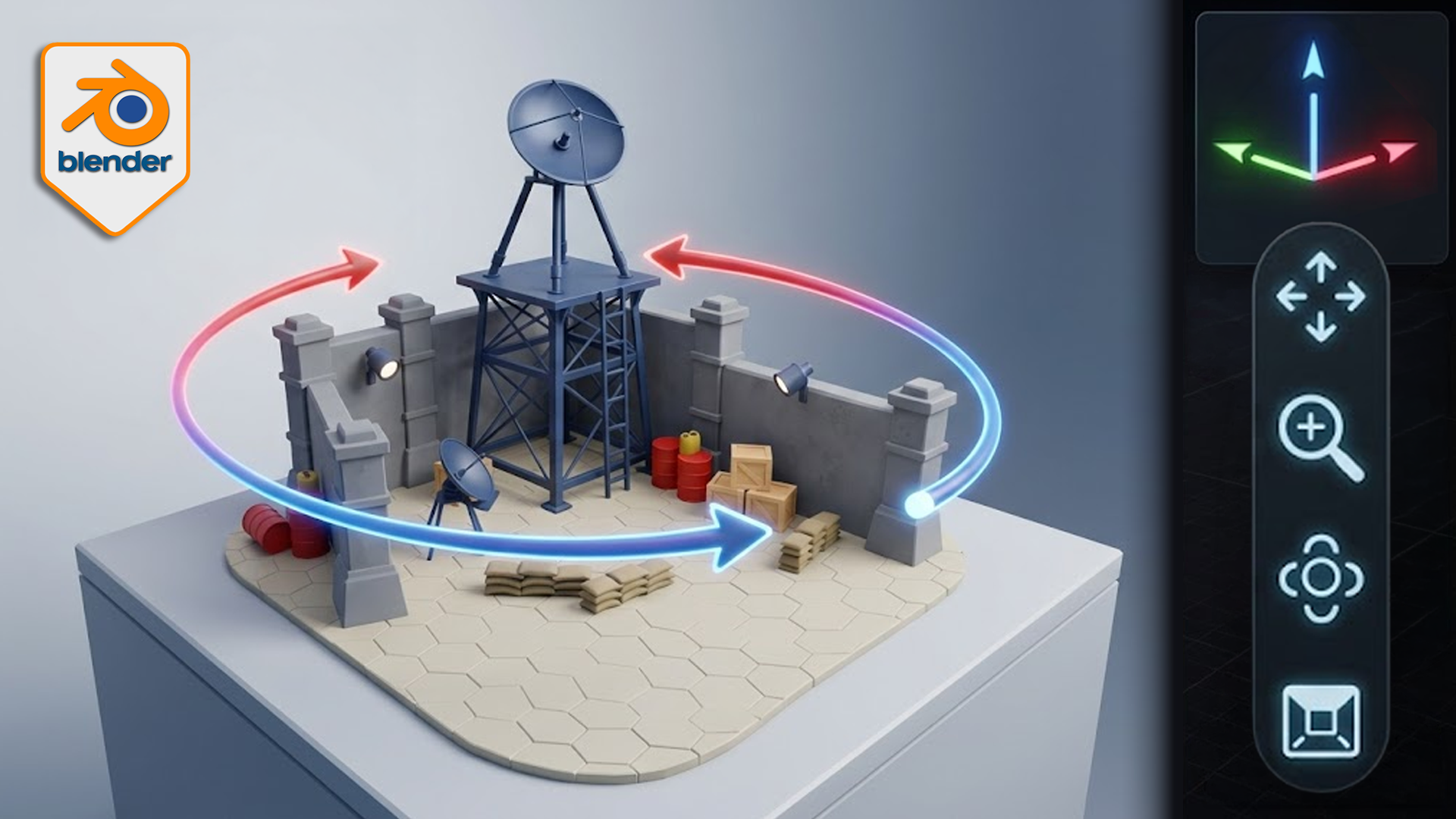 Explore in first person: Fly Mode and Walk Mode with gravity let you move through your scene like a game level — checking scale, layout, and spacing from inside the world instead of guessing from the outside.
Every control, explained in context
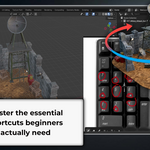
The useful part isn't memorising a list of shortcuts. It's understanding what each control is for. Knowing that MMB orbits is fine — knowing when to switch from Perspective to Orthographic, or why Orbit Around Selection fixes the "orbiting into nothing" problem, is what actually sticks.
That is what makes this more than a shortcut cheat-sheet. Every lesson explains the what, the why, and the when, so by the end the controls aren't something you look up — they're something you reach for without thinking.
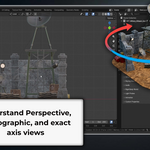
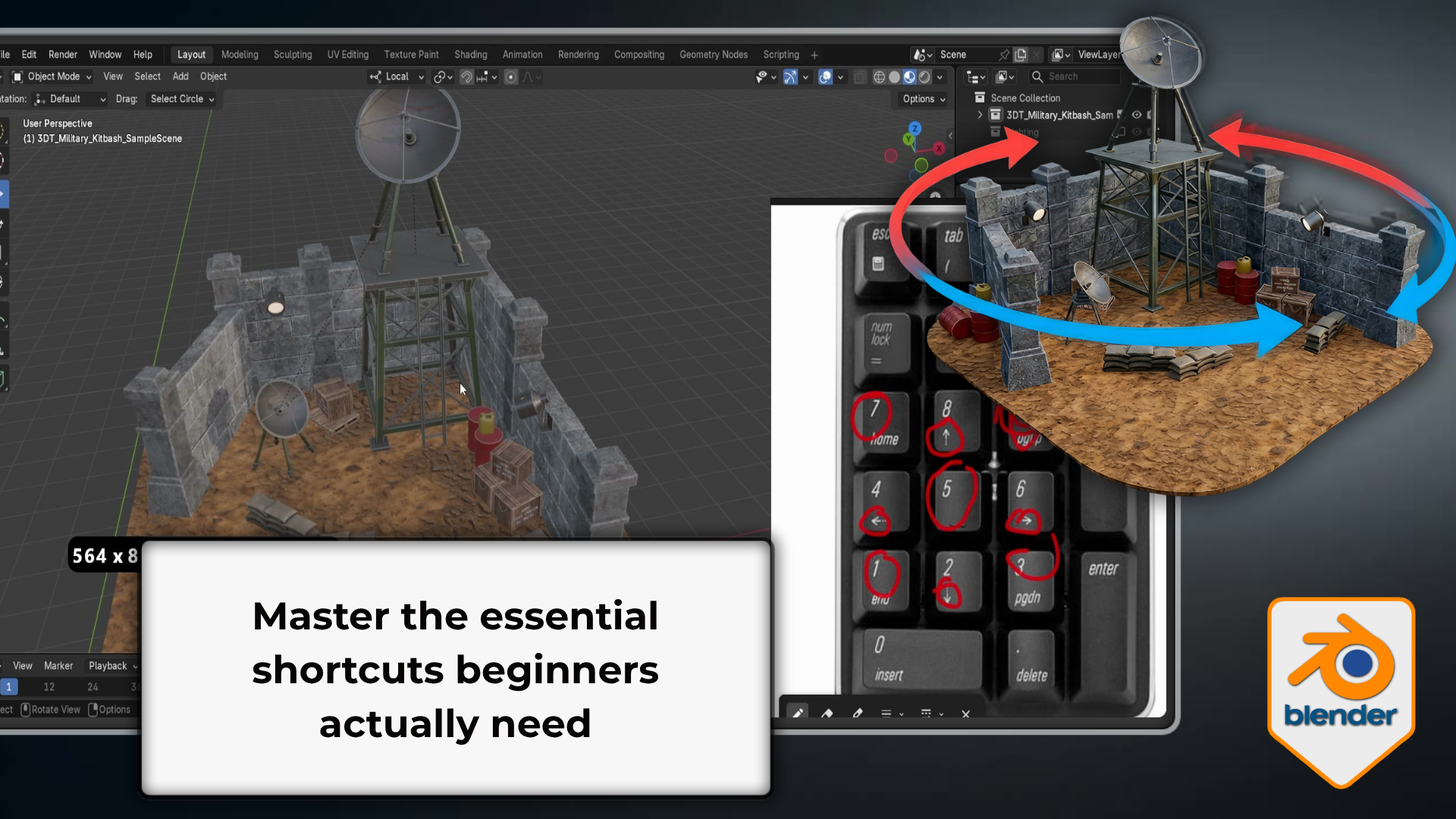 Exact views on demand: Snap to Front, Side, Top, isometric, and camera views with the Numpad, toggle Perspective and Orthographic for distortion-free work, and use Quad View to see every axis at once.
What's covered across the 11 lessons
- Gizmo and on-screen controls — orientation gizmo, axis-click snapping, Perspective / Orthographic, pan and zoom handles.
- MMB shortcut navigation — MMB orbit, Shift+MMB pan, Ctrl+MMB / wheel zoom, Alt+MMB axis snap.
- Fly Mode (Shift + `) — WASD movement, Q/E and R/F, Space teleport, speed control, Z-axis correction.
- Walk Mode with gravity — surface traversal, V to jump, height control, ground-level scale checks.
- Numpad views — Front / Side / Top, negative axes, isometric angles, camera view, Quad View.
- Orbit and zoom preferences — Turntable vs Trackball, Orbit Around Selection, Auto Perspective, Zoom to Mouse Position.
- Walk and Fly configuration — jump height, view height, mouse sensitivity, teleport duration, speed factor.
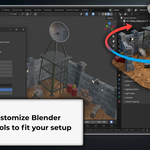
- Input setup for any hardware — Emulate Numpad, Emulate 3-Button Mouse, multi-touch, NDOF / 3D mouse.
- Precision Fly navigation — drone-style movement, precision mode, Free Look, exiting cleanly.
- Framing and isolation — Frame Selected, Frame All, Shift+C reframe, Zoom Region, Local View.
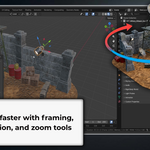
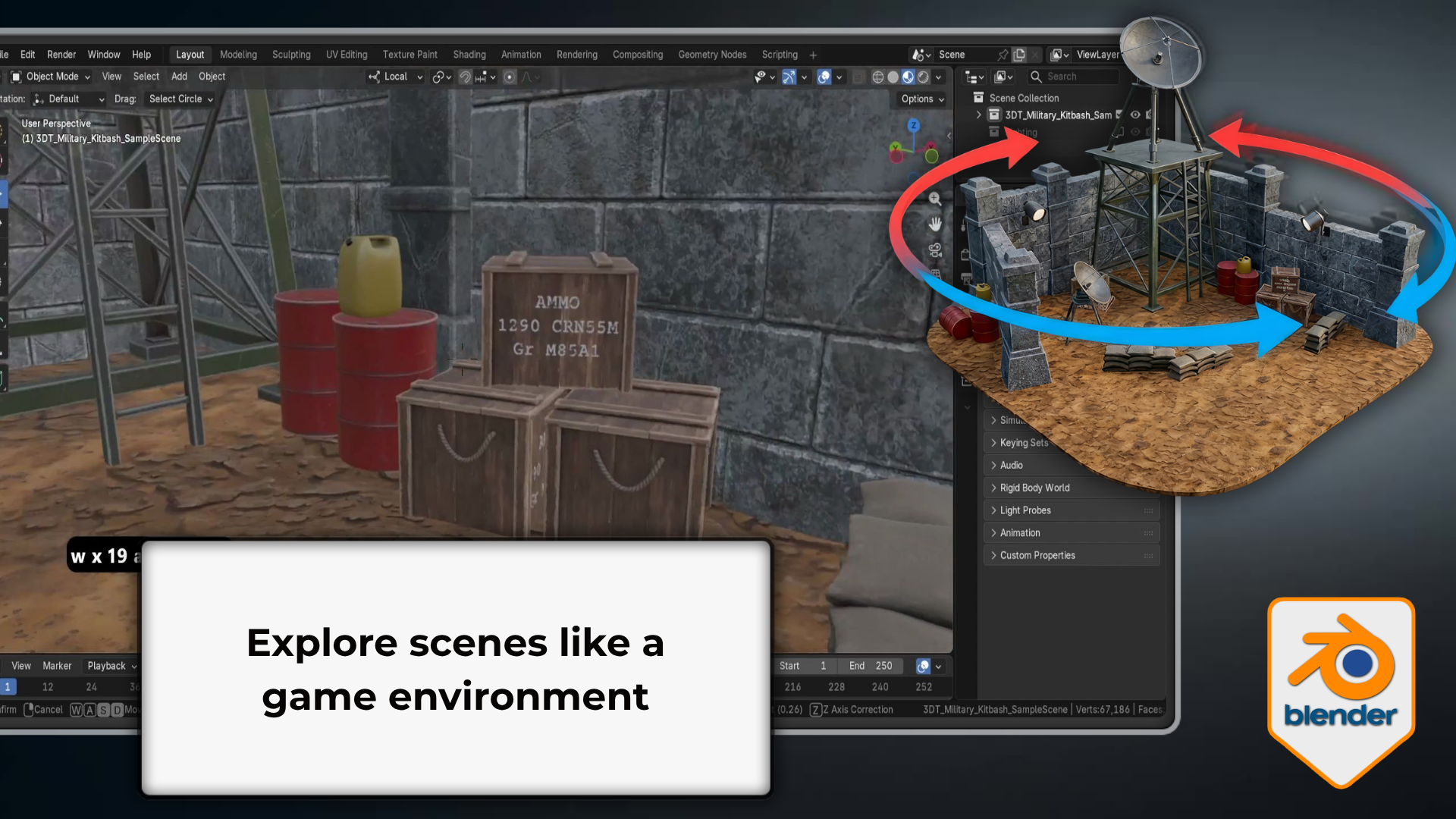 Stay oriented, work faster: Frame Selected, Frame All, Local View, and Zoom Region keep you locked onto exactly what you're working on, with orbit, zoom, and input preferences tuned to your hardware.
The course at a glance
1. On-screen controls and views
Read the gizmo, orbit and pan with the mouse, switch Perspective / Orthographic, and snap to exact Numpad views with confidence.
2. First-person navigation
Fly and walk through your scenes with gravity, teleporting, and speed control to check scale, layout, and spacing from inside the world.
3. Precision and customisation
Tune orbit and zoom behaviour, set Blender up for your hardware, and master the framing and isolation shortcuts that keep you oriented.
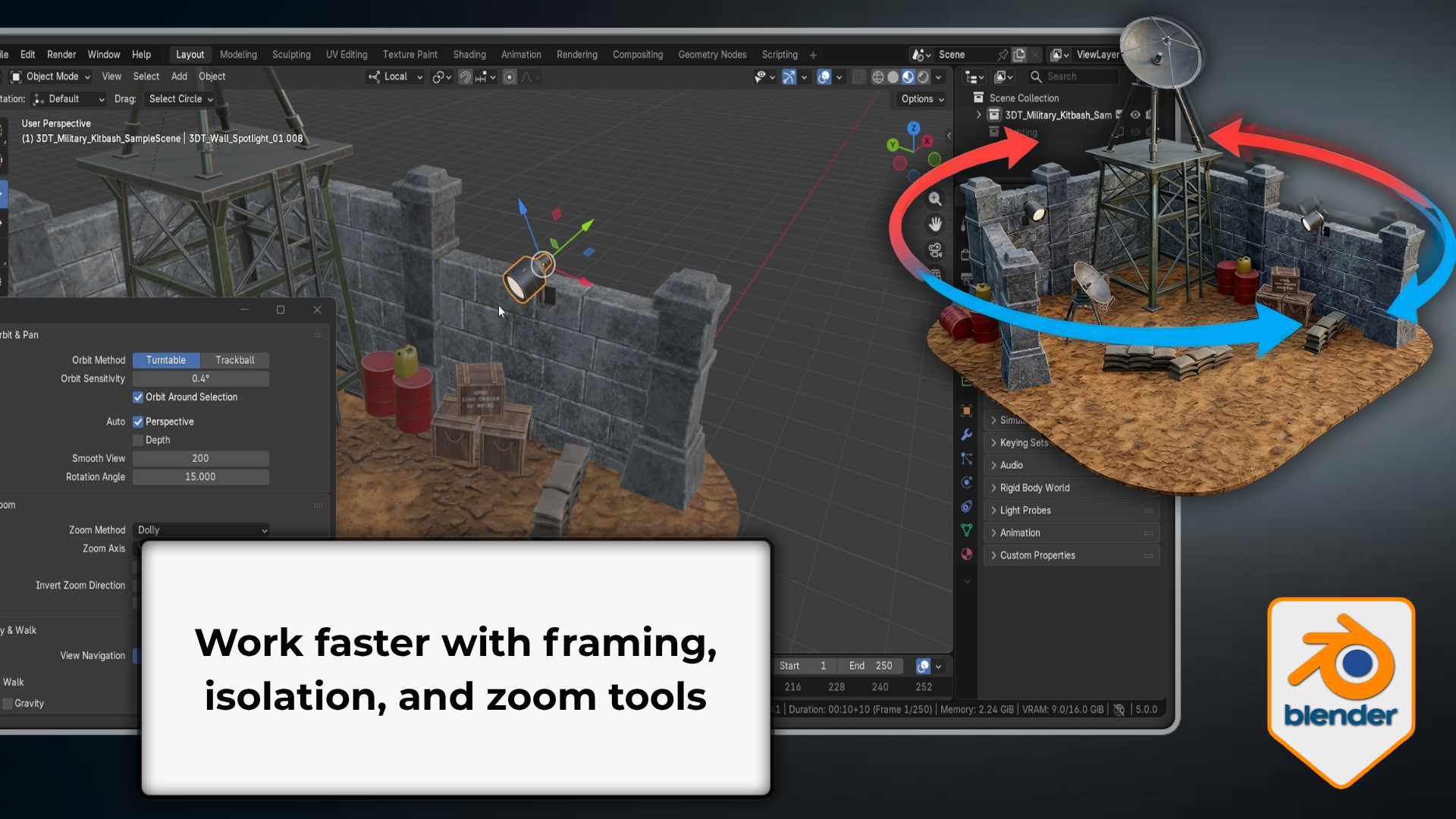 Everything working together: By the end you orbit, pan, zoom, fly, walk, snap, frame, and isolate from muscle memory — so the viewport never slows you down again, whatever you go on to build.
Who this is for
Complete beginners
You've just installed Blender and want to stop feeling lost the moment you try to move around the viewport.
Self-taught artists
You've been getting by, but you want solid, gap-free navigation foundations instead of half-remembered habits.
Artists switching from other software
Coming from Maya, Cinema 4D, or SketchUp and need to rebuild your muscle memory for Blender's specific controls.
Laptop and tablet users
You need the non-standard input configurations — Emulate Numpad, 3-button mouse, tablet and 3D mouse — properly explained.
Compatibility
- Recorded in Blender 5 / Blender 5.1; the navigation controls are standard and consistent across recent Blender versions.
- No paid add-ons required.
- Works on Windows, macOS, and Linux — anywhere Blender runs.
- A three-button mouse with a scroll wheel is recommended; laptop, tablet, and 3D (NDOF) mouse setups are all covered.
- Blender is free from blender.org.
Before you buy
- This is a Blender-focused video training course on viewport navigation.
- 11 short, practical lessons, designed to be followed with Blender open beside the video.
- Recorded in Blender 5 / Blender 5.1; no prior Blender experience required.
- A three-button mouse is recommended but not required — alternatives for laptops, tablets, and 3D mice are covered.
- Please check the final published file list before checkout.
Common questions
Is this beginner friendly?
Yes. The course starts from the very beginning — no prior Blender experience is needed. Just install Blender (free from blender.org) and press play.
Which version of Blender is this for?
It's recorded in and fully compatible with Blender 5 / 5.1. The navigation controls covered are standard and consistent across recent Blender versions.
What if I only have a laptop without a numpad?
Lesson 10 covers Emulate Numpad in Blender's Preferences, which maps the standard number keys to Numpad functions. You don't need a full keyboard or external numpad — laptop, tablet, and 3D mouse setups are all covered.
What comes after this course?
This is Course 1 in the Blender Essentials for Beginners series. The next course covers Transform and Gizmo Basics — Move, Rotate, Scale, object origins, and pivot points — which builds directly on the navigation foundation you build here.
License note
This product is the Blender Essentials: Stop Getting Lost in the Viewport video course. Course access is for a single user. Unless the final Superhive license states otherwise, the course and any supplied files are for your personal learning only.
The lessons and any included files may not be resold, redistributed, repackaged, shared publicly, or included as raw downloadable resources inside another marketplace product, asset pack, template, or course.
Continue the Blender Essentials for Beginners series
This is Course 1 — the navigation foundation. Once moving around the viewport feels automatic, these two build straight on top of it, same beginner-friendly, no-fluff approach.
Transform and Gizmo Basics
Move, rotate, and scale with total precision — origins, pivot points, orientations, and G/R/S shortcuts. Free practice pack included.
View Course 2Snapping and Alignment Basics
Make snapping work for you — Snap Base, vertex/edge/face/volume snapping, the 3D Cursor, and clean modular placement. Free practice pack included.
View Course 3Take real control of the Blender viewport
Learn every way Blender lets you move through 3D space — and build the navigation muscle memory that makes every future project faster and less frustrating.
Get the navigation right first, and modelling, sculpting, texturing, and animation all get easier — because you're never fighting the viewport while you learn them.
Happy modelling everyone!
Neil - 3D Tudor