Oh My Lights - Pro Light Manager for Blender
 DrBlender
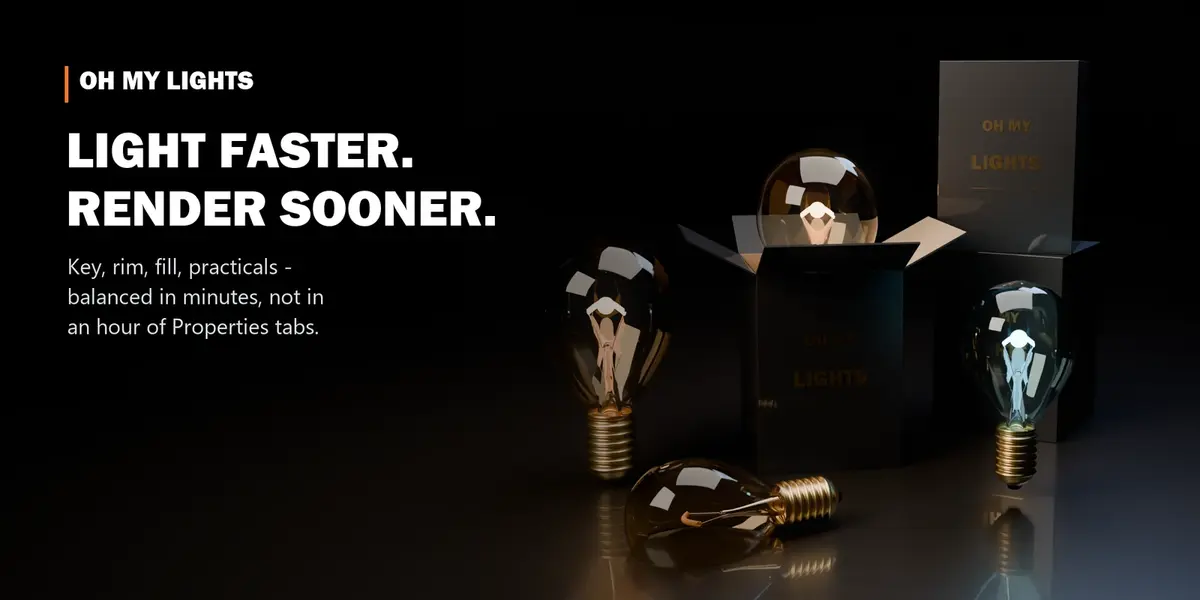

Oh My Lights 2 — User Guide
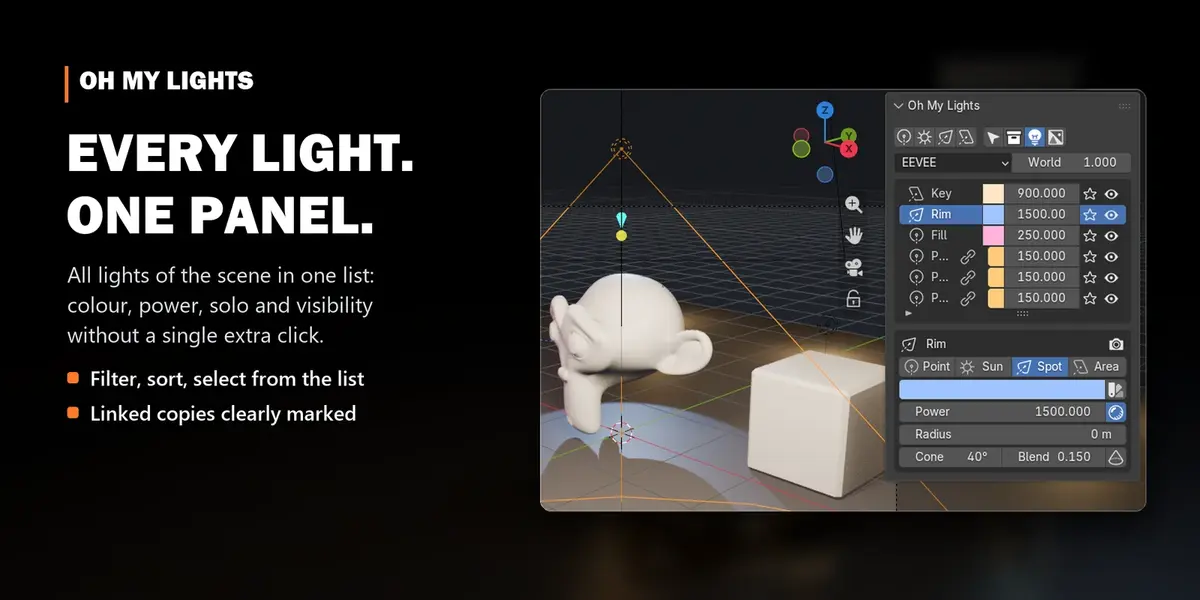
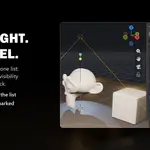
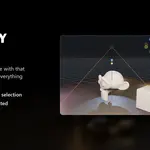
Every light of the scene in one sidebar list: colour, power, solo and visibility, plus the fullsettings of the active light and batch tools for the selection.
Requirements & compatibility
| Blender | 4.5 LTS and 5.2 LTS (tested on 4.5.8, 4.5.9, 5.2.0 and 5.2.2) |
| Systems | Windows, macOS, Linux (tested on Ubuntu 24.04 with the official blender.org build) |
| Render engines | EEVEE and Cycles |
| Dependencies | none. Only Blender's own Python, no extra libraries |
| Internet | never used |
Install
- Download
oh_my_lights-2.0.1.zip. Don't unzip it. - In Blender open Edit ▸ Preferences ▸ Get Extensions.
- Click the ⌄ arrow in the top-right corner and choose Install from Disk…
- Pick the zip. Oh My Lights is installed and enabled at once.
Tip: you can also drag the zip from your file browser straight into the Blender window.
Updating from 1.x: remove the old Oh My Lights in Preferences ▸ Add-ons first. Version 1 used EEVEE Legacysettings that no longer exist.Updating 2.x: install the new zip the same way.Uninstalling: Preferences ▸ Get Extensions, find Oh My Lights, ⌄ ▸ Uninstall.
Where to find it
In the 3D Viewport press N to open the sidebar, then click the OhMyTools tab.
Quick start
- Open the OhMyTools tab. Every light of the current view layer is listed, whatever collection it's in.
- Click a light's name to select it. Its full settings appear under the list.
- Change colour and power right in the row.
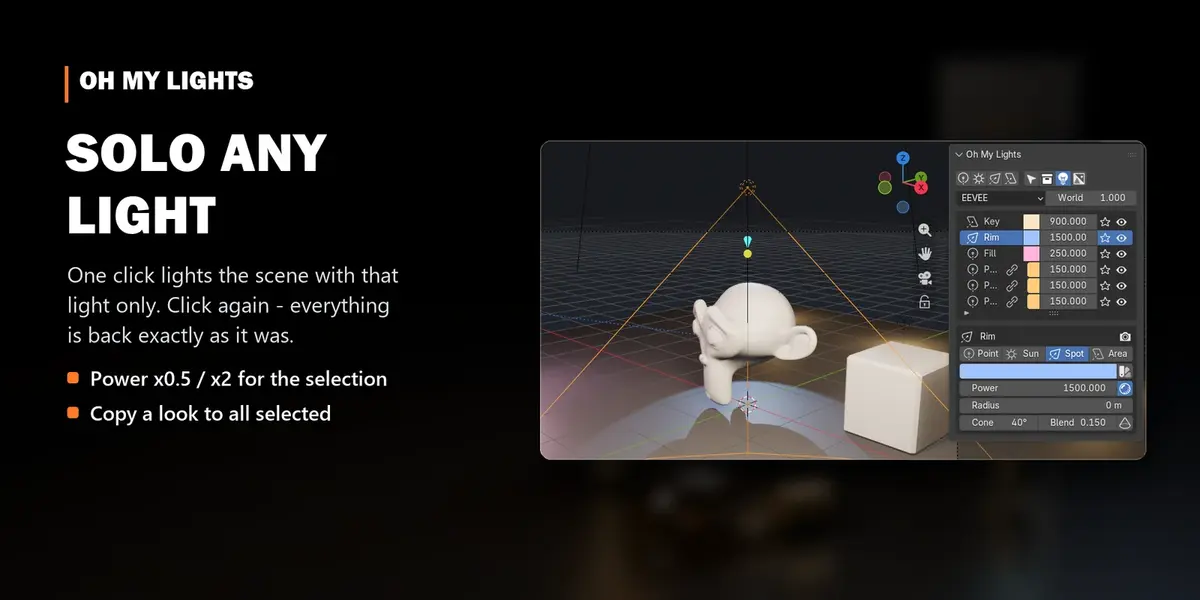
- Click the star to solo a light. Click it again, or the red Solo bar, to bring the others back.
The panel, from top to bottom
Quick bar
| Button | What it does |
|---|---|
| Point / Sun / Spot / Area icons | add a light of that type at the 3D cursor |
| Arrow | select all lights (Shift+click adds to the selection) |
| Collection | move all lights into a "Lights" collection |
| Light icon | show or hide light overlays in the viewport |
| Checkerboard | transparent film (render with a transparent background) |
| Engine menu, World | the render engine, and the strength of the world light |
The light list
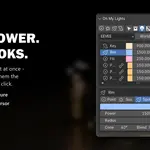
One row per light: type icon, name, colour, power, eye and star.
- Name: click to select that light (and make it active).
- Colour and power: edit directly in the row.
- Eye: hide or show the light in the viewport, like the eye in the Outliner. Whether it renders is set in the active light's settings below.
- Star (solo): light the scene with this light only.
- Chain icon: this light shares its settings with others (made with Alt+D). Editing one edits all.
- Under the list, the small arrow opens filter options: search by name (wildcards like
rim*work), show only selected lights, sort A–Z.
Active light
Everything you normally dig for in the Properties editor:
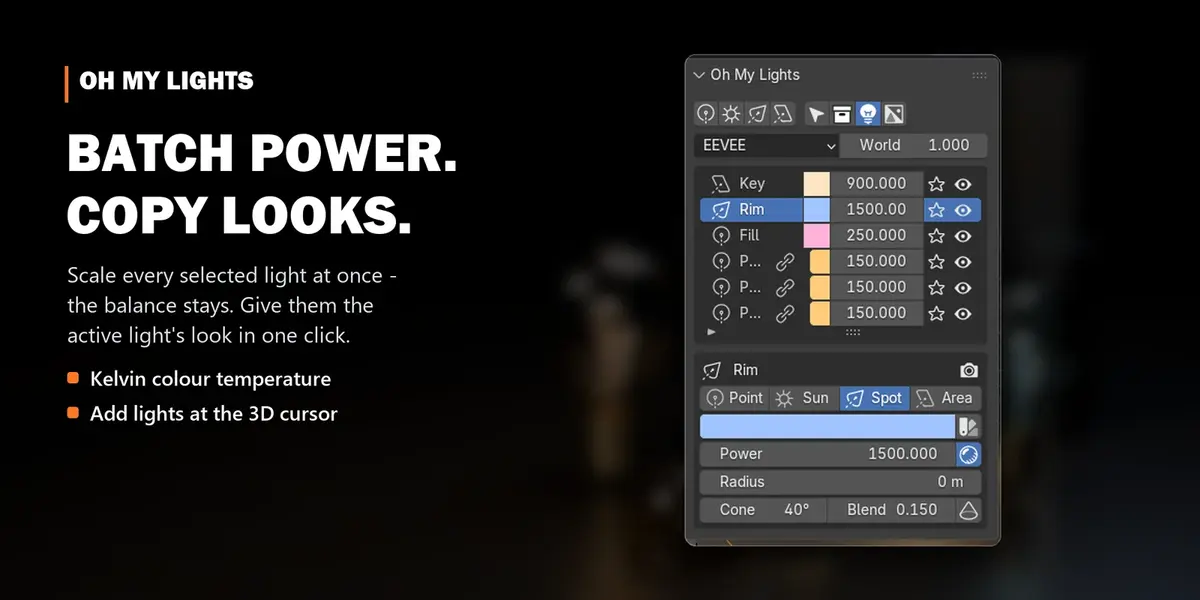
- light type, colour or colour temperature (the sun/palette icon switches to Kelvin),
- power and shadow on/off,
- Radius (Point, Spot), Cone and Blend with a cone preview (Spot), Angle (Sun), Shape and Size X/Y (Area),
- whether it appears in the render,
- for linked lights: how many share it, and Make Independent.
Several lights selected
| Button | What it does |
|---|---|
| Power ×0.5 / ×0.8 / ×1.25 / ×2 | scale every selected light; the balance between them stays |
| Copy to Selected | give them the active light's colour, power, shadow and size; they stay independent (Also Light Type in the redo panel) |
| Link Selected | make them one linked light, so one edit changes all |
How solo works
Solo remembers exactly which lights were visible in the viewport and the render. Ending solo restores thatstate, even lights you had hidden on purpose stay hidden. The state is kept in the .blend, so you can saveand reopen during a solo.
Troubleshooting
- "No lights in this view layer": the lights are in a collection that is excluded (unticked) in the Outliner, or in another view layer.
- Editing one light changes others: they're linked duplicates (chain icon). Click Make Independent.
- I don't see the OhMyTools tab: press N in the 3D Viewport. If the sidebar is narrow, scroll its tabs.
More tools by Doctor Blender
- Oh My Gear 2 - true involute gears, trains, worms and chains from a curve
- Oh My Graph - channel filters, stagger, retime and loops for the Graph Editor
- Simple Shutdown - save the render, then turn the computer off
- Oh My Time - time tracker for every project and .blend
Have questions about this product?
Login to message
| Blender Extension Compatible | Yes |
| Sales | 40+ |
| Dev Fund Contributor | |
| Published | almost 4 years ago |
| Blender Version | 4.5 - 5.2 |
| Extension Type | Add-on |
| Render Engine Used | Cycles, Eevee |
| License | GPL |
Discover more products like this
Studio Lighting Workflow rendering Sidebar look development eevee light manager lights Lighting light setup Cycles product-visualization