 DrBlender


Simple Shutdown 2 — User Guide
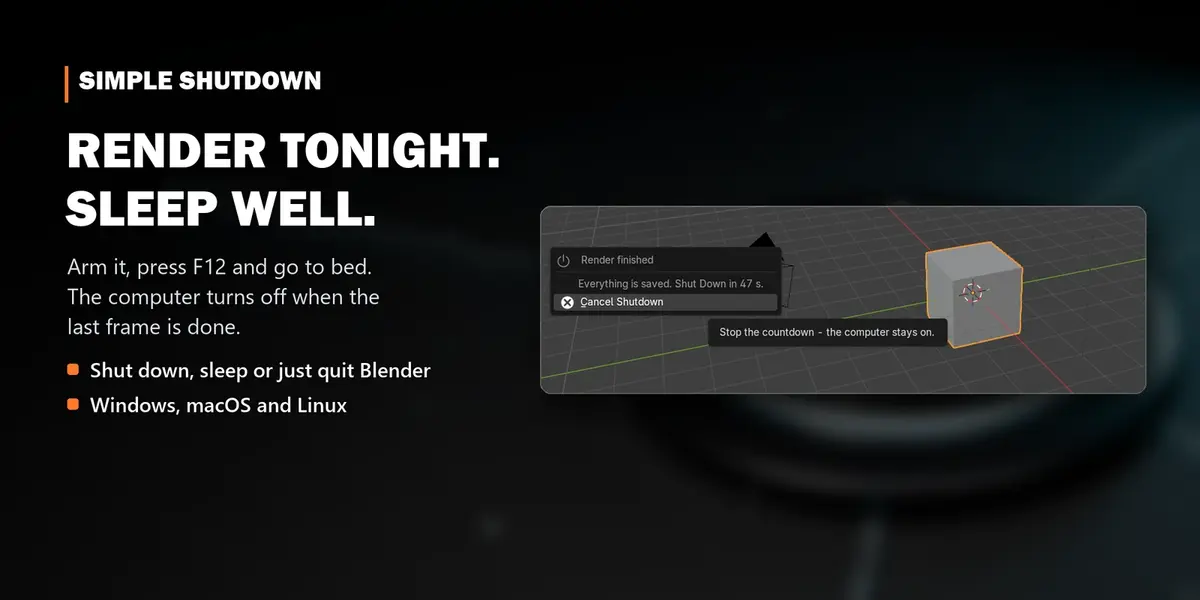
Render tonight, sleep well: Simple Shutdown saves your render and your .blend, then shuts thecomputer down, puts it to sleep or just closes Blender.
Requirements & compatibility
| Blender | 4.5 LTS and 5.2 LTS (tested on 4.5.8, 4.5.9, 5.2.0 and 5.2.2) |
| Systems | Windows 10/11, macOS, Linux (tested on Ubuntu 24.04 with the official blender.org build) |
| Render engines | any: Cycles, EEVEE, Workbench, third-party engines |
| Dependencies | none. Only Blender's own Python, no extra libraries, nothing downloaded |
| Internet | never used |
Install
- Download
simple_shutdown-2.0.1.zip. Don't unzip it. - In Blender open Edit ▸ Preferences ▸ Get Extensions.
- Click the ⌄ arrow in the top-right corner and choose Install from Disk…
- Pick the zip. Simple Shutdown is installed and enabled at once.
Tip: you can also drag the zip from your file browser straight into the Blender window.
Updating from 1.x: in Preferences ▸ Add-ons, remove the old Simple Shutdown first, then install 2.0.Updating 2.x: install the new zip the same way; it replaces the old one.Uninstalling: Preferences ▸ Get Extensions, find Simple Shutdown, ⌄ ▸ Uninstall.
Where to find it
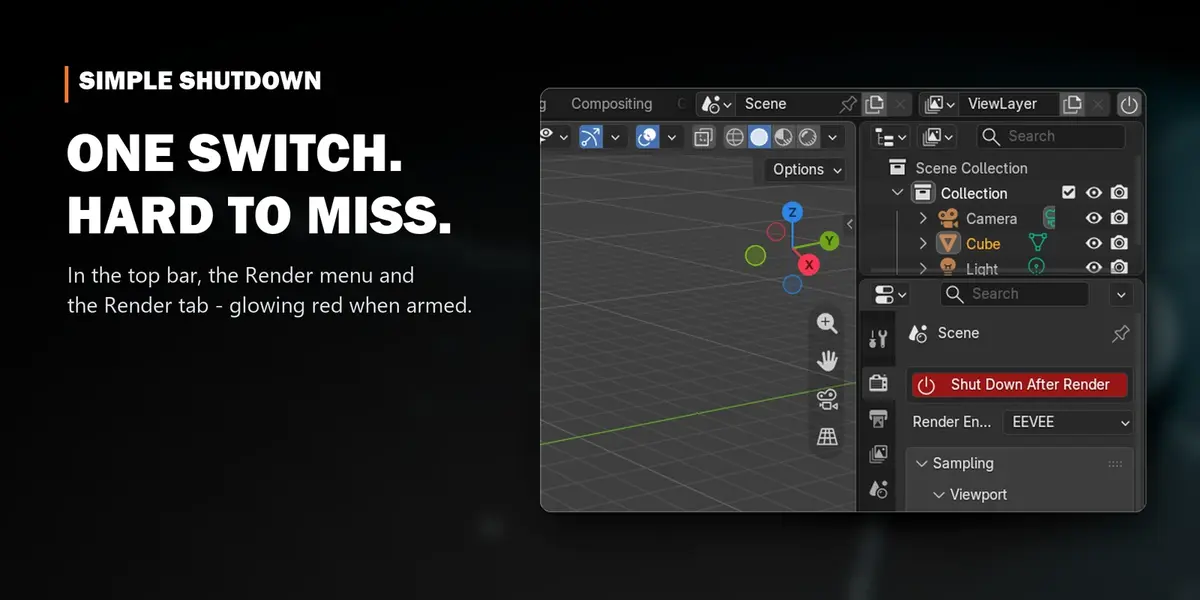
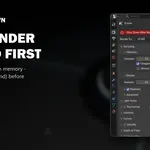
- Top bar, at its right end: the power button. It turns red and reads Shutdown ON when armed.
- Render menu (top of the window): Shut Down After Render.
- Properties ▸ Render tab: the switch at the very top, and a Simple Shutdown panel with all options.
Quick start
- Set your Output path (Properties ▸ Output). For animations this is where the frames go.
- Click Shut Down After Render in any of the places above. It turns red.
- Render: F12 for a still, Ctrl+F12 for an animation.
- Go to bed. When the last frame is done:
- the still image is saved (animations already wrote their frames),
- your .blend is saved,
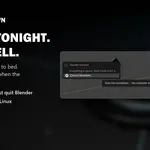
- a popup and a countdown in the status bar give you 60 seconds to cancel,
- the computer shuts down.
What happens, step by step
1. Your render is saved
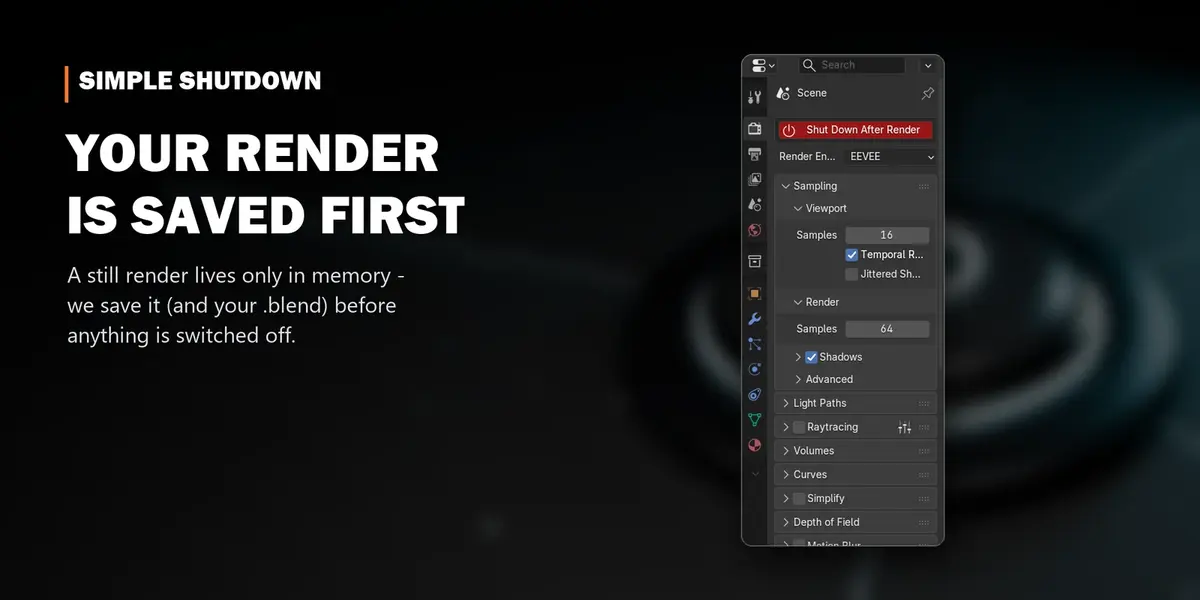
A still render (F12) lives only in memory, so it would be lost on shutdown. Simple Shutdown saves it to theOutput path in the file format set there. If the Output path is only a folder, the file gets the .blend's nameplus a timestamp, e.g. robot_20260930_231512.png. If no path is set, it goes next to the .blend.
2. Your .blend is saved
Only if the file was saved at least once (it has a name). This also prevents a "Save changes?" dialog fromblocking the shutdown.
3. The countdown
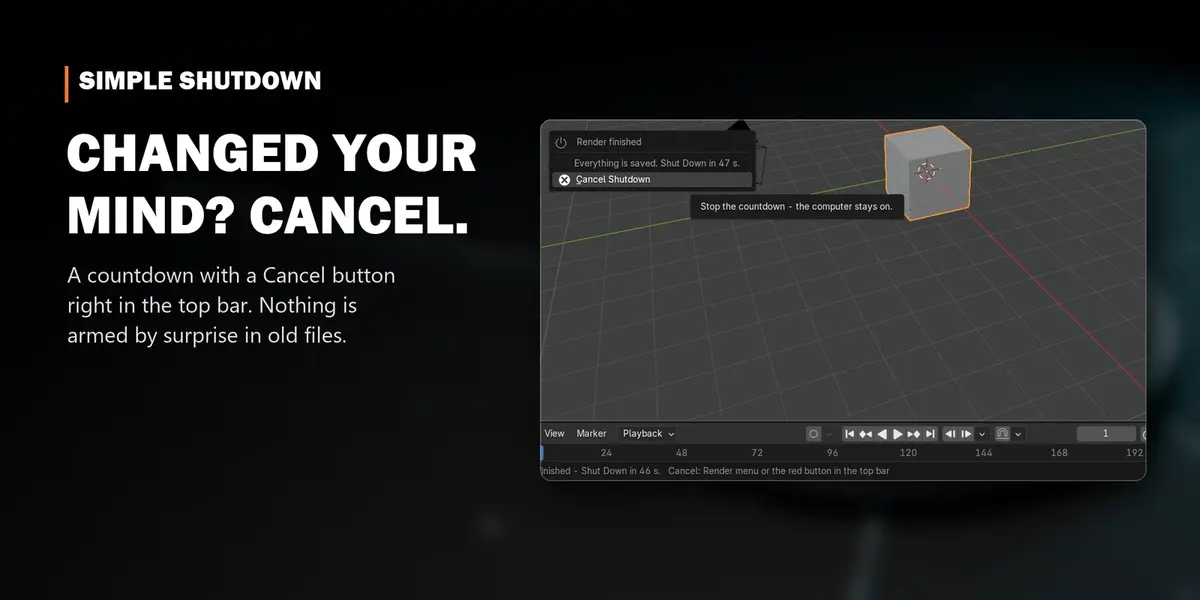
A popup says Render finished – Everything is saved. Shut Down in 60 s with a Cancel Shutdown button.The same countdown runs in the status bar, and the red button in the top bar and the Render tab turns intoCancel Shutdown.
4. The action
| When Done | What it does |
|---|---|
| Shut Down | saves, turns the computer off, closes Blender |
| Sleep | saves, puts the computer to sleep. Blender stays open, so your scene is still there in the morning |
| Quit Blender | saves and closes Blender only; the computer stays on |
Settings
Edit ▸ Preferences ▸ Add-ons ▸ Simple Shutdown (the main ones are also in the Render tab panel):
| Setting | Default | |
|---|---|---|
| When Done | Shut Down | Shut Down, Sleep or Quit Blender |
| Countdown (s) | 60 | time to change your mind; 0 acts at once |
| Save Still Image | on | save a single-frame render before acting |
| Save .blend | on | save the file before acting |
| Button in Top Bar | on | hide the top-bar button if you only use the Render menu |
The switch itself is never stored in a .blend. It lives in the running Blender only, so opening an old filecan never turn your computer off by surprise.
Linux
Simple Shutdown uses the standard systemd commands, the same as the power menu of your desktop:
| Action | Command |
|---|---|
| Shut Down | systemctl poweroff |
| Sleep | systemctl suspend |
- Normal desktop login (GNOME, KDE, XFCE, Cinnamon on Ubuntu, Fedora, Mint, Arch, openSUSE, Pop!_OS…): works out of the box, no password, no root.
-
Blender from Flathub (Flatpak): detected automatically. The command is sent to your system through
flatpak-spawn --host, so it works from inside the sandbox too. - Blender from Snap, a tarball from blender.org, or your distribution's package: works as is.
-
When the system refuses (a remote/SSH session, a server without a desktop, a locked-down company PC, a distribution without systemd): Blender stays open, nothing is lost, and the reason is shown in the status bar and the Render tab panel. To allow it for your user, ask your admin for the polkit rule
org.freedesktop.login1.power-off, or use When Done ▸ Quit Blender.
Test it safely: set When Done ▸ Sleep and render the default cube. If the computer goes to sleep, shuttingdown will work too.
macOS
Shut Down asks macOS to shut down the same way the Apple menu does. The first time, macOS may ask"Blender wants to control System Events". Click OK. If you clicked Don't Allow, turn it on later inSystem Settings ▸ Privacy & Security ▸ Automation ▸ Blender ▸ System Events. Sleep uses pmset sleepnow andneeds no permission.
Windows
Shut Down uses Windows' own shutdown command, Sleep puts the PC to sleep. No administrator rights are needed.If Sleep hibernates instead, your PC has hibernation set as its sleep mode. This is a Windows setting.
Command-line and render-farm use
The switch isn't stored in files, so arm it on the command line:
blender -b scene.blend --python-expr "import bpy; bpy.context.window_manager.simple_shutdown_armed = True" -a
In background mode there is no countdown. It acts right after the render.
Troubleshooting
- Nothing happened after the render: was the button red before you pressed F12? The switch resets after every finished render, so arm it again for the next one.
- "The system refused to shut down: …" in the status bar: see Linux or macOS above. Blender stayed open on purpose, and your render and .blend are saved.
- The still image isn't where I expected: check Properties ▸ Output ▸ Output Path. The last saved path is shown in the Simple Shutdown panel.
- I want to render several files overnight: render them from the command line and arm only the last one.
More tools by Doctor Blender
- Oh My Gear 2 - true involute gears, trains, worms and chains from a curve
- Oh My Graph - channel filters, stagger, retime and loops for the Graph Editor
- Oh My Lights - every light of the scene in one sidebar list
- Oh My Time - time tracker for every project and .blend
Have questions about this product?
Login to message
| Blender Extension Compatible | Yes |
| Sales | 20+ |
| Dev Fund Contributor | |
| Published | over 3 years ago |
| Blender Version | 3.6 - 5.2 |
| Extension Type | Add-on |
| License | GPL |
Discover more products like this
animation render Workflow overnight render automation energy saving Render batch render shutdown utility rendering sleep power-saving