 DrBlender
Oh My Graph 4 — User Guide
The Graph Editor tools Blender still lacks: channel filters, stagger, retime, loops and 14 shortcuts,for objects and bones.
Requirements & compatibility
| Blender | 4.5 LTS and 5.2 LTS, including layered (slotted) actions (tested on 4.5.8, 4.5.9, 5.2.0 and 5.2.2) |
| Systems | Windows, macOS, Linux (tested on Ubuntu 24.04 with the official blender.org build) |
| Works on | objects and armature bones; Euler, quaternion and axis-angle rotation |
| Dependencies | none. Only Blender's own Python, no extra libraries |
| Internet | never used |
Install
- Download
oh_my_graph-4.0.1.zip. Don't unzip it. - In Blender open Edit ▸ Preferences ▸ Get Extensions.
- Click the ⌄ arrow in the top-right corner and choose Install from Disk…
- Pick the zip. Oh My Graph is installed and enabled at once.
Updating from 2.x / 3.x: remove the old Oh My Graph in Preferences ▸ Add-ons first. Its shortcuts would clash.Uninstalling: Preferences ▸ Get Extensions, find Oh My Graph, ⌄ ▸ Uninstall. The shortcuts go with it.
Where to find it
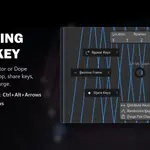
- Graph Editor and Dope Sheet: press N for the sidebar, tab Oh My Graph.
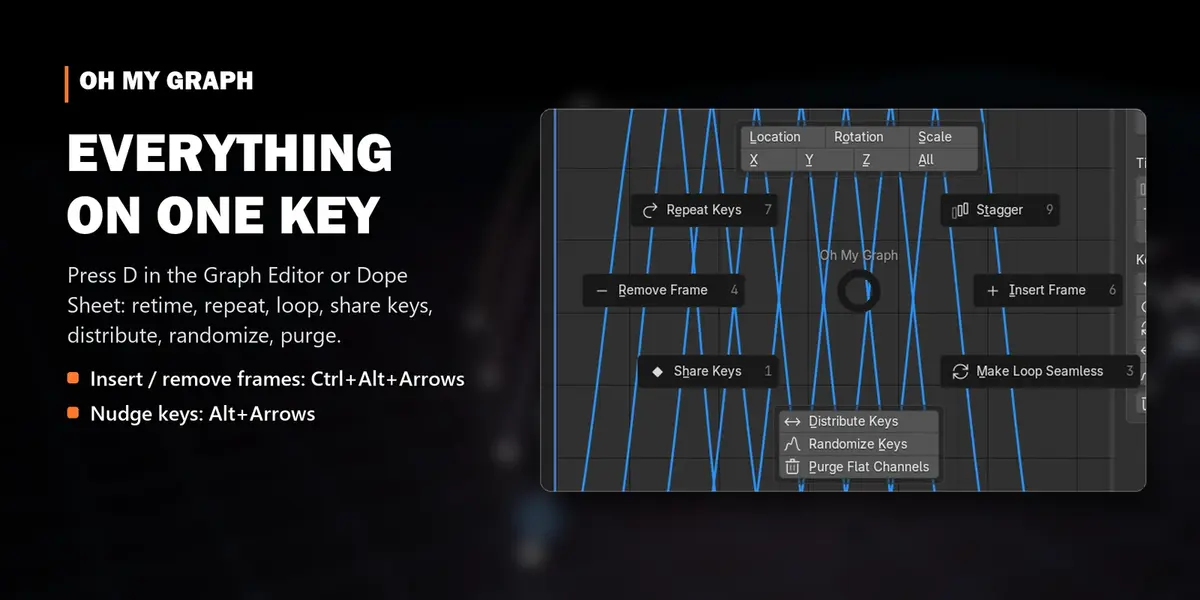
- D with the mouse over the Graph Editor or Dope Sheet opens the Oh My Graph pie menu.
- The default interpolation and handle type for new keys sit in the header of both editors.
D keeps its usual meaning everywhere else (Duplicate in the 3D Viewport, etc.).
Quick start
- Select your animated objects, or bones in Pose Mode.
- Open the Graph Editor and press N ▸ Oh My Graph.
- Click Location, then Z: only the Z location curves stay visible. All brings everything back.
- Press D for the pie, or use the buttons in the panel.
Channel filters (Graph Editor)
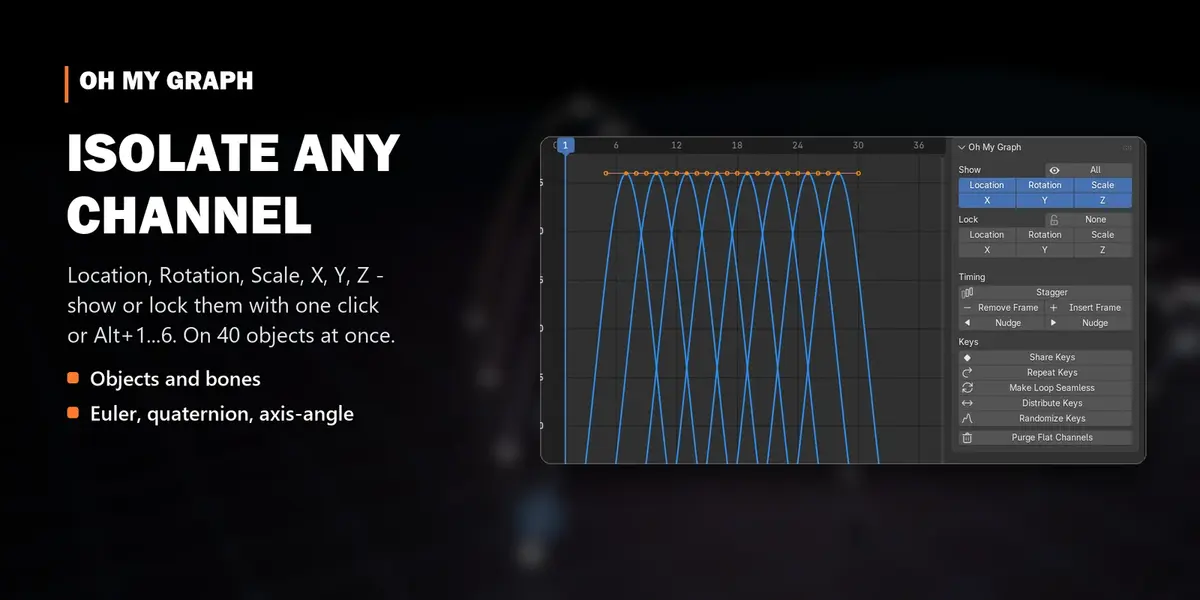
Show: Location · Rotation · Scale and X · Y · Z (W for quaternions).- Click one to see only those channels, on every selected object or bone at once.- Shift+click adds to what is shown (e.g. Location + Rotation).- All (or Alt+0) shows everything again.
Lock: the same buttons protect channels from editing. Lock Rotation and polish translation without fear.None unlocks everything.
Timing
Stagger
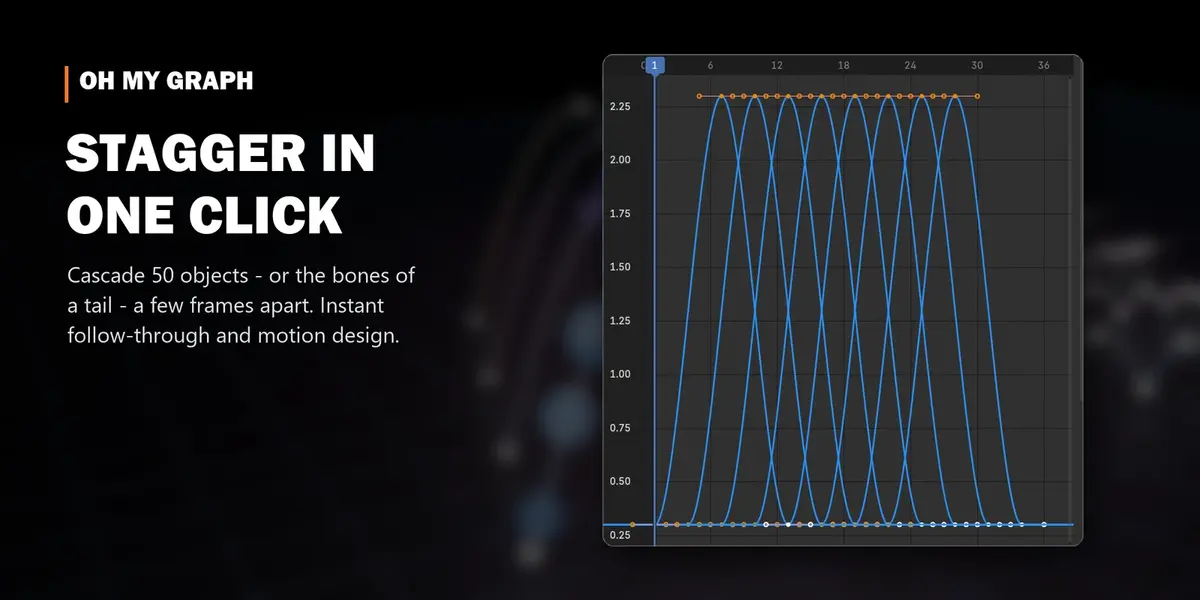
Offsets the selected objects, or the selected bones in Pose Mode, in time, one after another: a cascade from oneanimation. In the redo panel (bottom-left, or F9):- Step: frames between two neighbours (negative reverses the order).- Order: Name, Hierarchy (parents first: tails, spines, chains), Distance from the active object, X / Y / Z position, or Random (with a seed).
Objects that share one action (linked duplicates) can only have one timing. They're skipped and you're told so.
Insert / Remove Frame
Ctrl+Alt+→ pushes every key after the playhead one frame later. Ctrl+Alt+← pulls them one frame earlier.Selected objects by default; tick All Objects in the redo panel to retime the whole scene. Removing is refused ifit would crush keys onto each other.
Nudge
Alt+←/→ moves the selected keys one frame; with Shift, five frames.
Keys
| Tool | What it does |
|---|---|
| Share Keys | keys every visible channel on every frame where any channel has a key (only on the frames of selected keys, if some are selected): clean poses for blocking |
| Repeat Keys | repeats the selected keys N times. Gap 0 = each copy starts on the previous copy's last key (seamless). Value Offset moves each copy up, e.g. a walk cycle that walks forward |
| Make Loop Seamless | gives the last key the first key's value and handles, and adds a Cycles modifier: a perfect loop |
| Distribute Keys | spaces the selected keys evenly in time (Whole Frames optional) |
| Randomize Keys | random value and/or timing offsets, with a seed: breaks up mechanical motion |
| Purge Flat Channels | deletes channels whose keys never change (channels with modifiers are kept) |
Shortcuts
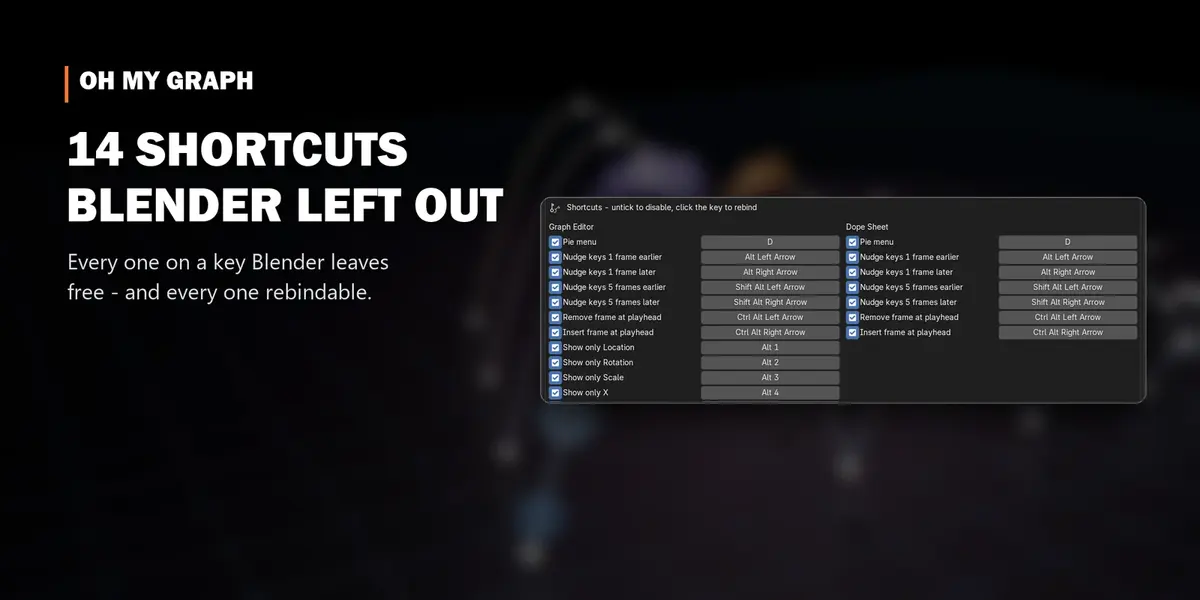
Active only in the Graph Editor and Dope Sheet, all on keys Blender leaves free:
| Shortcut | Action | Editors |
|---|---|---|
D |
Oh My Graph pie menu | Graph Editor, Dope Sheet |
Alt+← / Alt+→
|
nudge keys 1 frame | both |
Shift+Alt+← / Shift+Alt+→
|
nudge keys 5 frames | both |
Ctrl+Alt+← / Ctrl+Alt+→
|
remove / insert a frame at the playhead | both |
Alt+1 / Alt+2 / Alt+3
|
show only Location / Rotation / Scale | Graph Editor |
Alt+4 / Alt+5 / Alt+6
|
show only X / Y / Z | Graph Editor |
Alt+0 |
show all channels | Graph Editor |
Change or disable a shortcut: Edit ▸ Preferences ▸ Add-ons ▸ Oh My Graph. Untick a shortcut to disable it,or click its key and press a new one.
Settings
Edit ▸ Preferences ▸ Add-ons ▸ Oh My Graph:- Default interpolation & handle type in editor headers: on/off.- Shortcuts: the list above, each one can be disabled or rebound.
Troubleshooting
- A button does nothing: most tools work on selected keys or selected objects/bones. Check the selection; a message at the bottom of the window says what's missing.
- Stagger skipped some objects: they share one action (linked duplicates). Make the action single-user (the number next to the action name) and stagger again.
- D opens something else: another add-on uses D in the Graph Editor. Rebind one of them in the preferences.
- Every tool can be undone with Ctrl+Z.
More tools by Doctor Blender
- Oh My Gear 2 - true involute gears, trains, worms and chains from a curve
- Oh My Lights - every light of the scene in one sidebar list
- Simple Shutdown - save the render, then turn the computer off
- Oh My Time - time tracker for every project and .blend
Discover more products like this
Workflow bones animation tools Stagger animation Retime graph editor shortcuts loop f-curves keyframes dope sheet