 DrBlender


Oh My Time 4 — User Guide
An automatic time tracker for Blender: real working time per file, per project and per day, acrossevery .blend file, crashes and computers.
Requirements & compatibility
| Blender | 4.5 LTS and 5.2 LTS (tested on 4.5.8, 4.5.9, 5.2.0 and 5.2.2); both versions share one history |
| Systems | Windows, macOS, Linux (tested on Ubuntu 24.04 with the official blender.org build) |
| Dependencies | none. Only Blender's own Python, no extra libraries |
| Internet / account | never used, nothing is sent anywhere |
Install
- Download
oh_my_time-4.0.1.zip. Don't unzip it. - In Blender open Edit ▸ Preferences ▸ Get Extensions.
- Click the ⌄ arrow in the top-right corner and choose Install from Disk…
- Pick the zip. Tracking starts right away.
Updating from 1.x–3.x: remove the old Oh My Time in Preferences ▸ Add-ons first. The first time you open a filetracked by an old version, its stored total is imported, so your old numbers are not lost.Uninstalling: Preferences ▸ Get Extensions, find Oh My Time, ⌄ ▸ Uninstall. Your history folder stays on disk.
Where to find it
-
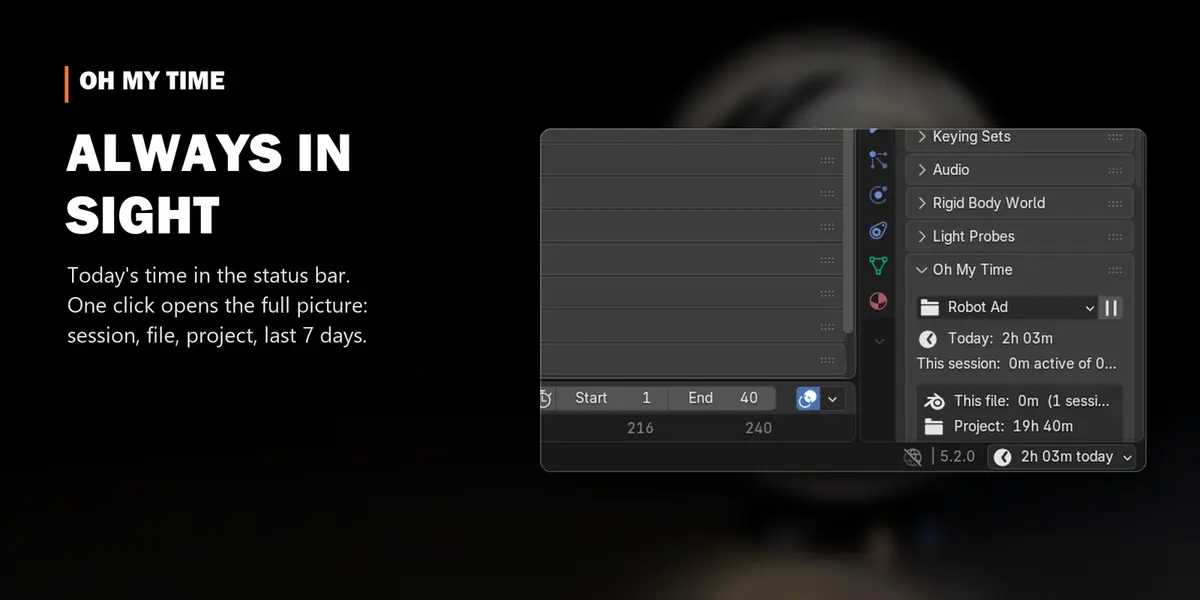
Status bar (bottom-right of the Blender window): today's work time, e.g.
2h 03m today. Click it for the full panel. - Properties ▸ Scene tab ▸ Oh My Time: the same panel.
Quick start
- Just work. Oh My Time counts in the background.
-
Save your file. Its folder becomes its project, e.g. every file in
…/Robot Ad/counts towards Robot Ad. - Click the time in the status bar whenever you want to see where your hours went.
- At the end of the job: Export Timesheet (CSV) for your invoice.
The panel
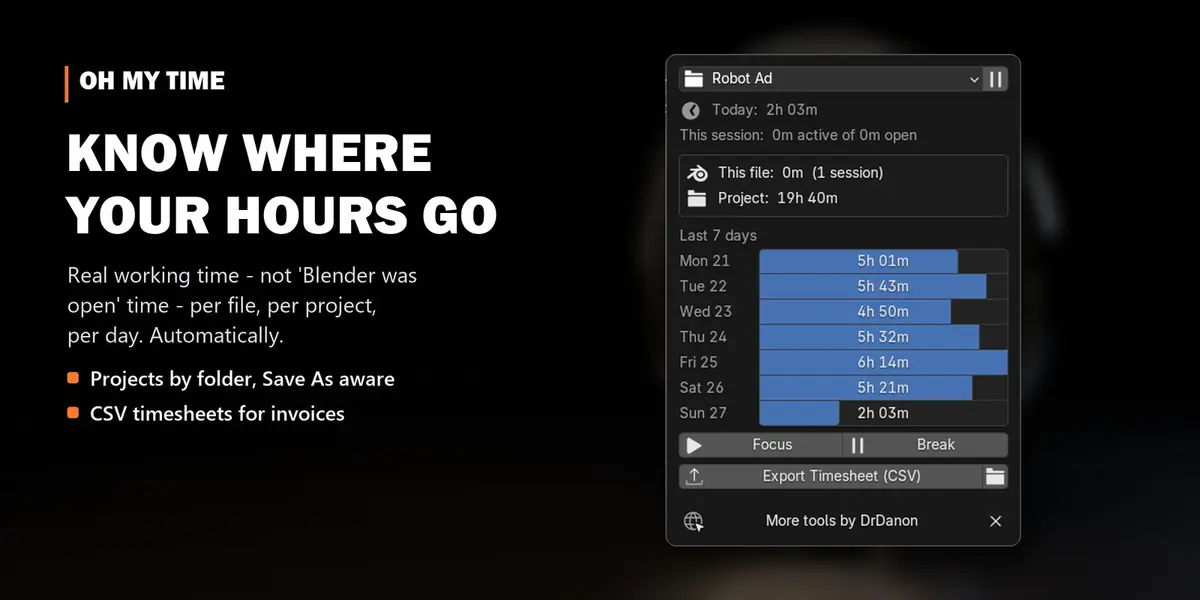
| Line | Meaning |
|---|---|
| Project | the project this file counts towards; click to pick another or create one |
| Pause button | stop counting (e.g. a private break with Blender open); click again to resume |
| Today | your active time today, all files |
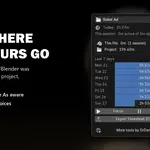
| This session | active time vs. time Blender was open, since you opened this file |
| This file | all time ever spent in this .blend, and how many sessions |
| Project | all files of the project added up, open or not |
| Rendering | time spent rendering this file |
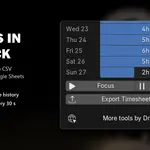
| Last 7 days | a bar per day |
| Focus / Break | Pomodoro timer |
| Export Timesheet (CSV) · folder icon | save the history as a spreadsheet · open the data folder |
How time is counted
- Active time is what counts: mouse and keyboard work. A pause shorter than the idle limit (3 minutes by default) still counts, so thinking time is work time. After the limit the counter stops until you're back.
- Open time is simply how long Blender was open, for comparison.
- Rendering is counted separately, whether you watch or not.
- How activity is detected: on Windows from the system's input clock while a Blender window is in front. On macOS and Linux from your work inside Blender: edits, undo, saves and editor updates.
Projects
- By default a file's project is its folder name.
- Pick another project: click the project name ▸ choose one, or New / Rename…. Options: Every file in this folder (the whole folder and its subfolders follow) and Move past time too (time already recorded for this file moves with it).
-
Save As keeps the project, so
shot_v07.blendstill adds up withshot_v06.blend.
Your data
- Nothing is written into your .blend files. The history lives in one folder:
- Windows:
%APPDATA%\Blender Foundation\Blender\oh_my_time - macOS:
~/Library/Application Support/Blender/oh_my_time - Linux:
~/.config/blender/oh_my_time - Several computers: set the same synced folder (Dropbox, OneDrive, Google Drive, a NAS) as Data folder on each. Every computer writes its own file, so syncing never conflicts, and totals combine automatically.
- Crash-proof: the running session is saved every 30 seconds and recovered after a crash or power cut.
Timesheet export
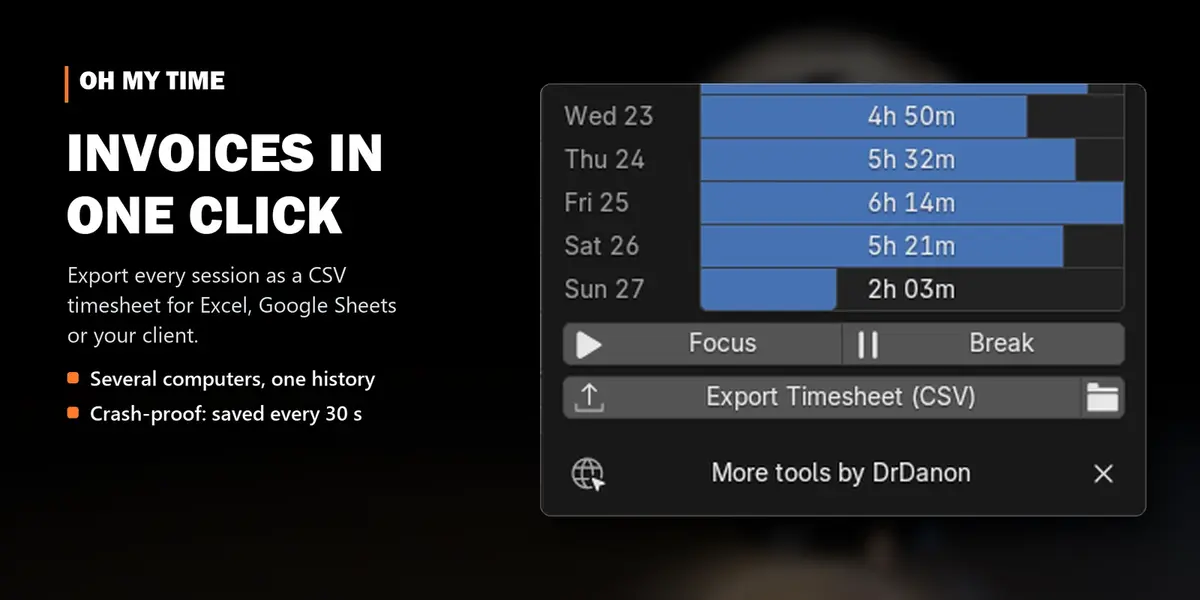
Export Timesheet (CSV) saves one row per session: date, start, end, project, file, active minutes, open minutesand render minutes. It opens in Excel, Google Sheets, LibreOffice or Numbers. Filter by project and sum theactive column for an invoice.
Pomodoro
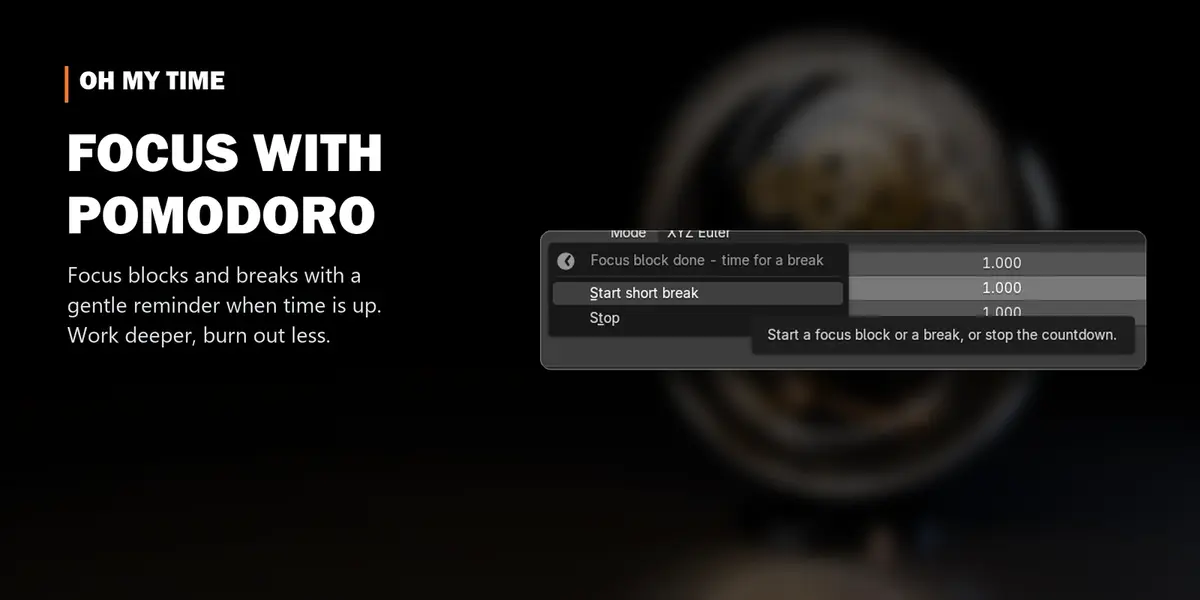
Focus starts a focus block, Break a short break. When the time is up, a small popup tells you, and thestatus bar shows the countdown meanwhile. Lengths are set in the preferences (25 / 5 / 15 minutes by default).
Settings
Edit ▸ Preferences ▸ Add-ons ▸ Oh My Time:
| Setting | Default | |
|---|---|---|
| Idle after (minutes) | 3 | a pause longer than this stops the counter |
| Data folder | empty (see Your data) | point it at a synced folder for several computers; restart Blender after changing |
| Show in status bar | on | the time in the status bar |
| Show last 7 days | on | the bar chart in the panel |
| Show "More tools by Doctor Blender" link | on | one small link at the bottom of the panel; ✕ hides it for a couple of weeks, this switch turns it off for good |
| Focus / Short break / Long break | 25 / 5 / 15 | Pomodoro lengths in minutes |
Troubleshooting
- "Save the file to assign a project": an unsaved file has no folder yet. Save it once.
- Today's time looks low on macOS/Linux: long stretches of only watching the viewport without touching anything count as idle. Raise the idle limit if you often think longer than 3 minutes.
- Two computers show different totals: both must use the same Data folder, and it must be synced.
More tools by Doctor Blender
- Oh My Gear 2 - true involute gears, trains, worms and chains from a curve
- Oh My Graph - channel filters, stagger, retime and loops for the Graph Editor
- Oh My Lights - every light of the scene in one sidebar list
- Simple Shutdown - save the render, then turn the computer off
Discover more products like this
Workflow timesheet statistics invoicing pomodoro freelance work time time-tracking project-management focus time-tracker productivity