Three separate Blender add-ons that cover the whole route from a finished mesh to an asset sitting in your Unreal project: Tachyon Collision Maker builds the collision, Tachyon LOD Maker builds the LOD chain, and Tachyon Unreal Bridge sends the lot into a running Unreal Editor.
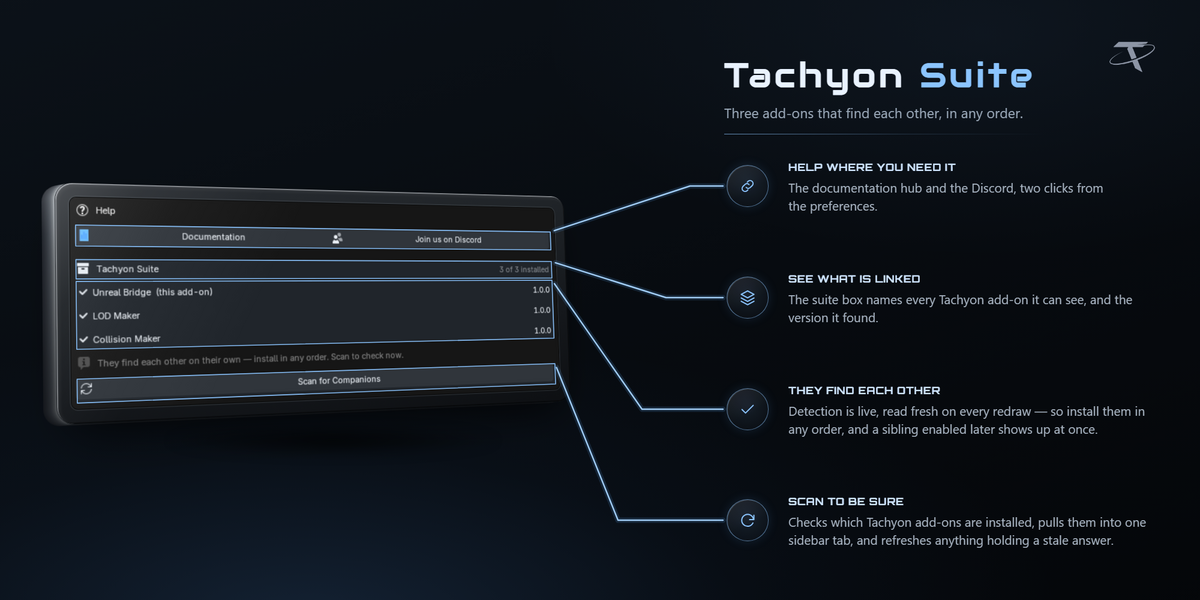
Each is standalone. Install only the ones you use. When more than one is installed they share a single sidebar tab and recognise each other's work automatically.
Getting started
Installing
Each add-on ships as its own zip and installs the usual way: Edit ▸ Preferences ▸ Add-ons ▸ Install from Disk, then tick it. One package covers Blender 3.3 to 5.2 — it installs as a modern extension on 4.2 and newer, and as a classic add-on on 3.3 – 4.1.
Install them in any order. Nothing depends on anything else being present.
Where the panels are
3D Viewport sidebar — press N — then the Unreal Tools tab. Each add-on adds its own panel to that tab:
| Panel |
Add-on |
| Tachyon Unreal Bridge |
Unreal Bridge |
| Collision Maker |
Collision Maker |
| LOD Maker |
LOD Maker |
The tab name is a preference. Rename it in one add-on and the others follow, so everything that feeds Unreal stays in one place.
What each one needs
|
Platform |
Engine |
| Unreal Bridge |
Windows |
Unreal Engine 5.2 – 5.8, installed by you |
| Collision Maker |
Windows, macOS, Linux |
none |
| LOD Maker |
Windows, macOS, Linux |
none |
Collision Maker and LOD Maker never talk to an engine. They build to Unreal's conventions, and what they produce is equally valid for any exporter that honours the same conventions.
The short version
- Model the asset.
-
Collision Maker — pick a preset, press Generate Collision.
-
LOD Maker — pick a preset, press Generate LODs.
-
Unreal Bridge — mark the object as an asset, give it a folder, press Push to Unreal.
The collision shapes and the LOD levels ride inside that push. There is nothing to configure on the Unreal side and nothing to drag into place afterwards.
How the three work together
They talk through plain ID properties stamped on your objects and through Unreal's own naming conventions — never by importing each other. That is why a missing add-on can never break the other two.
-
Collision is matched by name: child meshes called
UCX_, UBX_, USP_ or UCP_ followed by the asset root's name. Whatever made them, the Bridge carries them.
-
LOD levels carry
tlm_lod_source, tlm_lod_index and tlm_screen_size; the asset root carries tlm_lod_count and tlm_lod_preset. The Bridge reads those directly.
-
Sockets are Empty children named
SOCKET_<Name>.
On a push, the Bridge:
- puts collision shapes inside the asset's FBX with their materials stripped, and leaves Unreal's Auto Generate Collision off so your shapes are the ones the engine uses;
- exports one FBX per LOD level and applies each with its screen size pinned;
- applies Unreal's +90° X convention to static-mesh sockets.
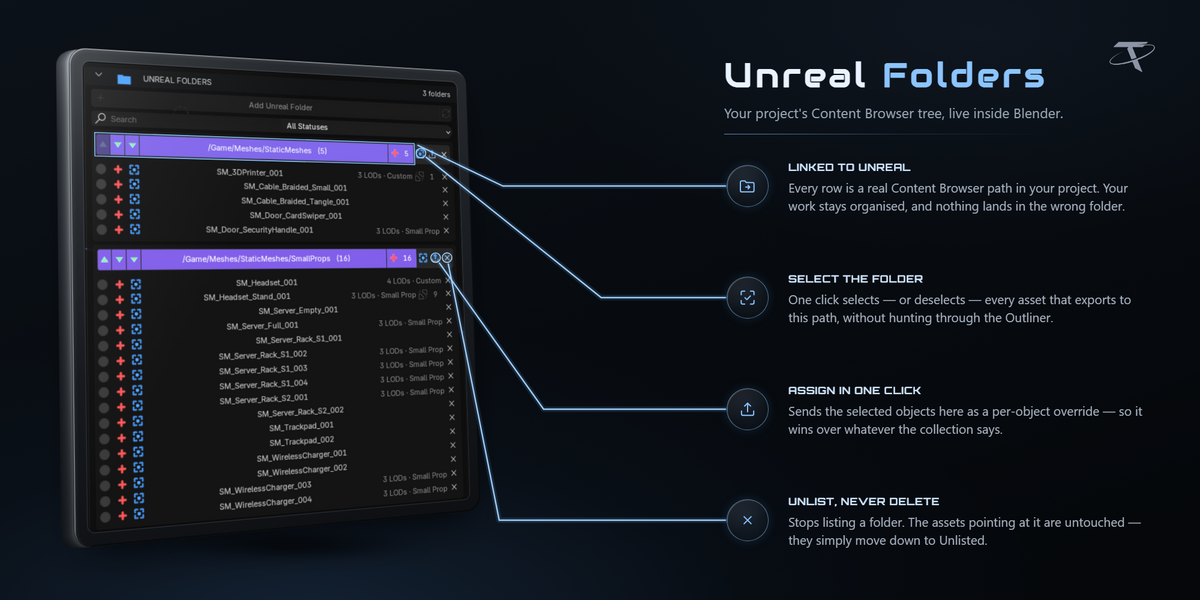
The Bridge's asset rows then read what is attached — for example 3 LODs · Small Prop.
Tachyon Collision Maker
Unreal does not use your render mesh for collision. It wants separate, much cheaper shapes, named so its FBX importer recognises them. That is what this builds.
Generating
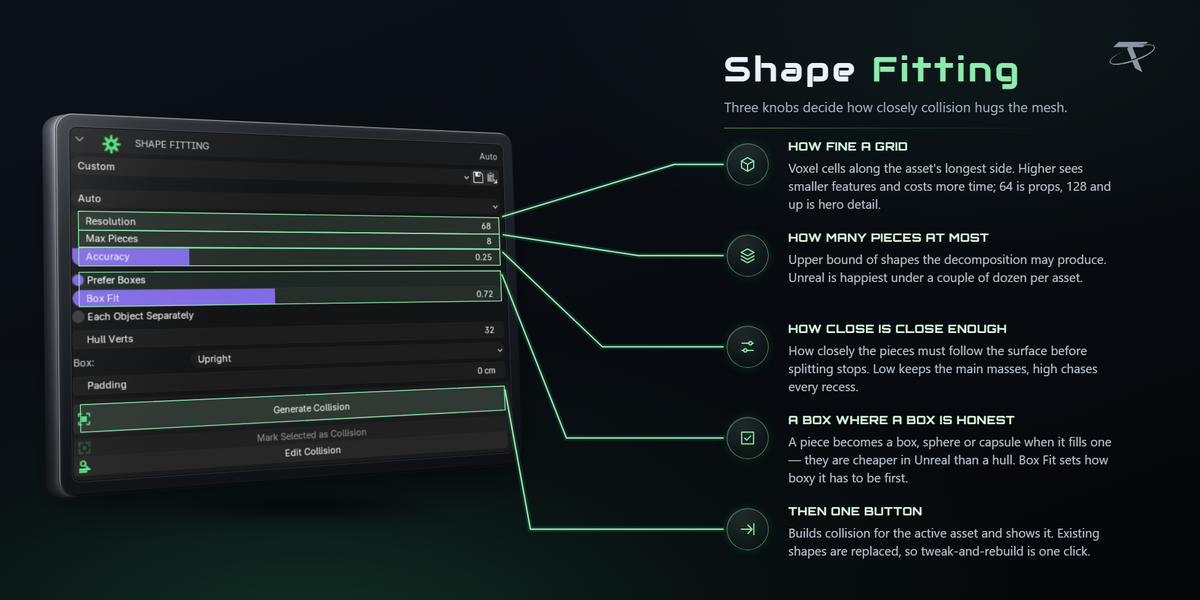
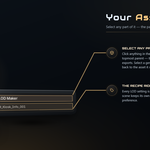
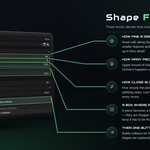
Select an asset and press Generate Collision (Shift + Alt + C). Auto rasterises the mesh into a voxel grid and splits it into convex pieces, best-first, until every piece is as convex as Accuracy asks for or the piece budget is spent — the same kind of algorithm as V-HACD. The grid only decides where to cut: each piece is then hulled from the original vertices it covers, so the surface is your mesh's rather than a stair-stepped copy of it. A piece ships as a box, sphere or capsule only when it honestly fills one.
Open and non-manifold geometry decomposes normally — a grid has a volume whatever the topology — so thin panels, loose shells and overlapping parts all come out as honest pieces.
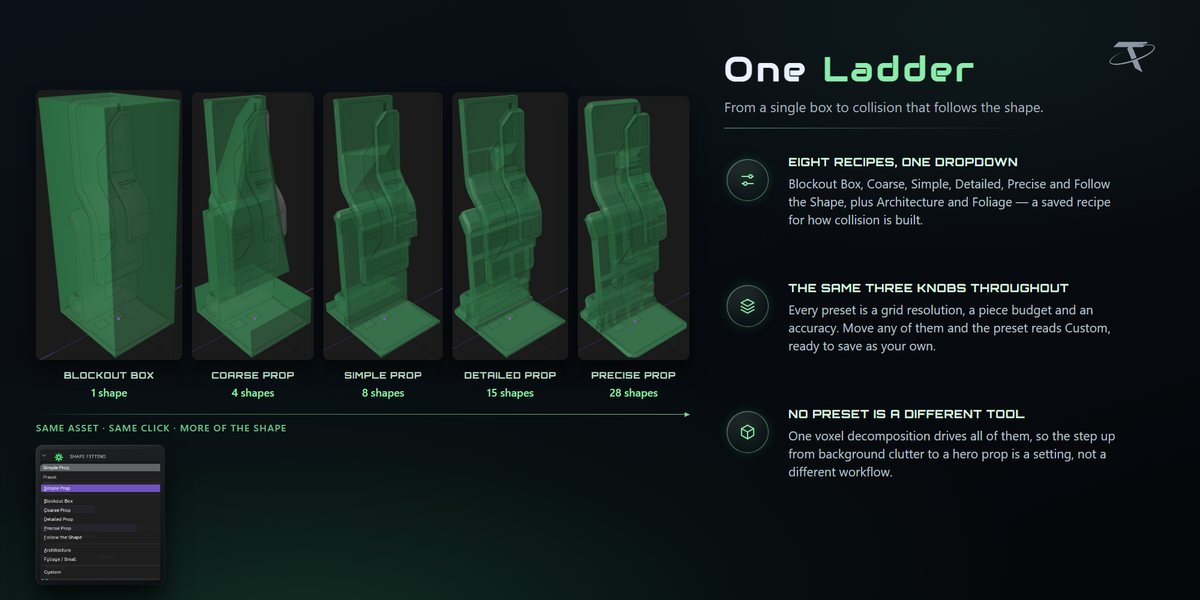
The preset ladder
Pick by how much the player interacts with the asset:
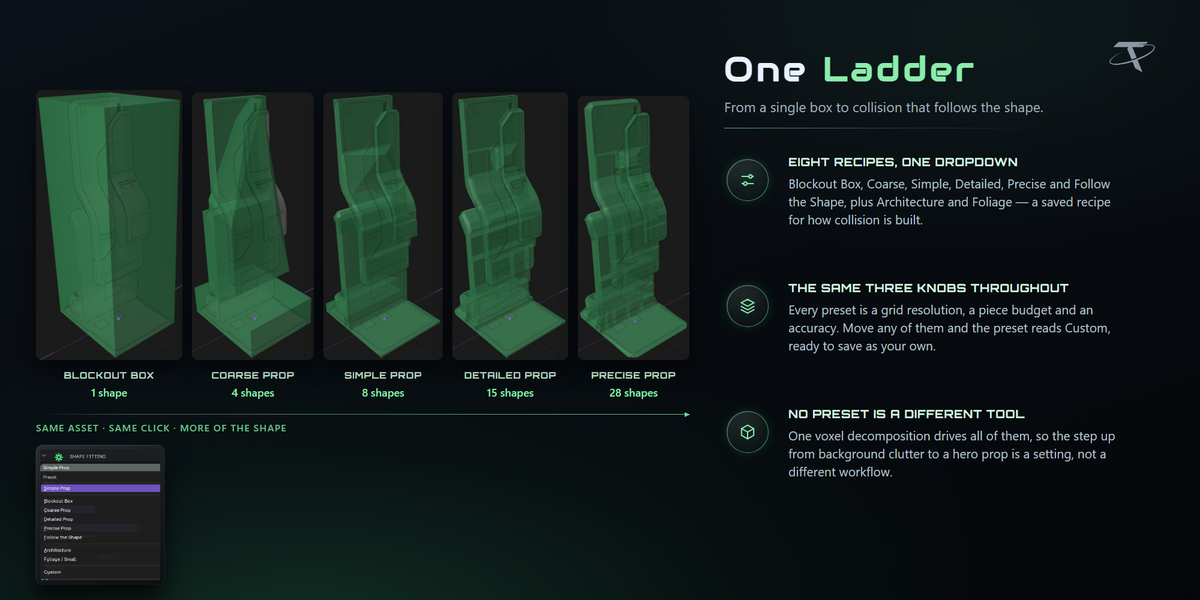
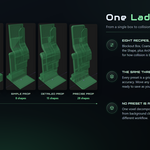
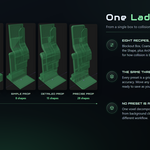
Blockout Box → Coarse Prop → Simple Prop → Detailed Prop → Precise Prop → Follow the Shape, plus Architecture and Foliage / Small outside the ladder.
On a fourteen-part kiosk those six rungs give 1, 4, 8, 15, 28 and 53 shapes, in roughly 0.3 to 12 seconds.
The settings behind the presets
| Setting |
What it does |
| Resolution |
Voxel cells along the longest side. Higher sees smaller features and costs more time. |
| Max Pieces |
Caps how many shapes a decomposition may produce. |
| Accuracy |
How closely pieces must follow the surface before splitting stops. |
| Prefer Boxes |
Lets a piece ship as a box, sphere or capsule when one fits. |
| Box Fit |
How full the primitive has to be before it is used. |
| Each Object Separately |
Gives every mesh object its own grid and budget. |
| Hull Verts |
Vertex budget per hull. |
| Padding |
Grows primitives slightly so nothing clips the visible surface. |
Box alignment defaults to Upright: level with the floor, free to rotate about Z only, and only when the yaw genuinely buys volume. The angle comes from rotating calipers on the 2D convex hull, so a long thin asset laid out diagonally still gets a tight box. Axis aligned never rotates. Oriented is the one that produces tilted boxes, and the panel warns you when it is selected.
Your own shapes
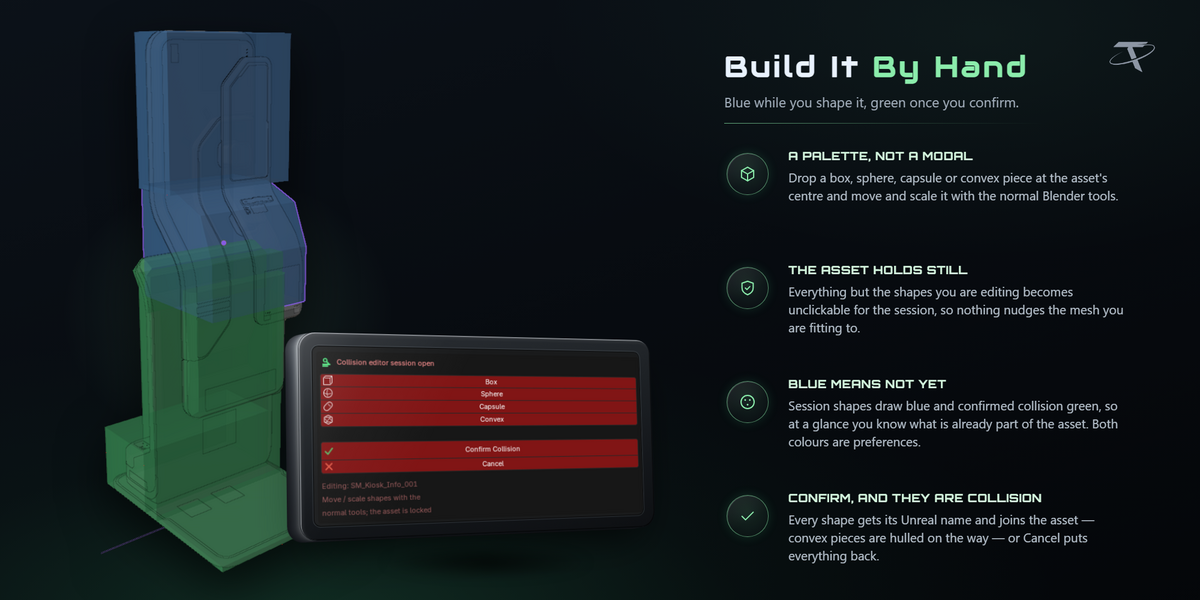
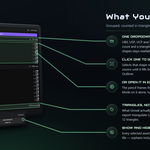
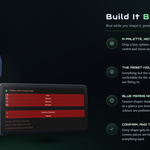
Mark Selected as Collision takes shapes you modelled yourself, renames them to the convention, parents them to the asset and tags them exactly like generated ones. From then on they are indistinguishable: the registry lists them, the SHAPES list counts them, Preview shows them, Remove clears them.
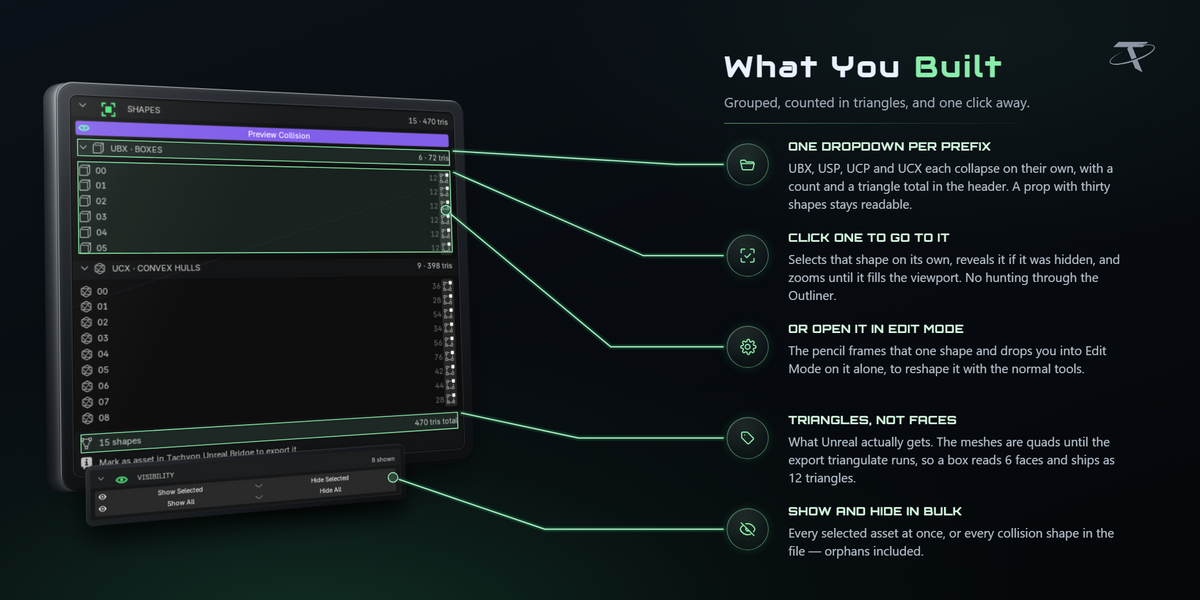
Edit Collision opens a session on one asset. Add Shape drops a box, sphere, capsule or convex hull that you move and scale with the normal tools while the asset itself stays locked. Confirm keeps the result, Cancel restores exactly what was there. Every row in the SHAPES list also has a pencil that opens that one shape in Edit Mode.
Seeing what you built
- New shapes are shown as soon as they are built. Turn that off with Preview After Generate in preferences.
-
Preview Collision (Shift + Alt + V) fades the asset back and draws its shapes on top; toggling it off puts your shading back exactly as it was, because the preview restores the object colours it faded rather than editing materials.
- The SHAPES list groups shapes per Unreal prefix, each header carrying its own count and triangle total. Counts are triangles, not faces — what Unreal actually receives.
-
VISIBILITY shows or hides collision on the selection, or everywhere in the file at once.
-
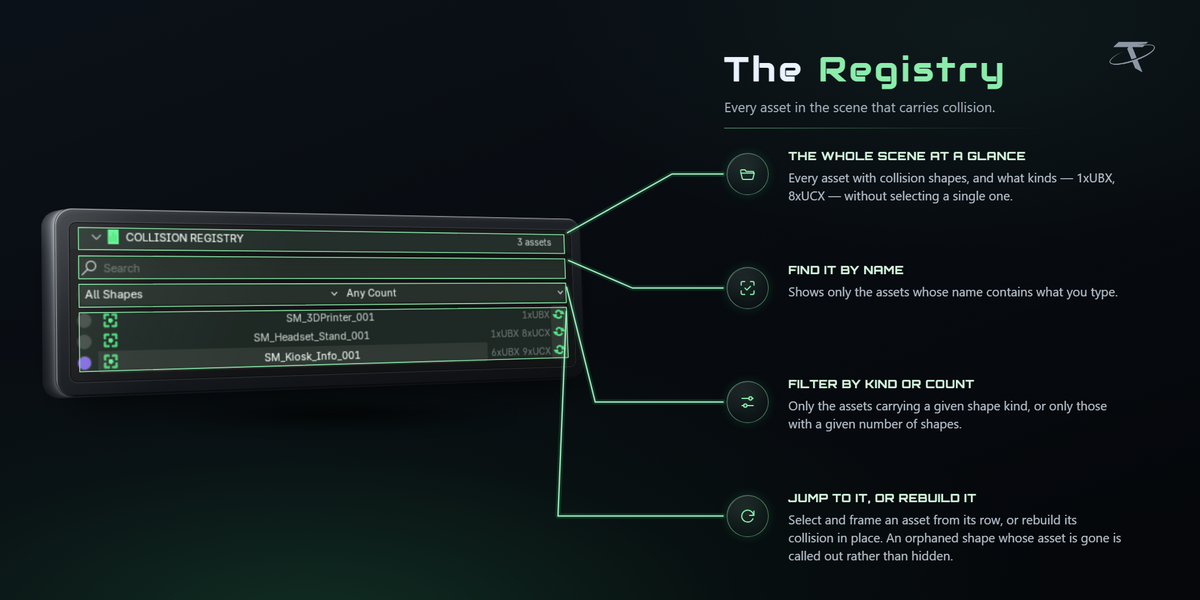
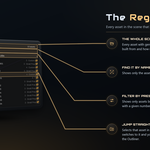
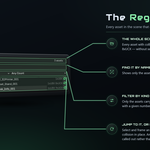
COLLISION REGISTRY lists every asset in the file that has collision, with search, filters and Jump to Asset.
Several at once
Select more than one asset and a BATCH section appears: Generate Collision for All N and Remove Collision from All N. An asset with nothing to remove is skipped rather than counted as a failure, and the whole batch is a single undo step. A long decomposition reports progress in the sidebar and near the bottom of the viewport, and Esc stops it.
Decals and LOD levels are never used as collision.
Tachyon LOD Maker
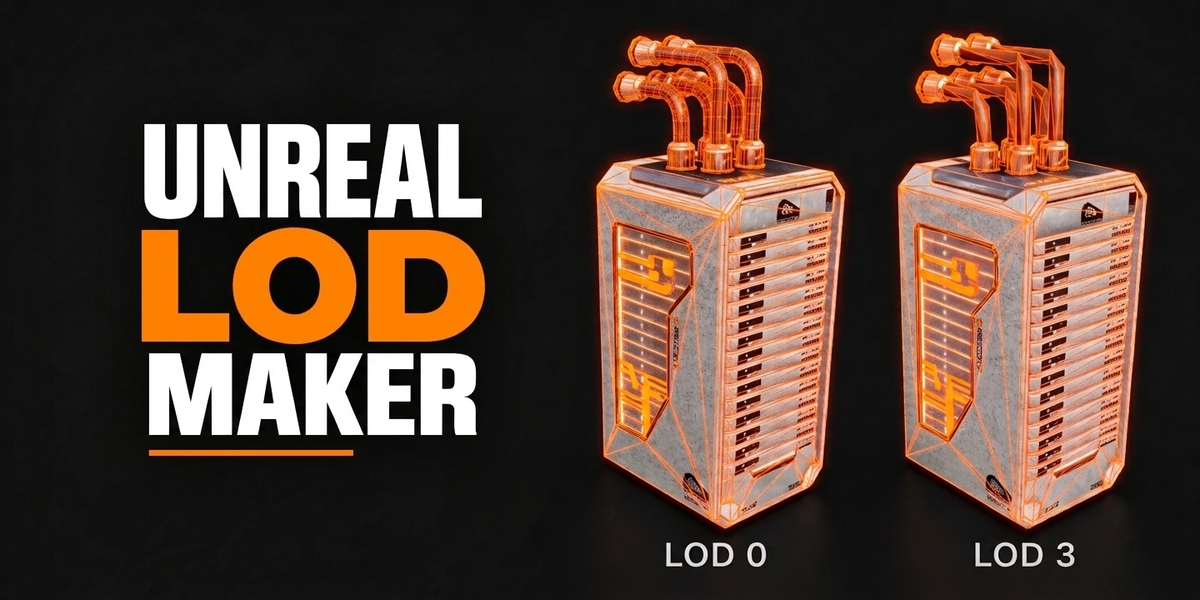
A LOD chain is a series of progressively cheaper copies of a mesh plus a rule for when the engine swaps between them. This builds both.
Generating
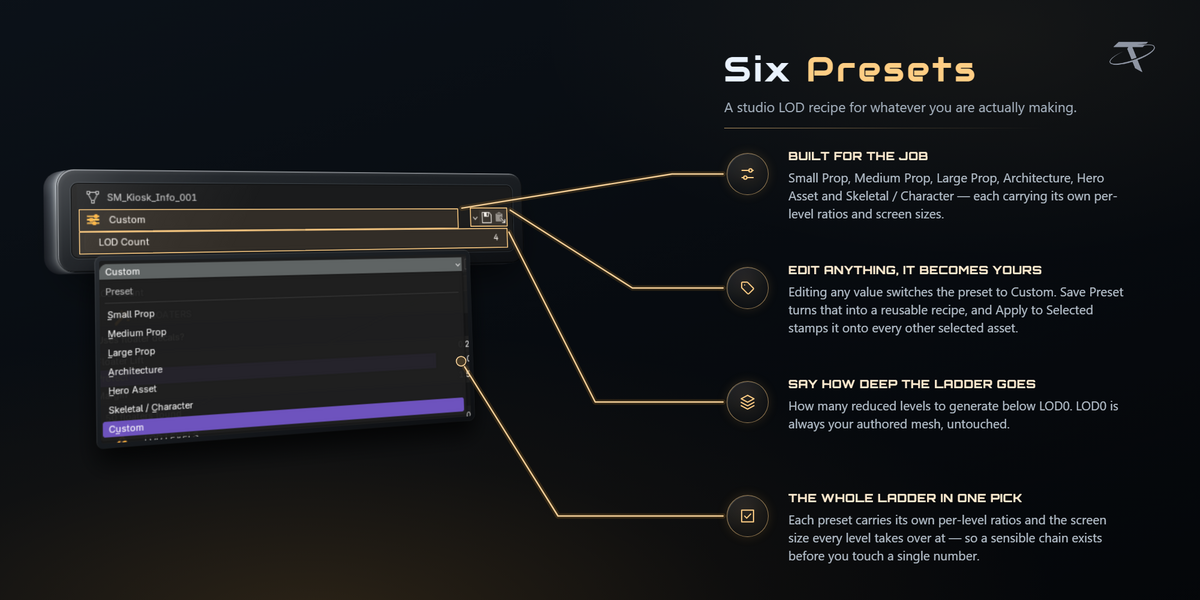
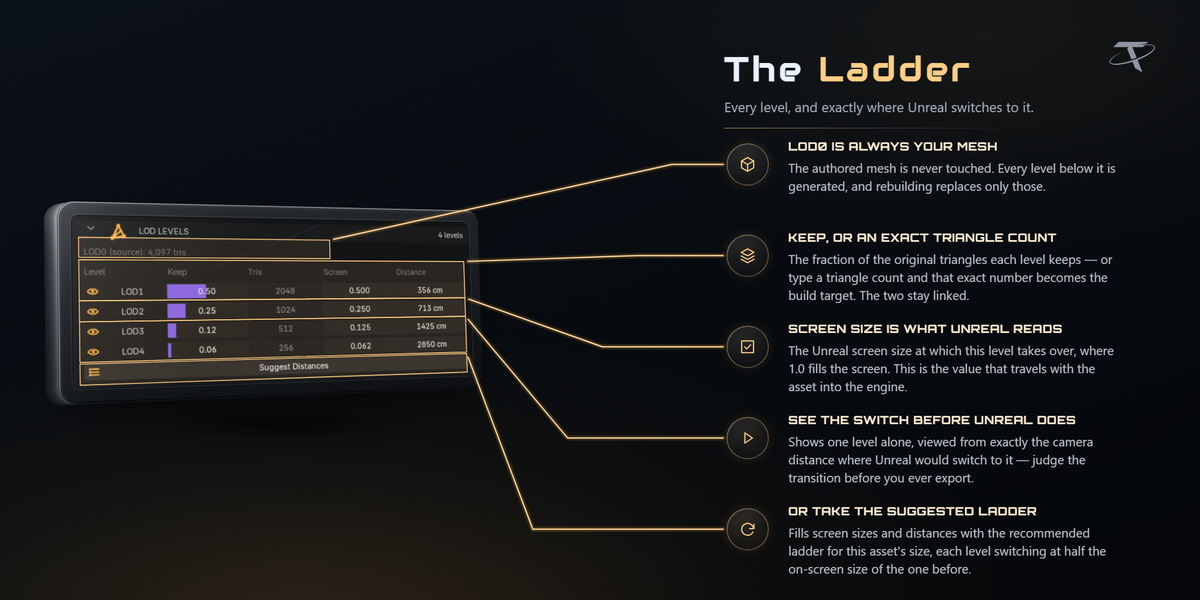
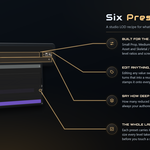
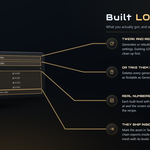
Select an asset, pick a preset, press Generate LODs (Shift + Alt + L; Shift + Alt + B builds every marked asset). Six presets ship: Small Prop, Medium Prop, Large Prop, Architecture, Hero Asset, and Skeletal / Character. Each carries per-level decimation ratios and the screen size at which that level takes over.
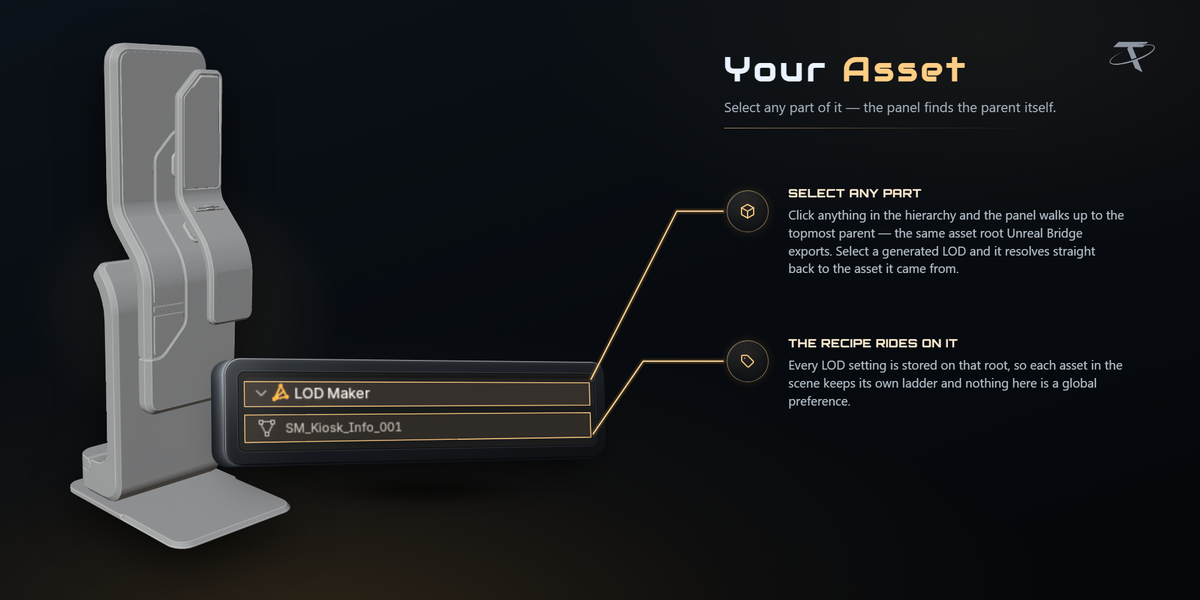
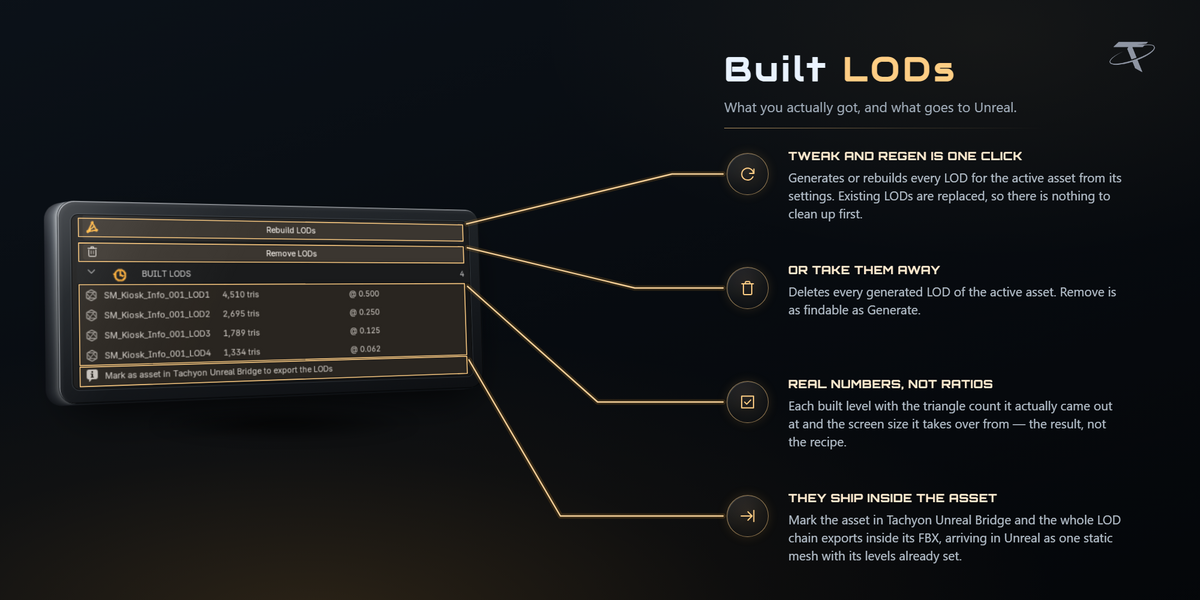
LOD0 is always your authored mesh, untouched. Generated levels are new objects parked in an LODs collection, kept outside the normal export walk so nothing double-exports.
Ratio or triangle count
Every level takes either. Ask a level for 300 triangles and its ratio follows; set a ratio and the count does. The ratio is the fraction of the original triangle count kept at that level.
Screen sizes, and the distances beside them
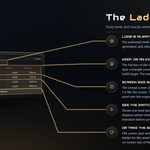
Unreal switches LODs on screen size: the fraction of the view the asset's bounding sphere fills. It is size-invariant — 0.25 means the same thing for a teacup and a warehouse — which is why a preset built for one asset is meaningful on another.
The metre distances in the table are computed per asset from its real bounds, which is why they differ between assets on the same preset. They are there because metres are easier to picture; the screen size is what goes to Unreal. The maths follows Unreal's own ComputeBoundsScreenSize at the engine default of a 90° horizontal field of view on a 16:9 viewport.
Preview LOD puts the viewport camera at exactly the distance that level takes over, through an 18 mm lens — the same 90° horizontal FOV the screen-size maths assumes — so you are looking at what the engine will show at the moment of the swap. Exit Preview puts the viewport back. Suggest Distances fills the whole chain from the active preset's ladder.
Floater-aware decimation
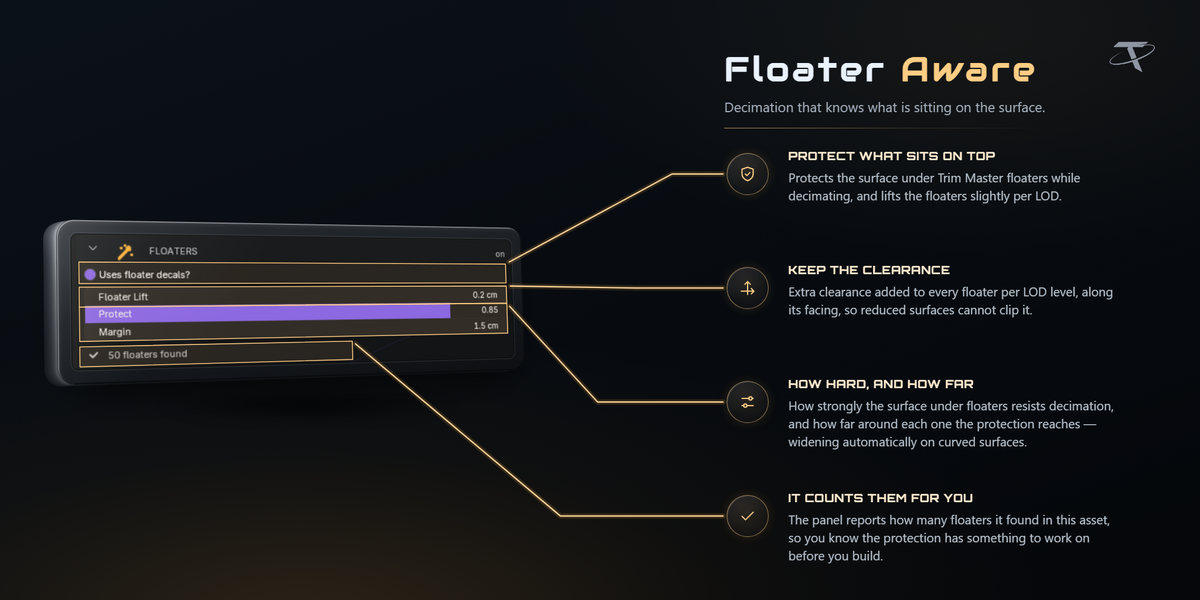
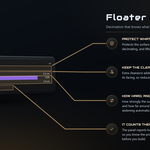
A floater is a small detail mesh sitting just above a surface — a bolt head, a vent, a panel line. A naive decimator welds it into the wall and the detail disappears. LOD Maker recognises floaters and protects them, spending the budget on the surface underneath instead. Floater gap, protect strength and protect margin are all part of the preset. To protect a region by hand, paint a TLM_Protect vertex group; weight 1 is fully protected.
Collision shells and SOCKET_ empties are excluded from every level.
Several at once, and the registry
Generate for Selected builds every marked asset from its own settings. Apply to Selected copies the active asset's recipe onto the rest first. Remove LODs from All N clears a whole selection.
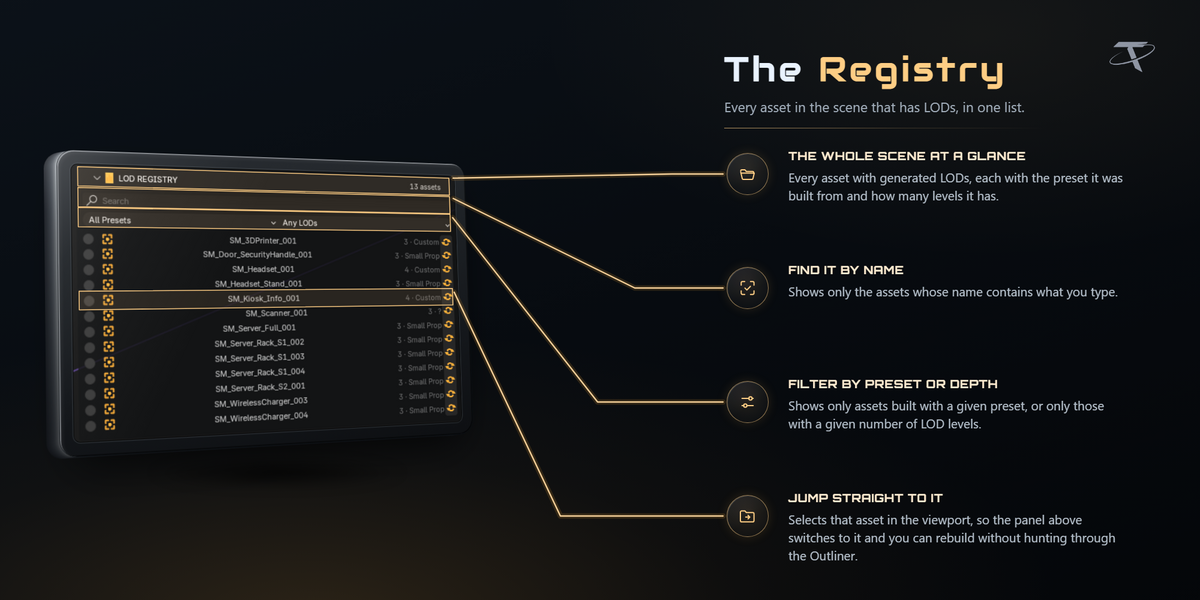
LOD REGISTRY lists every asset with generated levels, showing a badge like 3 · Medium Prop, with search, filters by preset and by level count, and Jump to Asset. Levels whose asset has been deleted are called out as orphaned.
LODs you already have
LOD Maker generates levels; it does not adopt meshes built elsewhere. The claiming is done by Unreal Bridge: Detect LODs by Name claims <Asset>_LOD1, _LOD2 and similar spellings, and Assign Selected as LODs takes whatever you have selected. Both stamp the same ID properties a generated level carries, so from that point the chain behaves identically.
Names that only look like levels are deliberately left alone. Crate_Lid_LOD1 is a part of Crate, not a level of it.
Tachyon Unreal Bridge
One-time Unreal setup
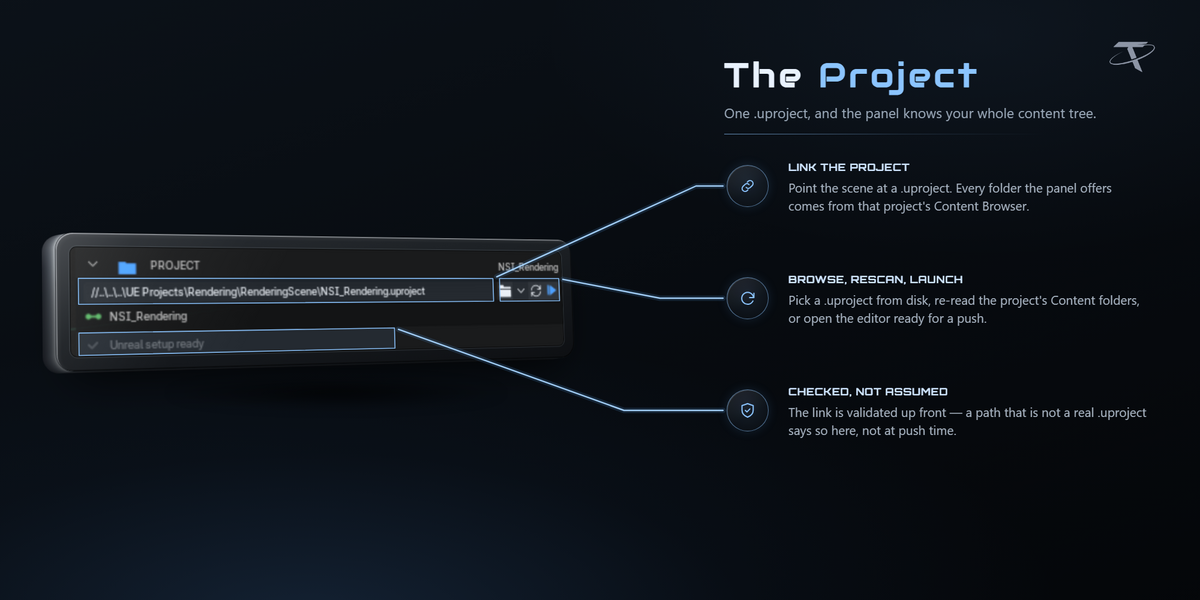
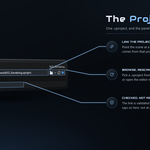
Three things, once: the Python Editor Script Plugin, Editor Scripting Utilities, and Remote Execution under Project Settings ▸ Plugins ▸ Python. You do not have to hunt for them — link your .uproject and the panel audits the project and offers Do It For Me, which switches all three on and backs up both files it edits, keeping their line endings so source control does not churn. Restart the editor once afterwards.
On the first push Windows asks to allow Blender through the firewall. The traffic is localhost only: UDP 6766 to find the editor, TCP 6776 to talk to it.
Linking a project, and folders
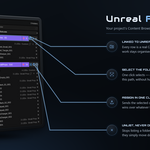
Link the .uproject and the folder tree is read from the project on disk, so you can browse it and assign assets with Unreal closed entirely. Add Unreal Folder opens the picker: the real Content Browser tree, indented and collapsible, with a search that reaches inside collapsed branches, plus a New Subfolder field for a folder that does not exist yet — Unreal creates it on the first import.
Registered folders are the ones the panel lists, in the order you put them in. A folder that assets resolve into but that you have not registered shows as a grey row with a + that adopts it. Removing a folder from the list never touches the assets pointing at it; they move down to Unlisted.
What gets exported, and where it goes
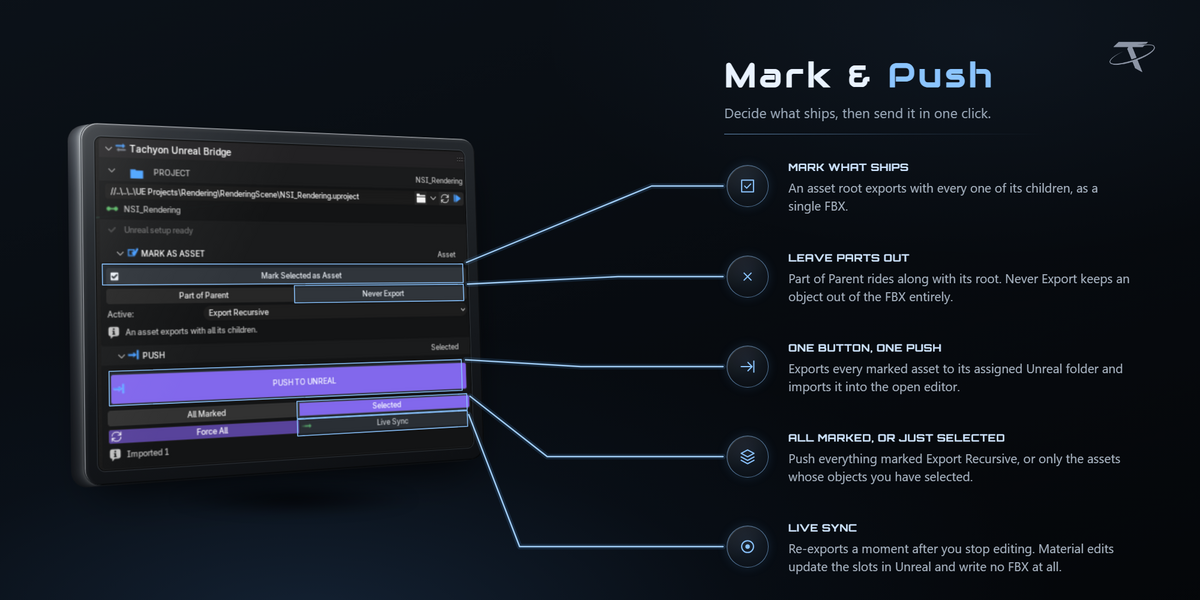
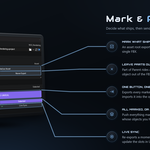
Every object is one of three things: Asset (an export root — it and all its children become one FBX), Part of Parent (the default), or Never Export.
Destination is resolved in three steps: a per-object override wins, then the innermost collection with an Unreal folder assigned, then the scene default. Every destination is forced under /Game.
Names are used as-is — Crate_001 imports as Crate_001 — sanitised only to characters Unreal accepts. Type prefixes like SM_ and SKM_ are opt-in in the import preset and never applied twice.
Pushing
Push to Unreal exports every marked asset and imports it into the open editor over Epic's own Python Remote Execution. With the editor closed, everything is written to a staging mirror and the panel says Exported N to staging; open Unreal, push again, and it imports. Re-pushing is always safe.
Your scene is never modified: exports happen on temporary duplicates that are thrown away afterwards, inside a safety net that cleans up even when an export fails.
Skip unchanged
Every asset is hashed on the way out — a content hash of the FBX that ignores the header, file ID and timestamp, so two exports of identical geometry hash identically. Unreal holds that hash as a tag on the imported asset and is the authority on what needs reimporting, so pushing two hundred assets after editing one costs one import. Force All ignores the mechanism entirely.
Sync status
Every asset row reads one of six words: In Unreal, Needs update, Not in Unreal, Moved in Blender, Deleted in Unreal, Moved in Unreal, with counts per folder and a colour key above the list. Search matches folder paths and asset names; filter by status to see only what needs attention.
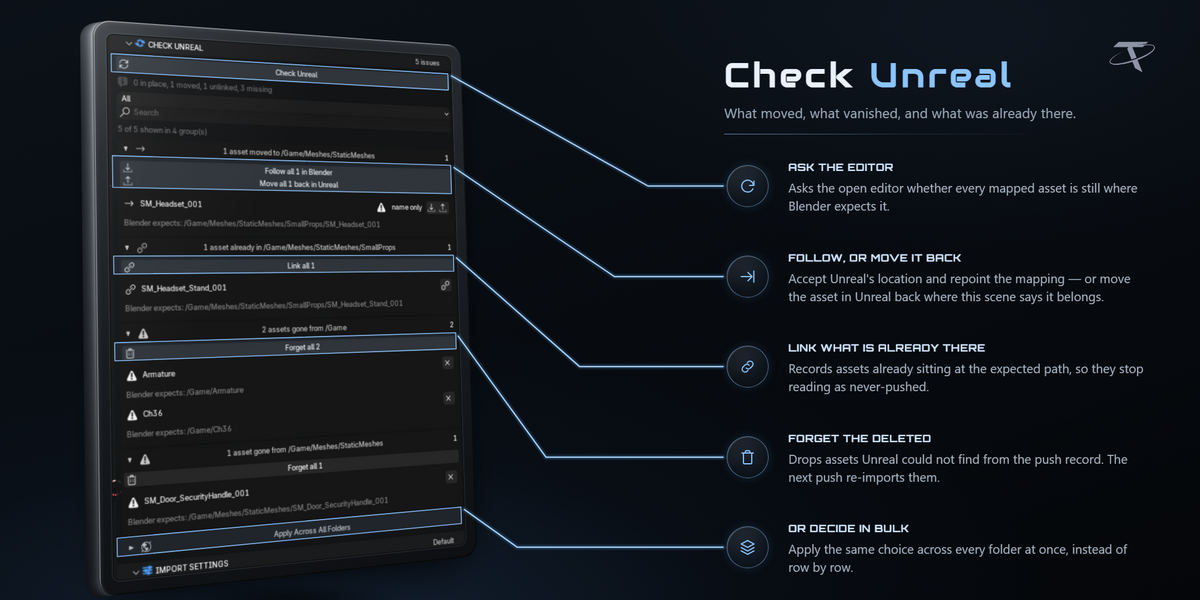
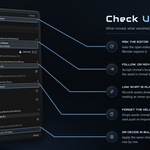
Check Unreal
Asks the open editor whether every mapped asset is still where this scene expects it. Anything moved, deleted, or sitting there with no push record is listed, and you choose per asset whether Blender follows Unreal or Unreal follows Blender. Moves are matched by content hash where possible, and the panel says outright whether a verdict rests on that hash or on the name alone.
Results fold into collapsible groups — one per verdict, per folder — and each group header carries the buttons that settle the whole group: Follow all N in Blender, Move all N back in Unreal, Link all N, Forget all N. A group mixing hash-confirmed and name-only matches also offers Follow only the N confirmed. Ambiguous results get no bulk button at all, because picking one for you would be a guess.
Live Sync
Toggle it on and every edit re-exports a beat after you stop — it waits for a quiet interval (1 second by default), works only from Object Mode, and never runs two round trips at once.
Smart decides how much to send. Move a vertex and only that asset's geometry goes. Change a material and no FBX is written at all: the slots are re-pointed inside the open editor, which works because the add-on never imports materials in the first place — it matches each slot against materials already in your project. If the slot layout itself changed, the asset falls back to a normal push automatically.
Badge puts a small readout in the bottom-left corner of the viewport: a dot and Unreal Bridge live sync while it is watching, and a line flashing what it just sent.
Import presets
An import preset holds the whole FBX import surface: transform, mesh, normals and tangents, materials, skeletal, animation. The add-on forces the legacy FBX importer with an explicit FbxImportUI rather than Interchange, so one preset behaves the same on 5.2 and on 5.8. Presets live in preferences and follow you across projects.
Shortcuts and layout
Shift + E opens either a pie menu with the eight things you actually do, or a floating quick window carrying the whole folder UI with no OK button — your choice in preferences. Preferences ▸ Layout lists every section with arrows to reorder it and three checkboxes: show it in the sidebar, in the quick window, in the pie menu. The sidebar tab can be renamed there too.
Several .blend files, one project
The push record is kept per Unreal project rather than per .blend, so two scenes pushing to the same project agree about what has already been sent.
Limits worth knowing
-
Unreal Bridge is Windows only. Engine discovery, editor launching and the setup repair are all Windows-specific. The other two add-ons run anywhere Blender does.
-
Unreal 5.2 – 5.8. The legacy FBX importer is driven deliberately; Interchange is not used.
-
Skeletal meshes: deleting a LOD chain in Blender reduces the imported asset back to LOD0 on the next push for static meshes. Skeletal levels are reported rather than restructured, because they are bound up with the skeleton.
-
Collision count: Unreal is happiest with a couple of dozen convex elements per asset, which is why Max Pieces exists and why the default preset stops at eight.
-
Blender 3.3: supported and tested, but it is the oldest rung and a few newer niceties are declined there rather than half-working.
Troubleshooting
Nothing imports — "No Unreal Editor found." The editor is not running, the three Python settings are not on, or the firewall prompt was declined. Re-run the setup check in the PROJECT section; Do It For Me fixes the settings, and the firewall rule can be allowed again from Windows Defender.
"Exported N to staging." That is the expected message with the editor closed. Open Unreal and push again.
An asset says "Not in Unreal" but I can see it in the Content Browser. Blender has no push record for it. Run Check Unreal: it comes back as Unlinked, and one button adopts it, hash and all.
A folder I made in Unreal is not in the list. The tree is read from disk. Press the refresh beside Add Unreal Folder after creating folders in the editor.
I changed a material and Unreal did not change. Materials are matched against what is already in your project rather than imported. If no match exists, create the material in Unreal once and push again.
My box collision is tilted. Box alignment is set to Oriented. Switch it back to Upright.
A curved part came out as several boxes. Box Fit is low enough that each segment counts as boxy. Raise it, or turn Prefer Boxes off so every piece ships as a hull.
The panel is not there. Check the add-on is enabled, then look for the tab name you set — it is a preference, and renaming it in one add-on renames it in all three.
Network use and files written
Collision Maker and LOD Maker open no sockets at all. They send no telemetry and check no licence. The Documentation and Discord buttons hand a URL to your default browser; the add-on makes no request and sees no response.
Unreal Bridge talks to localhost only — UDP 6766 to discover the editor, TCP 6776 to send it commands. Nothing leaves your machine.
Each add-on writes its own preferences, preset files only where you choose to export or import them, and a one-line marker in Blender's config folder recording which version last showed its welcome. Unreal Bridge additionally writes the FBX files it exports (to your project or to the staging mirror), its per-project push record, and — only when you press Do It For Me — your .uproject and Config/DefaultEngine.ini, both backed up first as *.tul-backup.
Support
-
Discord: join us here. The same invite is in each add-on's preferences, under Help.
- Each add-on has its own documentation page on its product listing: Unreal Bridge, Collision Maker, LOD Maker.
- Licence: GPL-3.0-or-later. The full text ships in each add-on as
LICENSE.
 Tachyon Studio


 Included