 Unik Studio



Lattice DeformDocumentation
LatticeDeform removes the tedious part of lattice deformation. One click builds a lattice that exactly frames your selection and binds it, then you shape it with fourteen procedural deformers, a sculpt brush, or by hand.
Everything stays non-destructive. Stack multiple lattices on the same source—even directly on top of one another—and use the always-visible Lattices manager to choose exactly which cage you are editing. Your mesh is untouched until you choose to bake.
Requirements
- ✓Blender: 4.5 or newer.
- ✓Deformable object types: mesh, curve, surface and text.
- ✓Local execution only: LatticeDeform does not use online services or network access. Its file permission is used only for a small viewport-theme recovery backup in Blender's config folder.
Installation
- Download the LatticeDeform zip package from Superhive.
- Open Blender.
- Go to
Edit > Preferences > Get Extensions. - Choose
Install from Disk. - Select
lattice_deform-1.0.1.zip. - Enable LatticeDeform.
You can also drag and drop the extension zip onto the Blender window.
All controls live in the 3D Viewport sidebar: press N and open the LatticeDeform tab.
Quick Start
- Select one or more objects in the viewport.
- Open the LatticeDeform sidebar tab.
- Set
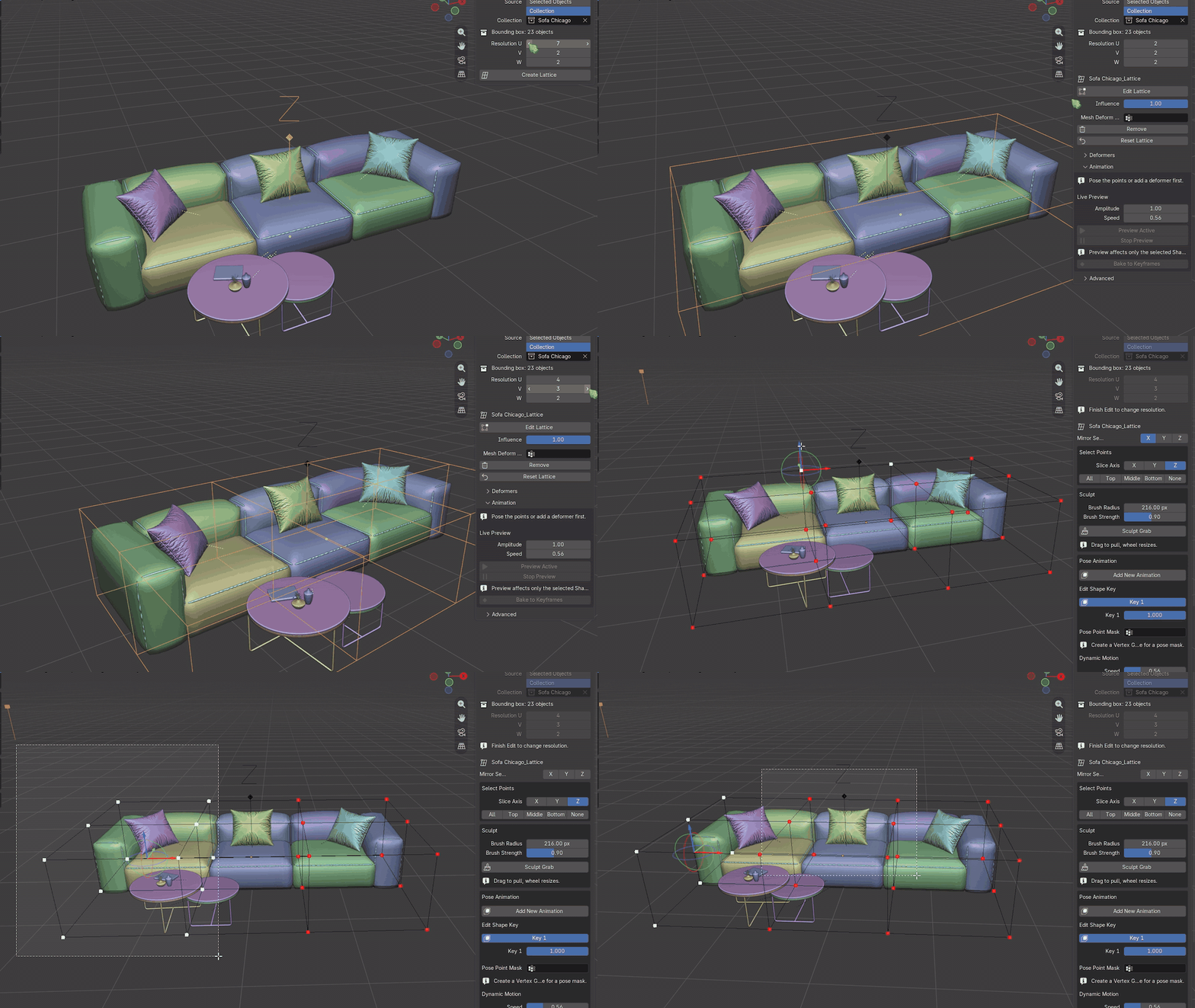
Resolution U / V / W— 2×2×2 for broad shaping, higher for detail. - Click Create Lattice.
- To stack another cage on the same source, select the source again and click Add Lattice. Overlapping cages are supported.
- Choose any cage by name in the Lattices manager, the viewport, or the Outliner. The active cage is outlined in orange and the sidebar switches to that cage's own settings.
- Open the Deformers sub-panel, choose a deformer, and click Add Deformer.
- Drag the deformer's value slider to taste.
- Use Bake This Lattice when you want final geometry, or the manager trash button to remove only that cage while leaving other cages intact.
Creating A Cage
From an object selection, a collection, or a handful of vertices.
Fit to Selection (Object Mode)
The cage's world extent matches the selection's bounding box exactly, at every resolution — including asymmetric grids such as 2×5×8.
- ▸Source: Selected — the current object selection.
- ▸Source: Collection — every deformable object in a chosen collection. Each cage keeps a durable link to that collection; Add Lattice creates another independent cage and modifier layer for the same source.
Library-linked objects are read-only and cannot take modifiers. LatticeDeform skips them and tells you so — make a library override, or use Realize & Fit on their instancer.
Fit to Selection (Edit Mesh)
While editing a mesh, a Fit to Selection panel appears. It fits a cage to the selected vertices only and creates a matching vertex group, so the deformation stays inside that selection and the rest of the mesh does not move. Selecting the whole mesh skips the group.
The operator returns you to Object Mode. This is required: a modifier bound while the mesh is still in Edit Mode never reaches the evaluated result.
Resolution
Resolution U / V / W accepts 2–64 per axis. The sliders are live — changing them rebuilds the cage in place, preserving the fit, the deformer stack and any hand-sculpted shape keys.
Resolution is locked while in Edit Mode. Finish editing to change it.
Deformers
Fourteen procedural shapes, stacked as shape keys.
Each deformer is written into its own shape key on the lattice, so they stack and blend like modifier layers and every one is keyframeable. Sliders run from −2 to 2; negative values invert the effect.
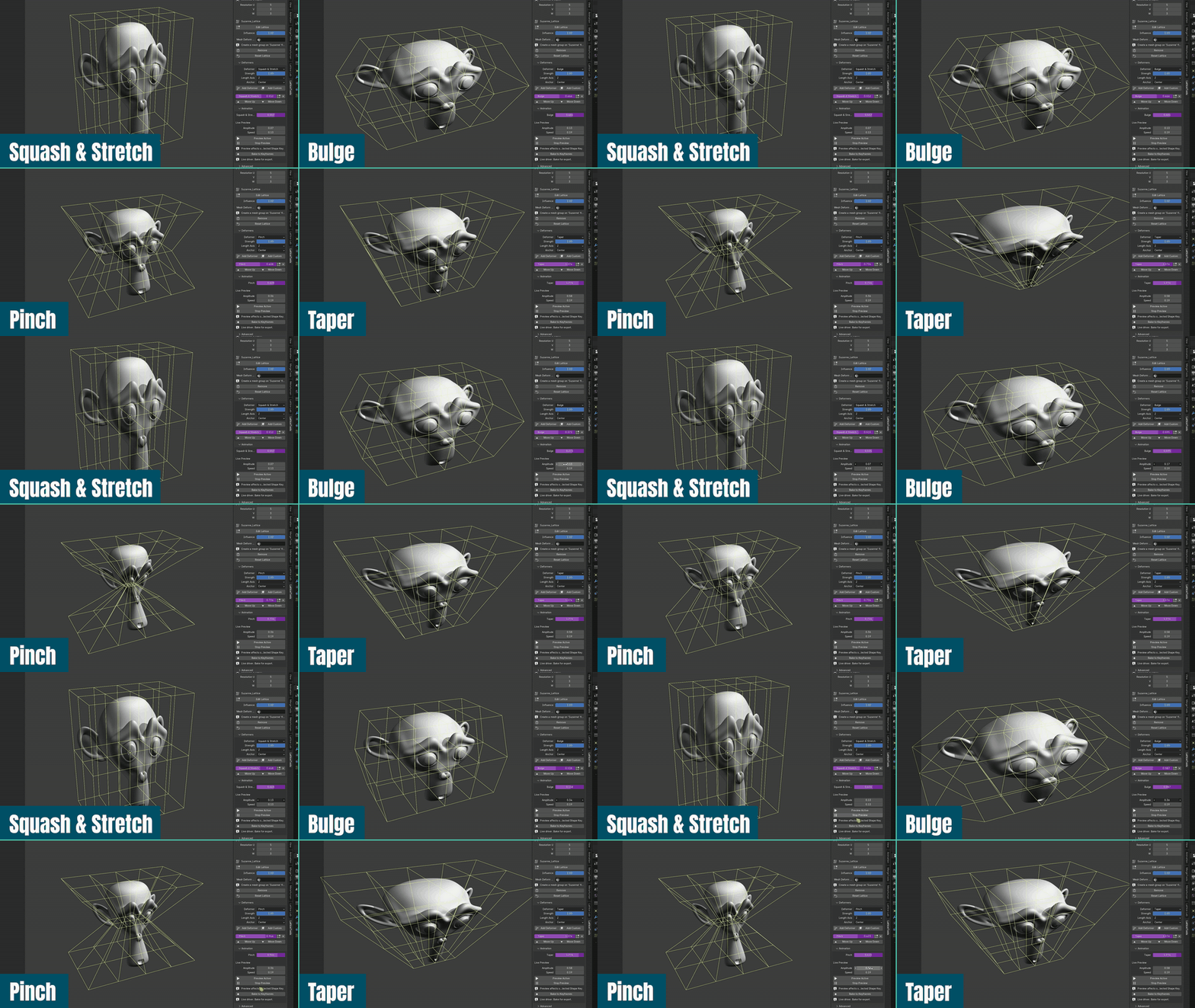
| DEFORMER | EFFECT |
|---|---|
| Squash & Stretch | Volume-preserving scale along the length axis |
| Bulge | Widens the middle |
| Pinch | Narrows the middle |
| Bend | Curves the object around an arc |
| Taper | Linear width falloff |
| Twist | Rotation around the length axis |
| Bloat | Uniform inflate toward a sphere |
| S-Curve | Double bend through the object |
| Wave | A single lateral hump |
| Shear | Linear slant |
| Flare | Widens toward both ends, vase-like |
| Noise | Deterministic random per-point offset |
| Shear 2-Axis | Slant on both cross axes at once |
| Spiral | Twist that tapers along the axis |
Length Axis
Auto picks the cage's longest axis, or force X, Y or Z. Disabled for Bloat and Noise, which act on all axes.
Direction
Which way a Bend, Wave, Shear or S-Curve travels.
A length axis leaves two cross axes free, and the deformer only uses one of them. Without this control a Z-length bend could only curve one way. Choose the other axis to bend the opposite way — for example, wrapping a flat label around a bottle.
Auto keeps the deformer's own default. The dropdown only appears for those four deformers; the rest act on both cross axes and ignore it. Choosing the same axis as Length Axis is meaningless, so it falls back to automatic and says so.
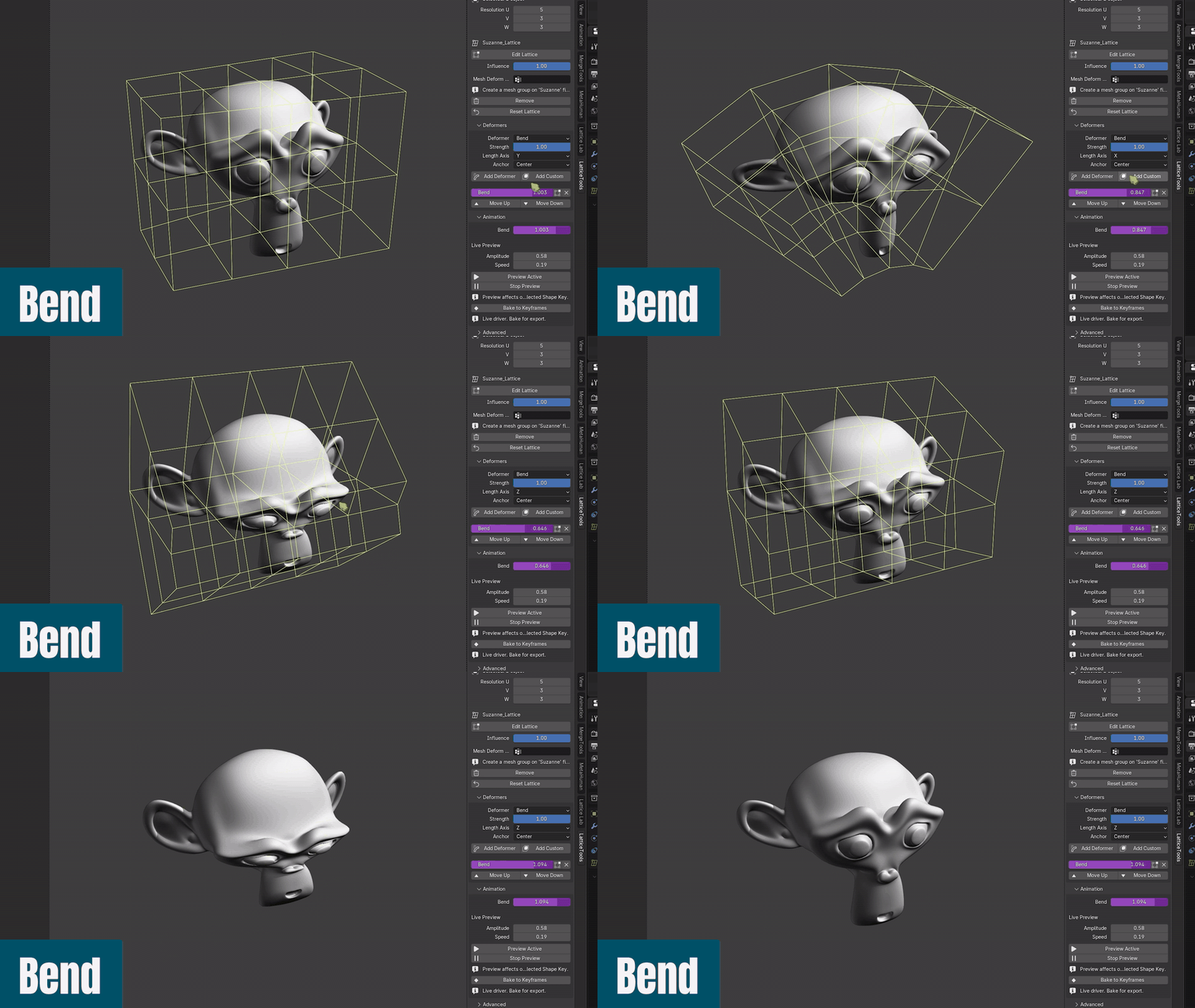
Anchor
Center deforms symmetrically around the middle. Base plants the bottom so the deformation grows upward, like a swaying tree. Top plants the top.
Editing a deformer after adding it
Changing Length Axis, Direction or Anchor rebuilds the active deformer in place. Its value, keyframes and drivers survive. The choice is stored per deformer, so it also survives saving, reloading and resolution changes.
Deformers that need more control points raise the resolution automatically and warn you. Bulge, Pinch, Wave and Flare need an odd count along the axis to read correctly.
Per-deformer controls: a value slider, Edit to jump into Edit Mode with that key active, and Remove. Use Layer Up and Layer Down under Active Lattice to reorder that cage's modifier layer on every bound object.
Editing The Cage By Hand
Point selection, mirroring, and a falloff brush.
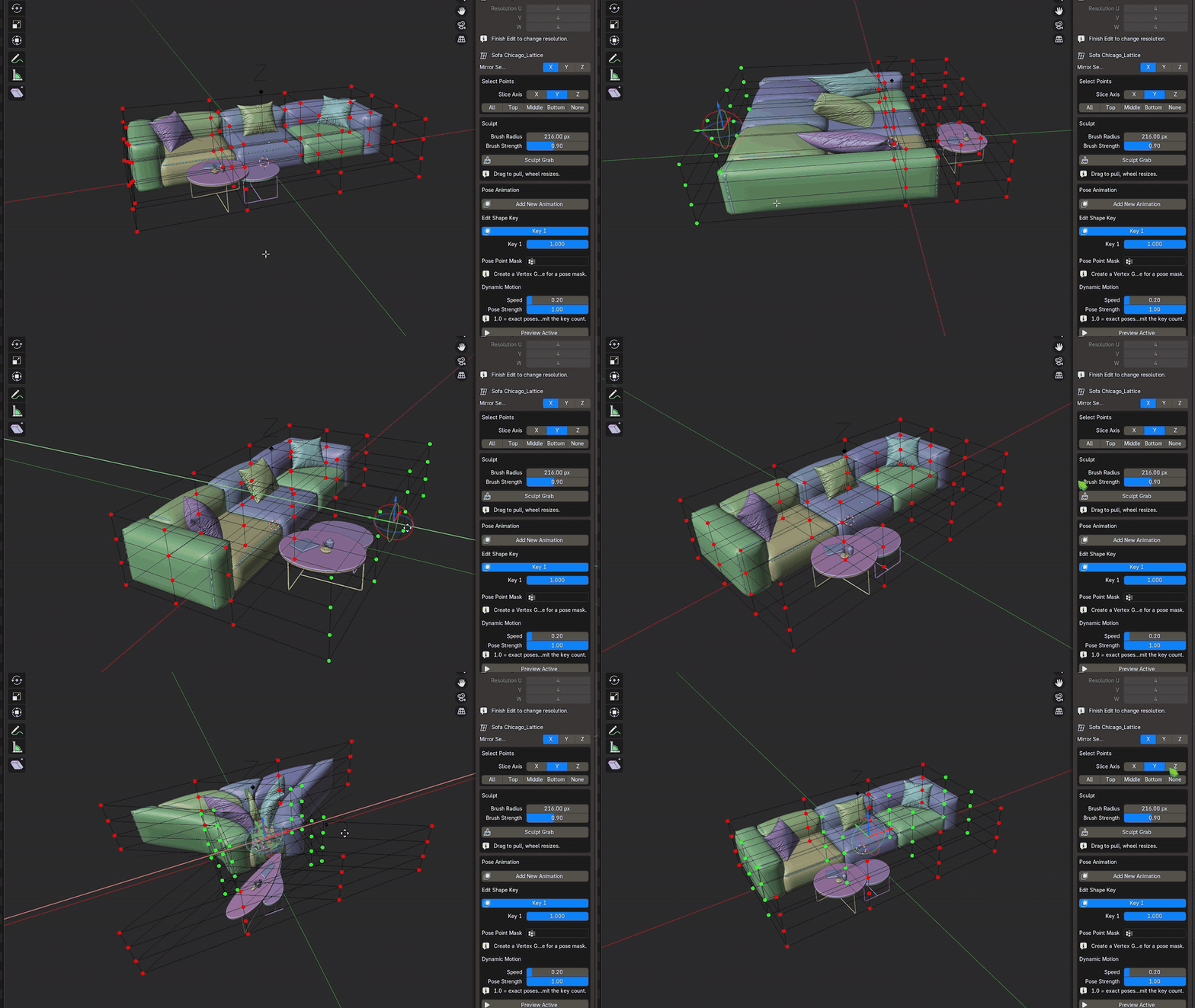
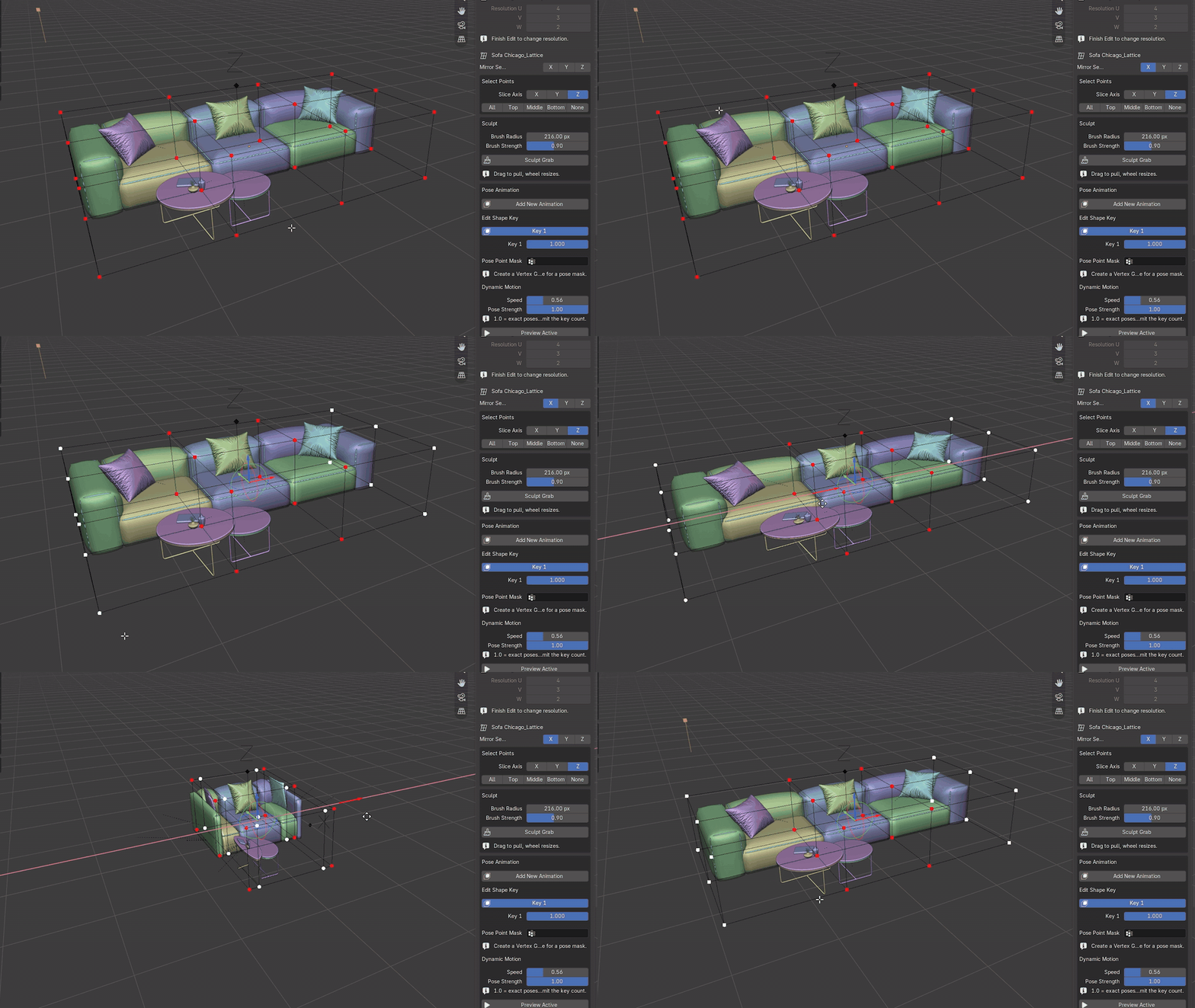
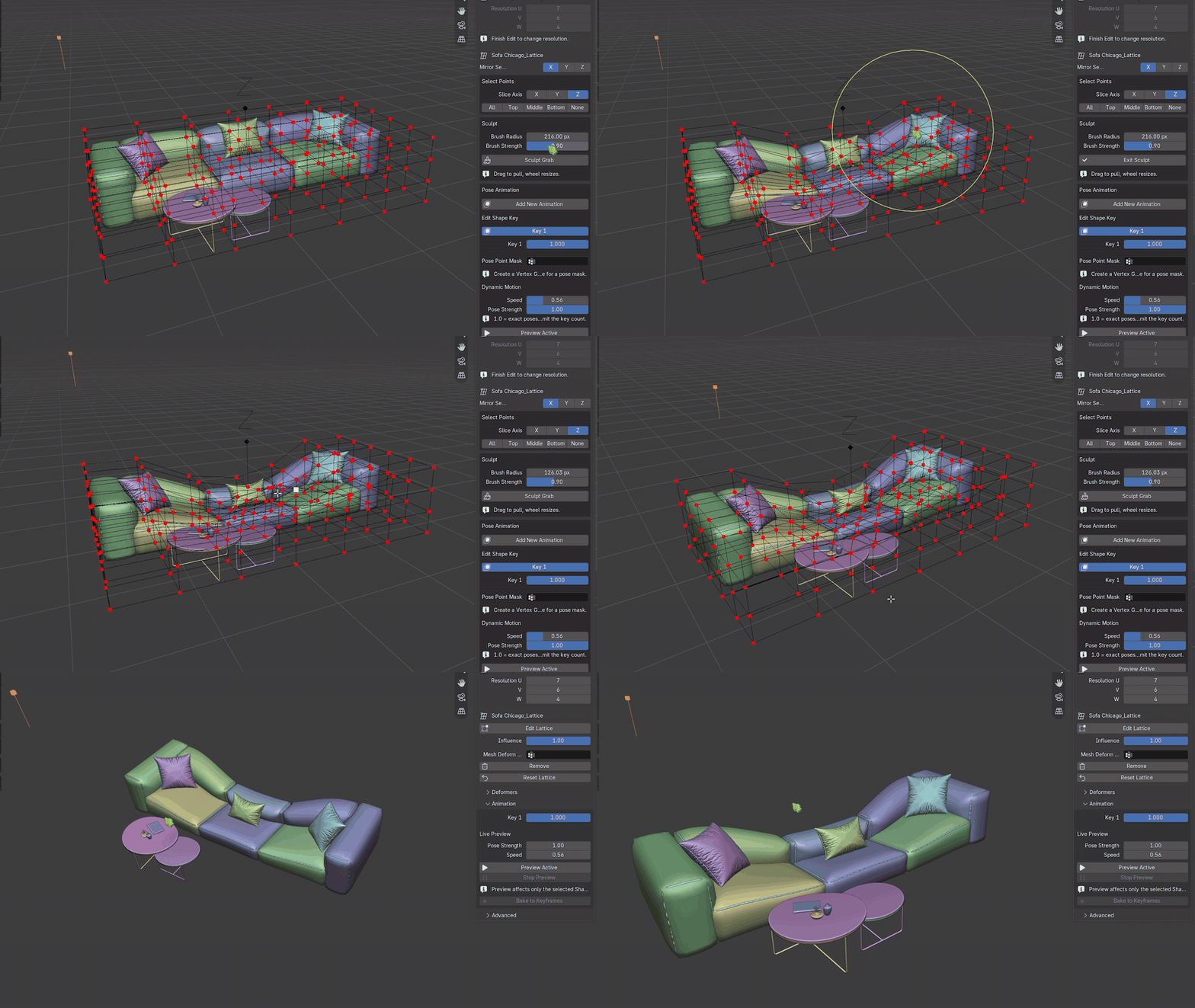
Edit Lattice enters Edit Mode with a display built for lattice work: custom point size and colours, hover highlight, and a clickable gizmo on every control point. The viewport theme is modified while editing and fully restored on exit — including after a crash, via a backup file in the Blender config folder.
-
▸Select Points — All, Top, Middle, Bottom, None, with a selectable
Slice Axis. - ▸Mirror Selection X / Y / Z — selecting a point also selects its reflection about the local origin, and moving one moves the partner symmetrically. Points sitting on a mirror plane select alone. With all three axes on, one corner pulls all eight.
- ▸Tab toggles Edit Lattice from the viewport.
- ▸Ctrl+Z inside the cage undoes the last point edit without leaving Edit Mode.
-
▸
Reset Latticeflattens the cage back to its rest grid while keeping the binding.
Sculpt Grab
A modal brush that drags lattice points with a falloff.
- ▸Drag with the left mouse button to pull points. The radius circle is drawn under the cursor.
-
▸Mouse wheel resizes the brush. Shift + wheel changes strength.
Fgrows it. -
▸
EnterorTabfinishes.Escor right mouse cancels and restores the pre-sculpt state. - ▸Middle mouse and numpad views pass through, so you can orbit while sculpting.
-
▸Clicks outside the viewport also pass through, so the sidebar's
Exit Sculptbutton stays usable.
Cage Visibility
Each manager row has an eye button for cage visibility and a modifier button for deformation. Hiding a cage leaves its deformation running; disabling deformation leaves the cage available for management.
The active managed cage is outlined in orange—even when cages overlap—and the outline follows evaluated Shape Key and animation deformation.
Cage Opacity fades only the selected cage instead of hiding it.
Poses And Animation
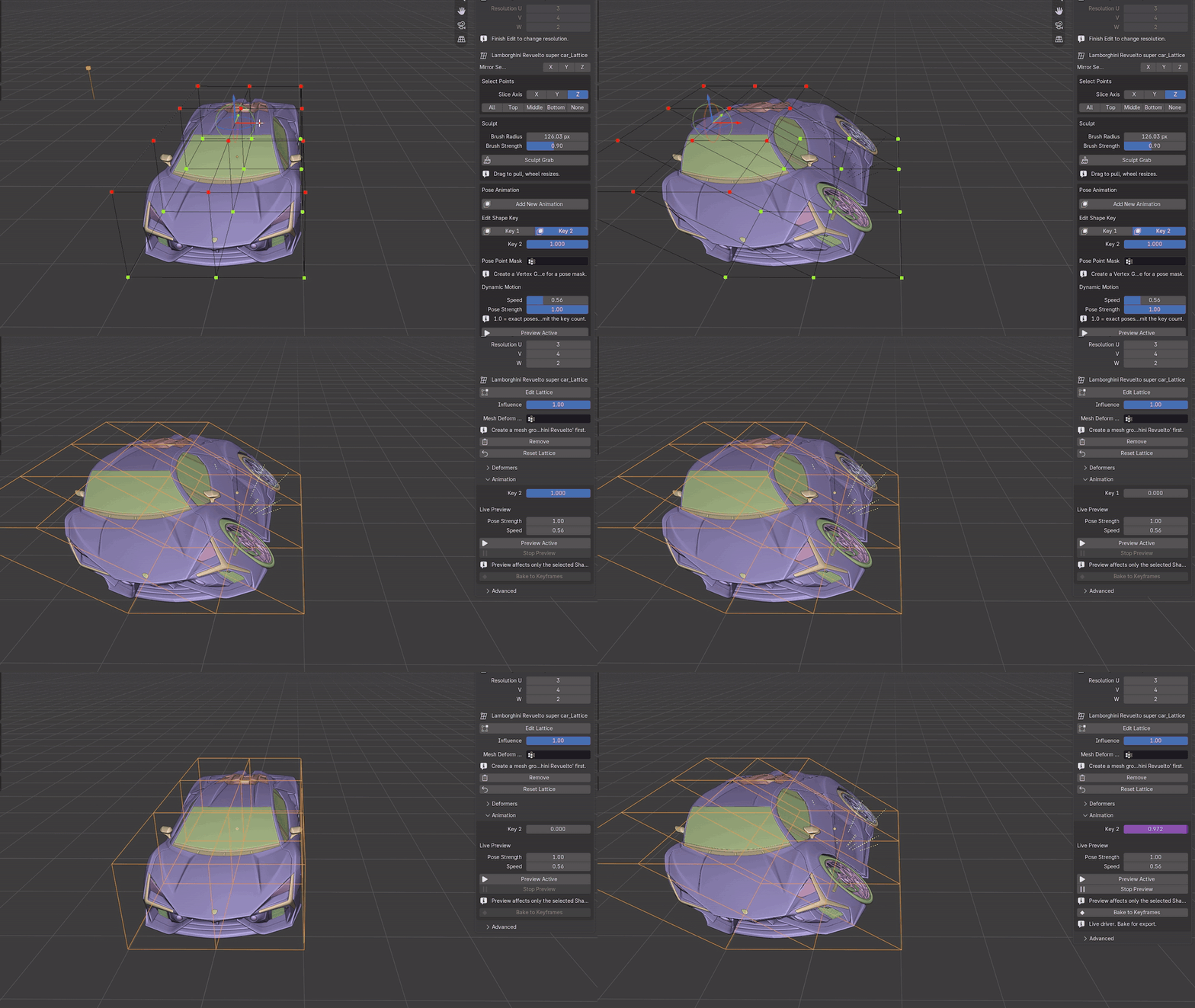
Add New Animation creates a numbered pose key to sculpt into. Each pose gets its own button, and the active one is highlighted. Poses can be masked to a vertex group on the lattice itself.
-
▸
Preview Activedrives the selected key's value from a live sine driver — no keyframes, instant feedback in the viewport. -
▸
Pose Strengthsets how far the pose is reached; 1.0 hits the exact pose. -
▸
Speedsets the cycle rate, shown as a period in frames. -
▸
Stop Previewremoves the drivers. -
▸
Bake to Keyframesconverts the live driver into real F-curves across the scene frame range, ready for export.
Preview Active always affects only the selected Shape Key, so switching cages or poses stays predictable.
Influence And Masking
-
▸
Influence(0–1) scales the Lattice modifier's strength on every bound object at once. 0.5 gives exactly half the displacement. -
▸
Mesh Deform Maskpicks a vertex group on a bound mesh so only those vertices deform. -
▸
Pose Point Maskpicks a group on the lattice itself to limit only the active Shape Key. Influence and both masks are stored per cage. - ▸Fitting from an Edit-Mesh vertex selection creates that group for you.
Managing Cages
| ACTION | WHAT IT DOES |
|---|---|
Lattices manager |
Always-visible list of every managed cage; click a name to select it and open its own settings |
Orange active outline |
Identifies the selected cage when cages overlap and follows evaluated Shape Key or animation deformation |
Eye / modifier buttons |
Show or hide one cage, or enable or disable only that cage's deformation |
Add Lattice |
Creates another independent cage and modifier layer for the chosen source; overlapping cages are supported |
Duplicate |
Copies the active cage, deformers, animation, masks, influence, enabled state and source association; Live Auto-Fit starts off on the copy |
Name / Layer Up / Layer Down |
Renames the active cage and reorders its modifier layer on every bound object |
Select Bound Objects |
Selects everything the active cage deforms |
Trash |
Removes only the active cage and its modifiers; other overlapping cages remain intact |
Live Auto-Fit |
The active cage follows its objects as they move, rotate or scale |
Bind Selected / Refit to Objects |
Adds more objects to the active cage or re-fits it after its objects change size |
Realize & Fit |
Converts instancers to real objects, then fits a managed cage |
Finishing
-
▸
Bake This Latticeapplies the modifier into the mesh and keeps the cage. -
▸
Bake All Latticesbakes every LatticeDeform cage in the scene and deletes the spent ones. This affects all cages in the file, not only the selected one. -
▸
Reset Latticeclears deformers, keyframes and drivers, and puts the points back on the rest grid. The binding is kept. -
▸The manager
Trashbutton deletes only the active cage and its modifiers, leaving the mesh and every other cage intact — nothing is baked in.
Also available through F3 operator search: Apply & Remove, which applies the modifier and deletes the cage in one step, and Set Resolution.
Preferences
Add-on preferences, and the Lattice Display box in Edit Mode, control:
-
▸
Select Lattice After Fit— whether the new cage becomes the active object. -
▸
Edit Vertex Size(1–32),Vertex Colour,Selected Colour, and theHover Highlighttoggle.
Display settings are remembered between sessions and restored on file load.
Performance Notes
- ✓Lattice deformation cost scales with the bound mesh's vertex count, not the cage resolution. Very dense meshes update more slowly.
- ✓Keep the resolution as low as the shape allows. Most deformers read well at 3×3×3.
-
✓
Live Auto-Fitre-fits on every dependency-graph update; turn it off once the layout is settled. - ✓Bake only when the result is approved.
Known Limitations
- 1Cage volume: Blender's lattice deform only affects geometry inside the cage volume. Geometry outside it is not moved.
- 2B-spline undershoot: B-spline interpolation, Blender's default, deliberately undershoots: a squash of 1.0 reads at roughly 1.8× rather than 2×, converging as resolution rises. Switch the lattice's interpolation to Linear if you need exact figures.
-
3Linked objects: library-linked objects cannot take modifiers. Use a library override or
Realize & Fit. - 4Resolution and shape keys: Blender makes lattice resolution read-only once any shape key exists. LatticeDeform works around this by rebuilding the cage, which is why a resolution change re-applies the deformer stack.
-
5Bake is final:
Bake to Meshends the live state for that object. Save a version first if you may need to return to it.
Release, License And Support
Compatibility And Dependencies
- ▸Blender: 4.5 or newer. Release tests passed on Blender 4.5.11 LTS, 5.0.1, 5.1.2 and 5.2.0 LTS.
- ▸Operating system: Windows 11 is tested. macOS and Linux have not yet been validated.
- ▸External dependencies: none. The extension works offline and does not require a separate application, account or Python package.
Update Or Uninstall
- To update, install the newer extension ZIP from disk and keep only one LatticeDeform version enabled.
- To uninstall, open
Edit > Preferences > Get Extensions, find LatticeDeform, open its menu and choose Uninstall. - Uninstalling does not remove lattices already stored in a
.blendfile. Bake or remove managed lattices first when a scene must no longer depend on the extension.
License And Support
LatticeDeform is distributed under GPL-3.0-or-later. The full license is included in the ZIP.
For help, use the Superhive product support inbox. Include the LatticeDeform version, Blender version, operating system, reproduction steps and a small .blend file when possible.
Reports are reviewed as availability permits; response times and future update cadence are not guaranteed. Reproducible defects on supported Blender versions are prioritized, while feature requests are considered without a promised schedule.
Changelog
Version 1.0.1 — 2026-08-27
- ▸Expanded official compatibility to Blender 4.5 LTS and newer.
- ▸Added the always-visible Lattices manager for creating, choosing, renaming, showing, disabling, duplicating, reordering and removing multiple cages.
- ▸Added an orange active-cage outline and independent per-cage settings so overlapping lattices remain clear and predictable.
Stop scaling lattices by hand.
Fit, deform, sculpt, animate — and leave your mesh exactly as you found it.
