Universal Bridge — Documentation
Installation, app-specific setup and safe first transfers for the 12 included bridges.
1. What this purchase contains
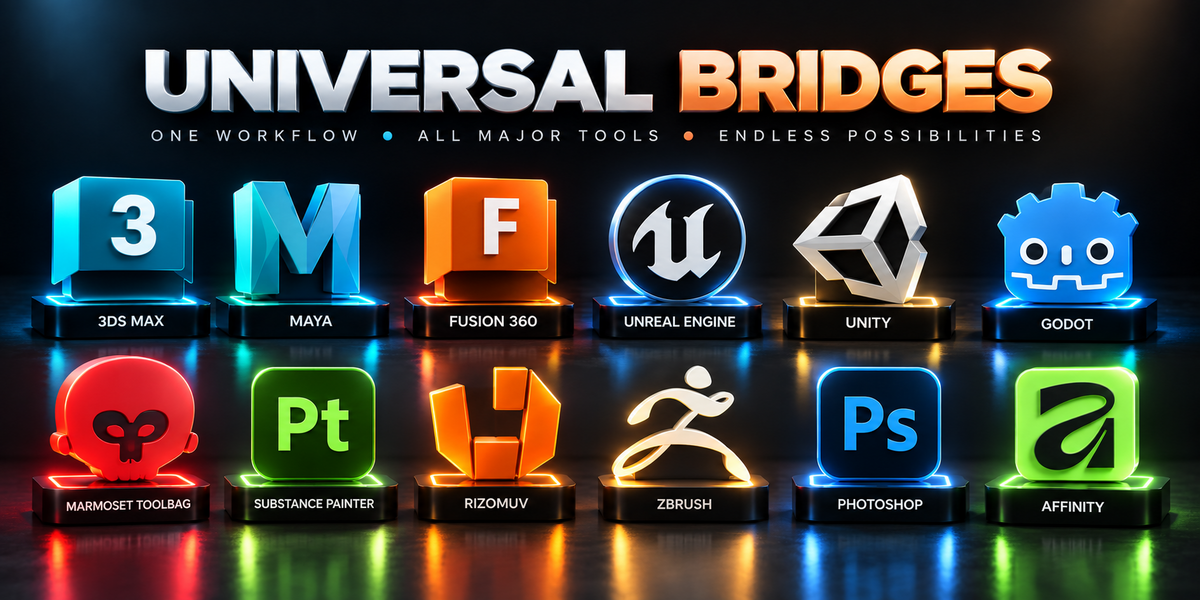
This is a standalone bundle of the following Blender bridges: 3ds Max Bridge, Maya Bridge, Fusion 360 Bridge, Unreal Engine Bridge, Unity Bridge, Godot Bridge, Marmoset Toolbag Bridge, Substance Painter Bridge, RizomUV Bridge, ZBrush Bridge, Photoshop Bridge, Affinity Bridge. Install only the bridges you need. External applications, their licenses, unrelated Tachyon Studio add-ons and unannounced future bridges are not included.
Individual is for one person, including professional work. Business / Studio covers up to five members of one studio or production team. Both options contain the same tools. This bundle listing is separate from the individual product listings; do not assume it adds separate purchases to your account.
2. Requirements
Windows only; macOS and Linux unsupported. Blender 3.3–5.2 and compatible companion applications are required. The intended installation format is the classic add-on for Blender 3.3–4.1, or the Extension package for Blender 4.2–5.2. Use the package that matches your Blender version; do not enable both formats for the same bridge.
Each bridge has different companion software, file-format and setup requirements. Check the app-specific notes below before installing. A bridge does not grant a license to any external application.
3. Install and configure
- Save your Blender scene and keep a backup before changing your setup.
- Download the required bridge installer from this bundle’s download area. If downloads are delivered inside a collection archive, extract that archive first and locate the individual installer ZIPs.
- For Blender 3.3–4.1, open Edit → Preferences → Add-ons → Install and select the classic installer ZIP. For Blender 4.2+, use Install from Disk for the matching Extension ZIP.
- Enable the bridge, then set the external application executable and a writable local exchange folder in its setup/preferences.
- Install the matching companion script or plugin only where required by that bridge. Use the setup notes below.
- Open Blender’s 3D Viewport sidebar with N and look for the bridge controls. Many bridges use the Universal Bridge tab.
- Test with one simple asset before transferring a production scene. Keep automatic synchronization off until manual transfer works.
4. App-specific setup
Maya Bridge
Choose the Maya executable and install the companion script matching the bridge release. UV-only returns require matching names and topology.
Detailed Maya Bridge documentation
Fusion 360 Bridge
Install the Send to Blender add-in in Fusion and configure the exchange folder. Exchange uses polygon mesh files; it does not preserve an editable CAD feature history.
Detailed Fusion 360 Bridge documentation
Unity Bridge
Choose the Unity editor and project Assets folder. Install the included companion scripts for the features that require them. Return operations read exported files; not every native Unity object can round-trip.
Detailed Unity Bridge documentation
Godot Bridge
Requires Godot 4.x and a project folder. Native glTF import needs no companion plugin; optional editor controls use the included plugin.
Detailed Godot Bridge documentation
Substance Painter Bridge
Requires a separately licensed Substance 3D Painter installation. Live mesh reload needs Painter 7.4+; in-app baking needs 8.2+. Install the companion plugin for auto-export, baking and status features.
Detailed Substance Painter Bridge documentation
RizomUV Bridge
Choose the RizomUV executable and configure its Remote-Control path for a running instance. Use the documented UV-return workflow to preserve mesh geometry.
Detailed RizomUV Bridge documentation
ZBrush Bridge
Requires ZBrush 2021 or newer. Choose the installed executable and configure GoZ or the included ZPlugin route. Save a scene backup before topology-changing work.
Detailed ZBrush Bridge documentation
Photoshop Bridge
Requires a compatible Photoshop installation. File-based image exchange works without a Photoshop plugin. Optional Send to Blender controls use Photoshop scripting.
Detailed Photoshop Bridge documentation
Affinity Bridge
Requires Affinity Photo v1/v2 or unified Affinity (2025). Save or export to the watched interchange file; no Affinity plugin is required.
Detailed Affinity Bridge documentation
5. Safe first transfer
Choose one mesh—or one image for an image-editing bridge—and verify units, output paths, destination project and selected transfer settings. Complete a manual send, inspect the result in the other application, then use the documented return procedure where supported.
UV-only returns depend on matching topology and naming. CAD exchange transfers meshes rather than native CAD history. Texture bridges return image maps, not arbitrary native shader graphs. Engine returns rely on supported exported files or the bridge’s documented scene tools.
6. Troubleshooting
-
Application not found: choose the correct executable manually and check that the application launches normally.
-
No transfer appears: verify selected objects, destination project, exchange path and required companion setup. Start with manual transfer.
-
Permission or file errors: use a writable local exchange folder. Avoid testing first on a protected, network or cloud-synced path.
-
UV or material mismatch: verify names, topology, texture paths and supported formats. Consult the specific bridge manual before replacing production data.
-
Duplicate controls or registration errors: check for multiple installed copies or both classic and Extension editions enabled. Preserve settings and backups before replacing an installation.
-
Live sync is not responding: confirm a manual transfer works, then check that the current bridge supports the desired sync direction.
7. Updates and support
Use the files supplied through this bundle listing for bundle updates. Keep companion scripts/plugins matched to the bridge release. No future bridge additions or automatic credits for previously owned products are promised by this page.
When reporting a problem, include the bundle name, bridge name and version, Blender and external-application versions, exact error and reproduction steps. Remove confidential assets and credentials from screenshots and logs.
Made by Tachyon Studio
Questions or setup help? Join our Discord or contact Tachyon Studio through Superhive.
RELEASE HISTORY
Universal Bridge: Godot — Release history
The releases that changed something, newest first. Each entry is checked against the build that was actually shipped: the add-on carries its whole feature set in one file, so what a version registers is a matter of record rather than of memory. Maintenance releases that moved this bridge on in no way are left out.
3.0.9
FIXED
-
A clean Preflight was counted as one problem. Preflight leaves a "No issues found." line behind when it finds nothing, so that an empty list can go on meaning "it has not run". The card counted that line as a finding: after a clean check it drew a red "1 preflight issue(s)" warning and added one to the count of things needing attention, with nothing wrong.
3.0.8
ADDED
-
Live Sync. Every edit crosses to Godot on its own — no Push, no button. Press it again to stop. It needs the editor plugin and Godot open on the scene.
3.0.7
ADDED
-
Material Kind — Lit or Unshaded. Choose which Godot shader the imported material uses, instead of always taking the lit one. An unshaded material is what UI, flat-colour and stylised work actually wants, and converting it by hand in the engine was the only way to get one.
3.0.6
FIXED
-
Materials with more than one slot now bring their textures. If a mesh had two or more material slots, textures were copied for the first material only and the rest were silently skipped. Every slot is handled now.
2.26.0
ADDED — BUILDING THE LEVEL IN BLENDER
-
Pull Level / Push Level. The open Godot scene comes into Blender as light proxies; you lay the level out with Blender's own tools and push it back as one undo step in the editor.
-
Place Asset searches every model in the project and drops one at the 3D cursor.
-
Paint Proxies drops copies under the mouse as you click across a surface, with brush jitter.
-
Scatter on Surface covers the selected meshes with copies of the active proxy.
-
Array to Point — a ghost copy you drag to where the run should end, with the copies appearing in between. Count, direction, include children, and either linked duplicates or one merged object.
-
Drop to Floor, Randomize Transform, Swap Scene, Realize Arrays.
-
Snap Selected to Grid, with saved Grid Snap Presets.
-
Save / Apply / Delete Layout Snapshot — remember where every proxy is, under a name.
-
Select in Godot, Select Changed and View from Godot, so the two applications agree on what you are both looking at.
-
Revert to Godot and Unload Level.
ADDED — WHERE THINGS LAND
-
Folders. The project's folder tree, read and used for routing: Mark Folder, Send Here as a per-object override, a collection's own folder, Move to Marked Folder, Select Assets, Rescan Folders.
-
Import Options written into the asset's
.import file — Import Scale, Generate LODs, Shadow Meshes, Compress Mesh, Light Baking, Animation FPS — so Godot imports it that way the first time. The file is merged, not replaced, so the uid:// other scenes reference survives.
-
Import Presets — save a combination under a name and apply it later.
-
Pivot: Base Center, so props sit on the floor where you drop them.
-
Add Socket — a
SOCKET_<name> empty Godot keeps as a transform.
ADDED — MORE WAYS TO SEND
-
Send Batch, Send as One, Each Collection, Send Scene, Send This Collection, Send All Assets and Send Scene Layout.
-
Send Textures — the materials' texture files travel with Send instead of waiting for a second button — plus Update Textures Only, Send Texture Folder and Setup Textures in Blender.
-
Pull Painter Textures — a texture set Substance Painter exported, wired into the Blender material and copied into the Godot project in one action.
ADDED — THE VIEWPORT CARD
-
The whole bridge as a card in the 3D View, with an animated explanation beside any control the pointer rests on, search, Favorites, a mini mode and its own colours. Either interface switches to the other with a button.
ADDED — KEEPING THE PROJECT TIDY
-
Restore Version puts an earlier copy of an asset back into the project.
-
Move Strays Aside moves model files nothing in this .blend could have written into
.ub_history/strays. Nothing is deleted.
-
Preflight Check, Change / Use / Forget Project, and the panel layout wizard.
FIXED
-
Save Preset did nothing at all — there was nowhere for a preset to be kept, and the code that wrote it raised.
-
Root Node was a setting the panel showed and nothing read. It now names the imported scene's root.
2.0.1
FIXED
-
A maintenance release. No button, setting or module changed from 2.0.0.
2.0.0
ADDED
-
Send to Godot — the selected meshes as glTF (.glb) straight into the project folder, which Godot imports natively the moment the editor gets focus.
-
Get from Godot — a glTF Godot exported, back into Blender in one click.
-
Detect Godot — every Godot build on the machine, newest first, with a version picker and a custom executable path.
-
Open Godot and Open Export Folder.
-
Install Godot Plugin — the optional editor plugin, copied into the project in one click.

Tachyon Studio
Ask the developer directly, and pick up your 10% discount coupon for your next add-on.
 Tachyon Studio